The best emoji copy and paste alternative is a searchable, browser-based Unicode picker that finds any glyph by name or keyword and copies it to your clipboard with a single click. Built-in operating system menus force you to scroll through dozens of pages, color-coded tabs, and skin-tone variants before you find the right glyph, and most third-party emoji sites bury the copy button behind ads, sign-ups, or bloated pages. The Emoji Copy and Paste tool inverts that experience: instead of browsing category by category, you type a word like "smile", "heart", "fire", or "cat" and the picker matches it against each emoji's official Unicode name and its keyword tags, then shows you only the relevant results. Category chips — smileys, animals, food, hearts, flags — let you narrow the grid if you'd rather click than type. Every emoji is one click to copy, the picker runs entirely in your browser, and nothing is uploaded, so finding the right glyph is faster, cleaner, and more private than the OS keyboard or most emoji sites. It's a focused replacement for both: the keyboard menu you keep swearing at and the cluttered web pickers that load slowly and track what you copy.
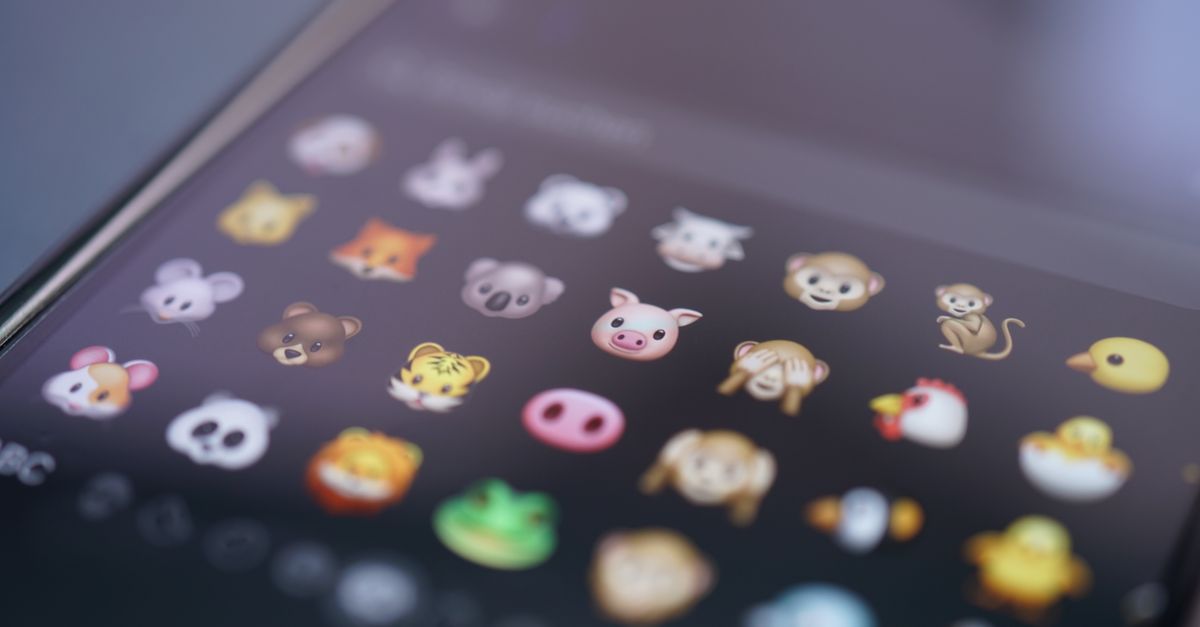
Where the Built-In Emoji Menu Falls Short
Built-in OS emoji menus — Windows, macOS, iOS, Android, Slack, Discord — are the default option most people compare an emoji copy and paste alternative against. They have two structural problems. First, they are organized visually, not semantically: there is no field where you can type "celebrate" and land on 🎉. You have to know which tab contains parties, scroll to it, and visually scan rows of glyphs until you spot the right one. Second, they are platform-locked: the picker on your Mac does not help you write a username on a Windows PC, and an iOS picker is useless in a desktop browser tab. That portability gap is exactly what a browser-based picker fills — the same tool, the same shortcut, and the same clipboard write whether you are on a work laptop, a school Chromebook, or your phone. The comparison below shows how the most common alternatives stack up against a searchable Unicode picker.
| Method | Search by name or keyword | Category filter | One-click copy | Works in any app | Runs locally |
|---|---|---|---|---|---|
| OS emoji keyboard (Windows, macOS, iOS, Android) | No | Visual tabs only | Yes | Locked to one OS | Yes |
| Large emoji directories with 3,000+ glyphs | Slow, often ad-heavy | Rare | Yes | Yes | Often tracked |
| Kaomoji text-art sites | No | By emotion | Yes | Yes | Varies |
| Emoji Copy and Paste tool | Yes (name + keyword tags) | Yes (chips) | Yes | Yes | Yes (no upload) |
Why a Searchable Picker Works Better
Three concrete advantages make a name-searchable picker a credible alternative to the OS keyboard and to most emoji sites. Semantic search means the tool knows that searching "smile" surfaces 😀, 😄, 😁, and others, even when their official Unicode names use slightly different wording. Keyword tags extend that reach — a search for "lol" still finds 😂, "celebrate" surfaces 🎉, 🎊, and 🥳, and "fire" pulls up 🔥 alongside less obvious matches. Category chips act as a fallback for users who don't know what to type: smileys, emotion, people and hand gestures, animals, food and drink, travel, activities, objects, symbols, hearts, and flags are all one click away. Together, those three inputs — typed search, keyword synonyms, and category narrowing — reduce the average find-and-copy to a couple of seconds rather than a long scroll through dozens of pages.
Three Steps to Find and Copy Any Emoji
- Type a name or keyword in the search box — for example "smile", "heart", "cat", or "fire" — or click a category chip such as smileys, animals, food, or hearts to narrow the grid to a single category.
- Browse the matching grid of emoji. Hover any emoji to see its official Unicode name and confirm you have the right glyph before you copy it.
- Click the emoji. It is written to your clipboard instantly, and you can paste it into any text field — a chat message, an email, a document, a social post, or a username box.
Emoji vs Kaomoji: How the Two Systems Differ
Emoji are real Unicode characters defined in the Unicode Standard — 😀 is the code point U+1F600 — which means they behave like text. They survive copy, paste, save, and search the same way a letter does, and they render in nearly any app, message, document, spreadsheet, or username field. Kaomoji, by contrast, are text-art faces built from ordinary keyboard characters: (◕‿◕), (╯°□°)╯︵ ┻━┻, ¯\_(ツ)_/¯. Because they are made of ASCII or punctuation characters, you can type them anywhere a keyboard works, but they read horizontally without tilting your head, and they are not single standardized characters — anyone can invent one. The two systems serve different needs, and the right tool depends on the platform.
| Property | Emoji | Kaomoji |
|---|---|---|
| What it is | A Unicode character (e.g. U+1F600) | A short string of punctuation, letters, and symbols |
| How it looks | Color pictograph drawn by the platform | Plain text-art face, reads horizontally |
| Standardized? | Yes, by the Unicode Consortium | No, anyone can create one |
| Works in any text field? | Yes, in nearly any app | Yes, anywhere a keyboard works |
| Searchable by name? | Yes, via canonical Unicode names | Not reliably |
| Best for | Cross-platform messages, bios, documents | Chat platforms, code comments, ASCII-only contexts |
If you specifically need text-art faces rather than Unicode emoji — say, for a Roblox chat or an ASCII-only comment thread — the dedicated Kaomoji Copy and Paste picker and the walkthrough on how to use kaomoji copy and paste cover that path with the same one-click workflow.
Why the Same Emoji Can Look Different to Different People
A subtle but important detail: the Unicode Standard defines the code point and meaning of every emoji, but not the artwork. Apple, Google, Microsoft, Samsung, and each social platform draw their own version of every code point, so 😀 on an iPhone looks slightly different from 😀 on a Pixel, on a Windows laptop, and on a Discord chat. The underlying character is identical everywhere; only the picture varies. This is normal cross-platform rendering and nothing is broken — paste an emoji into Slack and your coworker simply sees their platform's drawing of the same Unicode character. The tool copies the full sequence intact, including any Zero-Width Joiner (U+200D) used to glue complex emoji like 👨👩👧 or skin-tone variations together, so what arrives on the other end is one correct emoji, not a chain of separate characters. A few emoji also rely on a variation selector (U+FE0F) to force the colorful version instead of a plain black-and-white glyph, and that selector is preserved in the copy as well.
What Runs Locally in Your Browser
The entire picker runs client-side. The emoji list, the search, the keyword matching, and the clipboard write all execute in your browser — there is no server round-trip and no upload of what you type or copy. That has two practical effects. First, copying is instant: the time between click and paste-ready is roughly the time it takes the browser to write one string to the clipboard, which is effectively zero. Second, your activity is private: the tool has no analytics event tied to "you copied a fire emoji at 3:47 p.m." because that event never leaves your device. For everyday use — chat messages, bios, social posts, document headers — that combination of speed and privacy is the core reason a focused browser-based picker is a credible alternative to the built-in OS menu and to cluttered multi-thousand-glyph directories that exist primarily to serve ads.
Related reading: How to Remove Emoji Stickers From Text in One Pass.