Yes — you can generate a QR code in Chrome without installing an extension, signing up for an account, or uploading anything to a server. Open the QR Code Generator in any Chrome tab, type or paste your text into the box on the left, and a scannable black-and-white square appears on the right the instant you start typing. Because the entire process runs as client-side JavaScript inside the Chrome tab, the URL, Wi-Fi password, or contact card you type never travels off your device, and the resulting code encodes your text directly rather than routing through a third-party redirect. Once the code looks right, click Download PNG and you have a crisp image ready to print, drop into a slide deck, or attach to an email. There is no submit button, no per-code limit, and no watermark overlaid on top of your code, and the workflow is identical whether you are using Chrome on Windows, macOS, Linux, or Chromebook, or the Chrome browser on Android or iOS.
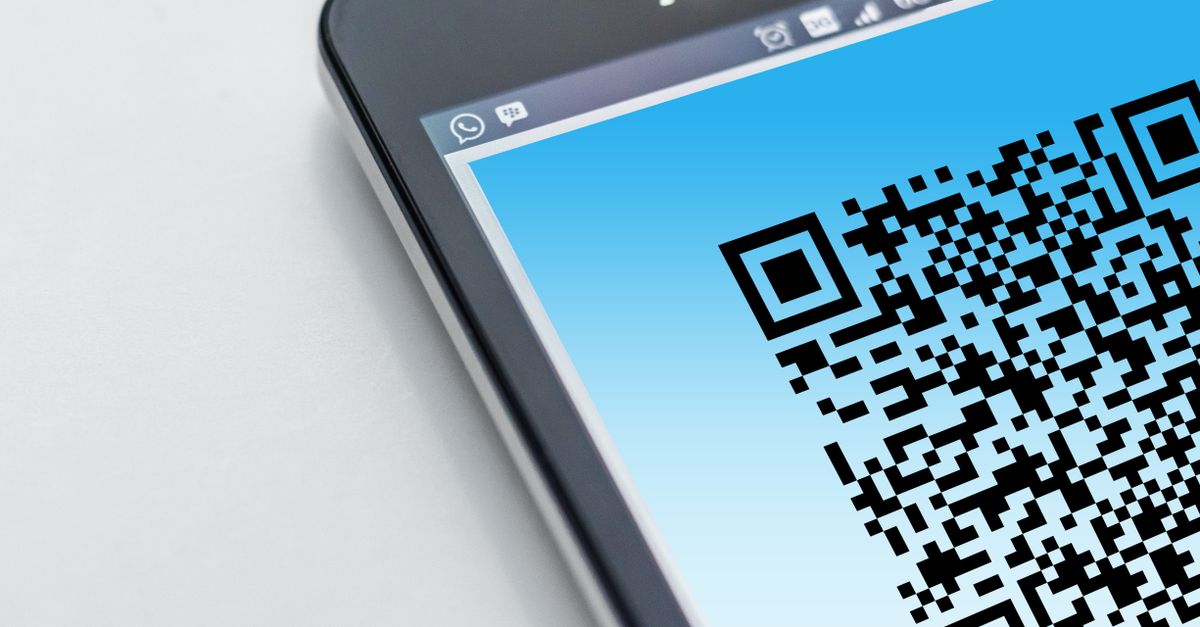
How to Generate a QR Code in Chrome
The fastest path from open tab to downloaded PNG is three short actions. You do not need to enable any Chrome flag, add any extension, or hand over an email address.
- Paste or type your text into the box on the left. A URL, a Wi-Fi login block, a vCard, an email draft — anything you can write works. The QR code is drawn live as you type, with no button to press.
- Pick an error-correction level and an output size if the defaults are not right. The default of M is the right choice for most uses; switch to H if you plan to drop a logo on top of the code or print it very small.
- Click Download PNG to save the code. The file lands in your usual Chrome downloads folder, and the original text never left your browser. Print, share, or embed it wherever you need a scannable code.
If the link you want to encode is long, shorten it first — a shorter URL produces a less dense QR code that scans faster on older phones.
What You Can Encode in a Chrome QR Code
A QR code is just text rendered as a square grid, so almost anything you can type is fair game. The most common encoding is a plain URL: paste a destination link and any phone camera opens that page when it scans. Beyond links, the QR Code Generator handles common structured formats without special syntax:
- Wi-Fi login blocks — guests scan to join your network without typing the password.
- vCard or MECARD contact cards — one tap saves a name, number, and email into the scanner's address book.
- Email or SMS pre-fills — the code can open a compose window with the recipient, subject, or body already populated.
- Phone numbers — tapping the scanned result dials directly.
- Payment links — anything a URL scheme can reach, including PayPal, Venmo, and Stripe links.
- Plain text such as a coupon code — useful for retail displays and event flyers.
All of these formats are entered in the same single box on the left side of the tool; there is no separate mode to toggle.
Choosing an Error-Correction Level
Every QR code stores redundant data so it still scans when part of it gets dirty, scratched, or covered — for instance by a logo placed in the middle. The four levels are defined by the QR specification and behave the way the table below shows.
| Level | Approximate data recovery | Best use case |
|---|---|---|
| L | ~7% | Clean environments, short codes, high-density storage where smallest grid matters. |
| M | ~15% | Everyday default for URLs on posters, packaging, business cards, and menus. |
| Q | ~25% | Codes printed small, placed on curved surfaces, or expected to see wear. |
| H | ~30% | Codes overlaid with a logo or graphic that covers a portion of the grid. |
Higher recovery makes the code more robust but also denser, so it needs to be printed larger or scanned from closer to read reliably. M is what most generators pick by default and it is the right starting point; step up to Q or H only when the printed surface is small, curved, or partially obscured.
Why a Browser-Based Tool Wins Over a Chrome Extension
Chrome has plenty of QR-code extensions in the Web Store, and they are fine for casual use, but they come with trade-offs a browser-based generator sidesteps. Many QR sites route your text through their servers, and some generate a redirect link they control — meaning they can log every scan, change the destination later, or let the code expire on a timer. A Chrome extension can also ask for broad permissions (read every page you visit) to inject its own button into the page, which is more access than the task of making a QR code really needs.
A tool that runs as plain client-side JavaScript inside the open Chrome tab has none of those side effects. Your text never leaves the device, the QR code encodes your destination directly rather than a controlled redirect, and there is no server-side record that could expire or change the link underneath you. There is also no account to create, no watermark on the PNG you download, and no daily limit on how many codes you can make. For a one-off business card or a 10,000-code direct-mail campaign, the same tool and the same three clicks cover both ends of that range.
Tips for QR Codes That Always Scan
Even a perfectly encoded QR code can fail at the moment of the scan if the print job is wrong. A few habits make the difference between a code that works the first time and one that costs you a reprint.
- Keep a quiet white margin around the code. The browser-based generator adds one automatically — do not crop it off when placing the PNG in a layout.
- Print at high contrast. A dark code on a light background scans best; avoid low-contrast pairs such as yellow on white, and avoid inverting the colors.
- Test with more than one phone before committing to a large print run. Different camera apps interpret the same code differently, so two devices is the bare minimum.
- Choose error-correction level H if you plan to drop a logo on top of the code. The redundancy is what keeps it readable through the overlay.
- Shorten long links before encoding. The more characters the grid has to hold, the denser it becomes, and old or low-resolution cameras struggle with dense codes.
- Re-download and re-print if the destination link ever changes. Because the code encodes the link directly, a new destination means a new code — your phone will not silently route through an update.
Follow those rules once and the QR code you generate in Chrome this afternoon will still be scanning customers, guests, and event attendees long after the tab has been closed.
Related reading: Generate Multiple QR Codes From Excel Without an Add-in.
Related reading: Batch QR Code Generator: Pick Size and Error Level.