How the Excel-to-QR workflow works
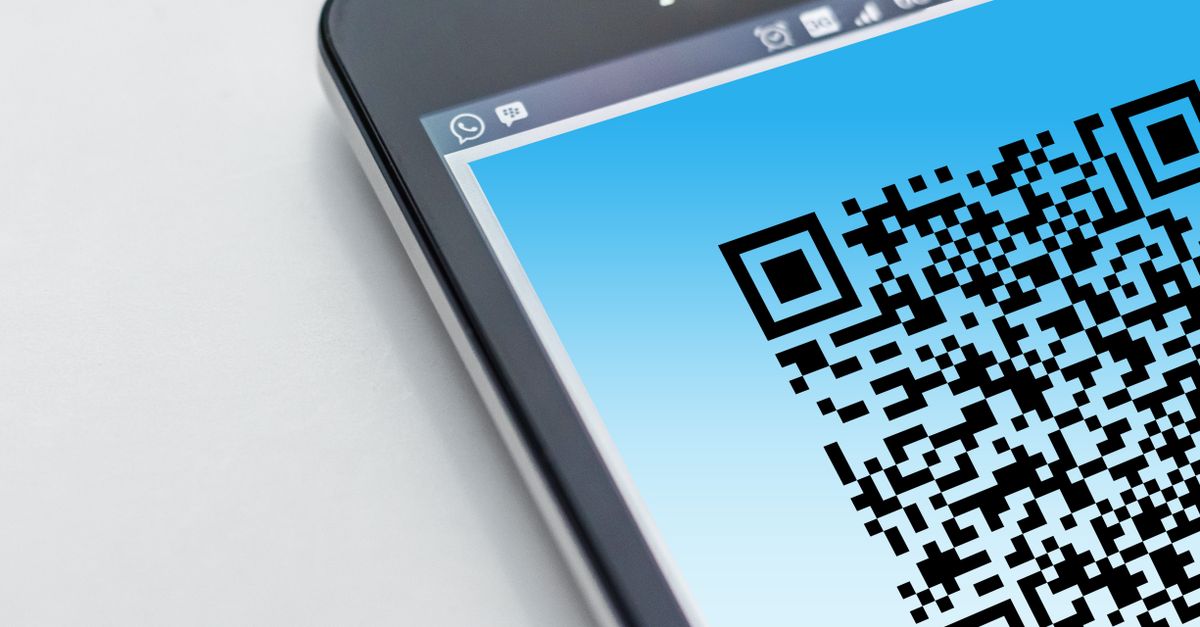
To generate multiple QR codes from Excel, copy one text or URL per row out of your spreadsheet and paste those lines into the Bulk QR Code Generator, which produces up to 20 individual PNG files in a single browser pass. Excel does not produce scannable QR symbols on its own — it stores text, URLs, or links inside cells, and that stored content is what needs to be encoded, not the worksheet itself. The "multiple QR codes from Excel" task is therefore a two-stage workflow: prepare clean lines in a column of cells, then hand those lines to a QR encoder that returns PNG images. The batch tool fits that workflow because the spreadsheet acts only as the source of clean input; the encoding itself never depends on Excel formulas, macros, or add-in permissions.
The browser-side Bulk QR Code Generator accepts pasted line-separated input, encodes each line with the project's existing qrcode 1.5.4 library, and exposes a per-preview download link for every PNG it produces. Because the encoder runs in the current tab, nothing is uploaded, shortened, or tracked, and the same code path used by the single QR Code Generator handles every symbol in the batch. That shared encoder is the simplest way to keep two tools from drifting apart, and it means the limits — 20 unique lines and 2,000 characters per line — bound the batch deterministically instead of varying by spreadsheet size, workbook version, or operating system.
Browser-side batch vs an Excel add-in
Most "QR code in Excel" tutorials end up installing an add-in, enabling a developer tab, or pasting a formula that calls an external web service. Those approaches work, but each one introduces a friction point. Add-ins need permission on every machine that opens the workbook, formulas break silently when a file moves between Excel versions, and external services upload your cell contents to a server you do not control. A browser-side batch removes all three points because it is a plain web page that you visit in Chrome, Edge, Firefox, or Safari, paste into, and close when the files are saved.
The Bulk QR Code Generator is built on the same qrcode 1.5.4 package the single QR Code Generator uses, so the symbol you produce in a batch is identical to the symbol you would get from the single-page tool with the same width, margin, and error-correction level. The batch page intentionally avoids adding a second QR implementation or copying capacity tables into product code. That choice matters when a code ends up printed on a label or posted at an event: there is only one encoder to trust, and only one set of limits to read.
Preparing your Excel worksheet for the batch
- Open the workbook that holds the values you want encoded and identify the single column that contains the text or URL for each QR code.
- Remove helper rows such as headers, blank separators, or "Test" lines that should not become scannable symbols — the batch deduplicates exact repeats but cannot tell that a trailing space on a URL is intentional.
- Copy the column as plain text rather than as formulas. In Excel, select the cells, press Ctrl+C, then open a plain-text target such as Notepad or a browser address bar and paste. This strips formatting, hyperlink objects, and any embedded images so only the cell values reach the batch input.
- Confirm each remaining line is under 2,000 JavaScript characters. Long multi-line cells, formatted notes, or pasted rich text often exceed that limit; the batch reports an error per offending line instead of producing a partial set.
- Confirm you have no more than 20 unique lines. The input parser trims surrounding whitespace, removes empty lines, and deduplicates exact trimmed duplicates while preserving first-seen order, so the final batch size is the count of distinct values that remain.
If your column stores Excel hyperlink objects rather than visible cell text — for example a cell that displays "Click here" but stores a long campaign URL — you will need to pull the underlying address out before the batch can encode it. The guide Extract a Link From a Hyperlink in Excel via HTML Source walks through that HTML route and produces a clean text list ready to paste into the generator.
Generating multiple QR codes from your Excel data
- Open the Bulk QR Code Generator in your browser and paste the prepared lines into the input area, one entry per line.
- Choose a PNG canvas size — 128, 256, or 512 pixels — and an error-correction level (L, M, Q, or H). Leave the default of M for ordinary clean display conditions unless you expect damage, glare, or a center logo overlay.
- Select Generate QR codes. The page trims whitespace, removes empty lines, deduplicates exact repeats, caps the batch at 20 unique lines, and runs the encoding concurrently under an asynchronous job identifier so a stale result cannot overwrite newer settings.
- Review each preview tile. If one payload exceeds QR capacity, the batch shows an error for that line instead of presenting a partial set as complete.
- Scan each preview with the phone or scanner app you intend to use in production, then download the verified PNGs individually from the link beneath each preview.
PNG size and error correction explained
Pixel size and error-correction level are independent choices, and confusing them is the most common reason a batch looks fine on screen but fails when printed. A larger canvas produces a larger PNG file that holds more modules per inch when printed, but it does not increase the data capacity of the symbol — a 512-pixel image of "https://example.com" encodes the same payload as a 128-pixel image of the same text, with the same QR version, just rendered at a higher resolution.
| Error-correction level | Approximate restoration rate | When it makes sense |
|---|---|---|
| L | ~7% | Clean indoor displays where damage is unlikely and capacity matters |
| M | ~15% | Ordinary clean display conditions; the practical default for most sheets |
| Q | ~25% | Outdoor or partially obscured surfaces that need modest recovery |
| H | ~30% | Industrial labels, branded codes with a center logo, or surfaces exposed to wear |
Restoration rates are the figures DENSO WAVE publishes for the four standard levels. A higher level is not automatically better: it increases the symbol's module density, which can push a borderline payload into a larger QR version that some older scanners read inconsistently. When in doubt, keep M and add quiet zone around the printed image rather than jumping to H.
Downloading, naming, and verifying each PNG
Each preview tile carries its own download link and a deterministic filename. The page derives a short ASCII stem from the content, prefixes it with the two-digit batch position, and appends the PNG extension, so a line of https://example.com at position one downloads as 01-example-com.png. If a line contains no ASCII letters or numbers, the fallback stem is qr-code. The filename is a convenience label only and never alters the encoded payload — the scanner still decodes whatever was on the original line.
The page does not combine the batch into a ZIP file, because the project deliberately adds no archive dependency for this tool. Instead, download each PNG you need from its preview link. Browsers may require a click per file or may prompt for download permission, and the generator never triggers 20 automatic downloads, which avoids surprising behavior and makes the selected outputs explicit. Once a PNG is downloaded, preserve its quiet zone (the blank margin around the finder patterns), keep the contrast intact, and avoid stretching, recoloring, cropping, or covering any of the three corner finder patterns.
Limits, privacy, and final checks before printing
Three hard limits shape every batch: 20 unique lines, 2,000 JavaScript characters per line, and the standard QR data capacity for the chosen version and error-correction level. Together they bound the CPU, memory, layout work, and accidental multi-download volume on ordinary laptops and phones. If you have more than 20 values, split them into two passes rather than looking for a workaround, because raising the cap would mean a new code path and a second encoder to trust.
Privacy is straightforward: all payloads and PNG data URLs remain in the current tab. Nothing is uploaded, shortened, tracked, or recorded. Changing an input or option invalidates the previous batch, and the asynchronous job identifier prevents an older generation result from overwriting newer settings. node-qrcode's browser API guidance is the public reference for the library that runs the encoding.
The last step is verification: a generated PNG is not proof that every scanner will read the intended content. Long UTF-8 text, emojis, print size, contrast, camera focus, display glare, physical damage, and reader behavior all affect success. Some QR readers may interpret URLs, contact text, or other payloads differently, and the underlying library notes that full ECI support is not implemented. Scan every final PNG with the target device and application, and check the decoded payload character for character. Do not use an unchecked QR code for payments, authentication secrets, safety instructions, or irreversible actions.
If you're weighing options, Batch QR Code Generator: Pick Size and Error Level covers this in detail.