Generate a barcode for your website by downloading a Code 128, EAN-13, UPC-A, or Code 39 symbol as an SVG, then embedding that file with an HTML image tag or your CMS.
The Barcode Generator runs entirely in your browser, creates a 1D symbol from the value you enter, and provides a vector SVG for the page. Its workflow ends with the SVG download, so adding the asset to a site remains a separate HTML or CMS task. The tool creates the scannable graphic but does not publish pages, insert files, or build a form that reads scans and submits them to a website.
For product identifiers, parcel labels, warehouse bins, and internal asset records, the workflow is straightforward: choose the correct symbology, enter the data, download the SVG, and place it where visitors or staff can scan it.
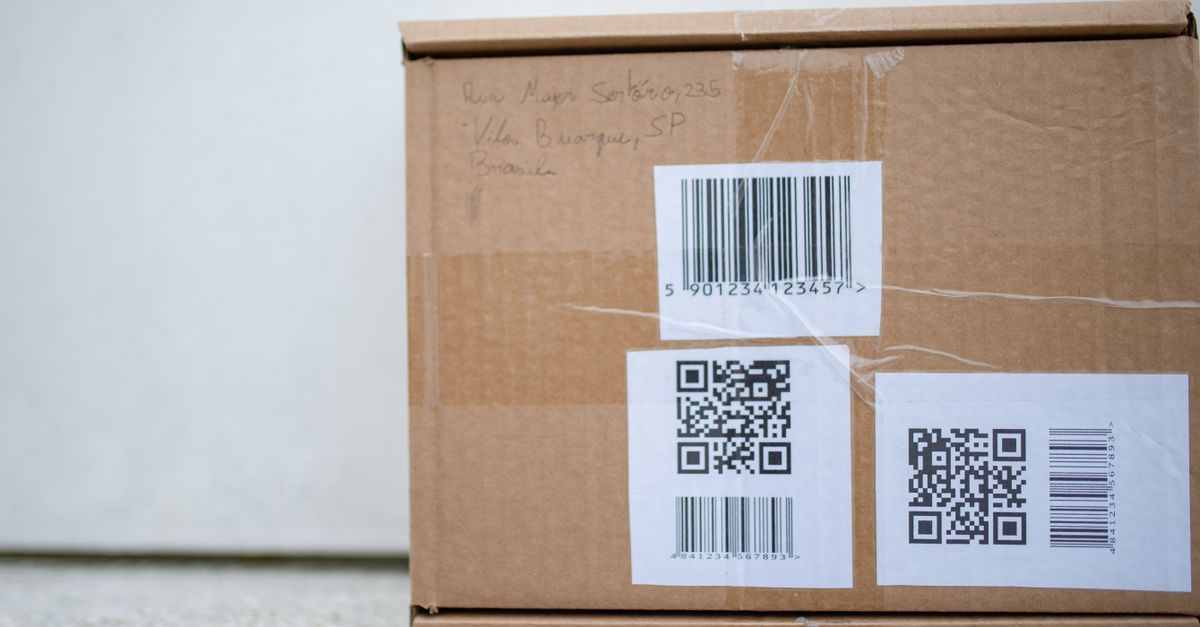
Choose the 1D format that fits the value
Each supported barcode format has a different purpose and input rule. Select the format based on the data you need to encode and where the code will be scanned, rather than choosing by appearance alone.
| Format | Best use | Value to enter | Check digit handling |
|---|---|---|---|
| Code 128 | Logistics, tracking, SKUs, and labels containing letters, numbers, or symbols | ASCII text | None required |
| EAN-13 | International retail product identification | 12 digits or a full 13-digit code | Added or verified automatically |
| UPC-A | Retail product identification in the US and Canada | 11 digits or a full 12-digit code | Added or verified automatically |
| Code 39 | Internal inventory, automotive, defense, and rugged industrial tags | Alphanumeric text | None required |
EAN-13 and UPC-A are numeric retail formats, so they cannot represent an alphanumeric SKU. When the identifier contains letters, use Code 128. For an actual retail product, enter its official retail identifier rather than substituting an unrelated number.
If you need a quick reference while choosing, the barcode format and digit-count cheat sheet provides a concise comparison of the supported options.
Generate and download the SVG
The browser-based creation workflow uses three core actions: choose a format, enter the value, and download the result.
- Select the barcode format. Choose Code 128 for a tracking number, shipment label, or identifier containing letters and numbers. Select EAN-13 or UPC-A for a retail code, or Code 39 for an internal inventory label.
- Enter the value exactly as it should be decoded. For EAN-13, type 12 digits or the complete 13-digit code. For UPC-A, type 11 digits or the complete 12-digit code. Remove unintended spaces and punctuation before continuing.
- Review the rendered barcode. The barcode appears as you type. The generator adds the correct check digit when an EAN-13 or UPC-A value is supplied without one. If you include the final digit, it verifies the checksum and flags a typo for review.
- Click Download SVG. Save the vector file to your computer. This download is the final step in the generator; placing it on a website is the next task.
The entered value never leaves your device during generation, so product codes, SKUs, and tracking numbers remain private while you create the file. The SVG also avoids the blurred edges that can appear when a small raster barcode is enlarged.
Add the barcode to a website page
The generator supplies the image asset rather than website embed code. Use the downloaded SVG with either static HTML or a visual CMS editor.
- Download and name the SVG. Give the file a descriptive name that distinguishes it from other identifiers, such as a product reference or asset number.
- Make the file available to the website. In a CMS, open the media or file library and upload the SVG if your configuration permits that file type. For a static site, place it in a web-accessible directory and note its path. Some CMS configurations restrict SVG uploads; if yours does, use its approved asset workflow or convert the downloaded file outside the generator, since the native output is SVG.
-
Insert the image into the intended page.
- For static HTML, add an image element such as <img src="barcode.svg" alt="Product barcode">, replacing the filename with the SVG’s actual location.
- For a visual editor, insert an image or media block, select the downloaded SVG, position it near the relevant product or asset information, and update the page.
- Add accessible text and preserve the proportions. Give the image meaningful alternative text, such as a general product or asset description, and set its dimensions to match the SVG’s aspect ratio. Stretching the image horizontally or vertically can distort the bar edges and reduce scan reliability.
- Preview the page at its intended size. Use a barcode scanner or a device that supports 1D scanning to confirm that the displayed code returns the intended value. Test the exact page size visitors will see, since a symbol displayed too small may not decode reliably.
- Publish or update the page. After the preview passes, publish the page and confirm that the image still loads at its final address.
A basic static-HTML placement is <img src="barcode.svg" alt="Product barcode">. If the file lives in a nested directory, update the source path accordingly. The alt text supports people using screen readers, but it does not replace the machine-readable bars and spaces.
Local generation protects the value while the SVG is being created. Once the barcode is published on a public page, however, anyone with a scanner may decode it, so do not expose a private tracking number or sensitive internal identifier.
Match the barcode to the page's job
The best format depends on what the website page represents and what a scanner should return after reading the code.
| Website context | Data to encode | Suitable format | Expected result |
|---|---|---|---|
| Product detail or SKU page | Internal SKU or product reference | Code 128 | The scanner returns the alphanumeric identifier |
| Retail product record | Official retail identifier | EAN-13 or UPC-A | The scanner returns the validated numeric code |
| Warehouse bin or asset page | Bin, item, or equipment identifier | Code 39 or Code 128 | The scanner returns the internal identifier |
| Scan-to-open webpage | Destination URL | QR code rather than a 1D barcode | A compatible phone reader can open the destination |
The final row is a deliberate distinction. A QR code is designed for quick mobile navigation, while the four formats in this workflow are 1D data symbols intended to be read by a barcode scanner.
Understand what a 1D barcode does on a website
A 1D barcode normally returns its encoded text to the scanner. Code 128 can encode a URL because URLs use ASCII characters, but that does not transform the symbol into a QR code. A phone camera may display the decoded address as text rather than opening it automatically, and camera support for 1D scanning varies by device.
If the requirement is simply to show a SKU, serial number, or tracking identifier beside online product information, the SVG workflow is suitable. If the required behavior is to scan a label with a phone and land directly on a page, use a QR-code workflow instead. The barcode generator covered here supports the four 1D formats listed above, not QR generation.
Check the barcode before it goes live
Run through this checklist after inserting the SVG:
- Confirm the symbology: Use EAN-13 or UPC-A for retail numbers, Code 128 for mixed text and logistics data, and Code 39 for simple internal inventory identifiers.
- Review the digits: Check that an EAN-13 has 12 or 13 digits and a UPC-A has 11 or 12 digits. If the tool flags a full code, correct the flagged digit before using it.
- Keep the original geometry: Do not crop, skew, stretch, or cover the bars. If the page needs a different size, scale the entire SVG proportionally.
- Leave clear space around it: Keep the area around the symbol free of overlapping text, images, borders, and controls so the scanner can distinguish the code cleanly.
- Test the final presentation: Scan the barcode from the browser preview at its intended display size. If it fails, review the size, proportions, and surrounding elements before republishing.
- Review privacy separately: The generator handles the value locally, but a barcode placed on a public page becomes visible to anyone who can scan it.
For a version intended for labels or packaging, test the rendered SVG at its final print dimensions as well as on the screen. A web preview cannot confirm the behavior of every printer or scanner setup.
Reuse the SVG across web and print
Because SVG is a vector format, the same barcode can remain sharp at different sizes. You can place the downloaded file into a label template, packaging artwork, spreadsheet, or design file as well as a web page.
This makes one generated asset useful across digital and printed materials. Keep the original SVG as the master file instead of repeatedly saving reduced copies, and avoid enlarging a low-resolution raster version when a vector source is available.
If the next deliverable is a PDF, the SVG-to-PDF barcode workflow explains how to carry the vector asset into that format without making the barcode the weak point of the layout.