A bulk QR code generator for beginners takes one plain-text list of up to 20 entries and turns each line into its own scannable PNG inside the same browser tab. The whole operation happens locally: the list is trimmed, blank lines are dropped, exact duplicates collapse to the first occurrence, and each remaining line becomes a separate QR symbol with its own preview and download link. Beginners do not have to install software, paste into a third-party site, or hand the data to a server. Every line is limited to 2,000 JavaScript characters, and any payload that exceeds QR capacity produces an error instead of a partial result. The trade-off is real but worth knowing: you do not get a single ZIP archive, automatic bulk download, or unlimited volume. You do get deterministic filenames built from a two-digit batch position plus a short ASCII stem of the content, explicit per-file downloads, and a workflow that makes verification on the target device a required step before you print, label, or publish.
For a beginner, the most useful way to think about the tool is as a small, predictable factory. You bring the list; the tool brings consistent settings and one QR encoder behind every symbol. Bulk QR Code Generator handles the encoding side using the same qrcode 1.5.4 library already used by the single-code tool, so symbols produced in a batch behave the same way as symbols produced one at a time. That consistency matters when you mix a batch with codes you generated earlier by hand.
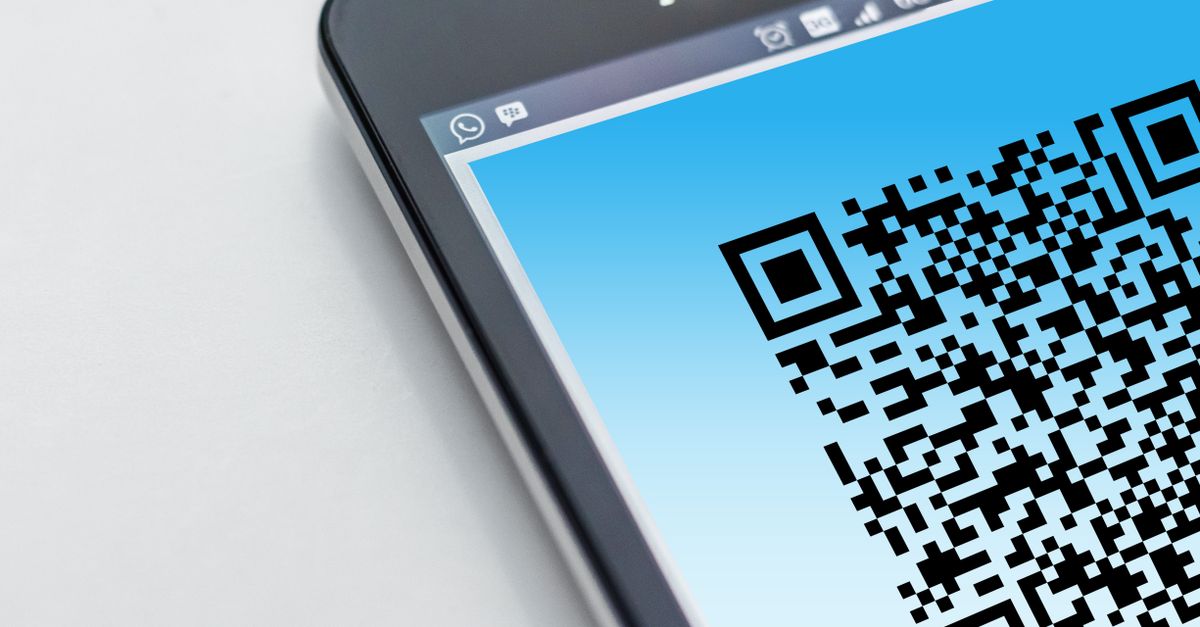
Why a Browser-Only Batch Tool Fits Beginners
Beginners usually want a tool that asks for the least amount of setup. A browser-only batch generator fits that goal: there is nothing to install, no account to create, and no file upload step. All payloads and PNG data URLs remain in the current tab. Nothing is uploaded, shortened, tracked, or recorded. That property matters when the list contains private links, internal Wi-Fi passwords, contact cards, or short inventory URLs that you do not want a third party to see.
The same browser tab also gives you immediate visual feedback. Each generated PNG appears as a preview next to its source line, and the preview is exactly what the downloaded image will look like. Because QR encoding and PNG rendering happen entirely in your browser, you can close the tab the moment your downloads are saved. If you reopen the page later, you start from an empty input. Changing an input or option invalidates the previous batch, and an asynchronous job identifier prevents an older generation result from overwriting newer settings, useful when you tweak size or error-correction level and do not want a stale preview to mislead you.
Inputs the Generator Accepts and Hard Limits to Respect
The input model is intentionally simple: paste one text or URL per line. Surrounding whitespace is trimmed, empty lines are removed, and exact duplicates collapse to the first occurrence while preserving first-seen order. The batch limit is 20 unique values, and each line is limited to 2,000 JavaScript characters. These two limits protect the browser's CPU, memory, and layout work on phones and ordinary laptops, and they cap accidental multi-download volume.
Filename behavior is also worth knowing before you start. Generated filenames start with a two-digit batch position and a short ASCII stem derived from the content. A URL such as https://example.com becomes 01-example-com.png. If a line contains no ASCII letters or numbers, the fallback stem is qr-code. Filenames are convenience labels only and never alter the encoded payload, so renaming a downloaded file is safe. The tool does not bundle files into a single archive because the project intentionally avoids adding a new dependency for batch handling. Instead, each preview exposes its own download link so the action of saving a file is explicit.
| Error-correction level | Approximate restoration rate | Capacity effect |
|---|---|---|
| L | ~7% | Highest data capacity, lowest resilience |
| M | ~15% | Practical default for clean displays |
| Q | ~25% | Better resilience, smaller data room |
| H | ~30% | Strongest resilience, smallest data room |
Rates reflect DENSO WAVE's published codeword restoration figures; they describe how much of a symbol can be lost or damaged and still scan, not absolute guarantees for any specific reader or environment.
Generate Up to 20 QR Codes From a Single List
- Open the Bulk QR Code Generator in a desktop or laptop browser and clear any sample text from the input area.
- Paste one text or URL per line, with no more than 20 unique lines and each line kept under 2,000 characters.
- Choose a PNG canvas size (128, 256, or 512 pixels) and an error-correction level (L, M, Q, or H).
- Select Generate QR codes and wait for every preview to render. Review the list count and any error messages before continuing.
- Scan each preview with the target device and app you actually plan to use. Confirm the decoded payload character for character.
- Download each verified PNG by clicking its individual link. Browser policies may require one click per file, which keeps the action explicit.
- Preserve quiet zones when you place the PNG into a slide, label, or document. Do not stretch, recolor, crop, or cover the finder patterns.
Picking PNG Size and Error-Correction Level
PNG canvas size and error-correction level are the two knobs beginners actually need to understand. More pixels can improve the appearance of a symbol when it is displayed or printed larger, but pixel dimensions do not increase the data capacity of the QR symbol. A 128-pixel PNG can carry the same URL as a 512-pixel PNG; the difference is how clean the rendered modules look at the final display size.
| PNG size | Reasonable use cases | Notes for beginners |
|---|---|---|
| 128 px | Small labels, contact cards, in-line web display | Compact file; pair with adequate physical size when printing |
| 256 px | Standard slides, posters, packaging inserts | Comfortable middle ground for most clean-display uses |
| 512 px | Large posters, signage, high-DPI prints | Larger file, more room for scaling without visible pixel edges |
Error-correction levels L, M, Q, and H give increasing restoration capability at the cost of available data capacity. Higher is not automatically better: a higher setting can force a denser symbol that is harder for low-quality cameras to read. Level M is the practical default for ordinary clean display conditions. Choose H when the printed symbol may be scratched, dirty, or partly obscured, and choose L when the payload is dense (long URLs, large contact cards) and the surface is clean.
Keep a clear quiet zone around the image after download. The quiet zone is the blank margin the scanner uses to locate the symbol, and it is part of why stretching, recoloring, cropping, or covering finder patterns leads to scan failures.
Scan, Verify, and Download the Codes You Need
A generated PNG is not proof that every scanner will read the intended content. Long UTF-8 text, emojis, print size, contrast, camera focus, display glare, physical damage, and reader behavior all affect success. Some QR readers may interpret URLs, contact text, or other payloads differently, and the underlying library notes that full ECI support is not implemented. The safe habit is to scan every final PNG with the target device and application before publishing, printing, labeling inventory, distributing event material, or replacing an existing code.
Download only the verified PNGs you actually need. Each preview has its own download link, and the generator does not trigger 20 automatic downloads, which avoids surprising behavior and makes the selected outputs explicit. If a payload is too long for QR capacity, the batch shows an error instead of presenting a partial set as complete, a reminder that the limits are there to protect the output you do get.
Beginner Habits That Prevent Scanned QR Failures
Most beginner mistakes fall into a few patterns. First, treating generation as proof. A clean preview can still fail in a venue with glare or with a reader that handles long URLs differently. Second, resaving the PNG with lossy compression that blurs the finder patterns. Third, dropping the quiet zone to fit a tight layout. Fourth, increasing error correction out of habit, densifying the symbol in cases where level M would scan fine. Fifth, using an unchecked code for payments, authentication secrets, safety instructions, or irreversible actions.
The plain-English workflow that avoids all of these is short: paste a clean list under 20 lines, pick a sensible size and level M unless you have a reason otherwise, scan every preview on the actual reader, then download only the codes you have verified. If you want a deeper look at the boundaries and how the output behaves at the edges, the limits and output walkthrough covers the same generator in more detail. For the underlying capacity and segment behavior the encoder relies on, the node-qrcode browser API guidance describes how the same library produces the PNGs.
If you're weighing options, QR Code Generator Example: 7 Real Payloads You Can Make covers this in detail.