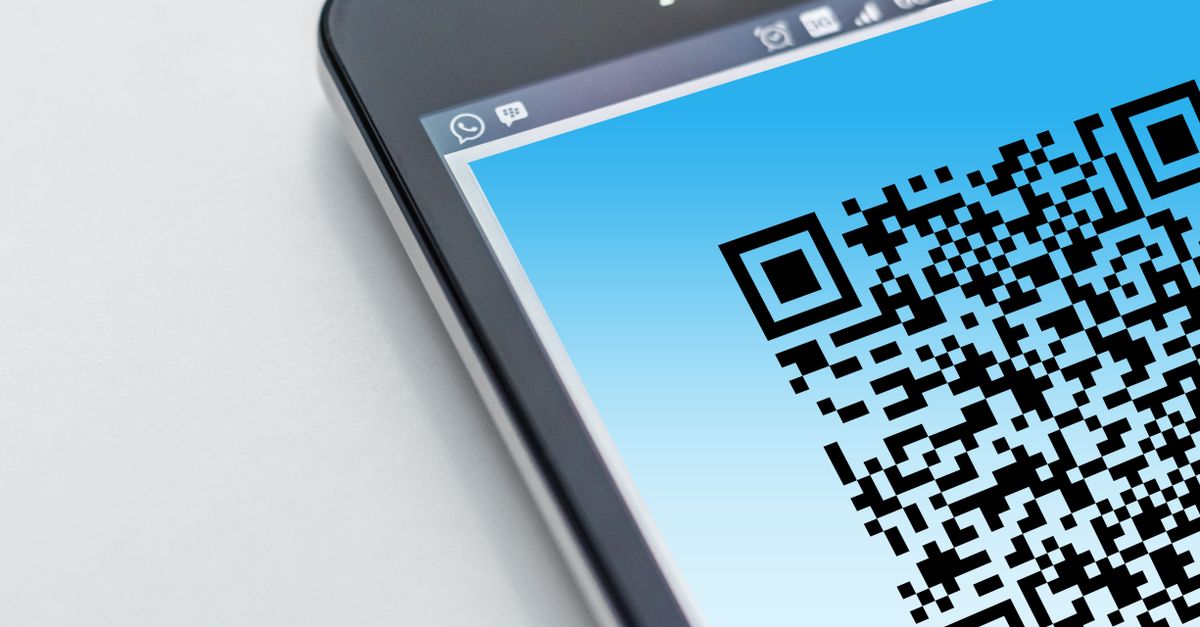
What a Bulk QR Code Generator Actually Is
A bulk QR code generator is a tool that encodes up to 20 unique QR Code PNGs in a single browser-side operation, producing one image per line so each can be scanned, verified, and saved separately. A bulk QR code generator built this way accepts plain text or URLs (one per line), runs the QR encoder locally, and exposes an individual download link for every resulting PNG without combining them into an archive.
The word "bulk" in this name does not mean unlimited. The browser tab is the entire runtime: the encoder, the renderer, and the temporary PNG data URLs all live in memory until you close the page. That single-tab model is what makes a small, predictable batch practical. It also explains why a tight upper bound, in this case 20 unique lines per batch, exists alongside a per-line character cap. Without those limits, a long list could exhaust CPU and layout memory on an ordinary phone or laptop before any PNG is drawn.
Inside that boundary, the workflow is short and explicit. You paste a list, choose the pixel size and error-correction level, click generate, and the page draws a preview for every accepted line. Each preview has its own filename and its own download link, so you can pick the symbols you actually need rather than receive a single blob file you would then have to unpack. Nothing is uploaded, shortened, or tracked: the encoder does not contact a server, and the page does not log your payloads.
How the Encoding Pipeline Works in the Browser
Every accepted line follows the same pipeline. First, the parser trims surrounding whitespace from each line and removes empty entries. Then it collapses exact duplicates, keeping the first occurrence and discarding any later repetition, so the same URL pasted twice becomes one symbol rather than two copies of the same PNG. What remains is a list of unique, trimmed strings capped at 20 entries, each no longer than 2,000 JavaScript characters.
The QR encoding itself is delegated to a library that already ships with the project, qrcode 1.5.4, the same package used by the single QR Code Generator tool. Running client-side, the library receives the text, picks an optimized encoding segment (numeric, alphanumeric, or byte mode), lays out the module grid, applies the requested error-correction level, and returns a PNG data URL. Because no second encoder exists for the batch tool, there is no risk that two QR implementations will drift apart or disagree on capacity tables.
Filenames are deterministic. A URL such as https://example.com becomes 01-example-com.png for the first line, 02-... for the second, and so on. If a line contains no ASCII letters or numbers, the stem falls back to qr-code. These names are convenience labels: they never change the encoded payload, but they do make it easy to keep a printed inventory label or event badge matched to the right source row.
An asynchronous job identifier wraps the batch. If you edit the input or change a size or error-correction option after generating, the previous result is invalidated so an in-flight older batch cannot overwrite newer settings. This is the mechanism that prevents the last-clicked preview from being replaced by a stale render.
Pixel Size and Data Capacity: Two Different Things
Pixel size controls how the rendered PNG looks when displayed or printed, not how much data the symbol can carry. The encoder offers 128, 256, or 512 pixels for the PNG canvas. Choosing a larger value produces a denser image that holds up better when printed at larger sizes, posted on a sign, or shown on a high-resolution display. It does not give the QR symbol more room to encode text.
The capacity ceiling is fixed by the QR Code version selected inside the library, the chosen error-correction level, and the encoding mode the library picks for the payload. Bigger pixels simply spread the same modules across more image dots. The practical rule: pick the smallest pixel size that still scans cleanly at the largest physical size you intend to print or display, and keep a clear quiet zone (the blank border recommended around the symbol) intact when you crop, recolor, or place the PNG.
Error Correction Levels: Restoration vs. Density
Error correction does not make a QR Code read better by default; it makes the symbol recoverable when part of it is missing or damaged. The library supports four levels, traditionally labelled L, M, Q, and H, with the approximate restoration rates published by DENSO WAVE: 7%, 15%, 25%, and 30% of the codewords, respectively. Each step up buys more resilience at the cost of fewer bytes available for your payload, which usually forces the encoder into a higher QR version with more modules and therefore a denser symbol.
| Level | Approx. codeword restoration | Practical trade-off |
|---|---|---|
| L | 7% | Maximum payload space; tolerates only a clean, undamaged symbol. |
| M | 15% | Common default for ordinary indoor display and print. |
| Q | 25% | Useful when logos or small overlays sit on the symbol. |
| H | 30% | Outdoor, industrial, or partially obscured placements. |
For most everyday display conditions, level M is the practical default. Pick a higher level only when you know the symbol will be scratched, dirty, or partially covered. Per DENSO WAVE's QR Code error correction reference, the percentages above describe codeword restoration under the QR specification, not absolute scan-success rates in every camera and lighting combination.
How to Generate a Batch of QR Codes
- Paste one text or URL per line into the input area, with no more than 20 unique lines and each line no longer than 2,000 characters.
- Choose a PNG pixel size (128, 256, or 512) and an error-correction level (L, M, Q, or H) from the available controls.
- Select the Generate button and wait for the preview grid to populate. The page renders every accepted line in a single batch under one job identifier.
- Scan each preview with the target device and application you plan to use in production, and confirm the decoded payload character by character.
- Download the verified PNGs individually using the download link on each preview, keeping the quiet zone around the image untouched.
Why the Tool Downloads One PNG at a Time
The page does not bundle the batch into a ZIP archive. That choice is deliberate: the project intentionally avoids adding a new npm dependency for archival work, and each locally generated PNG already has its own explicit download link. A single Download ZIP button would also obscure which symbols you actually kept, since the archive would include every preview regardless of whether you verified it.
Browser policies can require a click per file or prompt for download permission when many files trigger in quick succession, which is another reason the generator does not start 20 automatic downloads at once. Downloading each preview individually keeps the action explicit: you see the symbol, you verify it, you save it.
Limits That Decide Whether a Batch Succeeds
Three limits interact to decide whether a batch completes or fails. The 20 unique-line cap bounds how many symbols the page can lay out and render in one operation, which keeps CPU and memory within what a phone or ordinary laptop can spare. The 2,000-character per-line cap bounds the encoded payload so each call into the encoder stays within the QR specification's version limits for the chosen error-correction level. The exact-deduplication rule bounds the number of previews you actually see: pasting the same line twice collapses to one symbol.
If one payload exceeds QR capacity at the selected error-correction level, the batch shows an error rather than presenting a partial set as complete. Changing an input or option invalidates the previous batch, so editing the input or options produces a fresh render of the accepted lines.
Verifying Every Symbol Before Publishing
A rendered PNG is not proof that every scanner will read the intended content. Long UTF-8 text, emoji, print size, contrast, camera focus, display glare, physical damage, and the behavior of the reader application all influence scan success. The library notes that full ECI (Extended Channel Interpretation) support is not implemented, which means some non-ASCII payloads can be decoded differently by readers that expect an explicit ECI flag.
Always scan every final PNG with the target device and application before publishing, printing, labeling inventory, distributing event material, or replacing an existing code. Check the decoded payload character by character. Do not use an unchecked QR Code for payments, authentication secrets, safety instructions, or any irreversible action.
Related reading: Bulk URL Generator on Windows: Build and Export Lists.
Related reading: Email Obfuscator Explained: Purpose, Method, Limits.