Every barcode generator example follows the same three-step shape: pick a format, type a value, and download a vector SVG that stays sharp at any print size. In practice, the example runs end to end, showing which symbology fits the input, which check digit the tool adds or verifies, and what scannable output to expect on screen. A real example also surfaces the small decisions that change the result: twelve digits versus thirteen for an EAN-13, eleven versus twelve for a UPC-A, and whether the chosen format can even encode the letters your warehouse system already uses. The four short walkthroughs below use the same free, browser-based Barcode Generator to produce a real, scannable code from a realistic input value for each of the four supported 1D formats: Code 128, EAN-13, UPC-A, and Code 39. Each walkthrough shows the input you type, the value the tool prints, and where the downloaded SVG ends up in a real label, proof, or inventory card. Match your own SKU, tracking number, or asset tag to the closest case and copy the steps verbatim.
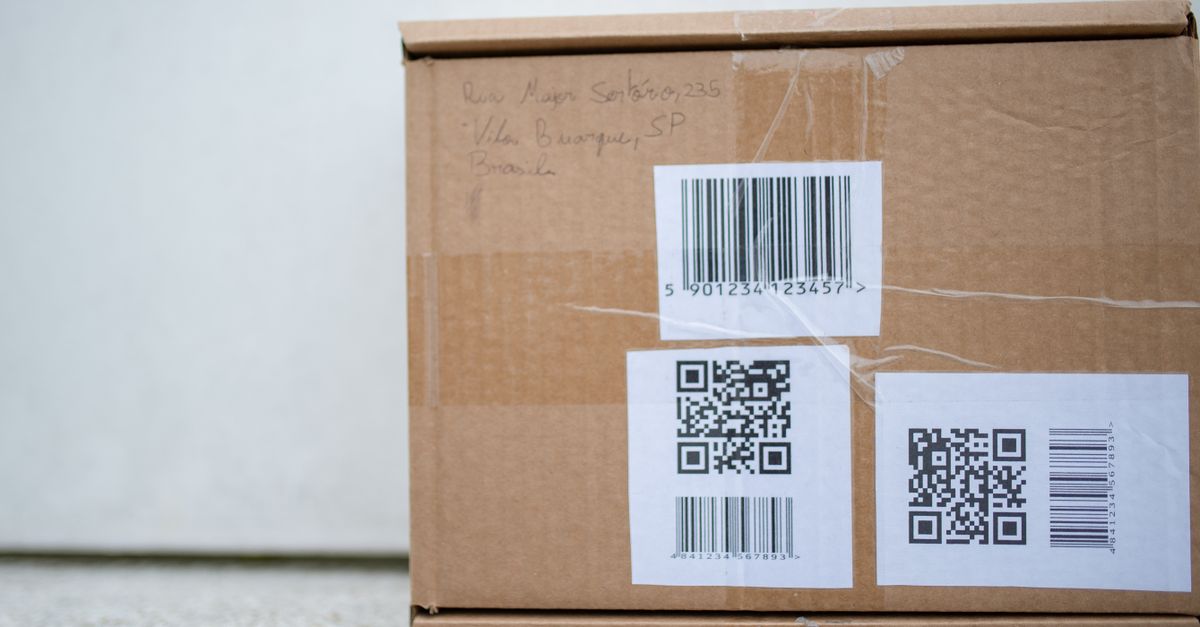
What a Barcode Generator Example Shows
A useful barcode generator example covers four moving parts: the input value, the chosen symbology, the rendering moment, and the downloaded file. When all four appear together, the abstract idea of "a barcode" becomes a concrete set of choices. The input is whatever you type, whether that is a product number, a tracking ID, or a short asset tag. The symbology is the encoding rule that turns that input into bars and spaces, and each rule has its own length limits, character set, and optional check digit. The rendering moment is the visual output you see on screen, and the downloaded file is what ends up on a label, a shipping carton, or a packaging proof.
A worked example is therefore not just a picture of bars. It names the value, names the format, and shows how the two connect, including edge cases like an EAN-13 without a check digit being completed automatically, or a typo in a UPC-A being flagged before it ends up on a useless sticker. The examples below use the free Barcode Generator running in your browser, so the input value, the rendered code, and the downloaded SVG are exactly what you will see when you follow the same steps with your own data.
Code 128: A Tracking Label Example
Code 128 is the workhorse format for shipping and logistics, and it is the right pick when the input mixes letters, digits, and symbols. A realistic example value for a carrier tracking label is a string like "1Z999AA10123456784" (the format UPS uses) or any SSCC pallet code such as "001234560000000018".
To turn that string into a barcode, open the Barcode Generator, pick Code 128 from the format selector, and paste the value into the input. There is no check digit to worry about, so the bars render the moment you finish typing, and the download button saves the result as an SVG you can drop into a shipping label template, an SSCC carton proof, or a spreadsheet of tracking IDs. The same workflow also covers any alphanumeric SKU your warehouse system hands you, because Code 128 packs the full ASCII character set into a dense, narrow pattern that scanners read reliably at small print sizes.
EAN-13: A Retail Product Example
EAN-13 is the 13-digit retail barcode scanned at checkout on consumer products worldwide, and a worked example is the right place to show the modulo-10 check digit in action. Take the 12 digits "123456789012". The check digit is computed with a modulo-10 formula: digits in odd positions (1, 3, 5, 7, 9, 11) are multiplied by 1, digits in even positions (2, 4, 6, 8, 10, 12) are multiplied by 3, the products are summed, and the check digit is the number that brings the total to the next multiple of 10.
Substituting the example values: 1×1 + 2×3 + 3×1 + 4×3 + 5×1 + 6×3 + 7×1 + 8×3 + 9×1 + 0×3 + 1×1 + 2×3 = 1 + 6 + 3 + 12 + 5 + 18 + 7 + 24 + 9 + 0 + 1 + 6 = 92. The next multiple of 10 above 92 is 100, so the check digit is 100 − 92 = 8, and the full EAN-13 is 1234567890128.
In the Barcode Generator, type "123456789012" into the EAN-13 field and the tool adds the 8 for you, so the rendered barcode reads 1234567890128. If you paste the full 13-digit string instead, the same tool verifies that the trailing digit is the correct check digit and flags a mismatch before you print a label that will fail to scan. The downloaded SVG drops straight into retail packaging artwork at any size without losing bar sharpness, which is critical for checkout reliability.
UPC-A: A North American Product Example
UPC-A is the 12-digit sibling of EAN-13 used across the United States and Canada, and it is the format a U.S. retailer will ask for when a product lands on a shelf. The mechanics mirror EAN-13: a modulo-10 check digit sits at the end, and you can either type the first 11 digits and let the tool finish the 12th, or paste a full 12-digit code and have the check digit verified.
A typical example value is "036000291452", a 12-digit code with a valid check digit already in place. In the Barcode Generator, select UPC-A, paste the value, and the bars render instantly with a quiet verification pass. If you mistype the last digit, the tool surfaces the mismatch so you can correct it before exporting the SVG, rather than discovering the error on a printed sticker. For a U.S. or Canadian retail launch, this is the format your distributor will expect to see, and the same example values can be reused across packaging variants because UPC-A codes are tied to the product, not the artwork.
Code 39: An Inventory Sticker Example
Code 39 is the older, rugged alphanumeric format still common in automotive, defense, and internal inventory systems, and it is the right pick when you want a short, simple, easy-to-print tag without a check digit. A realistic example is an asset tag such as "ASSET-0042" or an internal part number like "PN-12345-B".
In the Barcode Generator, choose Code 39, type the value, and the bars render directly. The character set covers uppercase letters, digits, and a few symbols including the hyphen, so internal codes that mix letters and digits are no problem. Because there is no check digit, what you type is exactly what the scanner sees, which is one reason Code 39 has stayed popular for closed-loop inventory systems that do their own validation at the point of scan. The same SVG download process produces a clean vector file you can paste into an inventory label template, a maintenance log, or a parts bin card.
How to Generate a Barcode From Start to Finish
- Open the Barcode Generator in any modern browser. No sign-up, no install, and no data upload.
- Choose a format from the selector. Use Code 128 for logistics and any text, EAN-13 for worldwide retail products, UPC-A for U.S. and Canadian retail, or Code 39 for internal inventory.
- Type your value into the input field. For EAN-13, type 12 digits (or a full 13); for UPC-A, type 11 digits (or a full 12). The check digit is added or verified automatically. Code 128 and Code 39 take your text directly.
- Watch the barcode render on screen as you type. If you are using EAN-13 or UPC-A, a check-digit mismatch is flagged here so you can correct a typo before printing.
- Click Download SVG to save a print-ready vector file. Open it in any design tool or drop it into a label template, packaging artwork, or spreadsheet.
Choosing the Right Format at a Glance
| Format | Typical Input | Length | Check Digit | Best For |
|---|---|---|---|---|
| Code 128 | Alphanumeric ASCII | Variable | Built-in (modulo-103) | Shipping, logistics, SSCC pallet codes |
| EAN-13 | Digits only | 12 + 1 check | Modulo-10, auto-added or verified | Retail products sold worldwide |
| UPC-A | Digits only | 11 + 1 check | Modulo-10, auto-added or verified | Retail products in the U.S. and Canada |
| Code 39 | Uppercase A–Z, 0–9, a few symbols | Variable | Optional, not required | Internal inventory, automotive, defense |
For a deeper look at why each format fits a different job, the walkthrough on picking the right 1D barcode format pairs well with this table.
Why the Download Is an SVG and Not a PNG
The Barcode Generator always downloads an SVG, and that choice is deliberate. SVG is a vector format, so the barcode stays razor-sharp at any print size, from a 10-millimeter product tag up to a full-page poster, and prints crisp on any laser, inkjet, or thermal printer. A raster image like PNG or JPEG stores the barcode as a fixed grid of pixels, and when you scale that grid up, the bar edges blur. Blurred edges are the most common reason a printed barcode fails to scan at the checkout, so the vector path matters more than the file extension.
The same SVG also drops into any design tool, including Illustrator, Inkscape, Figma, Affinity, and even Word and PowerPoint, as a live, editable object, so you can recolor it, resize it, or embed it in a larger layout without re-exporting. If you specifically need a raster for a system that does not accept vector input, the SVG converts cleanly to PNG at any resolution you choose, and the original bars will still be mathematically exact.
Putting the Example to Work in Your Own Project
The fastest way to use these examples is to substitute your own value for the sample string and keep everything else the same. Take a real shipping tracking ID, paste it into Code 128, and download the SVG. Take your EAN-13, paste twelve digits and let the tool add the check digit, and you have a retail-ready label. Take your U.S. UPC-A, paste eleven digits or a full twelve, and you have a shelf-ready sticker. Take an internal asset tag, choose Code 39, and you have an inventory label that matches the rest of your bins.
Because generation runs entirely in your browser with JavaScript, your product codes, SKUs, and tracking numbers never leave the device you are working on. There are no watermarks, no daily limits, and no account to create, and the tool works offline once the page has loaded. The four examples above cover every 1D format the Barcode Generator supports, so any barcode you need for a label, a proof, or a print run is one typed value and one click away.
For a deeper look, see Bulk QR Code Generator Explained: Limits and Output.