The World Clock is a practical world clock alternative: a free, browser-based board that shows live local times for major cities and automatically accounts for daylight-saving changes.
It answers a straightforward need: check what time it is for several people or places at once without opening a separate search for every location. Its supported scope is also clear. You can view, add, and remove cities, but the workflow does not create meetings, alarms, reminders, or travel itineraries. If those tasks are essential, compare a scheduling or planning tool rather than expecting a live clock board to handle them.
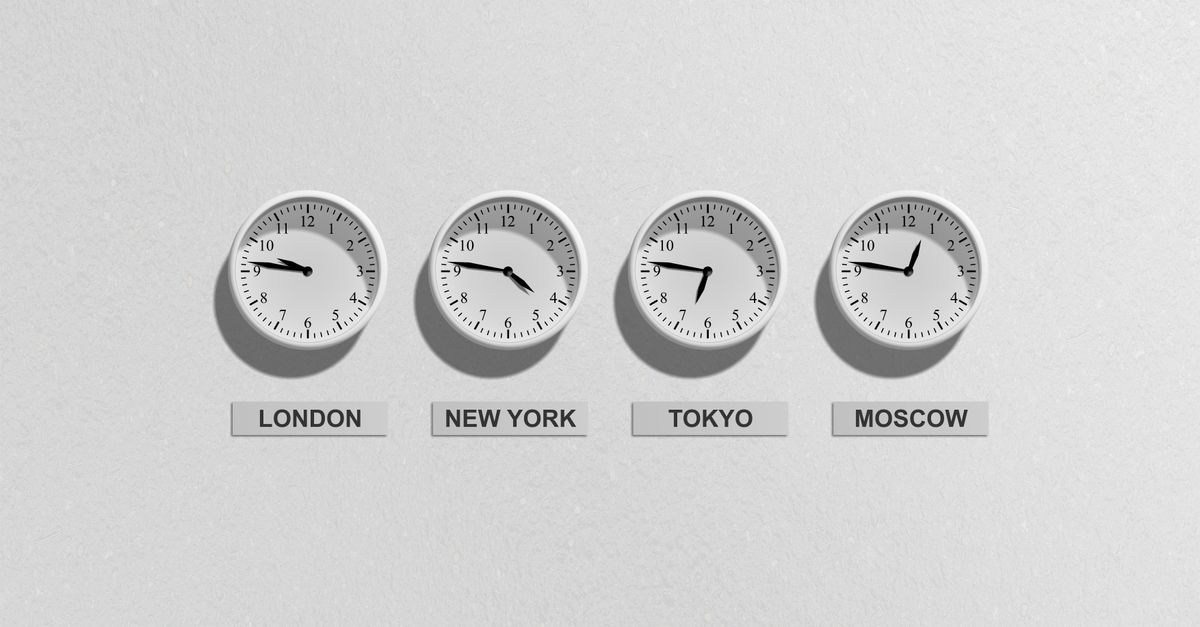
What this world clock alternative provides
When you open the tool, it starts with a live board of major cities spanning the Americas, Europe, the Middle East, South Asia, East Asia, and Oceania. The display is designed as a quick reference rather than a dense time-zone converter. Each row provides enough context to judge a location at a glance.
- Live local time: The clock for every selected city updates every second.
- Complete context: Every row uses 24-hour time and includes the weekday, date, and exact UTC offset for that moment.
- Day-or-night cue: A small sun or moon icon hints at the local daylight status.
- Simple city controls: Choose locations from the Add a city dropdown, press Add, and remove them with a button on their row.
- Local processing: The clock runs in your browser using its built-in international time-zone data, with no server call, account, or tracking.
Daylight-saving rules are handled automatically rather than through manual offset changes. This matters because a city’s UTC offset can change with the season: New York moves between UTC-5 and UTC-4, while London moves between UTC+0 and UTC+1. The board reads the offset for the exact instant being displayed, so the current row remains aligned with the selected city’s time-zone rules.
Because the calculation happens locally, the selected cities and your own location do not leave your computer. After the page has loaded, the clock can also continue working during a flaky connection or while the device is offline.
Compare alternatives by the job you need done
A useful world clock comparison should focus on the output, operating model, and supported workflow. Comparing a lightweight clock board directly with a full scheduling platform can make both look inadequate for different reasons.
| Need | World Clock behavior | What to verify in another option |
|---|---|---|
| Live reference | Refreshes every second | Does it update continuously or remain fixed after opening? |
| Seasonal time rules | Reads the exact current offset automatically | Does it handle daylight-saving changes without manual adjustment? |
| Unusual offsets | Supports half-hour and 45-minute zones | Does it preserve offsets such as UTC+5:30 and UTC+5:45? |
| Calendar context | Shows the weekday and date for every city | Can you tell when two locations are on different calendar days? |
| City coverage | Offers two dozen major cities plus UTC | Does it include every location you actually need to track? |
| Privacy | Uses browser-local processing with no server call, account, or tracking | Where are city choices and device data processed or stored? |
| Continuity | Keeps working after the page has loaded, even offline | Does the option require a live connection to display the time? |
| Planning scope | Focuses on viewing, adding, and removing cities | Do you also need meeting calculations, alerts, or invitations? |
This checklist keeps the comparison practical. A live board is well suited to checking current times, while a separate planning tool may be necessary when the main task is to reserve a shared slot or maintain a schedule of deadlines.
Build a live board for the cities you use
The supported setup takes only a few actions and does not require a location search.
- Open the tool. The live board starts immediately with the current time for a default set of major cities.
- Review the default rows. Check the 24-hour local time, weekday, date, current UTC offset, and sun or moon indicator for each location.
- Add another city. Open the Add a city dropdown, select the required location, and press Add. Its local time, date, weekday, and UTC offset appear immediately.
- Repeat for each relevant location. Adding a city places it on the same board, making it possible to compare several regions without changing tabs.
- Remove a city when it is no longer relevant. Click Remove on that city’s row. The board rearranges itself immediately.
- Keep the page available for ongoing checks. The display updates every second. Once loaded, the browser-based clock continues working during a weak connection or offline, and no selected city data is sent anywhere.
The result is a reusable reference board rather than a one-time conversion. You can leave it open during a working session, return to it later, and remove temporary locations without affecting the cities you still want to monitor.
Use the board for practical scheduling decisions
The clock is most useful when you treat each row as a live decision aid, not as a scheduler. It answers current local-time questions while preserving the details most likely to be missed: clear 24-hour notation, the calendar date, and the current offset.
Coordinate a distributed meeting
Compare the participants’ rows instead of doing time-zone arithmetic in your head. Read each local time, date, weekday, and day-or-night cue, then look for a period that appears reasonable in every row. The tool does not calculate an overlap or create an invitation, but it makes it easy to catch a proposed time that falls late at night for one office.
Handle calendar-day changes
Cities far to the east or west can be on different calendar days at the same instant. Each row shows its own date and weekday, helping you confirm that a follow-up belongs to the recipient’s next morning rather than your current date. This is particularly useful for overnight support, distributed deadlines, and teams handing work across regions.
Judge a personal contact window
The 24-hour display removes ambiguity between morning and evening, while the sun or moon icon gives a quick indication of local daylight. Together they provide a useful pre-message check for a colleague or family member overseas. Treat the icon as a broad hint rather than exact sunrise or sunset information.
Monitor a launch or maintenance window
Keep the board open while coordinating an international launch, support shift, or maintenance period. The live times show where each region currently stands, and the date beside each clock exposes calendar-day boundaries. During a seasonal transition, the displayed UTC offset continues to reflect the exact moment shown without manual editing.
Know the limits before making the switch
This is a focused current-time display, not a complete time-zone workbench. Check the following limits before adopting it as your main world clock alternative:
- City coverage: The picker contains two dozen major cities plus UTC. If a required place is not listed, the supported workflow cannot add it.
- Workflow: Viewing, adding, and removing cities are supported. Meeting planning, alarms, reminders, invitations, and historical conversions are outside that workflow.
- Daylight indicator: The sun or moon icon is a quick visual cue, not a full sunrise and sunset schedule.
- Browser dependency: The clock relies on the browser’s built-in international time-zone database and standard date and time formatting. It needs the page to load once before its offline continuity becomes available.
Privacy is equally straightforward: there is no server call, account, or tracking, and the cities you add and your own location remain on the device. In practical terms, the tool is a private live reference board for its supported cities, not a substitute for a comprehensive geographic database or a scheduling suite.
Choose based on your actual workflow
If your main goal is a live multi-city glance with date context, automatic daylight-saving handling, and browser-local processing, this World Clock fits that brief. Compare another category of tool only when a required capability falls outside its supported workflow.
- Choose this board for remote coordination, global launch monitoring, personal time checks, and current times in the listed major cities.
- Keep comparing options if you require arbitrary-place lookup, scheduled meeting calculations, integrated alerts, or a persistent desktop or mobile clock.
- Evaluate with real locations by adding the cities involved in your usual handoffs, checking the date boundaries, and confirming that a browser tab fits your working routine.
The simplest rule is to separate viewing time from planning time. This alternative handles live viewing, current offsets, and daylight-saving changes; a dedicated planning tool can handle reservations, alerts, and other scheduling tasks outside its scope.
If you're weighing options, Year Progress on Windows: Clock Alignment and Checks covers this in detail.
If you're weighing options, Is Chess Clock an Official Tournament Clock? covers this in detail.