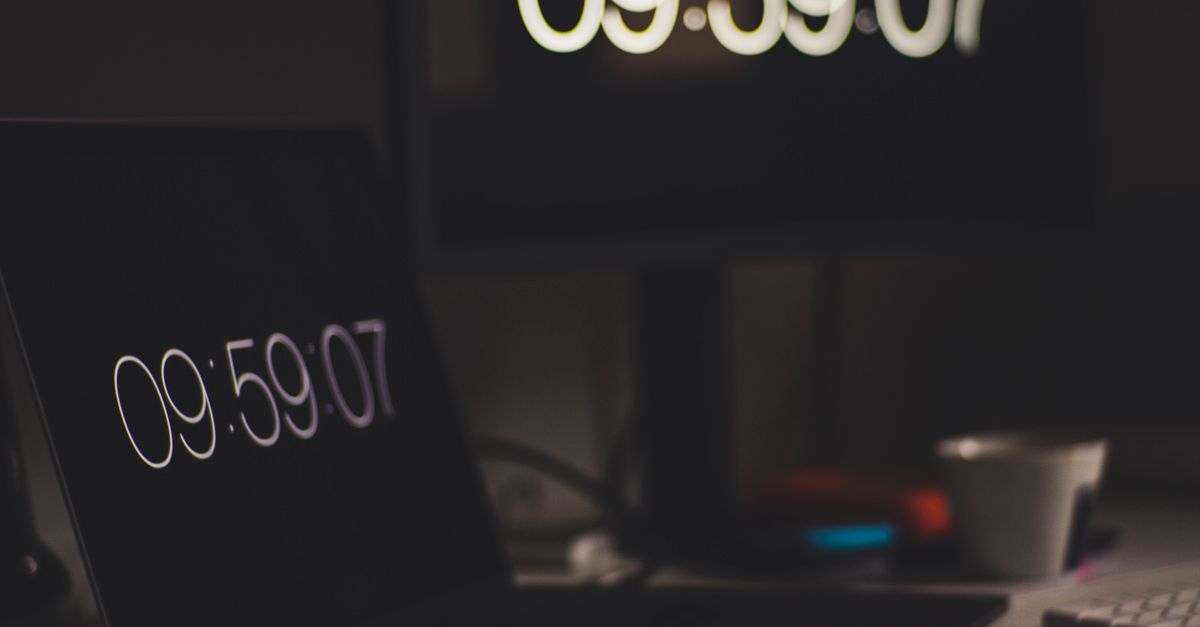
A countdown timer on a laptop is any browser-based timer that lets you set a duration in hours, minutes and seconds, press Start, and watch a large on-screen display count down to zero with an audible or visual alert at the end. On a laptop specifically, that usually means opening a tab in Chrome, Edge, Firefox, or Safari — no installation, no admin rights, no app store visit, and no account to create. The Online Countdown Timer fits this description exactly: open the page, type or tap your time, press Start, and the timer runs locally in the browser using plain JavaScript. Because it lives in a tab, you can keep it pinned, drag it to a second monitor, switch to another tab to check a recipe or a spreadsheet, and the display still matches the true time left when you come back. At the end you get a clear "Time's up!" message and an optional beep, and a Reset button returns the clock to your original duration so you can repeat the same countdown as many times as you need.
Why Your Laptop Already Has Everything You Need
A laptop running a modern operating system — Windows, macOS, ChromeOS, or any Linux desktop — ships with a full browser that can already run JavaScript, hold a tab open in the background, and play sound. That is the entire stack a countdown timer needs, so there is nothing extra to buy, install, or update.
Traditional timer apps still have a place, but they come with friction that a browser tab avoids: an installer that may need administrator rights, an account you only use once, updates that nag you, and a binary that ages out when the OS moves on. On a shared work machine, a school-issued laptop, or a borrowed device, those steps can be deal-breakers. A browser-based timer sidesteps each one.
The Online Countdown Timer opens in any modern browser and runs the entire countdown with plain JavaScript on the device. Open the page, set your time, and press Start — nothing leaves your laptop, nothing needs to be installed, and you can close the tab the moment you are done.
Everyday Ways to Use a Countdown Timer on a Laptop
Laptop countdown timers get used in more places than people expect because the laptop is usually the screen within arm's reach when a deadline looms. Here are the situations where one pays off, with rough durations to anchor your choice. For exact figures per situation, the tool itself lets you type any hours, minutes and seconds you want.
| Situation | Typical countdown | Why a browser timer helps |
|---|---|---|
| Boiling eggs (soft, medium, hard) | 6 to 12 minutes | Tap a 5 or 10 minute preset, then fine-tune by hand |
| Steeping tea without bitterness | 2 to 5 minutes | Short preset is one tap, beep warns you when steeping is done |
| HIIT round or plank hold | 20 to 90 seconds | Fine-grained control and a large readable display at a glance |
| Practice test or study sprint | 15 to 60 minutes | Keeps working when you switch tabs to check answers |
| Lightning talk or class segment | 3 to 7 minutes | Visible to the speaker without leaving the slide deck |
| Meeting agenda item or deep-work block | 20 to 50 minutes | Time-boxes the conversation without a moderator |
| Screen-time limit for kids | 15 to 60 minutes | Audible alert forces the hand-off when the screen goes off |
The list is open-ended — board-game move clocks, photography darkroom timers, sourdough bulk-fermentation counts, and pomodoro-style focus blocks all sit in the same family — but the pattern is constant: a deadline you can see beats one you have to remember.
Set Up a Countdown Timer on Your Laptop
- Open the Online Countdown Timer in a new browser tab on your laptop. The page loads instantly because everything runs locally.
- Set the duration. Type the hours, minutes and seconds you need into the input boxes, or tap one of the quick presets for 1, 3, 5, 10 or 15 minutes if that is close enough.
- Press Start. A large display starts ticking down from your chosen duration and stays accurate even if you switch to another tab to check a recipe, a spreadsheet, or a chat window.
- Press Pause to freeze the clock when you are interrupted, and Resume to continue from where it stopped. The duration input locks while the clock runs, so you cannot nudge the time by accident.
- When the display reaches 00:00 you see a clear "Time's up!" message and hear an optional short beep if your browser is allowed to play sound.
- Press Reset any time to snap the clock back to your original duration, ready for the next round without retyping the numbers.
How the Timer Stays Accurate When You Switch Tabs
Most casual timers subtract one second on every tick. The trouble is that browser intervals are never exactly one second — they drift a little each time the device is busy — so a 10-minute countdown that started perfectly can finish a couple of seconds late or early. For an egg that is the difference between runny and rubbery.
The timer on this page takes a different approach. The moment you press Start, it records a high-resolution anchor timestamp from the system clock. On every refresh of the display, instead of subtracting a tick, it recomputes the time remaining by subtracting the real elapsed time from the original duration. If your laptop is busy for a few seconds, or you switch to another tab and come back, the display self-corrects to the true time left rather than falling behind.
Worked example: you set a 5-minute countdown (300 seconds) and press Start when the system clock reads 12:00:00. The anchor timestamp is captured at that moment. You then switch tabs for 70 seconds. When you come back, the browser reads the real current time, sees that 70 seconds of real time have elapsed, and shows 300 − 70 = 230 seconds remaining, or 03:50 on the display. No drift, no manual catch-up, no recounting in your head.
If you want a deeper look at the underlying mechanism, the Countdown Timer Accuracy guide walks through the same idea in more detail.
Countdown, Stopwatch, or Pomodoro: Which One Fits the Task
The terms get used interchangeably, but they describe different tools. Picking the wrong one usually means you end up doing the conversion in your head, which is exactly what the timer was supposed to save you from. Here is how the three line up.
| Tool | Direction | Length | Best for |
|---|---|---|---|
| Countdown timer | Counts down to a deadline | Any duration you choose | Hard time limits — boiling, tests, segments, screen-time caps |
| Stopwatch | Counts up from zero | Open-ended | Lap times, chore durations, "how fast was that" measurements |
| Pomodoro timer | Fixed 25/5/15-minute cycle | Locked rhythm | Repeated focus-and-break work sessions with a built-in count |
Use a countdown timer when the task already has a number of minutes attached. Use a stopwatch when you want to find that number. Use a Pomodoro timer when you want the rhythm chosen for you.
Privacy and Offline Behaviour on a Laptop
Because the timer runs as plain JavaScript inside the page, it never sends your duration or any state to a remote server. There is no account, no login, no telemetry, no upload of what you are timing. If you open the browser's developer tools you can confirm that the only network activity is loading the page itself.
This local-only design has a useful side-effect for laptop users: once the page has loaded, the timer keeps working even if your Wi-Fi drops or you take the laptop off the network entirely. The clock will still tick down to 00:00 and still alert you when it gets there, because no part of the countdown depends on a server connection.
The same design also means the tool opens instantly. There is nothing to download, no installer to wait on, and no first-run wizard. Click the bookmark, set the time, press Start.
Tips for a Smoother Laptop Timer Setup
A few small habits make a browser-based countdown timer feel closer to a dedicated app on a laptop.
- Pin the timer tab so it does not get lost when you have a dozen tabs open. Most browsers let you right-click the tab and choose Pin.
- If you work with two screens, drag the timer window to the second monitor so it stays visible while you work on the primary one.
- Allow sound for the page the first time you press Start, so the optional beep actually fires when the time runs out. Browsers usually ask once and remember your choice.
- For long deadlines — a 90-minute study session, a multi-hour cooking project — type the hours and minutes rather than relying on a preset, then leave the tab open and check in periodically.
- If you use full-screen presentation mode for slides or a stream, pop the timer out into its own window so the alert still appears above the presentation surface.
None of these are features of the timer itself — they are just ways to make a browser tab feel at home on a laptop, which is, after all, exactly what the tool is designed to do.