A browser-based online alarm clock lets you set a loud, visual alarm for any time without installing apps or creating accounts. Unlike phone alarms, it works on any device with a browser—laptops, desktops, tablets, or even borrowed computers—so you’re never without a backup. The alarm rings with both sound and a flashing screen, ensuring you notice it even if your device is on silent. You can label each alarm (e.g., “Meeting,” “Break”), snooze for five minutes, or dismiss it instantly. Since it runs locally, your data stays private, and the clock updates every second to match your device’s time zone. This is ideal for quick reminders, Pomodoro sessions, or waking up when your phone isn’t handy.
Traditional alarms require unlocking your phone, navigating menus, and hoping the app doesn’t crash. Online alarm clocks simplify the process: open the tool, pick a time, and press “Set.” The tab must stay open, but you can minimize it or switch to other work while the countdown runs. If you’re managing multiple tasks, pairing this with a Pomodoro Timer keeps focus cycles on track. For travelers or remote workers, a World Clock helps coordinate alarms across time zones. Unlike hardware clocks, browser alarms sync automatically with daylight saving changes, so you never wake up an hour early or late.
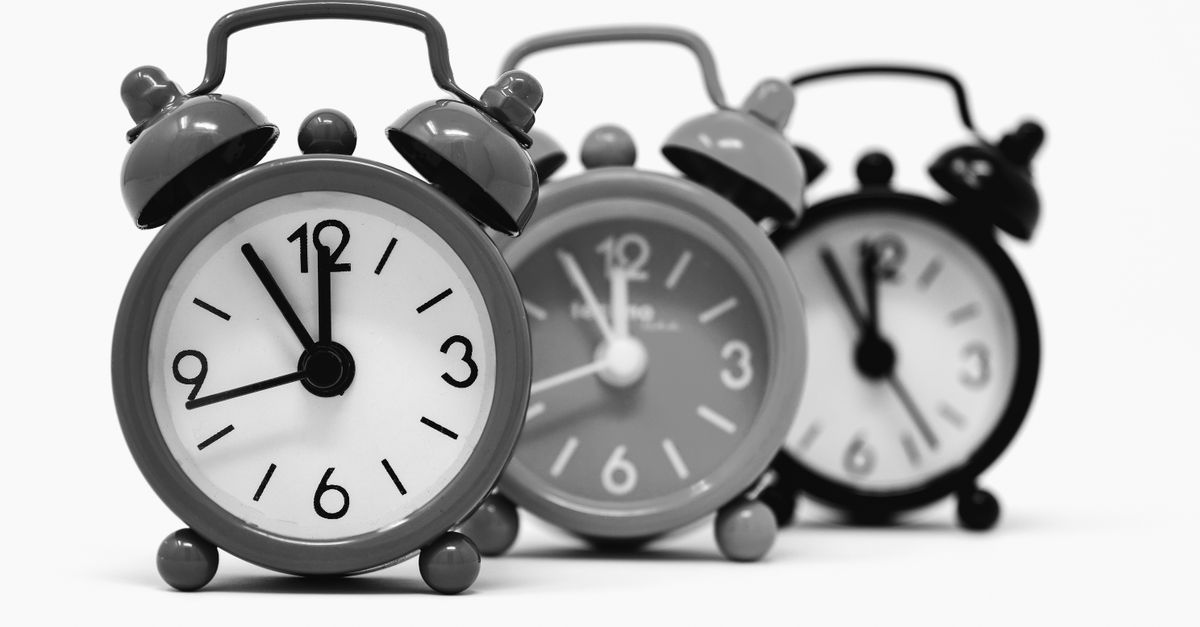
Why Choose an Online Alarm Clock Over Phone Alarms
Phone alarms are convenient but come with limitations. They drain battery, require unlocking your device, and often lack customization for short-term reminders. Online alarm clocks solve these issues by running in a browser tab, which means:
| Feature | Phone Alarm | Online Alarm Clock |
|---|---|---|
| Device compatibility | Only works on your phone | Works on any device with a browser |
| Battery impact | Drains phone battery over time | Uses minimal power (like any open tab) |
| Privacy | May sync data to cloud accounts | Runs locally; no data leaves your device |
| Customization | Limited to preset tones and labels | Add any label, snooze, or dismiss instantly |
| Accessibility | Requires unlocking phone and navigating menus | Set in seconds with one click |
For example, if you’re working on a laptop and need a 15-minute reminder to stretch, an online alarm is faster than reaching for your phone. It’s also useful in shared spaces (like offices or libraries) where you can’t use your phone’s speaker. If you’re testing keyboard shortcuts, pair it with a Keyboard Tester to time your practice sessions.
How to Set an Online Alarm Clock in Your Browser
Follow these steps to set a loud, visual alarm using the Online Alarm Clock tool:
- Open the tool: Go to Online Alarm Clock in your browser. The live clock at the top updates every second to match your device’s local time.
- Pick your alarm time: Use the time picker to select the exact hour and minute. For example, set it to 3:00 PM for a meeting reminder.
- Add a label (optional): Type a short note in the label field, like “Team sync” or “Take a break,” so you remember why the alarm is set.
- Press “Set alarm”: The status line below the button will confirm the target time (e.g., “Alarm set for 3:00 PM”).
- Keep the tab open: The alarm will only ring if the tab remains active. You can minimize it or switch to other tabs, but don’t close it.
- Wait for the alarm: When the time arrives, the screen will flash, and a loud sound will play. Press “Dismiss” to stop it or “Snooze” to ring again in five minutes.
If you’re setting multiple alarms (e.g., for a series of tasks), repeat the steps for each one. The tool doesn’t limit how many alarms you can set, but each requires its own tab. For recurring reminders, like hourly breaks, combine this with a Online Countdown Timer to restart the cycle automatically.
Common Scenarios Where an Online Alarm Clock Helps
Browser alarms aren’t just for waking up—they’re versatile tools for productivity, health, and time management. Here are practical ways to use them:
- Pomodoro technique: Set a 25-minute alarm for focus sessions, followed by a 5-minute break. Pair this with the Pomodoro Timer for automatic cycles.
- Meeting reminders: Label alarms with the meeting name (e.g., “Client call at 2 PM”) to avoid forgetting. Works even if your calendar app is closed.
- Cooking or baking: Set a timer for boiling pasta, proofing dough, or marinating meat. The loud ring ensures you hear it over kitchen noise.
- Study or work sprints: Use alarms to time 50-minute study blocks with 10-minute breaks, following the Pomodoro method’s longer cycles.
- Medication reminders: Set recurring alarms for daily pills or supplements. Label them clearly (e.g., “Take vitamin D”).
- Travel time checks: Set an alarm 30 minutes before you need to leave for an appointment, giving you a buffer for traffic or delays.
- Power naps: Set a 20-minute alarm to recharge without oversleeping. The visual flash helps wake you gently.
For example, if you’re following the Pomodoro technique, set an alarm for 25 minutes of work, then a 5-minute break. After four cycles, take a longer 15-30 minute break. This structure boosts focus and prevents burnout, as noted in How Long Is a Pomodoro? Cycle Lengths Explained. If you’re cooking, set multiple alarms for different dishes (e.g., “Boil water at 6:00 PM,” “Add sauce at 6:10 PM”).
Troubleshooting: Why Your Online Alarm Might Not Ring
Online alarms are reliable, but a few common issues can prevent them from working. Here’s how to fix them:
| Issue | Cause | Solution |
|---|---|---|
| Alarm doesn’t ring | Tab was closed or device went to sleep | Keep the tab open and prevent your device from sleeping (e.g., disable sleep mode on laptops). |
| Alarm rings silently | Browser or device is muted | Check your device’s volume and browser tab sound settings. The alarm will still flash on-screen. |
| Time is incorrect | Device time zone is wrong or browser isn’t synced | Update your device’s time zone settings. The tool uses your local time, so it won’t work if the system time is off. |
| Alarm rings at the wrong time | Daylight saving time change wasn’t applied | Refresh the page to sync with your device’s updated time. The tool automatically adjusts for DST. |
| Can’t snooze or dismiss | Browser pop-up blocker is interfering | Disable pop-up blockers for the site or allow notifications. The tool needs permission to show alerts. |
If you’re using the alarm on a shared or public computer, remember that closing the tab will cancel the alarm. For critical reminders, set a backup alarm on your phone. If you’re testing keyboard shortcuts, use the Keyboard Tester to ensure your device isn’t freezing, which could also prevent the alarm from ringing.
Alternatives to Online Alarm Clocks for Different Needs
While online alarm clocks are versatile, other tools might fit specific scenarios better. Here’s when to consider alternatives:
- For recurring alarms: Use your phone’s built-in clock app. It’s more reliable for daily wake-up calls since it doesn’t depend on an open tab.
- For silent reminders: Try browser notifications or calendar alerts. These work even if the tab is closed, but require permission settings.
- For long countdowns (hours/days): Use a Online Countdown Timer. It’s better for tracking deadlines or events far in the future.
- For multiple alarms at once: Use a desktop app like Windows Alarms & Clock or macOS Clock. These support multiple alarms without needing separate tabs.
- For smart home integration: Use voice assistants (e.g., Alexa, Google Assistant) to set alarms hands-free. These can also control lights or music when the alarm rings.
For example, if you’re managing a project with multiple deadlines, a countdown timer keeps you aware of the overall timeline, while an alarm clock handles short-term reminders. If you’re a student, phone alarms work for daily classes, but an online alarm is handy for last-minute study breaks. For more advanced setups, Build Your Own Alarm Clock Without Hardware explains how to create custom solutions with scripts or smart devices.
How to Combine Online Alarms with Other Productivity Tools
Online alarms work best when paired with other tools to create a seamless workflow. Here’s how to integrate them:
- With a notepad: Use the Online Notepad to jot down tasks or notes related to your alarm. For example, label an alarm “Review notes at 3 PM” and keep the notepad open for quick reference.
- With a world clock: If you’re working across time zones, use the World Clock to check local times before setting alarms for international calls or deadlines.
- With a stopwatch: Use the Online Stopwatch to time tasks between alarms. For example, set an alarm for a 10-minute break, then use the stopwatch to track how long you spend on leisure activities.
- With a typing test: If you’re practicing typing speed, set an alarm for 5-minute intervals to check your progress with the Typing Test. This helps track improvement over time.
- With OBS for streaming: Add an alarm as a visual cue in your stream. For example, set an alarm to remind you to check chat or take a water break. Learn how to integrate timers in How to Set Up a Clean Countdown Timer for OBS.
For instance, if you’re following the Pomodoro technique, set an alarm for 25-minute work sessions, then use the stopwatch to time your 5-minute breaks. After four cycles, take a longer break and use the notepad to review what you’ve accomplished. This layered approach keeps you on track without feeling overwhelmed.
For a deeper look, see Master a Digital Stopwatch in Your Browser in Minutes.