Screen Light on Android is best understood as using an Android display as a gentle front-fill panel for a video call or photo, not as a command that changes the phone’s system backlight. The Screen Light for Video Calls turns part of the browser into an even color panel that can sit near a webcam. It needs no installation and does not use personal data, camera access, microphone access, or the ambient-light sensor.
There are two separate jobs on Android. The browser tool changes a visible color panel inside its page; it does not change the operating system’s backlight, monitor controls, camera exposure, or actual light output measured in lux. If you simply want the phone’s display brighter or dimmer for reading, use Android’s own brightness control. If you want soft light in front of your face during a call or photo, use the browser panel as described below.
The browser panel’s controls have specific, limited effects:
| Control | What it changes | What it does not change |
|---|---|---|
| Light color | Neutral white, warm, soft blue, or a custom six-digit color fills a responsive 16:9 panel. | Android color settings or the display’s calibration. |
| Visual brightness | A 1% to 100% setting is represented by a bounded black overlay over the selected color. | Hardware backlight, camera exposure, or output in lux. |
| Full screen | The panel expands when the browser allows it and the user selects the full-screen control. | A native app or a system-wide display setting. |
| Operation | The light panel runs in a browser without installation. | No camera, microphone, light-sensor, or personal-data use. |
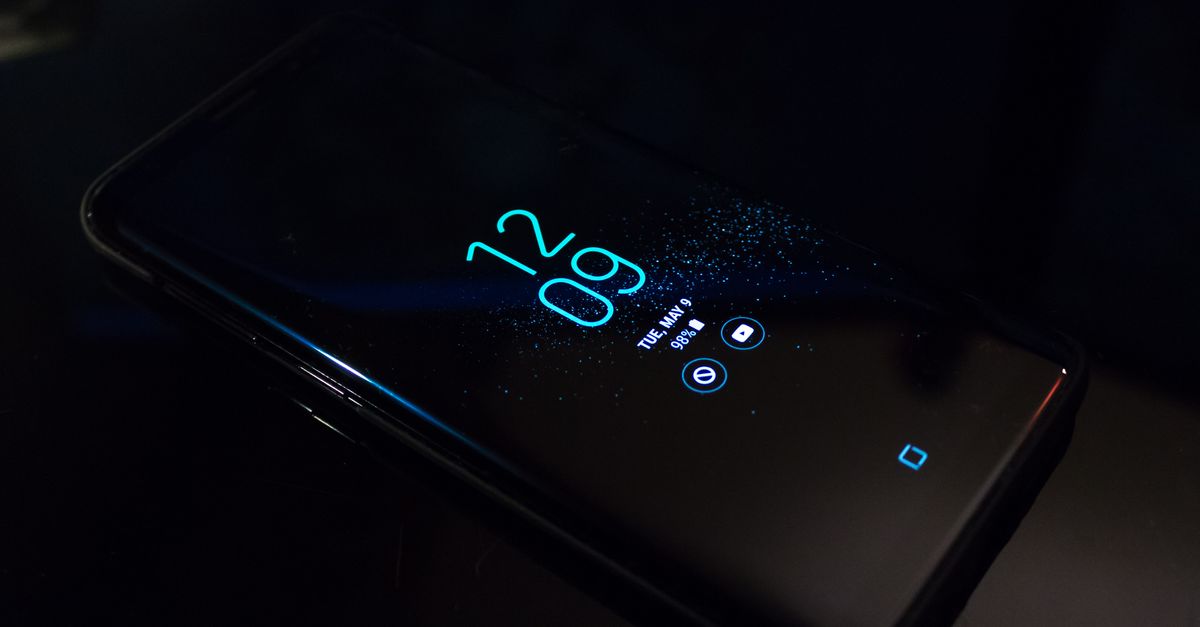
Set up screen light on Android
The most predictable arrangement uses two screens: run the video call on a laptop or another display while an Android phone or tablet provides the browser light panel. If you have only one phone, the call and the light cannot both occupy the full display simultaneously. A second device or display gives the panel more room and lets you keep both visible at once.
- Arrange the screen and camera. Position the Android device near and slightly above the webcam. If possible, keep the video call on a separate computer or display so the light panel remains visible throughout the call.
- Open Screen Light for Video Calls in your browser. No application installation is required. Load the tool before the call so you can set the panel without interrupting the conversation.
- Choose a light color. Select neutral white, warm, soft blue, or a custom color. These labels describe the visible tint on the panel; they are not measured Kelvin color temperatures.
- Adjust the visual brightness. Move the page control from 1% to 100% while watching the panel near your camera. Start at a low level, then increase it only until your face looks clearer without making you squint or creating harsh reflections.
- Expand the panel if useful. Select Use full screen to request a larger illuminated area. The browser must permit full-screen mode, and the request is made only after your explicit click.
- Start the call or photo separately. Use your usual calling or camera application on the other screen, then return to the browser controls as needed. Fine-tune the tint and page level according to how your face appears in the camera preview.
- Leave full-screen mode when finished. Press Escape to exit full screen and return the browser to its normal view.
Tune the tint and visual level
Neutral white provides a neutral-looking starting point, while warm and soft blue introduce visible warm or cool tints. A custom six-digit color gives you direct control over the panel’s fill color. Because the control affects the screen rather than a calibrated lamp, judge the result by eye instead of assuming a preset represents a specific physical color temperature.
The percentage is also a visual control, not a measurement. The same setting can look different on two Android devices because of hardware brightness, panel size, color calibration, ambient light, and distance from your face. Start with the appearance you need rather than trying to copy a number from another screen.
| Goal | Adjustment | Important limit |
|---|---|---|
| Create more visible fill | Raise the page brightness gradually while watching the panel and camera preview. | Stop before the light causes squinting or harsh reflections. |
| Reduce an overly bright panel | Lower the page brightness; reduce Android’s hardware brightness too if the whole display feels uncomfortable. | The two brightness controls affect different layers. |
| Reduce visible color cast | Compare neutral white with warm, soft blue, or a custom color. | Preset names describe tint, not measured color temperature. |
| Match a level on another device | Compare the appearance of the panel and your face rather than copying the percentage. | Display hardware and room conditions can change the result. |
Position the panel near your camera
Place the browser window near and slightly above the webcam so the panel faces you from roughly the same direction as the camera. Full-screen mode can enlarge the illuminated area when your browser supports it, but the panel does not need to be extremely close to your face. Keep a comfortable viewing distance and avoid staring directly at a bright panel in a dark room.
A white wall or sheet positioned outside the camera frame can soften the effect further. For photos, the same arrangement can provide a broad, close-range fill beside the subject, although it still will not control the camera’s exposure. If either the page level or the phone’s hardware brightness becomes uncomfortable, lower the relevant control before continuing.
Use Android brightness for general display control
To make the entire phone easier to read, swipe down to Android Quick Settings and move the Brightness slider, or open the phone’s display settings and use its brightness control. Exact labels and placement can differ by manufacturer, but this is the device-level control for the screen’s general output.
That system setting is different from the browser tool’s visual brightness control. Lowering Android’s hardware brightness reduces the whole display, including the browser panel. The page control instead places a black overlay over the selected panel color without touching the operating system. Neither the page control nor the panel changes camera exposure, and the page cannot read ambient light to adjust itself automatically.
Know the limits of a browser fill light
A screen is a modest close-range fill light, not a replacement for a calibrated lamp, flash, medical light, or professional studio setup. It may make a face look clearer by adding gentle front light, but it cannot guarantee a measured color temperature, a particular output in lux, or a specific photographic result.
- Full screen depends on browser support and may leave browser controls visible on some Android devices.
- The panel is a separate browser page rather than a built-in video-calling overlay.
- The page does not use the webcam, microphone, ambient-light sensor, or personal data.
- The color and brightness settings remain only in the current browser state.
- The same page percentage can produce visibly different results on different displays and in different rooms.
For a simple Android setup, place the panel near and slightly above the camera, choose a comfortable tint, begin at a low page level, and increase the level only while watching how your face looks in the call or camera preview.
Related reading: Screen Light on Laptop: Set Up a Browser Fill Light.