A screen light for video calls is a browser panel that you turn into a soft, adjustable front light for your webcam, with no app to install and no camera access required. The page fills a portion of the screen with a chosen color — neutral white, warm, soft blue, or any custom six-digit value — and overlays a transparent black layer that you control as a percentage from one to one hundred, so the same color can look brighter or dimmer without ever touching the monitor's hardware brightness. Because the panel sits inside the browser window, you can place it near and slightly above the camera so the light wraps the face instead of coming from below or behind. This works for laptop webcams, external webcams on a stand, or a phone propped next to a separate display, and it stays useful for short stand-up calls and long meetings. Other meeting participants usually notice the improvement in face clarity long before they identify what changed, and a panel that small costs nothing extra in setup time.
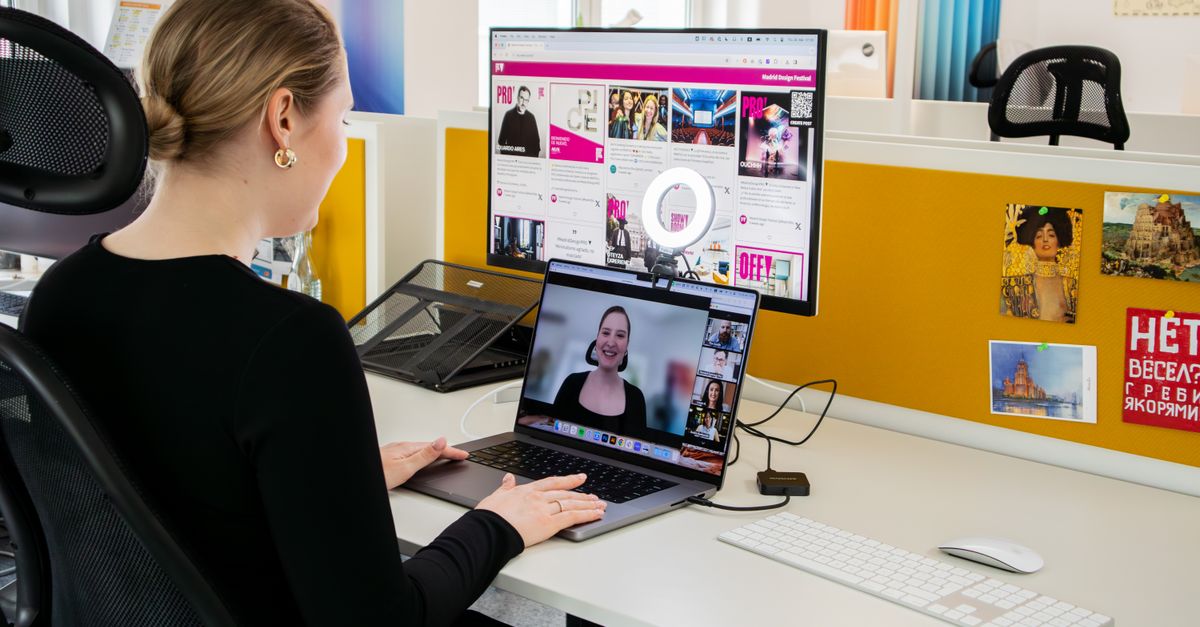
Why Most Webcam Footage Looks Too Dark
Webcams are small sensors with limited dynamic range, and the most common reason a face looks muddy on a video call is that the strongest light in the room sits behind or above the subject. A window, a ceiling fixture, or a bright wall pulls the camera's exposure up, and the face falls into shadow. A soft front light fixes this without changing your camera, your network, or your office: it raises the amount of light falling on your face from the same direction the camera sees from, so the sensor reads the face instead of the background.
That is exactly what a browser-based screen light does. It is not a replacement for a real lamp or flash, but for a typical webcam call it usually closes the gap between your face and whatever is behind you, which is the single biggest factor in how clear your video looks.
Set Up a Screen Light for Video Calls in Three Steps
The whole setup takes less than a minute once the panel is open. You do not need to install anything, sign in, or grant camera access; the page works entirely as a colored overlay inside the browser.
- Open the screen light for video calls in a browser tab, then pick a light color from the presets — neutral, warm, soft blue — or enter any custom six-digit color that fits your room.
- Adjust the brightness from one to one hundred percent while watching the panel near your camera. Start low, then nudge it up only until your face on the preview looks clearer, without squinting or pulling harsh reflections in your glasses.
- Click Use full screen for a larger illuminated area when you are ready to take the call, and press Escape on your keyboard to leave full-screen mode when you finish.
If you are using an external webcam on a second monitor, open the panel on that second screen and arrange the call window on your laptop. The light should appear close to the lens the call software is using, not the screen you happen to be looking at.
Pick the Right Tint for Your Room and Skin Tone
The four presets describe the visible tint of the panel, not a measured color temperature in Kelvin, so the right choice is whatever makes your face look the most natural next to the rest of the room. Pick a tint that matches the room's existing light, and your video will feel continuous rather than spot-lit.
| Preset | Visible tint | Best for |
|---|---|---|
| Neutral | Plain white | Offices with cool overhead lights, screen-sharing meetings, and general daytime calls. |
| Warm | Slight yellow or amber tint | Late afternoon calls, dim rooms, and faces that look pale or bluish on the preview. |
| Soft blue | Gentle cool tint | Rooms lit by warm tungsten or candle-style lamps, and calls where you want to match a cooler monitor look. |
| Custom | Any six-digit color | Matching a specific room tone, fixing a strong color cast, or trying a creative look. |
When in doubt, start with neutral, watch the preview window in your call app for a few seconds, then switch to warm or soft blue and pick whichever one flatters your skin tone the most.
Position the Panel So Your Face Catches the Light
Even the right color looks weak if it lands on the side of your face instead of the front. Place the browser window that holds the light panel as close to the camera as you can, and nudge it slightly higher than the lens so the light wraps the brow and cheekbones rather than shining up your nostrils. With a laptop, that usually means pushing the panel up to the very top of the screen next to the webcam. With an external camera on a stand, you can move the panel across a separate display until it sits next to the lens.
A white wall, a sheet of paper, or a pale notebook held just outside the camera frame bounces some of that colored light back into the shadow side of your face. It is a cheap trick that softens harsh shadows without buying any gear, and it is especially helpful when you only have a single screen and cannot move the panel close to the camera without blocking your view of the call.
Keep a normal viewing distance from the panel. Staring at a near-full-brightness white panel in a dark room can feel uncomfortable quickly; if your eyes start to strain, drop the on-page level or your monitor's hardware brightness before the call starts.
Make the Most of Full-Screen Mode During the Call
Full-screen mode is requested only after you click the button, so it never takes over your display on its own. Once you are in full-screen mode, the panel fills the entire browser window with the chosen color and brightness, which gives you the largest possible illuminated area without installing software. Use it when you want the strongest effect on your face, or when you only have one display and the call window needs to sit on top of the light panel.
Press Escape at any time to leave full-screen mode and return to the browser. Escape does not close the tab or reset your settings, so you can step out of full screen to check a chat or a slide, then click the button again to go back.
What a Screen Light Can and Cannot Do
A browser panel is a modest close-range fill light, not a replacement for a calibrated lamp, flash, medical light, or professional studio setup. The on-page percentage only changes the color and a transparent black overlay inside the panel itself. It does not change your monitor's hardware backlight, your operating system's brightness slider, your webcam's exposure, or the actual amount of light measured in lux. Two monitors set to the same on-page percentage can produce noticeably different brightnesses on your face because of hardware brightness, panel size, color calibration, ambient room light, and the distance between you and the screen — the same reason a single setting looks different on different displays.
The page does not use your webcam, your microphone, your ambient-light sensor, or any personal data. Color and brightness choices stay only in the current browser state. Keep the panel at a comfortable viewing distance, avoid staring directly at a bright panel in a dark room, and lower either the on-page level or the hardware brightness if the display feels uncomfortable before the call begins.
If you're weighing options, Fix an Online Tally Counter Result That Looks Wrong covers this in detail.