Screen Light for Video Calls is a browser-based alternative to a desk lamp that turns part of the display into an adjustable color panel for gentle front light during video calls and photos. It offers neutral white, warm, soft blue, or a custom six-digit color, plus a visual brightness control from 1 to 100 percent and an optional full-screen panel, so you can create a simple fill light without installing an app or granting camera access. For a call, place the browser near and slightly above the webcam, start at a low visual level, and increase it only until your face looks clearer without causing squinting or harsh reflections. The page changes the selected color and a transparent black overlay inside the browser panel; it does not change the monitor’s hardware backlight, operating-system controls, camera exposure, or actual light output measured in lux. The same page percentage can look different on separate displays because hardware brightness, panel size, calibration, ambient light, and distance also matter. A browser panel is a modest close-range fill light, not a replacement for a calibrated lamp, flash, medical light, or professional studio setup.
What the browser-based alternative provides
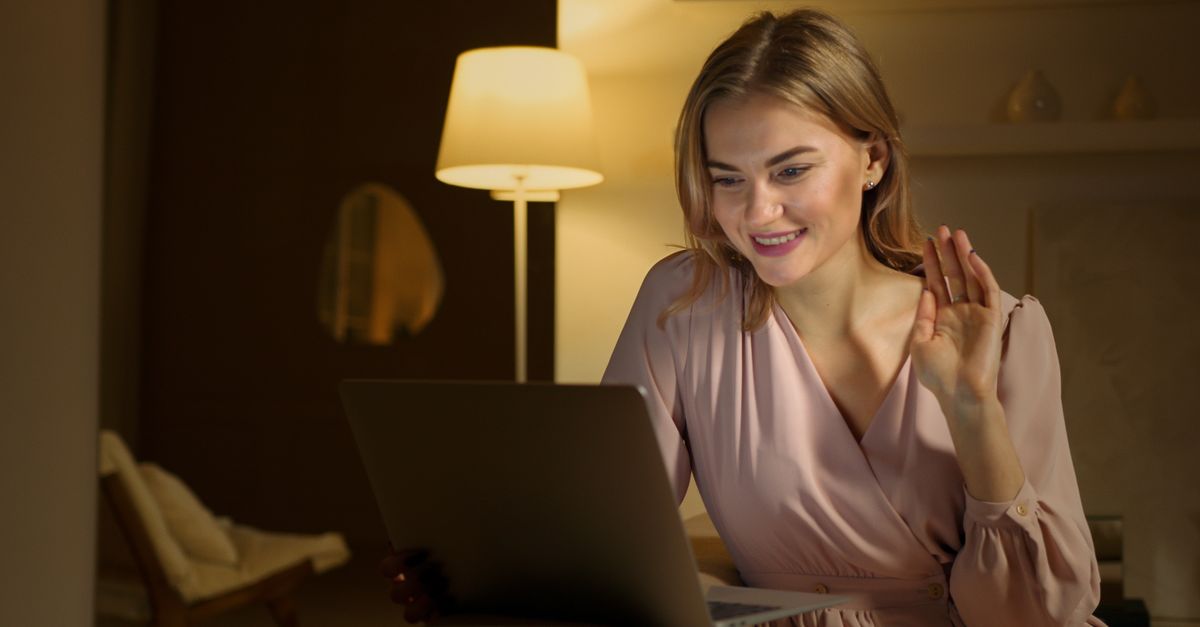
The useful distinction is that this alternative does not try to control the monitor as a whole. It creates a large, even color panel inside the browser, and that panel can sit close to the webcam. Screen Light for Video Calls changes the panel’s tint and visual level without installing an application. The selected color fills a responsive 16:9 panel, which can add gentle front light near a webcam.
Because it does not request camera, microphone, or ambient-light sensor access, the page does not need to activate the webcam or expose those devices to the tool. It also does not use personal data. That makes it a practical no-install choice when a physical fill light is unavailable or awkward to position, while keeping the scope modest: a screen is a close-range light source, not a studio fixture. Color and brightness settings stay in the current browser state.
What each on-page control changes
Every adjustment happens within the page, so it helps to separate visible panel controls from hardware controls before changing anything.
| Control or boundary | Available setting | Actual effect | Important limit |
|---|---|---|---|
| Light color | Neutral white, warm, soft blue, or a custom six-digit color | The selected color fills the responsive 16:9 panel | Preset labels describe visible tints, not measured Kelvin temperatures |
| Visual brightness | One to one hundred percent | A transparent black overlay controls the darkness over the selected color | It does not change hardware backlight, monitor controls, camera exposure, or output in lux |
| Panel size | Use full screen | The illuminated browser panel becomes larger when the browser allows it | The request follows an explicit click, and Escape exits full-screen mode |
| Device access | No camera, microphone, or ambient-light sensor requested | The tool operates through the browser panel | The page does not use personal data |
Under the hood, the selected six-digit color fills the panel, while the visual brightness setting controls the opacity of a bounded black overlay. Lower brightness means more darkening over the selected color; it does not reduce the monitor’s hardware backlight. The full-screen option is tied to a user click, allowing the browser to decide whether to grant that mode. If it does, Escape leaves full screen. Evaluate the result in the display and room you will actually use because page brightness, hardware brightness, panel size, calibration, ambient light, and distance can all change how the same setting appears.
Set up the panel for your next video call
- Place the browser window near and slightly above the webcam before adjusting the light. Keep the panel in your forward viewing area so it faces you like a basic fill source rather than sitting off to one side.
- Open Screen Light for Video Calls and choose neutral white, warm, soft blue, or a custom color. For a custom choice, enter a six-digit color. The labels describe visible tints, so judge the result by its appearance rather than treating them as measured Kelvin values.
- Set the visual brightness with the one-to-one-hundred-percent control and watch the panel next to the camera. Start at a low visual level, then increase it only until your face looks clearer without causing squinting or harsh reflections. If the panel becomes uncomfortable, lower the page level or your hardware brightness.
- Select Use full screen when you want a larger illuminated area and the browser allows it. Full screen enlarges the browser panel; it does not make the monitor brighter or change any camera setting.
- Press Escape when finished to leave full-screen mode. Before joining, confirm that your face looks comfortable in the actual call view and that the panel is not creating distracting reflections.
Position the panel for softer face lighting
Positioning the panel correctly matters as much as choosing a tint. For a video call, put the browser near and slightly above the camera so the panel adds light from the front. Start with a low page level and adjust while checking how your face appears in the call. The goal is a clearer, more evenly lit face, not an extremely bright panel.
A white wall or sheet placed outside the camera frame can soften the effect further. For photos, keep the same basic arrangement and choose a tint that looks comfortable with your surroundings. Because the preset labels are visual descriptions rather than measured color temperatures, the real camera view is the practical reference.
The comfort boundary matters too. Avoid staring directly at a bright panel in a dark room. If the display feels uncomfortable during a call, reduce the page’s visual level or lower the hardware brightness. Increase the setting only as far as needed to make the face look clearer without making you squint.
Know where the browser panel stops
The on-page percentage is a visual control, not a measurement of illumination. It changes the transparent black overlay inside the browser panel, but it does not change the operating system’s backlight, physical monitor controls, camera exposure, or output in lux. The same setting can look very different on two displays because hardware brightness, panel size, color calibration, surrounding light, and your distance from the screen all contribute to the result.
Treat the panel as a modest close-range fill light. It can add gentle front light to a face during an ordinary call or photo, but it is not a replacement for a calibrated lamp, a flash, medical lighting, or a professional studio setup. If your priority is repeatable measured output, exact color control, or production-level lighting, use purpose-built equipment instead.
Privacy is also straightforward. The page does not use the webcam, microphone, ambient-light sensor, or personal data. It requests full-screen mode only after an explicit click, and the browser can refuse that mode. Color and brightness choices remain only in the current browser state.
Choose between a browser panel and dedicated lighting
A browser panel is most useful when the goal is a quick, no-install front fill for a webcam and a separate light is not available. Dedicated equipment is the better choice when the lighting needs to be measured, repeatable, or shaped for a particular production workflow.
| Lighting option | Good fit | Main advantage | Main limitation |
|---|---|---|---|
| Browser light panel | Video calls and photos needing basic close-range fill light | No application or camera access, with adjustable color and visual level | Output depends on the display and room, and it is not calibrated |
| Calibrated task lamp | Desk work or face lighting that needs controlled placement | A purpose-built source can be aimed and adjusted | Requires separate hardware and setup |
| Flash or studio setup | Controlled photo or video production | Uses dedicated lighting and staging rather than a browser panel | Requires specialized equipment and production preparation |
For a meeting, open the browser panel, choose a comfortable tint, set a low visual level, and raise it only as needed. A white wall or sheet outside the frame can help spread the effect. If the result still looks uneven, move the browser closer to the camera line or switch to dedicated lighting. Do not use the browser panel as a medical light or expect it to reproduce the output of a calibrated fixture.