Screen light is the visible illumination emitted by an electronic display such as a monitor, laptop, tablet, or phone, and the same phrase is also used for the technique of turning that display into an adjustable, on-demand light source for tasks like video calls, product photos, or reading in a dim room. The term covers two related ideas. First, every modern display is engineered to produce light as part of how it shows an image, whether through a backlit LCD panel or a self-emissive OLED stack. Second, software can fill part or all of that same panel with a single solid color, turning the screen into a soft, even, close-range fill light you can place anywhere a device will sit. Because the panel is already in front of you and controllable from the page, it doubles as a low-cost substitute for a small lamp when no other light is available.
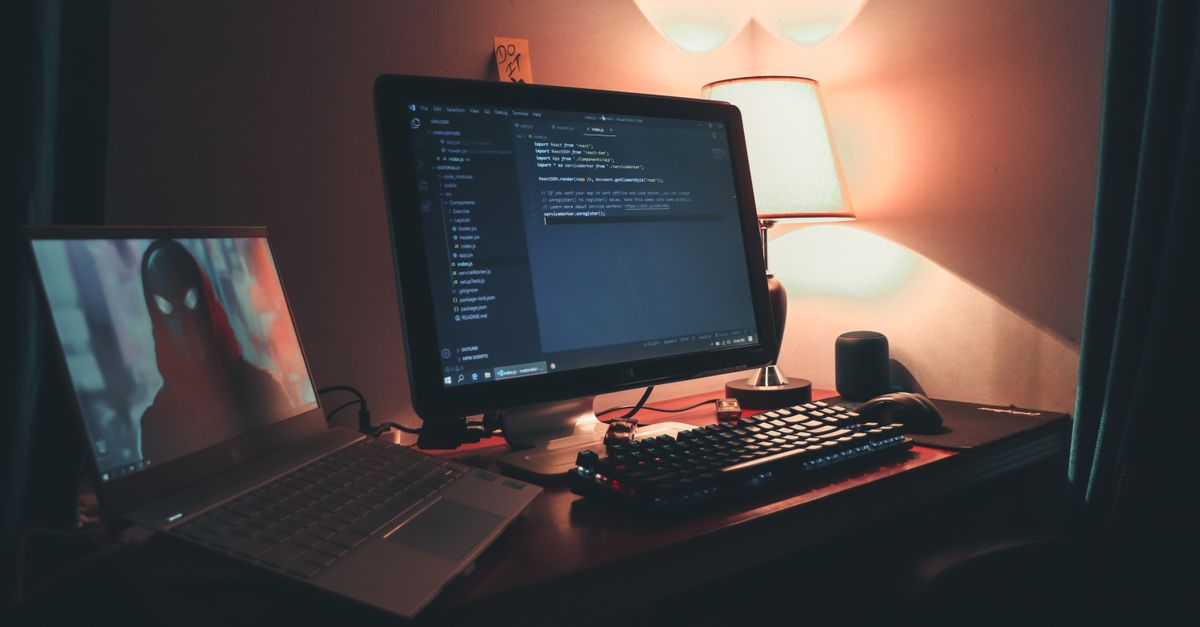
What "Screen Light" Actually Means
In its narrow sense, screen light is simply whatever photons leave the front of a display while it is on. Engineers usually talk about this quantity in nits, the candelas per square meter that describe how bright the surface gets, and in correlated color temperature, which describes how warm or cool the white point appears. In everyday language, the phrase has expanded to mean something broader: the deliberate use of a display panel as a functional light source, not just as something to look at.
This broader use has become practical because modern screens are large, flat, and bright enough to illuminate a face or a small object at close range. A solid color filling most of the panel behaves much like a soft box, spreading light evenly across whatever is in front of it. The same idea works on a laptop screen propped behind a webcam, on a tablet beside a desk camera, or on a phone held next to a laptop for a quick video call. In every case the panel itself is the lamp.
How a Display Produces Light You Can Use
The exact way a screen generates light depends on its panel technology, and the two most common approaches behave differently once you treat them as a fill light.
| Panel type | How it produces light | Result as a fill light |
|---|---|---|
| LCD (with LED backlight) | An array of LEDs behind the panel shines through a light guide plate, polarizers, and liquid crystal layers to form the image. | Very even illumination across the panel; brightness depends on the backlight level and the LCD color filters. |
| OLED | Each pixel contains an organic compound that emits its own red, green, or blue light when current passes through it. | True blacks and very high contrast; can produce saturated solid colors when the panel is filled. |
| Mini-LED and QLED (backlit LCD variants) | Many small backlight zones control brightness in different areas of the panel for finer highlights. | Brighter highlights than standard LCD; still relies on the LED backlight for total light output. |
For the purpose of using a screen as a fill light, the practical differences matter less than the common ground. Any of these panels can be told to display a single color across most of its surface, and that surface will glow with a roughly even, controllable tint.
Why People Use a Display as a Light Source
There are several reasons the screen-as-light trick has stuck around, even as dedicated ring lights and panel lamps have become inexpensive.
- No install. A browser-based panel works on any computer, tablet, or phone that can open a web page, with no drivers, no app store, and no admin rights.
- Already aimed at you. The screen is naturally in front of your face during a call, so any light it produces falls on you rather than from the side or behind.
- Adjustable color and intensity. A page-based panel can offer presets like neutral white, warm, and soft blue, plus a custom color and a one to one hundred percent visual level.
- No privacy cost. A purely on-page light tool requests no camera, microphone, or sensor access, so it cannot capture anything from your device.
- Free and disposable. When the call is over, you close the tab and the light is gone, with no gear to pack or store.
How to Set Up Screen Light for Video Calls
The Screen Light for Video Calls page turns part of the browser into a large, even color panel that adds gentle front light near a webcam. It runs entirely inside the browser tab, asks for no special permissions, and stores nothing beyond the current session. The practical setup flow looks like this.
- Open the page in a browser tab and place that window close to and slightly above your webcam so the panel faces you.
- Pick a color from the presets: neutral white, warm, or soft blue, or enter a custom six-digit color if you want a specific tint.
- Watch the light panel directly while you drag the visual brightness slider, starting at a low value.
- Raise the level only until your face looks clearer in the camera preview without causing squinting or harsh reflections on glasses or skin.
- Click the Use full screen control when the browser allows it, giving yourself a much larger illuminated area if you need to step back from the camera.
- Press the Escape key at any time to leave full-screen mode and return to the regular page layout.
Why the Same Setting Looks Different on Two Screens
It is common to find that the same percentage value on the brightness slider produces a noticeably brighter or warmer result on a colleague's monitor than on your own. The reason is that the on-page control does not control real light output. It controls a black overlay whose opacity is one minus the selected percentage. The underlying panel still has whatever brightness the operating system, the monitor controls, and the panel hardware are currently set to.
For example, if you set the visual level to 70 percent, the black overlay opacity is one minus 0.70, which equals 0.30. The page darkens the chosen color by 30 percent through that transparent overlay, while the panel's actual hardware brightness stays exactly where your operating system and monitor controls have it.
Several factors shape what you actually see:
- Hardware brightness. The display's own backlight or per-pixel drive level, which can range from very dim on a battery-saving laptop to maximum on an external monitor.
- Panel size and resolution. A 32-inch monitor at the same percentage will appear to throw more light than a 13-inch laptop screen because the lit area is larger.
- Color calibration. Two screens with different factory white points will render the same selected color with slightly different warmth.
- Ambient light. In a bright room the panel has to compete with daylight; in a dark room a modest setting can feel harsh.
- Distance. The closer the panel is to your face, the stronger the fill effect, the same way any close light feels brighter than one across the room.
For a deeper look at why the same on-page value behaves so differently across hardware, see Screen Light Accuracy: Why the Same Setting Looks Different.
Tips for Better Lighting on Video Calls
A browser panel is a modest close-range fill, so a little staging goes a long way. Try the following once the page is open.
- Start with a neutral or warm preset rather than a cool blue, since warm light generally flatters skin tones on typical webcams.
- Keep the window near and slightly above the camera, so the light falls on your face rather than from below your chin.
- Set the visual level low at first, then nudge it up only until your face looks clearer, not until it looks bright.
- Place a white wall or a sheet just outside the camera frame if the light feels too direct, since the bounce softens shadows.
- Lower either the on-page percentage or your display's hardware brightness if the panel starts to feel uncomfortable to look at.
Limits and Safety Notes
A screen is a useful but limited light source, and it helps to know where that line is. The page never changes your operating system's backlight, your monitor's hardware controls, your camera's exposure, or any measured light output in lux. Preset names describe the visible tint rather than a calibrated Kelvin color temperature, so two screens showing "warm" can differ visibly.
The tool also makes no use of your webcam, microphone, ambient-light sensor, or personal data. Color and brightness choices live only in the current browser state and disappear when the tab closes. For the same reason, a screen-based fill is not a substitute for a calibrated video light, a flash, a medical lamp, or a professional studio setup. Keep a comfortable viewing distance, avoid staring directly at a bright panel in a dark room, and step the brightness down if your eyes or the room start to feel strained.
If you're weighing options, Screen Light for Beginners: Set One Up Fast covers this in detail.