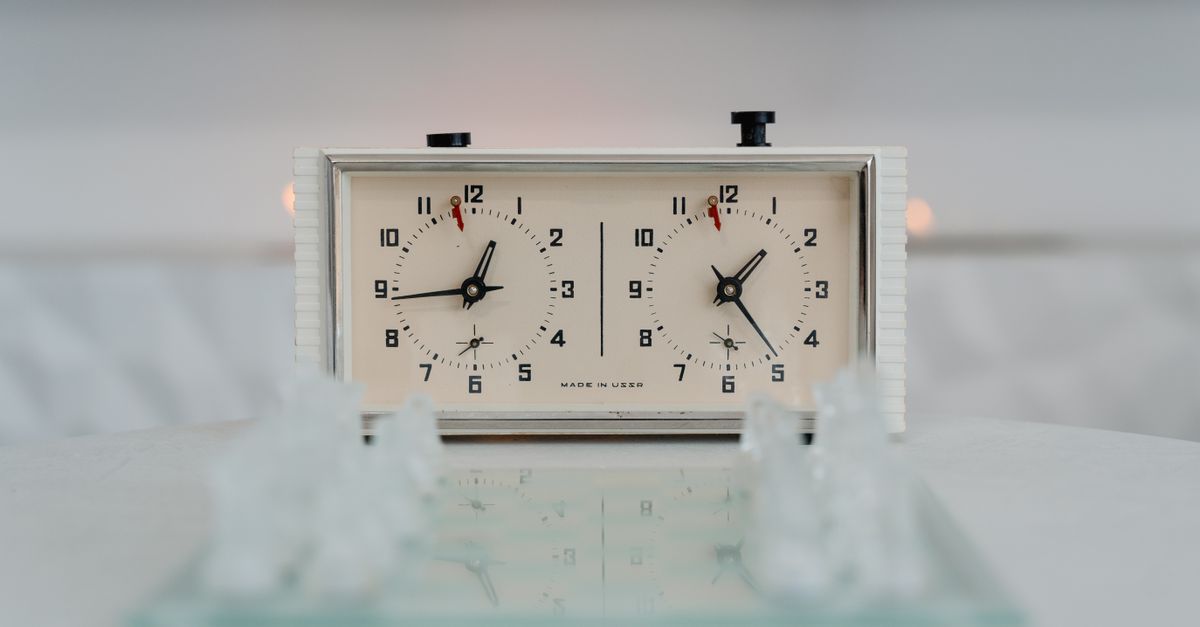
A chess clock is the right tool when two players take turns and exactly one of them is allowed to think at a time. That single rule is what separates a chess clock from a stopwatch, a countdown timer, or a tally counter: only the active player's time is allowed to run, the other side is frozen, and a press switches the roles. If your activity does not have that mutually-exclusive-thinker property, a different timer is a better fit. If it does, a two-sided clock with a documented time control is genuinely useful, and the rest of this guide helps you decide whether the Chess Clock tool is the one you want for your practice, club game, or lesson.
Signs Your Situation Calls for a Chess Clock
Several conditions have to hold before a chess clock adds anything over a generic timer. Use this list as a quick filter before you commit to one:
- Exactly two people take turns, and the rules forbid one of them from thinking on the other's clock.
- You want to see both remaining times at once, side by side, without doing arithmetic in your head.
- The session has a defined time control, for example "five minutes plus three seconds per move," rather than a single open-ended cap.
- You expect the practice to repeat across days and want a simple device-local count of timed moves you can compare.
- A wrong press during the game should be reversible without losing the time control or the prior remaining-time snapshot.
If three or more of those statements describe what you are doing, a two-sided clock is the right shape for the problem. If only one or two apply, a single-user timer such as an online stopwatch, a Pomodoro cycle, or a generic countdown may be a cleaner fit, and you should not force a chess clock into a job it was never designed for.
When a Generic Timer Will Not Do
A generic timer only tracks one direction at a time. A chess session has two independent remaining times that must move in opposite directions with every press, and that is the part a plain countdown, stopwatch, or tally counter cannot represent. The table below maps common situations to the timing shape that fits them, so the difference between a chess clock and a generic timer becomes obvious.
| Situation | Active timing shape | Best-fit tool |
|---|---|---|
| Solo focused work session | Single repeating cycle | Pomodoro Timer |
| Two-player board game with one thinker at a time | Two mutually exclusive timers | Chess Clock |
| Single speaker on a fixed stage | One running countdown | Online Countdown Timer |
| Counting workout reps or sets | Discrete event counter | Workout Rep Counter |
| Click speed or reaction test | Single interval | CPS Test or Reaction Time Test |
| Casual score for two teams | Two parallel counters | Online Scoreboard |
The middle row is the row that needs a chess clock. The other rows either run only one timer, count discrete events, or measure a single interval. None of them can express "only one player is allowed to think on a given clock face," which is the entire point of the device.
Run a Chess Clock for Your Practice Game
Open the Chess Clock tool, set the two controls, and follow the steps below for any practice game, lesson, or drill. The interface is deliberately explicit about who pressed, what got credited, and what the next state should be.
- Choose the initial seconds and the Fischer increment before starting the clock. The displayed initial time on both sides already includes the increment that move one requires, so you do not have to add it manually.
- Press the side you want to begin, either White or Black. The chosen player's time begins to count down while the other side remains frozen at its starting number.
- Press the clock after each completed move. The player who pressed is credited with the increment and stops running, and the opponent's clock begins on the next tick.
- Tap Pause whenever the practice game stops for any reason. The active remaining time materializes and both clocks stay stopped until you resume.
- Use Undo last press if a player tapped the wrong side or pressed at the wrong moment. The full prior snapshot is restored and the corresponding daily press count is removed.
- Check the device-local daily press history at any time to see how many moves were timed on the current calendar day.
- Export PNG or CSV only when you want a private copy of the daily press history. Both files are produced in your browser and contain no URL and no player identity.
For readers who want a deeper walkthrough of how the increment is applied at every press and why it differs from a delay clock, the model used here is described in the Fischer increment chess clock guide.
Choosing the Right Time Control
A time control is the pair of numbers that defines your session: how much clock each side gets at the start, and how much bonus is added after each completed press. Common practice shapes include "five minutes, no increment" for casual blitz, "three minutes plus two seconds per move" for rapid drills, and "fifteen minutes plus ten seconds" for serious over-the-board play where the endgame still rewards thinking.
Set both numbers before you press either side. The initial display already reflects the increment required before move one, which matches the FIDE electronic-clock description in the FIDE Chess Equipment with Electronic Components handbook. That detail matters because some players expect the first move to start from a smaller number. If you assume that, you will press early and lose a few seconds you did not intend to spend.
If you are unsure what time control fits the group, ask three questions before starting the clock. How long is the average game likely to run in moves. Do you want each move to feel fast or considered. Will the session be repeated, and do you want a per-day press count to compare against other practice days. A common starting point for club practice is "five minutes plus three seconds per move," because it gives both players enough cushion for the opening while still rewarding faster play later in the game.
Pause, Undo, Flag, and Export Behavior
The controls on a chess clock are not cosmetic. They protect the two remaining-time numbers and the daily press count from being corrupted by ordinary mistakes, which is something a plain countdown timer cannot do. The table below explains what each control changes and when to use it.
| Control | Effect | When to use it |
|---|---|---|
| Press side | Stops the mover, starts the opponent, credits the configured increment | After every completed move |
| Pause | Materializes the active remaining time and leaves both clocks stopped | When the practice game pauses for a question, a break, or a phone call |
| Undo last press | Restores the prior snapshot and removes the associated daily press count | When a player tapped the wrong side or pressed too early |
| Flag | Stops accepting new presses when a side reaches 00:00 | Automatic; you then set a new time control before continuing |
| Export PNG | Creates a 1080 by 1350 image of the daily press history with no URL or identity | When you want a private visual record of practice days |
| Export CSV | Creates one row per saved day with date and completed press count | When you want a spreadsheet-friendly archive |
Two independent countdowns running side by side cannot know which side was active when a press happened, and a minus button cannot restore a snapshot it never recorded. That is the practical reason a dedicated two-sided state machine exists at all.
Keep It Private and Local
The Chess Clock tool stores its current time control and its daily press history only under this tool's own browser key. Nothing is uploaded, no account is required, and no remote chess server is contacted to make the clock run. A second device starts empty, and clearing browser data removes the saved record. If browser storage is unavailable, the clock still runs for the current page session, with a clear note that it cannot retain history once the tab is closed.
That boundary is the reason the tool stays useful for what it does well. It does not try to judge positions, manage move numbers, or replace an arbiter. According to the FIDE Laws of Chess, a clock press stops the mover and starts the opponent, and the practice clock follows that same simple add-after model without trying to simulate a tournament system. If your situation needs FIDE-certified hardware, a full move record, or a flag claim handled by an arbiter, those concerns are controlled by the event, not by a browser timer.
When a clear two-sided clock with a documented Fischer increment is the useful part of what you need, this tool is shaped for that part. Set the time control first, press after every move, pause when the practice stops, use Undo for a mistaken press, and export only the private daily history you choose to keep.
If you're weighing options, How Do I Decide If I Need a Days Since Counter covers this in detail.