An online alarm clock is a browser-based tool that displays your device’s local time and raises a repeating sound with an on-screen alert at the minute you choose.
That is the essential meaning: it combines a live clock with a scheduled cue. The Online Alarm Clock lets you choose a target time, add an optional label, and arm the alarm without installing software or creating an account. When the target minute arrives, the page displays a bold “Alarm!” banner, shows your label, and plays a repeating beep generated by the browser.
“Online” describes the browser interface, not remote schedule storage. The clock, alarm comparison, and sound run on your device. That local design keeps your schedule private, but it also creates the main operating condition: the tab must remain open and the device must remain awake.
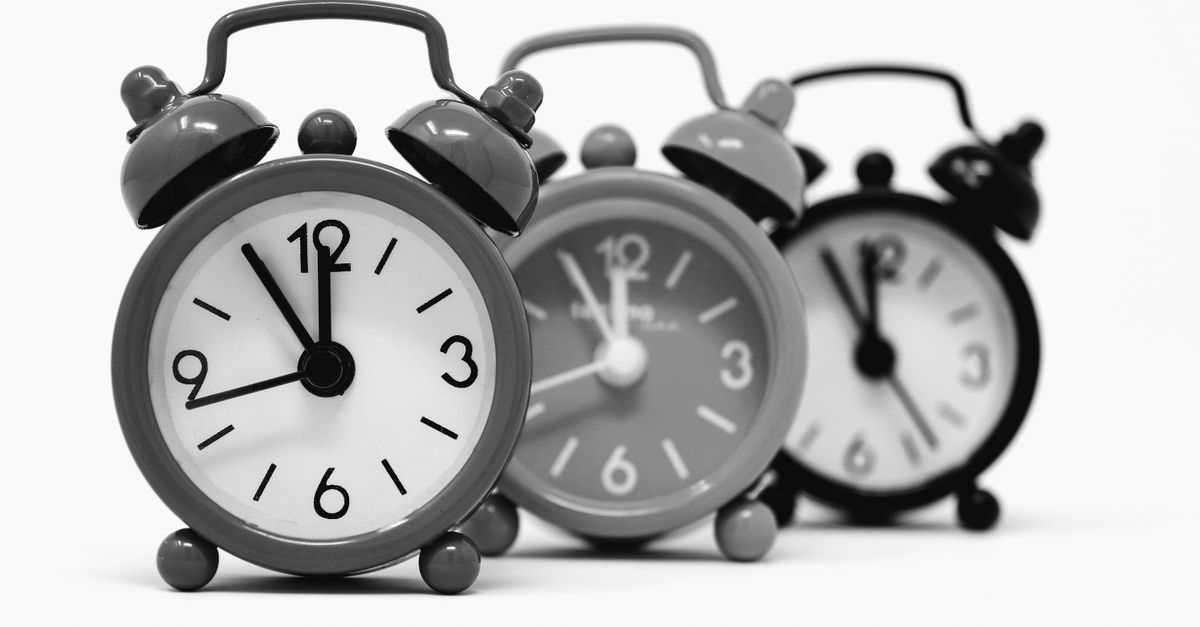
Online Alarm Clock Definition
An online alarm clock performs two connected jobs. First, it shows the current time in a large live display. Second, it watches for a time you select and creates an alert when that minute arrives. Unlike a page that merely tells you what time it is, this tool responds at a scheduled moment with both an on-screen message and a repeating beep.
The live display updates once per second in 24-hour HH:MM:SS format. It follows your device’s local time and time zone, so the clock, the selected alarm time, and the time shown by other devices in the same zone remain aligned without separate time-zone settings. An optional label connects the alert to its purpose, such as “Standup meeting” or “Take the bread out.”
What the Tool Does
Each part of the alarm process has a specific role:
| Feature | Supported behavior | Practical effect |
|---|---|---|
| Live clock | Shows device-local time in 24-hour HH:MM:SS and refreshes every second. | Provides an at-a-glance time reference. |
| Time picker | Lets you select the exact minute for the alarm. | Creates a target based on your local clock. |
| Optional label | Adds a short description to the alarm. | Explains the reason for the alert on screen. |
| Alarm status | Confirms the armed target time after Set alarm is pressed. | Shows that the alarm is active. |
| Alert | Displays a bold “Alarm!” banner, the label, and a repeating beep. | Provides both visual and audible notice. |
| Alert controls | Dismiss stops the alert, while Snooze adds another ring five minutes later. | Lets you stop or postpone the reminder. |
| Schedule behavior | Triggers only once during the target minute. | Prevents the same alarm from stuttering or double-firing. |
The distinction between triggering and repeating is important. The alarm event fires once for the selected minute, but the beep continues looping until you press Dismiss or Snooze. Snooze then deliberately creates a second ring five minutes later.
Set an Alarm in the Browser
Use the tool’s supported workflow to arm and manage an alert:
- Open the page and read the live clock. The display at the top shows your device’s current local time and refreshes every second. Check it before selecting a target, especially if you are setting an important appointment or task reminder.
- Choose the alarm time and add a label. Select the intended minute with the time picker. You can also type a short label that identifies the reminder, such as “Join call,” “Check laundry,” or “End focus session.”
- Press Set alarm to arm it. The status line confirms the target time. That click also enables browser audio because browsers require a user interaction before sound can play. Keep the tab open and the device awake so the page can reach the target minute.
- Respond when the alarm rings. Press Dismiss to stop the alert, or press Snooze to postpone it and hear it again in five minutes.
When the Alert Sounds
At the target minute, the browser displays a bold “Alarm!” banner, plays a repeating beep, and shows the label you entered. This gives you both a visual cue and an audible cue. If no label was added, the alert still identifies that it is an alarm, but it will not explain a particular task.
Dismiss ends the current alert. Snooze is the temporary alternative: the alarm rings again five minutes later. To change an alarm that is already running, turn it off and set a new one rather than assuming the original target can be edited in place.
The beep is generated through the browser’s built-in audio system. Since setting the alarm involves a click, the sound is ready to play when the target arrives.
Practical Uses for Browser Reminders
The tool works best for reminders that occur while its browser tab can remain open and active:
| Task | How to configure it | Expected result |
|---|---|---|
| Join a scheduled call | Set the call’s start time and label it “Join call.” | A visual banner and beep mark the start minute. |
| Timebox focused work | Set the end of the work interval and label it “End focus session.” | The session receives a clear finishing cue. |
| Take a short nap | Set the desired wake-up minute and keep the device awake. | The alarm provides a browser-based wake-up alert. |
| Check food or laundry | Set a checking time and use a descriptive label. | The on-screen label reminds you what needs attention. |
| Leave for an appointment | Set a leave-by reminder before the appointment time. | The alert prompts you to wrap up and go. |
| View the time at your desk | Keep the live 24-hour display open while working, cooking, studying, or running a meeting. | The page also works as a glanceable desk clock. |
For noncritical reminders, a browser-based alarm can be a quick solution because it requires no installation or account. For anything critical, keep the tab visible, consider disabling sleep, and use a dedicated device alarm as a backup. A phone or bedside alarm is better suited to situations in which the computer may be closed, locked, or asleep.
Limits Before Relying on It
The privacy advantage of local browser processing does not remove the practical conditions required for an alert. The following limitations determine when it can sound:
- Keep the tab open. Closing the tab or quitting the browser prevents the alarm from running.
- Keep the device awake and unlocked. A sleeping or locked computer cannot produce the browser alert.
- Keep important tabs visible. The tool can remain open in the browser, but visibility is the safer choice for an alert you must not miss.
- Use the device’s local time correctly. The alarm follows the clock and time zone shown by the browser, so check that display before arming it.
These are not edge cases hidden behind a setting. They are the normal operating boundaries of a browser alarm. For a closer look at clock-based timing and reliability, read what affects Online Alarm Clock accuracy. If the computer will be inactive, use a dedicated device alarm instead of relying on the browser tab alone.
Privacy and Local Processing
The current time is read through the browser, the alarm comparison runs in the browser, and the beep comes from the browser’s built-in audio system. Nothing you type, including an alarm time or label, is uploaded, logged, or shared. There is no sign-up, no tracking of your schedule, and no data leaving your machine.
That makes the tool suitable for private, everyday reminders without an account. Labels remain visible in the alarm banner, so use wording appropriate for a shared or visible screen. Local processing protects the data, but the tab-open and device-awake requirements still apply whenever you need the sound to arrive.
Related reading: Online Clock Display: Verify Local Time on Your Screen.