An online clock display is a browser-based view of the current device-local time, shown in analog and digital formats with the local date and browser-resolved time zone.
The Online Clock fits desk-clock, meeting-room, study-reference, presentation, and second-screen jobs. It follows the clock and time-zone configuration already active on the viewing device rather than introducing a separate clock setting.
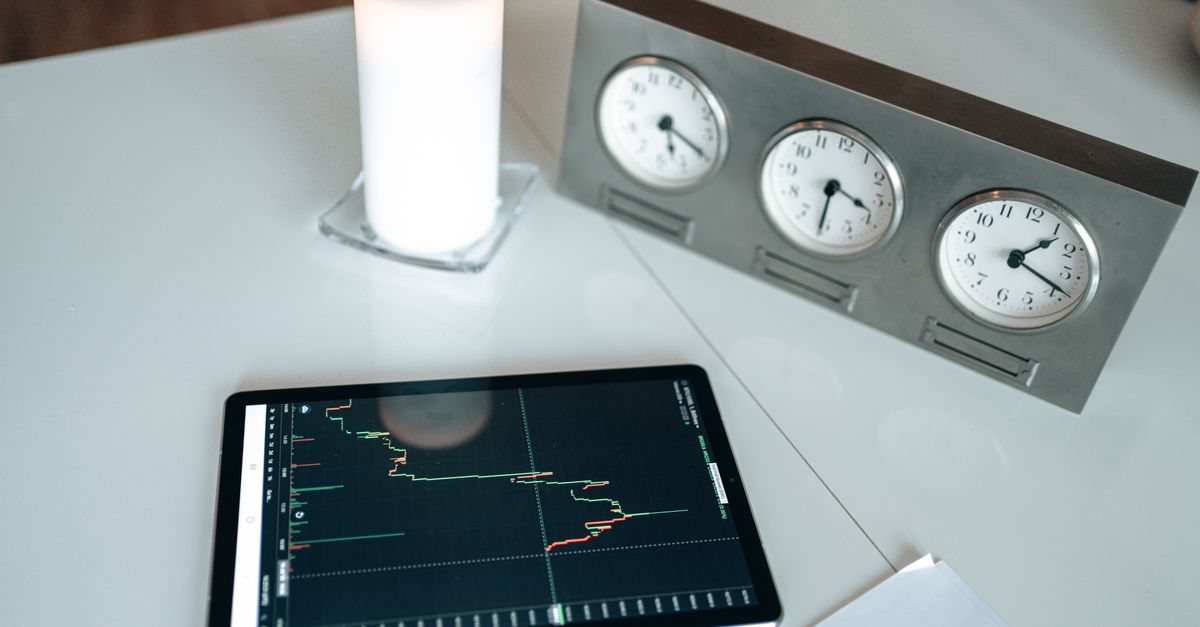
What the online clock display shows
The main panel combines an analog face, a digital readout, the English local date, and the browser's resolved time-zone name. Each clock reading comes from the Date value supplied by the browser and device.
- Analog face: Hand positions are calculated from the same Date reading as the digital readout.
- Digital readout: The visible time uses an explicit 12-hour or 24-hour format, with minutes and optional seconds padded to two digits.
- Date and zone: The date uses an English weekday, month name, day, and year. The zone label can be a region name or a generic local-zone fallback.
The page samples the browser Date four times per second, allowing the second hand to move smoothly while the digital display changes only when a visible field changes. The hands are not a second time source: the second angle includes milliseconds, the minute angle includes fractional seconds, and the hour angle includes fractional minutes.
Treat the analog and digital displays as two forms of one clock. The second hand completes a turn each minute, the minute hand each hour, and the hour hand each 12-hour cycle, with 12 o'clock positioned at zero degrees.
Set up an online clock display
- Open the page and verify the local context. Confirm that the displayed date and browser-resolved time-zone name match the intended device settings. If they do not, review the device's date, time, automatic synchronization, and time-zone configuration before relying on the display.
- Choose the hour system and second visibility. Select 24-hour time if that is the preferred format, or retain 12-hour time, then show or hide seconds. These controls change the presentation only; they do not alter the underlying device time.
- Enter fullscreen after checking the date and zone. Select Enter fullscreen for a larger view. If the browser rejects the request, the clock displays a visible error. Leave fullscreen with the browser's normal Escape key or fullscreen control.
If the operating-system zone changes while the page is open, later Date readings may change as the browser exposes that update, although some platforms require a refresh.
Choose a readable digital format
The digital output uses defined formats rather than leaving readers to infer the meaning of each value.
| Display element | Exact display rule |
|---|---|
| 12-hour mode | Midnight appears as 12 AM, noon appears as 12 PM, and other hours use 1 through 11 with an AM or PM suffix. |
| 24-hour mode | Hours range from 00 through 23 and include a leading zero. |
| Minutes | Minutes always use two digits. |
| Optional seconds | When visible, seconds use two digits. |
| Local date | English weekday, month name, day, and year. |
| Time zone | Browser-resolved name, which may be a region name or generic local-zone fallback. |
Choose the hour system that the intended audience already understands. Show seconds when a visible movement check is useful, such as during a presentation; hide them when they become distracting on a study or ambient display.
Hiding seconds removes both the visible second hand and the digital seconds field. The minute hand still includes fractional seconds, and the hour hand still includes fractional minutes, so the remaining hands continue to reflect the current time rather than jumping only at whole-minute or whole-hour boundaries.
All visible formats and analog hand positions remain tied to the same underlying Date reading. The digital clock and analog face therefore do not represent separately configured clocks.
Confirm the device clock and time zone
Accuracy depends entirely on the device clock and its time-zone configuration. The widget does not contact a network time server, compare offsets, correct drift, update daylight-saving rules, or certify legal time.
When the displayed time is wrong, check these device controls:
- The device's current date and time.
- Automatic time synchronization and whether it is working.
- The selected time zone.
- A page refresh after changing settings, if the display has not updated.
The browser-resolved zone label is not guaranteed to name a city. It may show a region name or a generic fallback instead. The clock embeds no country list, city-to-zone map, daylight-saving table, or maintained offset dataset; the date formatter uses the time zone already applied by the browser's Date object.
That distinction matters when verifying a display. A zone label that looks generic does not mean the clock is using a separate timer. It means the browser has exposed a region-level or fallback name for the zone already applied to the reading.
Enter and leave fullscreen safely
Fullscreen is a request to the browser, not a forced display mode. Browsers usually require a direct user action and may deny the request because of policy, an embedded context, a device restriction, or a user setting. A rejected request produces a visible error rather than silently changing the clock into another mode.
- Enter fullscreen only after confirming the date and zone.
- Use the browser's normal Escape key or fullscreen control to exit.
- Remember that fullscreen changes the presentation, not the source or configuration of the clock.
The page does not hide operating-system controls, prevent the device from sleeping, lock orientation, or claim to be an operating-system screen saver. For a long-running meeting-room or desk display, review the device's own sleep settings separately.
Keep the display local and private
Online Clock requires no account and has no server-side history, location request, alarm, notification, background service, or analytics event specific to button presses. The widget does not upload clock readings, zone labels, display preferences, or fullscreen actions.
Because the display lives in an open browser tab, keep that tab open while the clock is needed. Closing the tab ends the display rather than leaving a server-hosted clock running elsewhere.
Use the right tool for the task
This local display works well as a desk clock, meeting-room display, study reference, presentation time check, event-countdown companion, or second-screen clock. In each case, it presents the viewing device's local time and its disclosed date and zone.
When the task is comparing several named locations, use the World Clock instead. For an alarm, choose a dedicated alarm clock; for elapsed time, use a stopwatch; for remaining duration, use a countdown timer. An online clock display does not alert at a target time, measure elapsed duration, or count down.
Prepare the display for different screens
A dependable display routine keeps the clock simple:
- Desk or second screen: Select the familiar hour format, hide seconds if they create distraction, and use fullscreen when the screen needs a larger view.
- Meeting room or presentation: Verify the date and zone before people arrive, choose 12- or 24-hour time for the audience, and enter fullscreen last.
- Study reference: Keep both the analog and digital readings visible when consistency is useful, or hide seconds for a calmer display.
- Event or timed session: Use the clock as a time reference, but pair it with a countdown timer when participants need to see how much time remains.
- Different device: Repeat the date and zone check because each browser uses that device's own clock and configuration.
The key habit is to verify the source before enlarging the output. A clear fullscreen clock remains a reflection of the viewing device's configured time rather than an independent network time service.