A browser-based scroll wheel test confirms which MouseEvent.button codes the page receives when you press the wheel or any other mouse button. The wheel's button click arrives as code 1 (Auxiliary) under the W3C mouse event mapping, the same code used for middle-click on most operating systems. If your page sees the press, you will see the named count rise inside the tool's dashed target; if it does not, the browser, the operating system, an extension, or a remote-desktop layer has already consumed the event before it reached the page. The check is deliberately narrow: it tells you which integer code the browser delivered to a single visible area, in the order it arrived. It does not measure scroll direction, scroll speed, scroll smoothness, or whether the wheel physically spins at all. For those signals you need a different test, such as a dedicated scroll-wheel delta tool. The button-code check is the right tool when you suspect that a middle-click, a back button, or a side button on or near the scroll wheel is not being recognized by a web app, because it isolates the exact event the browser delivered.
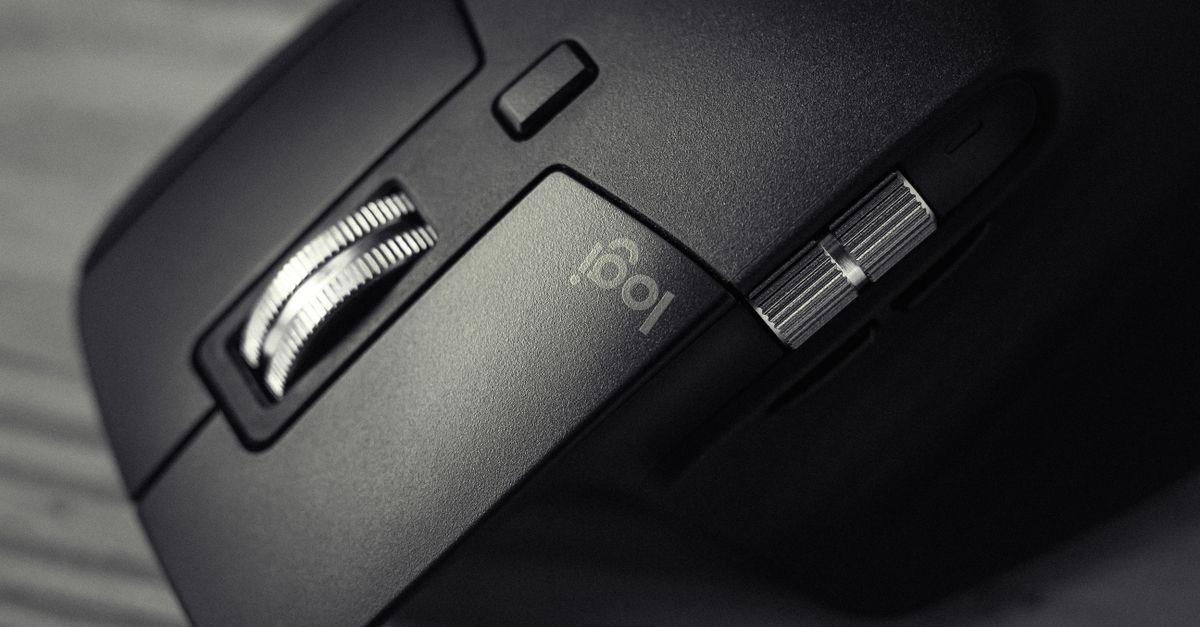
What a Browser Scroll Wheel Test Can Verify
Mouse Tester is built around the Web platform's MouseEvent.button property, which carries an integer that identifies the single button associated with a press or release event. The mouse scroll wheel is unusual because it contributes two distinct kinds of input: the wheel's downward click acts as a button (code 1, Auxiliary), and the wheel's rotation produces separate wheel events with horizontal and vertical deltas. Mouse Tester listens only to button-down events. If your concern is the click action — whether a deliberate press on the wheel registers as a middle-click — the tool can answer that question immediately by watching the Auxiliary count.
If your concern is the rotation — whether the wheel scrolls up, down, smoothly, or with skipped lines — Mouse Tester is not the right instrument. Rotation data arrives through wheel events, not button events, and the page does not increment any count for those events. A reasonable workflow is to run both checks in sequence: the button test to verify the middle-click, then a separate scroll-wheel test to verify the rotation behavior. Readers new to browser-based scroll testing may find the Mouse Scroll Test for Beginners: Your First Run guide a useful companion read.
The tool's contract is intentionally narrow so that its answers are unambiguous. Every event that reaches the dashed target is classified by its integer code, counted once, labeled once, and added to a recent list of the last eight accepted labels. There is no polling-rate calculation, no debounce timing, and no reconstruction of held buttons. The page listens only inside the visible test area.
The Five MouseEvent.button Codes and the Scroll Wheel
The Web specification defines exactly five named button codes for mouse input. Mouse Tester uses these names and labels any other integer as Unknown with its numeric value, matching the behavior documented in MDN's MouseEvent.button reference. The table below lists the codes the tool recognizes.
| Code | Name | Common physical source |
|---|---|---|
| 0 | Primary | Main activation button, often the left button on a right-handed mouse |
| 1 | Auxiliary | Scroll wheel click or middle button on most mice |
| 2 | Secondary | Right-click button on a right-handed mouse |
| 3 | Back | Thumb or side button assigned to browser back navigation |
| 4 | Forward | Thumb or side button assigned to browser forward navigation |
A few practical notes follow directly from the mapping:
- Primary does not always mean the physical left button. Operating-system settings can swap left and right roles, so the same physical switch can deliver code 0 on one machine and code 2 on another.
- Auxiliary is the most relevant code for the scroll wheel because pressing the wheel downward is a button event, not a wheel event.
- Back and Forward depend entirely on the browser exposing them. Many browsers reserve those physical buttons for history navigation, which means the page may never see the event.
- Unknown codes still increment the total, but they are shown with their numeric value rather than a guessed name. Fractional values are rejected because the documented mapping uses integers only.
How to Test Your Mouse Scroll Wheel with Mouse Tester
The full check takes only a few deliberate presses. Run it from the Mouse Tester page in any modern desktop browser.
- Place the pointer inside the dashed target on the page. The target suppresses its own context menu and auxiliary activation so a middle-click does not immediately replace the result.
- Press the scroll wheel once with a deliberate, single downward click. Avoid scrolling the wheel; you want the button event, not a wheel event.
- Confirm that the Auxiliary count rises by one and that the total increases by one. If both numbers move, the browser received the code 1 event.
- Press the other buttons you want to verify, one at a time: primary, secondary, back, forward, and any side buttons near the wheel. The corresponding named count should rise by one per press.
- Check the Recent list to confirm the order in which the labels were accepted. The list holds the latest eight labels.
- Repeat any button several times to confirm the count is consistent. A working button should produce one event per deliberate press.
- Use Reset to clear the in-memory session if you want a fresh start. Refresh or close the tab to clear without using the control.
If your real concern is the wheel's rotation behavior rather than its click, this is the point to switch tools. Mouse Tester deliberately ignores wheel deltas; a separate scroll-wheel test records the up, down, left, and right counts and raw delta values that browser wheel events expose.
Reading the Results: What the Counts Mean
Each named count represents the number of mousedown events with the matching integer code that reached the target. The total is the sum of all accepted events in the current session, including Unknown codes. The Recent list shows the last eight labels in the order they were received, so it is useful for spotting a button that produces duplicate events for a single press.
A consistent, single increment per deliberate press is the expected pattern. If pressing the scroll wheel once produces two Auxiliary counts, the button is registering as a double-click — that signal is worth investigating with a different tool, such as a dedicated double-click interval measurement, which keeps a short history of recent, best, and average values. If pressing once produces zero counts, the event did not reach the page. The most common cause is that the browser, an extension, or the operating system intercepted the event before delivery.
A zero count should not be treated as proof of a broken switch. It is proof only that no matching event reached this page during the test. Software between the mouse and the browser can drop, remap, or synthesize events, and that behavior changes between applications. If the count is zero in the tool but the same button works in a specific application, the issue lies outside the tool's visibility, not in the hardware.
Why a Button Might Not Appear
Several layers can absorb a button event before Mouse Tester sees it. Back and forward buttons are the most frequent casualties, because many browsers reserve those physical buttons for history navigation. When the browser navigates, the page never receives a mousedown, so the count stays at zero.
Other layers can interfere in similar ways:
- Browser extensions that remap mouse input to keyboard shortcuts or to different button codes.
- Accessibility software that synthesizes its own events and may suppress the original physical event.
- Remote-desktop clients that translate mouse input across a network and may not forward every code.
- Manufacturer software on Windows or macOS that intercepts extra buttons for app-specific shortcuts.
- Drivers that map the wheel click to a non-standard function before the event reaches the browser.
A practical workaround is to test the same device inside the specific application where the problem appears. Games, design tools, browsers, and operating system dialogs handle extra buttons differently. The tool counts what reaches the page, so a button that produces zero counts here may still work perfectly inside a native application.
What Mouse Tester Does Not Measure
The tool's contract is limited by design. It does not measure click speed, double-click interval, polling rate, button debounce, wireless latency, switch force, pointer movement, scroll-wheel deltas, or drag behavior. It also cannot certify accessibility, game suitability, or hardware condition. Those claims require different measurements and, in some cases, access to physical timing or device diagnostics that a normal web page does not have.
It is also worth noting that the recent list and the named counts are kept only in the current tab. The widget does not request a device identifier, install a driver, upload events, save a history, or listen outside the visible test target. Refreshing, closing the tab, or selecting Reset removes the current state. The reliable contract is limited to interpreting MouseEvent.button codes that reach the area, counting those events transparently, retaining a short recent list, and warning that software can intercept or remap input.
If a deeper investigation is needed after a browser test, the natural next step is manufacturer diagnostics for the specific mouse model, or a polling-rate measurement in a tool that records event timestamps. Mouse Tester answers a precise question — which button code did the browser deliver, and how many times — and that question is the foundation for most other mouse-button investigations.
Related reading: Mouse Scroll Test on Laptop: Verify Every Direction.