A mouse scroll test checks what your browser actually receives when you turn a mouse wheel or swipe on a trackpad. The Mouse Scroll Test tool runs that check inside one focused, dashed test area on the page, so a beginner can see exactly which wheel events the browser delivered and how the tool classified them. Move the wheel vertically and horizontally over the zone, and the tool records every event, decides whether the dominant direction was up, down, left, right, or none, and adds the raw deltaX and deltaY values into signed cumulative totals that update live during the session. Because the tool only listens inside its own zone, the rest of the page still scrolls normally, which makes it easy to compare behaviour side by side without leaving the page. The session stays in the current browser tab — no upload, no account, and no listening outside the dashed area — so the first run takes only a few seconds and produces a clean record you can read before deciding what to try next.
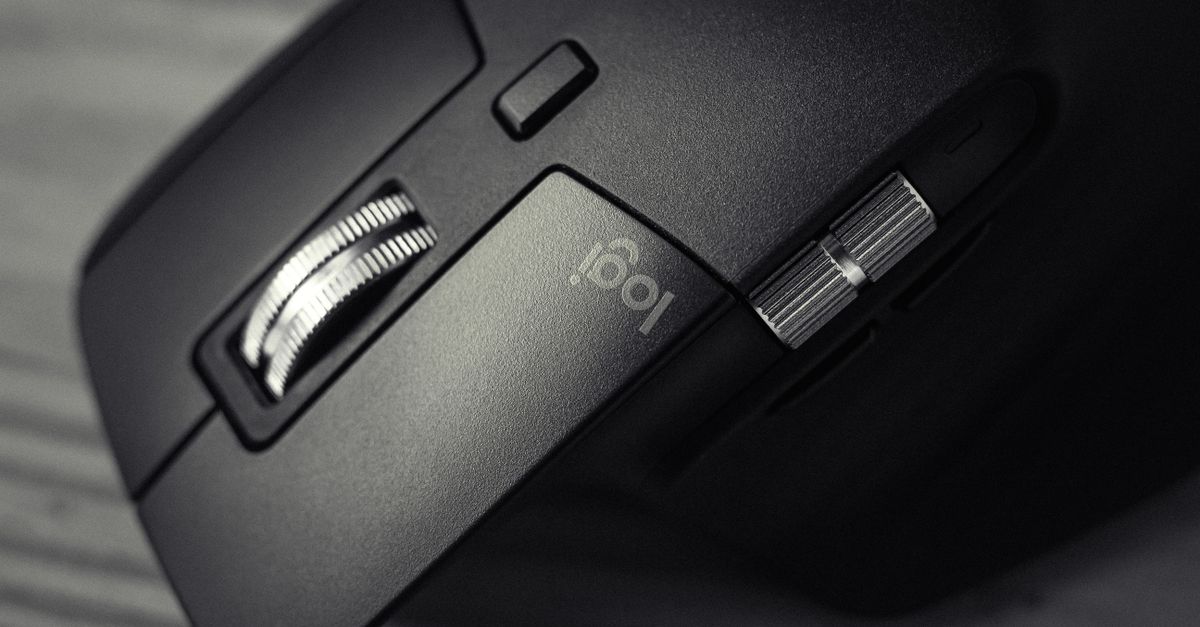
What a mouse scroll test actually checks
A mouse wheel is a small piece of hardware, but the browser does not see it that way. Every time you turn the wheel or perform a trackpad gesture, the operating system sends a wheel event to the browser with two raw numbers attached: a horizontal delta (deltaX) and a vertical delta (deltaY). Those numbers are not measured in centimetres, wheel notches, or any universal physical unit. They come straight from the browser event and can represent pixels, lines, pages, or another browser-defined unit. The Mouse Scroll Test tool reads those values exactly as the browser delivers them, with no conversion and no calibration, so what you see on screen is precisely what reached the page.
Beginners often expect one tidy answer — is my scroll good or bad? The honest answer is that the tool reports what the browser received, not how good the hardware is. It counts every wheel event delivered to the dashed test area, classifies each one into a dominant direction, and adds up the raw horizontal and vertical deltas across the current session. Because the rule for that classification is fully disclosed, a beginner can match each label back to the gesture that produced it without guessing what the numbers mean.
How to run the mouse scroll test
- Open the Mouse Scroll Test in your browser tab. The tool runs locally with no install, no sign-up, and no permission prompt.
- Move the pointer over the dashed test area. The area prevents its own page scrolling while it receives events, which keeps the target in place while you compare directions.
- Scroll the wheel up and down, then side to side, or perform a two-finger trackpad gesture inside the zone. Each delivered event updates one count and one directional bucket.
- Read the screen after a short burst of input. Note the total events, the four directional buckets, the latest delta pair, and the signed cumulative X and Y values.
- Repeat the same gestures under the same browser and device settings so the results stay comparable. Select Reset test to clear every count and total back to zero before a fresh comparison.
Wheels and trackpads feel different at slow and fast speeds, so try both. A traditional vertical wheel usually produces up and down events; a tilt wheel or a trackpad also produces horizontal deltas when you move sideways. Keep the pointer fully inside the dashed border — wheel gestures that land outside the zone continue to scroll the page normally and are not counted.
Reading the numbers on the screen
The tool shows several fields at once. Comparing them together gives a much better picture than any single number, because a label like "right" describes the dominant axis of one event, while the cumulative totals describe what the session as a whole produced.
| Field on screen | What it tells you |
|---|---|
| Total events | The number of wheel events the browser delivered to the zone since the last reset. |
| Up / Down | Counts where the dominant axis was vertical, split by the sign of deltaY. |
| Left / Right | Counts where the dominant axis was horizontal, split by the sign of deltaX. |
| None | Events where both deltaX and deltaY were zero. Preserved rather than discarded. |
| Latest delta pair | The raw deltaX and deltaY of the most recent event, unchanged from the browser. |
| Cumulative X and Y | Signed sums of every delta since the last reset — opposite movements can cancel. |
The dominant-axis rule is worth memorising. When both deltas are zero, the event is labelled none. Otherwise, the tool compares the absolute values of the horizontal and vertical deltas. A vertical value at least as large as the horizontal one becomes up or down according to its sign; a larger horizontal value becomes left or right. Equal nonzero magnitudes choose the vertical direction. That rule gives each event one visible bucket without claiming a diagonal gesture only moved along one axis — it just picks the dominant one to label.
Imagine you scroll right with a deltaX of 120 and a deltaY of 0. The tool labels that event right and adds 120 to cumulative X. On the next event you scroll left with a deltaX of −170 and a deltaY of 0, labelled left. The cumulative X is 120 + (−170) = −50. The signed sum went negative because you scrolled more to the left than to the right, and signed addition does not track distance — it tracks net signed value. That is why the directional buckets are the better record of activity, and the cumulative totals are the better record of net drift.
Why your deltas look different from another device
It is normal for two people to see very different delta numbers while making gestures that feel identical. Browsers, operating systems, mouse drivers, wheels, trackpads, acceleration curves, and the units the browser chooses for a wheel event can all change the magnitude of the delta. A driver may map one wheel notch to several lines or one page, an accessibility setting may scale events up, and a remote-desktop session may combine or throttle them before the page sees them. The Mouse Scroll Test intentionally does not convert any of these browser values into centimetres, wheel notches, screen pixels travelled, or a normalised cross-device score, because doing so would invent a precision that the underlying event does not carry.
For a beginner, the practical takeaway is simple. Compare the labels and the directional buckets against your own gestures first, then against a second gesture in the same session. If a friend's number is larger on the same gesture, the difference probably sits in the browser or the driver, not in your aim. Use the same browser and device settings on every run so the comparison stays fair.
What this tool does not measure
It is easy to assume that a wheel event test can answer any question about a mouse. It cannot. The tool is not a mouse polling-rate checker, an input-latency test, a hardware diagnostic, a repair guide, or an accessibility assessment. Browser wheel events do not reveal a USB polling frequency, physical encoder bounce, radio quality, driver health, or the exact moment the wheel moved. Those questions belong to manufacturer diagnostics or qualified support.
A missing direction on the screen also has several possible causes, and the test alone cannot pick one. It could be device capability (a basic wheel that does not tilt), a browser that suppresses horizontal deltas, an operating-system gesture setting, remote-desktop software that smooths them away, or simply the test method — scrolling outside the dashed zone. Use the tool to record what the browser delivered, then take that record to a forum thread, a manufacturer page, or a support agent if a hardware decision depends on it.
For a deeper reading of what each field reveals after a session, the guide Mouse Scroll Test Explained: What the Numbers Show walks through every column in detail.
Common beginner situations at a glance
When the same field looks confusing in different sessions, it usually falls into one of a few patterns. The table below pairs each situation with the most common cause the tool can confirm and the next thing to try.
| Situation | What the tool can confirm | What to try next |
|---|---|---|
| Only Up and Down light up | Horizontal deltas are not reaching the page. | Use a tilt wheel or a trackpad two-finger gesture inside the zone. |
| Cumulative X is near zero after a long session | Signed sums cancelled out — the totals ran in opposite directions. | Trust the Left and Right counts; they still record the activity. |
| The None bucket ticks up | The browser delivered an event with both deltas at zero. | Reset and try a clean gesture; synthetic input often produces zero deltas. |
| The page scrolls while you think you are inside the zone | The wheel event landed outside the dashed border. | Move the pointer fully inside the dashed area before scrolling. |
None of these patterns means the hardware is broken on its own. They describe what the browser passed to the page, which is one specific step in the chain between your finger and the application. The Mouse Scroll Test makes that step visible so a beginner can decide whether the next question is about the wheel, the driver, the browser, or the test method itself.
If you're weighing options, How to Test Mouse Latency: Start With Browser Events covers this in detail.