The simplest tasbih-counter process is to choose a 33 or 99 target, press Add one once for each entry, and let the tool mark each completed round automatically. That removes the need to calculate a subtotal, reset the display by hand, or maintain a second paper tally.
Use Tasbih Counter when you want a focused digital counter for a repeated personal count. Its scope is intentionally narrow: choose the target, enter each count, correct the latest entry if necessary, review the saved days, and export only if you need a file outside the browser. It does not decide what you should count or provide religious rulings, quotations, health claims, or advice.
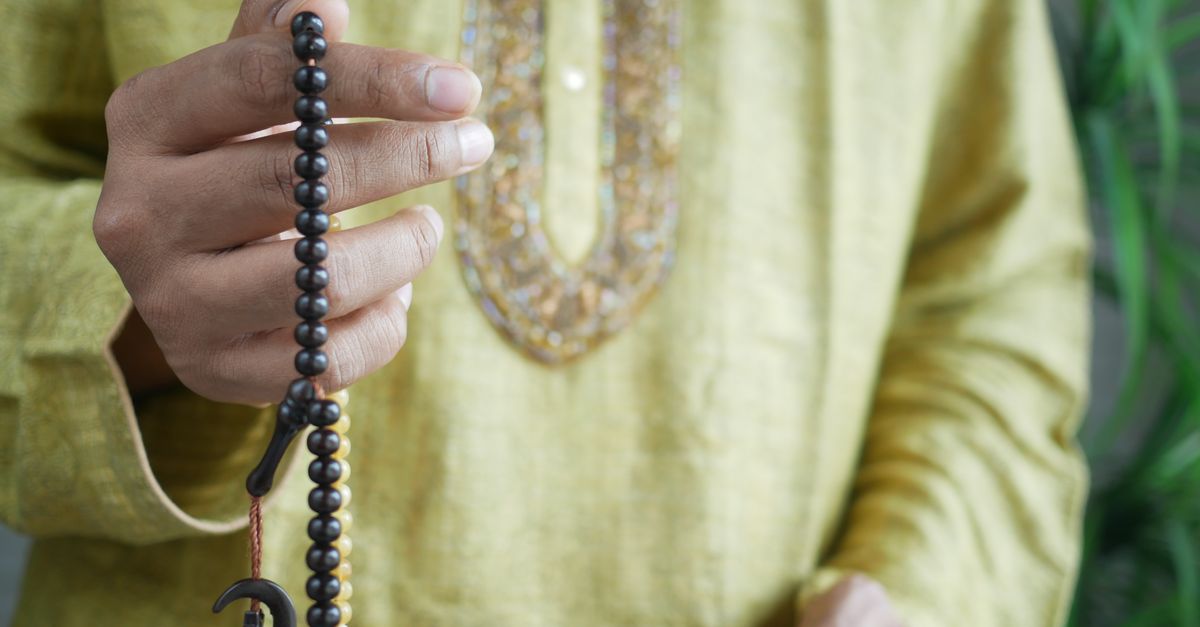
Choose the round target once
Start by selecting either the 33 or 99 round target. These are the two available targets, so there is no adjustable target value to configure. You can also rename the local counter label if that makes the count easier to identify on your device. The selected target stays visible alongside the current round and position, giving you a clear reference before each entry.
| Target | Exact completion rule | How it compares |
|---|---|---|
| 33 | The round closes only when the count reaches exactly 33. | It provides the shorter of the two fixed counting cycles. |
| 99 | The round closes only when the count reaches exactly 99. | It provides the longer of the two fixed counting cycles. |
If a different personal workflow calls for the other target, you can change it between interactions. After changing it, check the displayed target, round, and position before continuing. The tool records the entries you choose to make; it does not infer why you are counting or automatically choose a target on your behalf.
Set up, count, and export in one short workflow
- Open the counter and select the target. Choose 33 or 99, then add an optional local label only if it will help you recognize the counter later. No sign-in, profile, or external service is required.
- Press Add one for every entry. Keep the page within reach and make one deliberate press for each count. The target, current round, and position remain visible so you do not need to track them in another application.
- Continue without manually resetting the round. At the exact target boundary, the tool displays a completed-round state. This visual state confirms that the round has closed.
- Make the next tap when you are ready to continue. That tap begins the next round automatically, so there is no separate reset step between rounds.
- Correct only the latest entry when necessary. If the most recent number was entered incorrectly, press Undo one. It corrects the most recent number, so it is not a general editing or multi-entry history control.
- Review the local calendar days at the end. Check the saved date-and-count history and export PNG or CSV only when you want a file outside the browser.
Let the boundary handle the reset
The main convenience of this workflow is that the round transition is already defined. With a target of 33, a count of 33 reports a completed first round; the following tap begins round two at one of 33. You therefore do not need to decide whether the display should return to zero, remain at 33, or begin another cycle manually.
The visual completion state is the dependable confirmation. On browsers that support the Navigator.vibrate API, the tool also attempts a short vibration after a user tap completes a round. The W3C Vibration API is browser-dependent: Safari does not support that API, and some devices disable vibration. The page remains fully usable in those cases, so use the on-screen completion state rather than expecting a physical alert. There is no audio playback or permission request.
Review daily records without extra tracking
Each saved increment belongs to the local calendar date on the device. A count made late at night therefore remains on that local day instead of being assigned to a UTC date. When a new local day begins, the page starts its visible count at zero while preserving earlier nonzero days in the history list.
The history is designed to be modest. It shows the saved date and count in reverse date order, without requesting a profile or trying to infer the context of the count. To review your activity, open the history and scan the dated rows in reverse order. There is no separate day-management process, manual folder system, or need to create a new record for each local date.
This arrangement also separates the current session from earlier activity. The visible counter is convenient for the day in progress, while the history preserves previous nonzero days for later review. A change in target or label does not turn the tool into a multi-counter system; it remains a focused counter with one selected target and one local daily record.
Keep privacy and browser limits in view
The counter stores its state only in browser localStorage under its own key. WHATWG HTML Web Storage describes the browser storage mechanism used for this kind of persistent local data. The tool does not synchronize the record across devices, send it through a sign-in flow, or turn it into a server-side profile. A separate phone or computer begins with its own empty counter.
Clearing browser data removes the saved history, so an export can be useful when you want a separate copy. If browser storage is disabled or full, the current page remains usable, but the tool cannot retain the history and tells you that saving is unavailable. It does not claim to provide an alternative backup. For continuity, return to the same browser on the same device unless you have exported a PNG or CSV file.
The optional vibration and custom label should also be treated as extras rather than required parts of the process. Vibration may be unavailable, and the label is local. Most daily use needs only the selected target, the Add one control, and the visible completion state.
Export only when a file is useful
Exporting is optional. If the browser history meets your needs, you can leave the data in its local storage and avoid creating extra files. When you need a record outside the browser, choose the format that matches what you plan to do with it.
| Format | What it contains | Practical use |
|---|---|---|
| PNG | A 1080 by 1350 image with a Lizely mark, a total, and recent calendar-day rows. It contains no URL and omits the optional custom label. | Create a visual record for keeping or sharing outside the browser. |
| CSV | A simple Date and Count file with one data row for every saved nonzero day. | Open the dates and counts in a spreadsheet or keep a private archive. |
Both exports are made inside the browser with native canvas and Blob APIs. No image or CSV is uploaded for processing. Because the PNG deliberately leaves out the custom label, do not rely on that image to preserve a personal note. The CSV is also intentionally limited to dates and counts rather than labels or inferred context.
For a more detailed written account, you can combine the exported date-and-count file with the guidance in How to Document the Steps You Take With Tasbih Counter. Keep that documentation separate from the tool’s core history, which only stores the dates and counts it records locally.
Reduce the process to three repeatable habits
- Before counting: Select 33 or 99. Add a label only if it serves a practical identification purpose.
- During counting: Press Add one once per entry, watch the target and position, and rely on the visual state when a round closes. Use Undo one only for the most recent mistake.
- After counting: Review the saved local days. Export PNG or CSV only if you need a file outside the browser.
Following those three habits keeps the process centered on one control during the count. You do not need a separate reset process, an account, a synchronization setup, or an export on every session. The counter supplies the fixed boundary and basic daily record, while you remain responsible for choosing the target, entering each count, and deciding whether a separate file is needed.
For a deeper look, see How Do I Repeat the Same Result in Water Intake Counter?.