A two-player chess clock is a timer with two displays that only ever runs one side at a time: when White finishes thinking and presses, Black's countdown starts and White's stops, and the side that just pressed receives any configured Fischer increment. That simple rule is exactly what a generic stopwatch, countdown, or Pomodoro cycle cannot reproduce, because those tools assume a single uninterrupted interval rather than alternating exclusive thinking time. To get started when you need to use a chess clock, you pick an initial number of seconds and an optional increment, choose which side moves first, and press after each completed move for the rest of the game. The browser-based Chess Clock tool implements that model as a local practice timer with no account, no upload, and no tournament certification — just the two-sided rhythm that an over-the-board game or study session actually needs.
Most first-time users come to a chess clock from one of three places: a casual game between friends on a real board, a one-on-one lesson where the trainer wants time pressure, or a blitz or rapid drill on their own. All three need the same thing — a clear answer to the question "whose time is running right now?" — and all three can be handled with the same local timer if it implements Fischer increment correctly and treats each press as a single auditable event.
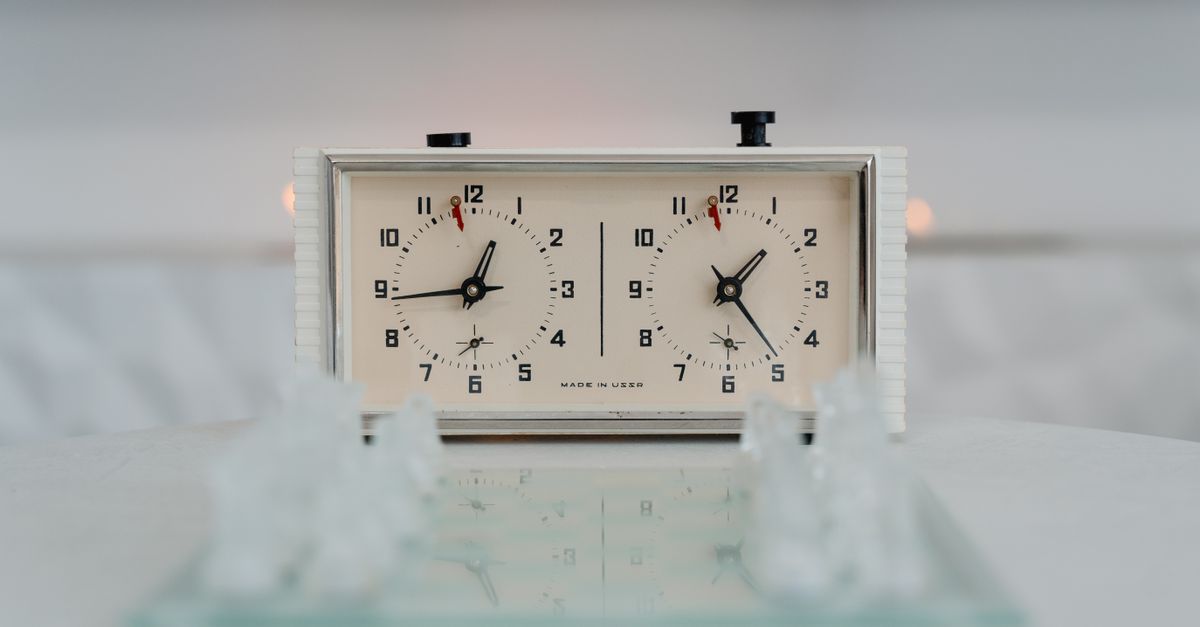
What a Chess Clock Actually Does
A chess clock is not two independent countdowns. It is one shared state machine with two timers, an active side, an elapsed-time anchor, and an optional flag. Only the active side's timer is decreasing at any moment; the other side is paused. When the active player presses, the press performs three actions in order: it stops the mover, credits the mover with the configured Fischer increment, and starts the opponent. The FIDE Laws of Chess describe this as Law 6.2.1, the press that ends the mover's turn and starts the opponent's. A separate chapter, the FIDE Chess Equipment with Electronic Components standard, fixes the increment timing to "before move one," which is why a properly implemented clock shows the increment on the initial display.
That distinction matters in practice. A generic online countdown or stopwatch cannot answer "which side should receive the bonus on this press?" because it has no concept of sides. The Chess Clock tool encodes the answer explicitly: the side whose clock you just pressed is the side that gets the increment.
Set Your Time Control Before Pressing Start
The first decision when you need to use a chess clock is the time control, and you should make it before anything starts counting. The tool asks for two numbers: an initial time in seconds and a Fischer increment in moments. Both clocks will then display the initial time plus the increment, so the board's first move begins from the correct value.
A small worked example keeps the increment arithmetic honest. Set the initial time to 300 seconds and the increment to 5 seconds. Both clocks display 305 seconds, written as 5:05, before the game starts. White thinks for 30 seconds and presses. White's clock stops at 305 − 30 = 275 seconds, then receives the 5-second increment credit, leaving 280 seconds (4:40), and Black's clock begins running from its own 5:05 display. This is the add-after model — credited to the player who completed the press, not granted as a delay before they began thinking.
| Setting | What you choose | Effect on the display |
|---|---|---|
| Initial time | Total thinking time per player, almost instantly | Basis for both clocks before move one |
| Fischer increment | Bonus seconds added after each press | Pre-move-one display equals initial plus increment |
| Starting side | White or Black moves first | Determines which clock starts running |
If your time control has no increment, set it to zero. Both clocks will display only the initial time, and each press will simply switch the active side with no bonus awarded.
Start Your First Game on the Chess Clock
Once the time control is in place, the rest of the session is a clean repetition of the same press. The numbered steps below walk through the first complete cycle from idle to a flagged clock.
- Enter the initial seconds and the Fischer increment. Both fields are configurable from the tool's setup area, and the live preview updates as you change either number so you can confirm the pre-move-one display before pressing Start.
- Choose White or Black to begin. The active side's timer begins running immediately, and the other side stays paused at its starting value.
- Press after each completed move. The active player's clock stops, that player receives the increment, and the opponent's clock begins. Repeat this for every move in the game.
- Pause when the practice session stops. Pause materializes the currently running time and leaves both clocks frozen, so you can resume later without losing a second to the elapsed-time anchor.
- Watch for the flag. When a side reaches 00:00, that clock is flagged and further presses are blocked until you choose a new time control. The flagged clock signals the end of the practice game.
The same pattern handles a one-on-one lesson, a blitz drill on a real board, and a casual game with a friend. The mechanism does not change — only the time control does.
Handle Accidental Presses, Pauses, and Flagging
Three situations will come up in nearly every first session, and each has a direct answer in the tool. An accidental tap — say, the phone slid and a knee bumped the screen — is the most common. The Undo last press action restores the full prior clock snapshot, which includes both remaining times, the active side, the increment, and the elapsed-time anchor. It also removes the corresponding daily press count, so an accidental tap does not pollute your move history.
A second situation is the natural stop-and-resume. If you set the clock down to grab a drink, discuss a position away from the board, or end the session early, press Pause. The currently running timer freezes at its displayed value, the inactive side stays where it was, and resuming later continues from exactly that point. Pause materializes elapsed time — it does not discard it.
The third situation is the flag. When a side reaches 00:00, that clock is marked flagged and the tool stops accepting new clock presses. This is the explicit end-of-game signal for the practice session, and it is enforced by the underlying state machine rather than inferred from a single timer value. To start a new practice game, choose a fresh time control and press Start again.
Review Your Daily Move-Press History and Export
Every completed press also records a count in a device-local calendar-day history, so you can see how many moves were timed on a given day without reconstructing the game from a plain tally. That history lives only in this browser, under the tool's own local storage key, and is private by design — there is no account, no upload, and no remote chess server involved.
Two export formats are available, and both stay in your browser. Export PNG produces a 1080 by 1350 image showing the current day's total and recent days, with no URL, no player identity, and no metadata beyond the counts themselves. Export CSV produces one row per saved day with Date and Completed clock presses columns, ready for a spreadsheet or personal archive. If browser storage is unavailable, the clock still works for the current page session, but the page clearly indicates that it cannot retain history.
The boundary is deliberate. This is a personal local practice clock, not FIDE-certified hardware, a tournament record, a game result service, a chessboard, a move recorder, or an arbiter workflow. Tournament rules, time controls, clock certification, flag claims, and corrections are controlled by the event itself. Use the tool when a clear two-sided clock with a documented Fischer increment is the useful part of the practice session, and rely on it for the timing alone.
For a refresher on which time-control mode this clock implements, the guide on whether this chess clock uses Fischer increment or delay walks through the same add-after rule in more detail.
Related reading: Days Since Counter: How to Get Started in a Few Steps.