A debate timer result that looks wrong is usually the queue state, not the clock — it traces back to which slot is active, which slot you last advanced, and whether the round was edited mid-practice. Because the Debate Timer is an ordered queue of named segments rather than a single countdown, every fix starts from the queue state — the active slot, its remaining time, and the saved timestamp anchor. The undo control restores a complete earlier snapshot, the edit action intentionally resets the current local round so an old remaining time cannot silently belong to a new schedule, and the elapsed clock is calculated from the anchor rather than from counting interval callbacks as one second. Each of those three mechanisms is exposed as a single control on the screen, so the recovery path is the inverse of whatever action produced the unexpected number. Knowing which of those three things produced the number on screen is what makes a "wrong" result recoverable instead of confusing.
Before changing anything, decide whether the issue is a live round you want to repair or a finished day of practice whose daily history now looks off. The fix paths are different: a live round uses Undo segment, an edit, or a deliberate advance; a finished day's history is a read-only record under the device's local calendar day and can only be removed by clearing the browser's local storage for the page. Both cases share the same underlying principle — the timer keeps an explicit queue, so the answer to almost every "wrong" question is to inspect the queue state, not just the digits on screen.
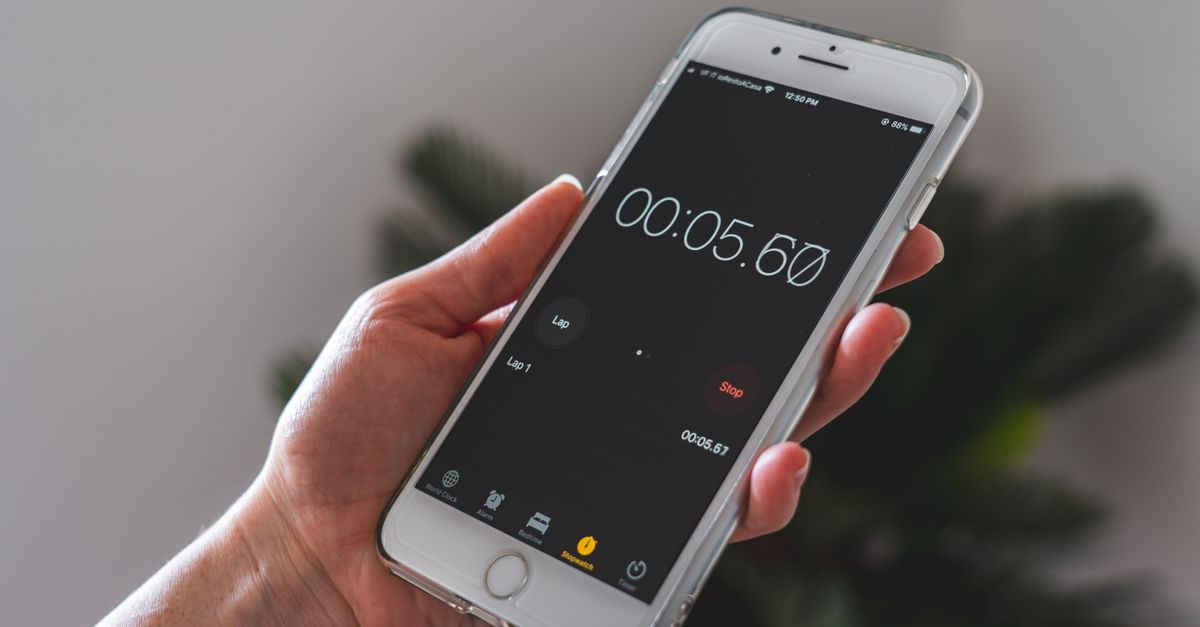
Why a Debate Timer Result Can Look Wrong
Three mechanisms drive the number you see: the queue advance, the edit-reset rule, and the timestamp anchor. None of them are bugs; all of them can surprise a user who expects a generic countdown.
Queue advance. When a speech or cross-examination ends, you choose Advance segment. That choice moves the queue one slot, gives the new slot its own configured duration, and writes one record to the day's history. If you pressed Advance at the wrong moment — for example, before a cross-examination actually ended — the next slot shows a fresh full duration while the previous one was never marked complete. Undo segment is the recovery path here, not a rewind of the clock.
Edit reset. Every slot in the queue has an editable name and duration. Changing either one resets the current local round. That rule exists so that a leftover remaining time from the old schedule cannot silently belong to a new schedule you just typed in. If you edited a slot because the round structure was different from the default 1v1 template, the old count is intentionally gone — press Start to begin again under the new schedule.
Timestamp anchor. Elapsed time is computed from a saved timestamp anchor on the active slot, not from counting every browser interval callback as one second. When the tab is hidden, browsers throttle timers aggressively; the anchor model is what keeps the displayed remaining time correct after the tab returns. If you suspect the clock is drifting, the anchor is doing its job — drift is usually a perception problem created by a hidden tab, not a counter problem.
Recover a Wrong Debate Timer Result
- Identify which slot the queue is currently on. The current segment name and remaining time are the only two values that should be on screen at the same time, and the segment name is the source of truth for "where in the round am I".
- If the queue advanced too soon, press Undo segment once. This restores the complete earlier snapshot, including the prior current slot, its remaining time, and the daily count for that local calendar day.
- If you edited a slot name or duration, accept that the current local round is reset by design. Press Start to begin the round again from the first slot under the new schedule; do not try to "carry over" old time into a new schedule.
- If the tab was hidden and the remaining time looks wrong on return, leave the round running. The anchor will reconcile the elapsed interval on the next interval tick — do not press Reset unless you intend to throw away the round entirely.
- Press Pause whenever practice actually stops. A paused round keeps its remaining time without counting further, so a long break does not silently advance the schedule or skew the daily record.
- Use Advance segment only at the moment a turn ends. A second accidental press is one Undo away; the queue will not move on its own, so an extra press always has a recovery path.
- When the round finishes, open the private daily history to confirm how many structured segments were advanced. The history answers a modest but useful question — how many slots did you complete in this practice day — and is the only record the tool keeps.
- If you need a portable record, export PNG or CSV only after the round is fully complete. PNG produces a clean 1080 by 1350 image with the daily total and recent days; CSV produces one Date and Segments advanced row per saved day.
Undo an Accidental Advance
The Undo segment control is the single most direct fix for a wrong-looking result, and it is the only control that can rewind a queue that has already moved. It restores the complete earlier snapshot: which slot was active, how much time remained on it, and what the day's completed-segment count was. That last piece matters — the daily count is incremented on advance, so undoing also decrements the local record for that calendar day. The undo does not delete the day's history, change other browsers or devices, or modify any saved schedule.
If you undo too far — for example, undoing past a legitimate advance — pressing Advance segment again moves the queue forward exactly one slot and re-records that completion. In other words, undo and advance are reversible in either direction, one slot at a time, and neither one rewrites a CSV or PNG export that has already been produced.
If the undo button is greyed out, the round is at its initial state with no completed advance to revert. That is the correct behavior, not a bug. Start the round and let the queue produce at least one completed segment before relying on undo to recover.
Edit Slots Without Losing Your Place
Every slot has an editable label and duration, and the queue is built so that editing is safe across formats. The rule is simple: changing any slot resets the current local round. That sounds like a loss, but it is the only safe behavior for a queue. If the edit did not reset the round, a leftover 1:24 remaining on a slot whose duration you just changed to 2:00 would be ambiguous — is the speaker still finishing the old speech, or did the schedule change?
To swap in a non-default schedule without confusion, follow this pattern. First, pause the current round so the queue is not running. Second, edit every slot whose name or duration needs to change for your event — a public-forum drill, a policy round, or a coaching scenario. Third, press Start to launch the round under the new schedule; the reset is the intended outcome, not a side effect.
The default schedule is intentionally a starting template rather than a claim that every debate works the same way. The published Coolidge 1v1 ordering referenced by the Calvin Coolidge Presidential Foundation uses five-minute constructives, two-minute cross-examinations, and four-minute closing speeches, and the queue mirrors that as the starting eight-slot sequence. The DebateUS overview of policy debate describes how formats use distinct constructive, cross-examination, rebuttal, and preparation segments — which is exactly why every slot is editable here rather than locked to one format.
| Default slot | Role | Starting duration |
|---|---|---|
| 1 | Affirmative constructive | 5:00 |
| 2 | Cross-examination | 2:00 |
| 3 | Negative constructive | 5:00 |
| 4 | Cross-examination | 2:00 |
| 5 | Affirmative rebuttal | 4:00 |
| 6 | Negative rebuttal | 4:00 |
| 7 | Affirmative rationale | 4:00 |
| 8 | Negative rationale | 4:00 |
Edit any of those values to fit your event. The reset is the protection that prevents the round from carrying an impossible remaining time into a new schedule.
Read the Daily History Correctly
The daily history is a list of completed segments under the device's local calendar day, and it is the only record the tool keeps. Each entry corresponds to one slot that was advanced, not to a full round and not to a timer reset. If you advanced eight slots in a single practice session, the day has eight entries, and a CSV export will show one row with eight segments advanced.
A few things the history deliberately does not do. It does not record the slot names that were advanced — only the count. It does not name any participant, since this is a local practice aid with no account or upload. It does not synchronize across devices, so a different browser starts empty. And it cannot be edited from inside the tool; the only way to clear it is to clear the browser's local storage for the page, which removes the whole record rather than trimming individual days.
If the daily history looks lower than expected, the most common cause is that you pressed Pause instead of Advance when a turn ended. Pausing stops the countdown without moving the queue, so no segment is recorded. The right pattern is Pause to interrupt and Advance to commit a turn.
| Symptom | Likely cause | Fix |
|---|---|---|
| Remaining time jumped after editing a slot | Edit reset the local round by design | Press Start to begin again under the new schedule |
| Daily history shows fewer segments than the round had | Pause was used where Advance was needed | Use Advance segment at the moment a turn ends |
| Round kept counting while you were away | Tab was not hidden, so anchor did not throttle | Press Pause when practice stops; resume with Start |
| Undo button is greyed out | No advance has happened yet in this round | Start the round and complete at least one segment first |
| Result looks off on another device | History is local-only; nothing syncs | Run practice on the device whose record you want to keep |
When the Result Is Not a Bug
A few situations look like bugs but are actually the documented behavior of a local queue. Browser callback timing can be delayed in a hidden tab, so elapsed time is calculated from the saved anchor rather than treating each interval callback as one second — this is why a paused-then-resumed round shows the correct remaining time even after the tab was hidden for minutes. The tool also does not promise official timing accuracy while the device is suspended, because the practice design is local rather than event-controlled.
The tool is also not a substitute for an official tab room or a coach's instruction. It does not decide a tournament's official order, preparation-time bank, speaker eligibility, judging result, or rule interpretation. Those facts vary by event and the published competition rules control. If a tournament's official timer disagrees with what you practiced here, the published competition rules are the source of truth — for guidance on how the two differ, see how an official tournament timer differs from a practice aid.
Finally, remember the export limitation: PNG makes a clean 1080 by 1350 image with no URL or participant names, and CSV creates one Date and Segments advanced row per saved day. Neither export can rewrite a finished round. If the live display looks wrong after an export, the export simply reflects the queue state at the moment the round finished — re-running the round and producing a fresh export is the only way to change the recorded number.
Related reading: Keep Screen On While Viewing Not Working: A Browser Fix.