Fix a wrong-looking invoice after generating it by correcting the form fields, checking the live preview, and downloading a new PDF.
With the Invoice Generator, the live preview is the correction point because it mirrors exactly what the downloaded PDF will contain. The supported workflow is to update the invoice form, review the recalculated preview, and download another PDF. This version creates PDFs; its documented correction process does not edit an already downloaded file.
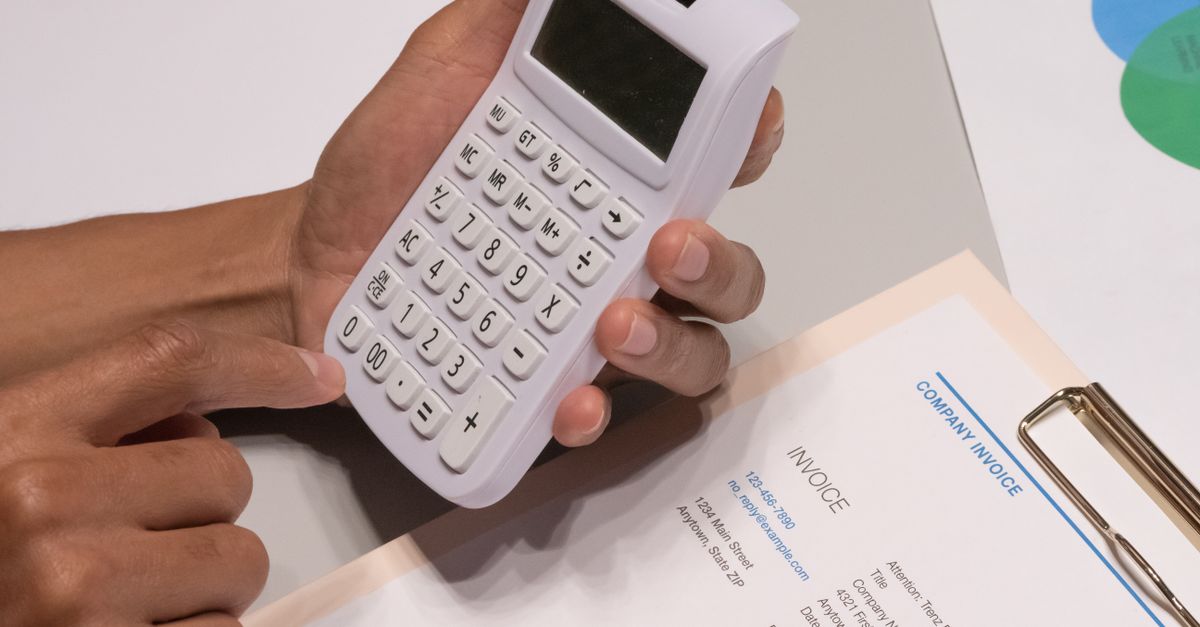
Separate content, calculation, and display issues
Start by identifying what kind of problem you see. A wrong name, date, description, invoice number, or quantity is an input error. An incorrect subtotal, tax amount, or final total comes from the line items, tax rate, or discount. A missing logo or substituted character is a limitation of the text-based output rather than a calculation mistake.
| What looks wrong | Where to check | Corrective action |
|---|---|---|
| Sender or client information | From and Bill To | Replace the incorrect business name, client name, or address. |
| Invoice reference or dates | Invoice number, issue date, and due date | Confirm each value, using the date pickers when needed. |
| Line-item amount | Description, quantity, and unit price | Correct the row, remove an unwanted row, or add a missing item. |
| Subtotal, tax, or final total | Line items, tax rate, and flat discount | Check the calculation inputs in that order. |
| Currency symbol | Currency selector | Select US dollar, British pound, euro, or yen as appropriate. |
| Missing logo or image | Text-based PDF output | Add the graphic afterward in a PDF editor. |
| Unexpected character | PDF font support | Expect unsupported characters to be substituted or replace them before downloading. |
Because the preview and PDF match, an error visible in the preview must be corrected in the form. There is no separate total to recalculate after the file is downloaded. If the preview appears correct, check whether the remaining issue is one of the output limits explained below.
Correct the invoice in your browser
Use this workflow when you need to replace a generated invoice with a corrected version:
- Open the generator and enter or re-enter your business details under From and your client’s details under Bill To. Confirm the invoice number, issue date, due date, and currency. If you closed the page, re-enter the information because invoice data is not stored.
- Review every line item. Check its description, quantity, and unit price, paying particular attention to the Amount shown for that row. Use Add item to insert missing services or products, and use the remove button to delete an unwanted row.
- Check the tax rate and optional discount. The discount is a flat amount rather than another percentage. The subtotal, tax, discount, and total recalculate immediately as you type.
- Review the complete live preview. Confirm the From and Bill To blocks, invoice number, dates, currency, item descriptions, quantities, unit prices, line amounts, summary totals, and any notes you added.
- Click Download PDF once the preview is correct. The file is generated locally in your browser, so open the new PDF and check it before sending it to the client. If the item list is long, additional pages are expected.
Verify the calculation order before changing totals
The generator calculates the invoice in a fixed sequence:
- Subtotal: the sum of every line, where each line equals quantity multiplied by unit price.
- Tax: the entered tax percentage applied to the subtotal.
- Total: subtotal plus tax minus the flat discount.
The calculations use integer cents rather than floating-point decimal values, which helps prevent small rounding discrepancies. The discount is also constrained so it cannot make the total negative.
For one worked check, two units at $50 each produce a $100 subtotal. With 10% tax and a $5 flat discount, the amount due is $105: (2 × $50) + (10% × $100) − $5 = $105.
If the total seems wrong, test the inputs in the same order. First confirm each quantity and unit price, then the subtotal, then the tax rate, and finally the discount. Changing the currency does not correct the arithmetic because the selected symbol controls display only and does not perform an exchange-rate conversion.
Account for text and layout limits
Some apparent errors come from the design of the generated PDF rather than incorrect invoice data:
- Logo and images: The current generator is text-based and does not support uploading a company logo or another image. If a logo is required, add it afterward in a PDF editor.
- Unsupported characters: Characters that the PDF font cannot represent, such as emoji or some non-Latin scripts, are safely substituted. Replace those characters before downloading if the substituted version is not acceptable.
- Supported currencies: You can select US dollar ($), British pound (£), euro (€), or yen (¥). These are display symbols only; the generator does not convert values between currencies.
- Multiple pages: Long item lists flow onto additional pages automatically. Review the final PDF’s pagination rather than assuming repeated content is an error.
- Notes: Notes entered at the bottom of the invoice are included in the generated PDF, so check their wording during the preview review.
Download and inspect the replacement
When the preview passes your review, click Download PDF. The invoice and its calculations are generated locally with JavaScript, and client names, addresses, rates, and totals are not uploaded to a server. The tool requires no login, and the resulting PDF has no watermark.
Open the newly downloaded file and give it one final visual check. The PDF includes the From and Bill To blocks, invoice number and dates, an itemized table, a subtotal-and-tax summary, the final total, and any notes. Use this newly generated version rather than an earlier PDF with the incorrect value. The output is a standard, print-ready PDF that you can print, attach to an email, or archive for your records.
Run a final pre-send audit
Use a short final pass to catch anything the preview did not draw your attention to:
- Compare the From and Bill To text with the correct business and client records.
- Confirm the invoice number, issue date, due date, and currency selection.
- Read each Description, Qty, Unit Price, and Amount value in the itemized table.
- Recalculate the subtotal, confirm the tax rate, and verify the flat discount and total.
- Check that any notes are accurate and that missing graphics or substituted characters are acceptable.
- Open the final downloaded PDF, check its pages, and make sure it is the corrected file you plan to send.