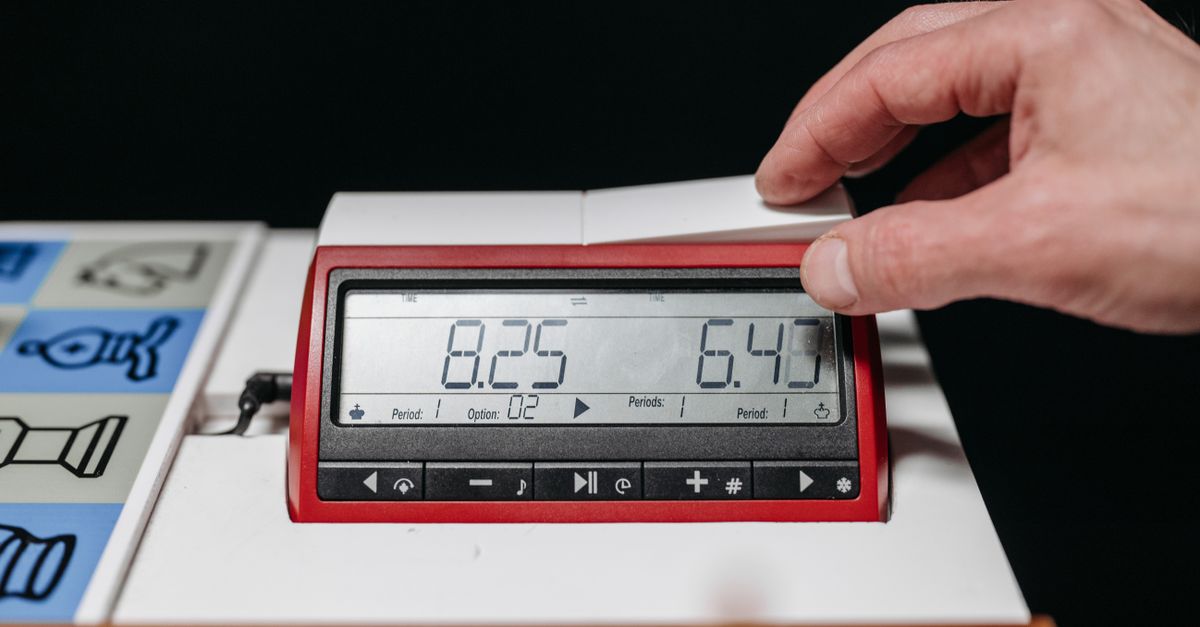
What a Fischer Increment Chess Clock Actually Does
A Fischer increment chess clock adds a fixed number of bonus seconds to the player who completes a clock press, then switches the active side and starts the opponent's timer. The increment is shown in the initial display before the first move because FIDE's electronic-clock specifications require the increment to be credited before move one (per the FIDE Chess Equipment with Electronic Components, 2026). Per the FIDE Laws of Chess, a clock press is defined as the action that stops the player who moved and starts the opponent, so the add-after model is mechanically clean: one player stops thinking, the other begins, and the mover receives the bonus.
In a local browser implementation, the timing rules are implemented as a small tested state machine with separate white time, black time, an active side, an optional flag, and an elapsed-time anchor. That is safer than letting two independent countdowns run or trying to infer who should receive a bonus from a single number. The large two-column display keeps both remaining times visible without asking you to calculate a bonus in your head, which matters in blitz where every second of arithmetic costs thinking time. If you want that exact add-after behavior in your browser, the Chess Clock tool implements it locally with no account and no upload.
The same model also covers the common practice settings. For a casual over-the-board game, a 5-minute base with a 3-second increment is the classic club default. For a study session, you might use a 15-minute base with no increment at all. For a blitz drill, 3 minutes plus 2 seconds is typical. For a lesson, a long base such as 30 minutes with a small increment lets the teacher stop the clock for explanations without flagging the student.
Fischer Increment vs Simple Delay at a Glance
The two time-control modes look similar in a settings panel but behave very differently once the clock starts running. The table below summarizes the practical difference; the local practice tool covered here supports Fischer increment only and does not include delay.
| Aspect | Fischer Increment | Simple Delay |
|---|---|---|
| When the bonus is added | After a completed clock press | Before the countdown actually begins |
| Whose time benefits | The player who just pressed | The same player who is about to move |
| Initial display | Includes the increment before move one | Same as the configured base |
| Behavior on the mover's clock | Counts down normally; increment credited at the press | Does not begin counting down until the delay window has elapsed |
| Effect on move-one timing | Mover starts with base plus increment visible on the clock | Mover starts with base and must move before delay expires |
| Implemented by a local practice tool | Yes, with an explicit add-after state machine | Typically a separate mode, not included here |
The key practical difference: under Fischer increment, the bonus is delivered as extra clock time credited at the press; under simple delay, the bonus is delivered as a pause before the clock begins counting. Both reduce flag chances compared with no bonus at all, but they reward different playing styles, and they are not interchangeable.
Set Up and Run a Practice Game in Your Browser
Follow these steps to time a practice game on the Chess Clock page. The whole flow runs in a single tab and does not require an account.
- Open the Chess Clock tool and pick the initial seconds and the Fischer increment before you start a game. The displayed initial time already includes the increment required before move one, so each side begins with base plus increment shown on the clock.
- Start White or Black depending on who moves first in your game. From this moment exactly one side is active and exactly one timer is counting.
- Press the clock after each move to credit the player who just moved and switch the active side. The other side's timer begins counting immediately, and the side that pressed receives the configured increment.
- Pause when the practice game stops for a question, a phone call, or a coaching note. Pause materializes the currently running time and leaves both clocks stopped, so the elapsed time is preserved rather than lost.
- Use Undo last press for an accidental tap. Undo restores the full prior clock snapshot and removes the associated daily press count, which a generic minus button cannot do because it does not know which side was active or how much increment belonged to that press.
- Export PNG or CSV only when you want a private copy of your daily move-press history. Both exports stay in your browser and contain no player identity, no URL, and no remote upload.
A worked example: if you set a 5-minute base (300 seconds) with a 3-second increment, each side's initial display reads 300 + 3 = 303 seconds because the increment is shown before move one. When the active side completes a press, that side is credited the 3-second increment and the other side's timer starts counting. The press always adds the bonus to the side that just moved, never to the side that is about to move.
Fix an Accidental Press Without Losing the Count
A common reason people give up on a casual online clock is that an accidental tap throws the count off and there is no clean way back. A generic minus button cannot tell which side was active or how much increment belonged to that press, so it cannot safely roll back. The Chess Clock stores a bounded snapshot under a local browser key that contains both timers, the active side, the Fischer increment, and a timestamp anchor. When you tap Undo last press, the tool restores the full prior snapshot and removes the associated daily press count, which means the move-press history and the on-screen time stay consistent.
Pause is the other safety control. Pause materializes the currently running time at the moment you stop and leaves both clocks stopped, so a mid-game pause does not eat anyone's clock. When you resume, the active side continues from the materialized time without any hidden drift. A flagged clock, one that has reached 00:00, is locked against further move presses until you set a new time control, which prevents the common bug of letting the loser keep pressing and accidentally banking future moves.
Keep a Private Daily Move-Press Record
Every completed press also creates a count in the device-local calendar-day history, so you can see how many moves were timed on a particular day without writing anything down. The history is stored only under the tool's local browser key, which means another device begins empty and clearing browser data removes the saved record. If browser storage is unavailable, the clock can still be used during the current page session while the page clearly says it cannot retain history.
Export PNG creates a natural 1080 by 1350 image showing the private daily total and recent days, with no URL and no player identity. Export CSV creates one Date and Completed clock presses row per saved day for a spreadsheet or personal archive. Both use native browser Blob and canvas APIs, and both exports stay in your browser. There is no account, upload, cloud synchronization, remote chess server, or scoring API. The boundary is intentional: this is a personal local practice clock, not a tournament record or an arbiter workflow.
Limits of a Local Practice Clock
The clock is explicitly not FIDE-certified hardware, a move recorder, a chessboard, an arbiter workflow, or a game result service. It does not try to judge a chess position, determine a result, manage move numbers, or replace an arbiter. Tournament rules, time controls, clock certification, flag claims, and corrections are controlled by the event, and they should stay with the event. Use the tool when a clear two-sided clock with a documented Fischer increment is the useful part, and not when you need any of the above. If you want a different angle on the same tool, the related guide Free Chess Clock: Two-Sided Timing with Fischer Increment covers the basics in a more product-overview format.
The clock is also deliberately an increment clock rather than a delay clock. A delay has different behavior and is not included here, because mixing the two time-control modes in the same state machine invites silent bugs. The default model is Fischer increment only, and that is the only model the snapshot, undo, and daily history are designed to track.
Related reading: Online Alarm Clock: Live Display, Sound Alert, Snooze.