The most reliable way to avoid mistakes with a chess clock is to use a tool that keeps two timers mutually exclusive, credits the Fischer increment only to the player who just pressed, and lets you undo an accidental tap before it corrupts the rest of the game. Most errors at an over-the-board chess clock come from one of three habits: forgetting whose clock is running, miscalculating an increment in your head, and tapping the button a moment too early or too late without any way to take it back. A plain stopwatch, a single tally counter, or a countdown app that runs both players from the same number cannot represent any of these rules. Chess Clock solves each problem by keeping the white and black times as two separate stores that cannot run at the same time, by adding the configured increment after every completed press to the player who pressed, and by exposing an Undo control that restores the full prior snapshot. A local calendar-day press count is also written for every completed press, so an accidental tap shows up as one extra entry you can review and roll back. This article walks through the five mistakes that quietly ruin a chess game and how the Chess Clock tool prevents each one.
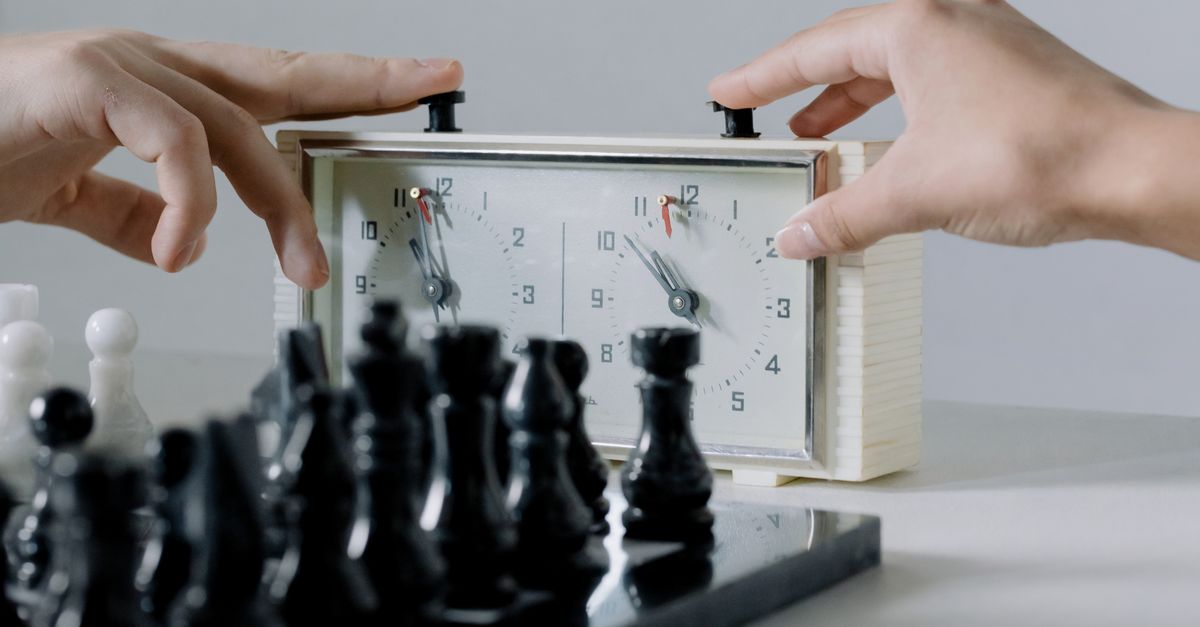
Why Generic Counters Fail at Chess Timing
A chess game is a strictly alternating turn game with two clocks that never run together. Only one player may be thinking at any moment, and a clock press is the boundary that ends one player's time and begins the opponent's. A generic timer, by contrast, is a single stopwatch, a single countdown, or a pair of independent countdowns that the user is expected to coordinate manually. The difference matters because every chess-clock mistake — wrong active side, wrong increment, accidental tap, lost tally, double-add — is a symptom of those missing constraints.
When a casual player tries to track chess time with a single stopwatch, they end up doing arithmetic mid-game, memorizing who pressed last, and trusting a number on a screen that has no concept of "whose turn." When they use a plain countdown app, they usually run two countdowns simultaneously and never actually press anything, which means the increment is forgotten entirely. A tally counter records moves but knows nothing about time. Each of these workarounds pushes the chess rules onto the player's working memory, which is exactly where the mistakes live.
A purpose-built chess clock takes those rules off the player's plate. The active side is a single state that flips on every completed press. The increment is a number the tool owns, applied in the same direction every time. The press itself is a reversible operation. None of this requires the player to remember who last moved, what time was on their clock three moves ago, or whether the increment was already credited.
The Mistakes a Real Chess Clock Has to Prevent
Five mistakes come up over and over in amateur over-the-board play. They look small individually, but together they are why an evening of casual chess ends with arguments about who was actually out of time.
| Mistake | Why it happens with a generic counter | How Chess Clock prevents it |
|---|---|---|
| Wrong active side | Two independent countdowns both tick; player has to remember which one to read | One active side flag at a time; the other clock is frozen |
| Increment credited to the wrong player | Player adds the bonus in their head, often to the opponent | Increment is added automatically, only to the player who just pressed |
| Accidental tap cannot be undone | Generic app has no "previous press" record | Undo restores the full prior clock snapshot |
| Daily count of moves is lost | Tally app stores nothing or stores too little | Local calendar-day press history is written on every completed press |
| Game continues past 00:00 | Countdown keeps counting into negative numbers | Flagged clock stops accepting new presses until you reset |
The rest of this article walks through three of these in detail, then shows the exact button order to run a mistake-free practice game with Chess Clock.
Mistake 1: Losing Track of Whose Clock Is Running
The single most common chess-clock error is reading the wrong number. In a casual game, one player glances at their own clock, sees three minutes left, and starts to relax — only to discover their opponent's clock is the one that read three minutes, and their own has already been ticking for forty seconds without anyone noticing. The error is mechanical: a generic app shows two numbers, but neither app nor player knows which one is "live" at any moment.
The Laws of Chess define the press as the action that stops the mover and starts the opponent. A clock that does not enforce that rule — even informally — is asking the players to enforce it themselves, and players forget. The Chess Clock tool stores the active side as a single piece of state. Pressing either side's button stops that side, adds the increment, and flips the active side flag. The "other" clock is not running; it is frozen at its current value until the next press.
A subtler version of the same mistake shows up at the very start of the game. The tool's initial display already includes the increment required before move one, so the very first press is also the first increment credit. A generic counter that starts two countdowns at the base time and asks the players to add three seconds after each move will frequently double-credit or zero-credit that first press. With one shared state machine, this cannot happen — the first press is treated exactly the same as every later press.
Mistake 2: Crediting the Increment to the Wrong Side
The Fischer increment is a small number added after each completed move, and the direction of the credit matters. The player who just finished thinking is the one who receives the increment; the opponent who is about to start their clock receives nothing. FIDE's electronic-clock specifications describe increment controls and require the increment before move one, which is the exact behavior the Chess Clock implements: the initial display shows the base time plus the increment for both sides, and each completed press adds the increment to the player who pressed.
The mistake is to add the bonus to the wrong side. This happens most often when a player tries to track the increment by hand and either adds it to themselves before pressing (crediting themselves twice) or adds it to the opponent "to be fair" (crediting the wrong player). In casual play the error is rarely caught until one player feels they ran out faster than they should have.
Watch one press to see the rule. Suppose White's clock shows 4:50 when White finishes a move and presses. The tool stops White's clock at 4:50, adds the configured increment of three seconds to White, and starts Black's clock. After the press, White reads 4:53 and Black is now ticking. The rule is identical for every press, including the first — there is no special case where the increment is credited to the side that did not move. If you ever need a written reminder of which side the increment belongs to, the FIDE Laws of Chess spell it out at handbook.fide.com/chapter/e012023.
Mistake 3: An Accidental Tap That Cannot Be Undone
Every chess player has tapped the clock too early — before the move was finished, on the wrong button, or while reaching across the board. In a tournament that tap is a press, period. In a casual game it is the moment a tally-only app shows its limit: there is no "previous press" to go back to. The player who tapped accidentally now owes the opponent three seconds they did not actually use, and the player on the other side does not know whether to ask for the clock back.
Chess Clock treats the last press as a reversible operation. Undo last press restores the full prior clock snapshot — both timers, the active side, and the elapsed-time anchor — and also removes the entry from the device-local daily press count. The result is that an accidental tap is a single button press to correct, and the rest of the game is undisturbed. This is the single feature that separates a chess clock from a stopwatch in practice, and it is the feature that makes over-the-board casual play actually pleasant.
The Undo control is intentionally not a general history scrubber. It restores the immediately previous snapshot and nothing else, because that is the only scope a casual correction can safely cover. If your group needs a deeper correction — an agreed time-control change, a flag claim dispute, a player substitution — that is not what the local Undo is for. It is what an arbiter or tournament rules are for, and the tool's own documentation draws that line clearly.
Run a Mistake-Free Practice Game in Your Browser
Open Chess Clock and follow this sequence. Each step is one of the verified operating steps from the tool, kept short so the rhythm of the practice game stays clean.
- Set the initial seconds and the Fischer increment before you press Start. The display you see at this point already includes the increment required before move one — so a five-minute base plus three seconds shows 5:03 on both clocks.
- Choose White or Black to begin, then press Start. The selected side begins thinking immediately; the other clock is frozen.
- Press the side that just moved after every completed move. The press stops the mover's clock, adds the increment to the mover, and flips the active side. The opponent's clock starts in the same step.
- If a player taps by accident, press Undo last press before the next move. The clock restores the previous snapshot and the daily press count is reduced by one.
- Pause the clock when the practice game stops for any reason — a phone call, a spilled drink, a coaching note. Pause materializes the running time and leaves both clocks stopped; pressing Start again resumes from that exact point.
- Open the daily press history at the end of the session to see how many moves were timed on a particular day. Export PNG or CSV only when you want a private copy; both exports stay in your browser.
The same six-step rhythm works for a blitz drill, a study session with a coach, or an over-the-board game between two friends. The point of the rhythm is that no step requires the players to do arithmetic in their head — the tool owns the increment, the active side, and the press history, so the only thing the players own is the chess.
Use the Daily Press History to Audit Your Sessions
Every completed press writes one entry to a device-local calendar-day count. The history is private — stored only under the tool's own browser key — and it is the only place that records what actually happened during the session. The tally is small on purpose: it does not store player names, the time control, the moves, or the result. It stores the date and the number of completed clock presses on that date.
This matters because an accidental tap is now visible. If yesterday's press count looks too high for the kind of session you remember, you can scroll back through the daily record and see when the unusual day happened. If you exported a PNG at the end of a session, the natural 1080 by 1350 image shows the private daily total and recent days with no URL and no player identity attached. The CSV export gives you one Date and Completed clock presses row per saved day, ready for a spreadsheet or a personal archive.
Two boundaries to keep in mind. First, exports stay in the browser — the tool does not upload, sync, or store history on any server. Second, the history lives under a single browser-local key, so a different device starts empty. Clearing browser data clears the saved record. If the browser cannot write to local storage, the clock still works for the current session and the page says so; the history simply is not retained.
What Happens When a Clock Reaches 00:00
A flagged clock reaches 00:00 and stops accepting new clock presses until you set a new time control. This is the cleanest way the tool handles a flag. There is no negative-time state, no automatic loss claim, no popup declaring a winner — the practice interface simply refuses the next press. That refusal is the signal to the players: stop the game, decide whether the flag stands, and reset the time control before continuing.
The reason the flag is implemented this way is to keep the clock's role narrow. The tool is not an arbiter, a tournament record, or a game-result service. It does not judge a chess position, manage move numbers, or replace a human decision at the end of a flagged game. What it does is keep two clocks running under one set of rules, and a flag is a state inside those rules.
If the practice game is meant to be casual, the players usually reset the time control and continue from a chosen position. If it is meant to be a real club game, the arbiter or event rules apply. In both cases, the clock has done the only thing it is supposed to do: it kept two timers under the documented Fischer rules and refused to do anything beyond that.
For a deeper look, see How to Avoid Mistakes When Using an Auto Counter.
For a deeper look, see Days Since Counter: Avoid These Common Mistakes.