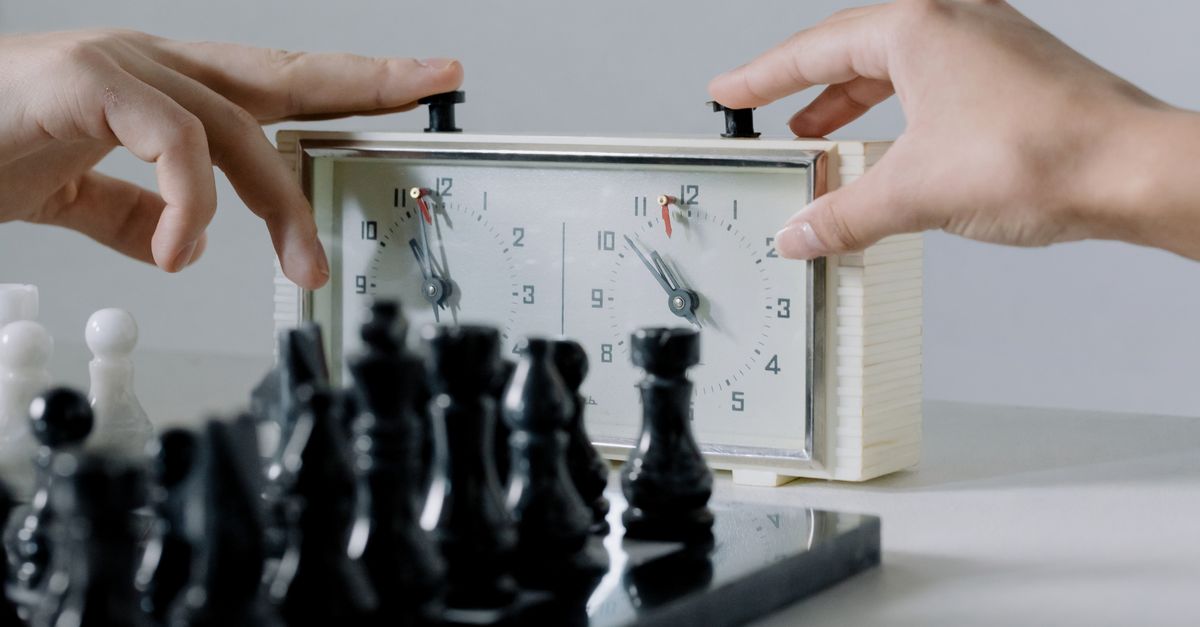
Choosing the right approach to use a chess clock starts with one question: who is timing, and for what purpose. A chess clock is not a single countdown you reset between turns — it is two timers that switch in lockstep, with only the active side losing seconds. The Chess Clock tool on Lizely implements that exact two-sided model in your browser, with a Fischer increment shown before move one, reversible presses, and a private daily tally of completed presses. That model fits casual over-the-board games, blitz drills, club practice boards, and lessons where the players just need a clean shared rhythm, but it deliberately excludes tournament certification, move recording, and arbitration. Once you decide that what you actually need is a documented two-sided clock rather than a generic stopwatch or a full online chess service, the right approach narrows to a few honest choices. Pick the initial seconds and increment that match your activity, set them before starting, press after each completed move, and treat pause, undo, and flag as the only mid-game controls you should reach for. Everything else in this guide flows from those decisions in that order.
What "Approach" Actually Means for a Two-Sided Clock
In a chess-clock context, the word "approach" refers to the time-control behavior you choose, the starting side you select, and the post-game habit you keep. It is not a choice between Fischer increment and delay, because the tool only implements Fischer increment; if you are weighing those two modes, the increment-versus-delay comparison lays out the difference. The first real decision is therefore the time control itself: how many seconds each player starts with, and how many seconds to credit the player who presses. The second decision is who starts, which is fixed by chess rules but still has to be set on the tool. The third decision is what you do after the game, which in a local practice clock means reviewing the daily press count and deciding whether to export it at all. These three decisions are what make an "approach" rather than a feature checklist.
Match the Time Control to Your Situation
The right time control is the one that matches the activity you actually plan to do. The table below is a starting point; the exact numbers are yours to adjust on the tool itself.
| Situation | Initial seconds per player | Fischer increment | Why it fits |
|---|---|---|---|
| Casual over-the-board game | 600 (10 min) | 0 | Lets both sides think without urgency |
| Blitz drill | 180 (3 min) | 2 | Adds a small reward for fast moves |
| Study session | 900 (15 min) | 5 | Long thinking with an anti-blitz bonus |
| Lesson pace | 300 (5 min) | 0 | Coach and student alternate cleanly |
| Club practice board | 480 (8 min) | 3 | A middle ground for friendly matches |
These figures are qualitative recommendations, not rules. The actual seconds and increment you type into the tool should reflect the level of the players and the goal of the session. What matters is that you choose deliberately before pressing Start.
Set the Initial Time and Increment Before You Start
According to the FIDE Electronic Components equipment handbook, the Fischer increment must be applied before move one, not after. The Chess Clock tool follows that rule explicitly: the initial time displayed before Start already includes the increment required before the very first move. This is the only point at which the time control can be set, and it matters because every later press credits the player who completed it with the same increment. If you start a study session with 900 seconds and a 5-second increment, the very first press after White's first move will credit White with 5 seconds before Black's clock begins. Choose the initial seconds and the Fischer increment before pressing Start White or Start Black.
Run the Chess Clock Step by Step
- Open the Chess Clock tool in your browser and confirm it shows two side-by-side timers, both reading the same initial value.
- Type the initial seconds for both players and the Fischer increment you want before pressing Start.
- Press Start White or Start Black depending on who makes the first move; the other player's timer remains frozen at its initial value.
- After each completed move, the moving player presses their side; the tool credits that player with the configured increment and switches the active side.
- Press Pause when the practice game stops so both timers remain frozen at the exact moment you stopped.
- If a player taps accidentally, use Undo last press to restore the prior snapshot and remove that day's recorded press.
- When a clock reaches 00:00, the tool flags that side and stops accepting further presses until you set a new time control.
- Open the daily history panel any time to see how many completed presses were recorded on each saved calendar day.
This is the full operating loop. Everything else in the tool is either a setup choice (initial time, increment, starting side) or a recovery action (Pause, Undo, Flag, Export).
Handle Pause, Undo, and Flagged Time Mid-Game
Pause, Undo, and Flag are the only three mid-game controls, and each one exists for a specific reason. Pause materializes the currently running time and leaves both clocks stopped — it is the right choice when you answer a phone call, answer the door, or step away briefly. Undo restores the full prior clock snapshot, including increment state and active side, and removes the associated daily press count. This matters because a generic minus button cannot know which side was active or how much increment belonged to that press; Undo is the only safe response to an accidental tap. Flag is automatic at 00:00: the tool marks that side and prevents further move presses until you set a new local time control, which is honest because the practice game is over. The FIDE Laws of Chess define a clock press as stopping the player who moved and starting the opponent, which is exactly the rule the Undo path has to reconstruct.
Review Your Local Daily Press History
Each completed press also creates a count in the device-local calendar-day history, so you can see how many moves were timed on a particular day. This is a private record kept under a browser-local key named "counter:chess-clock"; another device begins empty, and clearing browser data removes the saved record. If browser storage is unavailable, the clock can still be used during the current page session, while the page clearly says it cannot retain history. Reviewing this history is the right post-game habit because it tells you, in raw press counts, how much work a study session actually produced — for example, a 30-minute lesson might leave 24 presses on the clock, and that single number is a more honest measure of pace than the wall clock alone.
Export a Private PNG or CSV Only When You Need It
Export is intentionally a deliberate action rather than a background process. Export PNG creates a natural 1080 by 1350 image showing the private daily total and recent days, with no URL and no player identity. Export CSV creates one Date and Completed clock presses row per saved day for a spreadsheet or personal archive. Both use native browser Blob and canvas APIs, so the file is built in your browser and never uploaded. There is no account, no cloud sync, and no auto-export. The right approach is to export only the private daily history you choose to keep, and to skip the export entirely when the practice session is throwaway.
Where a Local Practice Clock Stops
The Chess Clock tool is a personal local practice clock, not FIDE-certified hardware, a tournament record, a game result service, a chessboard, a move recorder, or an arbiter workflow. Tournament rules, time controls, clock certification, flag claims, and corrections are controlled by the event organizer. If your activity requires certified hardware, official recording, opponent matchmaking, or move-by-move reconstruction, you need a different product category entirely. The right approach is to use this tool when a clear two-sided clock with a documented Fischer increment is the useful part, and to stop here. The boundary is intentional: a generic counter cannot represent the part of a chess game where only one player may be thinking at a time, and a tournament service cannot replace the calm of a quiet local practice board. Pick the activity, set the numbers, press after each move, and let the rest stay out of scope.
If you're weighing options, How to Choose the Right Approach to Use Days Since Counter covers this in detail.