Avoid receipt mistakes by entering only a completed payment, calculating subtotal minus discount, then tax, then tip, and verifying every previewed line and total before printing or downloading.
Receipt Maker creates a simple proof-of-payment record after money has changed hands. It is not an invoice generator, and it does not confirm that a card or cash payment actually occurred. Its key guard is straightforward: a paid receipt is generated only when the amount tendered covers the calculated total. Treating an unpaid or partly paid transaction as paid is the most serious mistake to avoid.
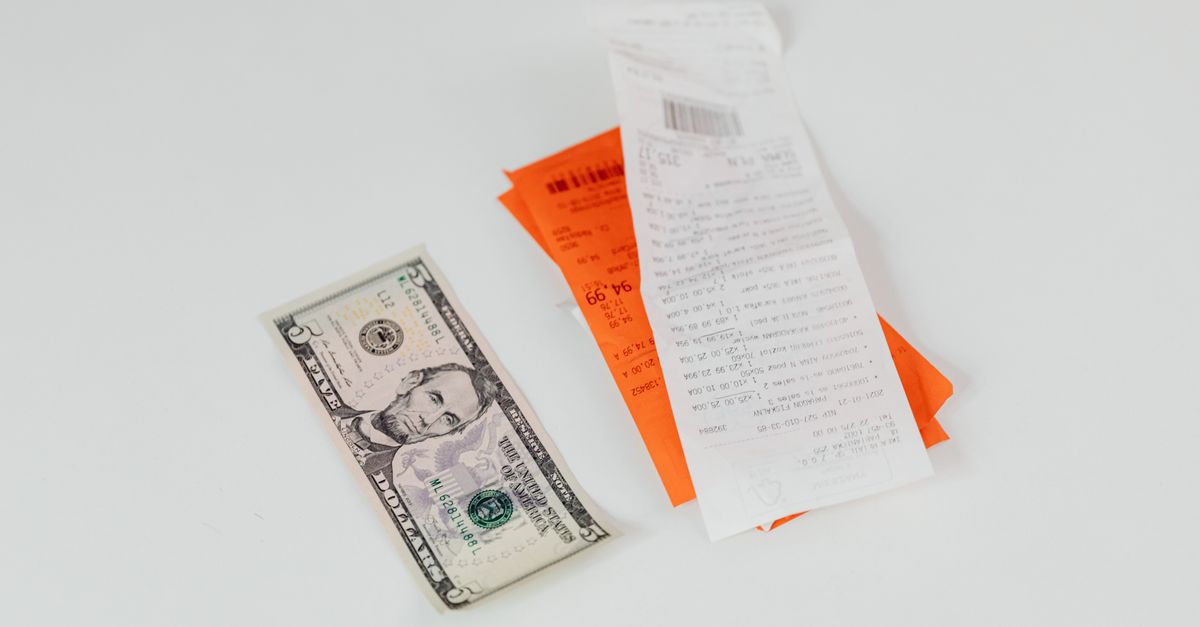
Start with the original payment evidence
Begin with the transaction record rather than reconstructing the purchase from memory. Enter the merchant name, the date the payment occurred, the receipt number, and the correct display currency. Use the actual payment date rather than the date on which you create the document. The receipt number is an identifier you provide; Receipt Maker does not apply sequential numbering rules or jurisdiction-specific numbering requirements.
- Compare the merchant name and transaction date with the cash-register entry, bank record, card-processor record, or signed agreement.
- Check that every price is being entered in the currency selected in the tool.
- Separate the discount, tax, tip, and amount tendered instead of combining them into one unexplained figure.
- Use the receipt number associated with your own records, but do not assume it proves that a transaction was independently authenticated.
Create and verify the receipt in the correct order
- Enter the receipt details. Add the merchant name, payment date, and receipt number, then select the display currency.
- Add every paid item or service. Enter each quantity and unit price exactly as supported by the payment evidence. A unit price accepts no more than two decimal places, while a quantity accepts up to three. Receipt Maker multiplies the validated quantity by the integer unit price and then rounds the line amount to the nearest minor unit. A receipt is limited to 100 line items.
- Enter the flat discount, if applicable. The discount is subtracted from the subtotal and cannot exceed that subtotal. Check the discount amount against the original transaction rather than estimating it from the final total.
- Enter the percentage tax rate. The tax is applied to the discounted subtotal, and that result is rounded to the nearest minor unit. The fixed order is final total = (subtotal − flat discount) + tax + flat tip.
- Add the flat tip after tax. Do not expect the tip to be taxed by this calculation order. Confirm that the entered amount matches the payment record.
- Enter the amount tendered. It must be at least the calculated total. When the tendered amount equals the total, change is zero; when it is higher, change = amount tendered − final total. If the tendered amount is below the total, Receipt Maker stops generation rather than labeling the transaction as paid.
- Generate the receipt and inspect the preview. Check the merchant information, date, receipt number, currency, each item, quantities, unit prices, subtotal, discount, tax, tip, total paid, and change. Recalculate the order independently using the original evidence.
- Print or download only after the review. Print receipt opens the browser print dialog, where paper output or saving a PDF may be available through your system. Download HTML saves a standalone receipt file containing the validated preview values and a compliance disclaimer. The file can later be reopened in an ordinary browser and printed.
Receipt Maker rejects blank, negative, non-finite, malformed, or excessive values instead of silently replacing them with zero. It also reports totals that exceed its supported amount range. Correct the affected source value rather than forcing a questionable entry into the form.
Match every adjustment to the intended calculation
A receipt can be mathematically consistent yet still be wrong if the discount, tax, or tip comes from the wrong rule. Use the table below as a calculation check rather than assuming that every transaction follows the same tax treatment.
| Adjustment | Rule used by Receipt Maker | Check before generating |
|---|---|---|
| Flat discount | Subtract it from the subtotal; it cannot exceed the subtotal. | Confirm the exact discount and whether it applies before tax. |
| Percentage tax | Apply the entered rate to the discounted subtotal and round to the nearest minor unit. | Confirm the rate is appropriate for the transaction and location. |
| Flat tip | Add it after tax. | Check the amount and the fact that it is not taxed by this order. |
| Amount tendered | It must cover the total; change equals the amount tendered minus the total. | Do not alter the tendered amount merely to make the receipt generate. |
| Line amount | Multiply the validated quantity by the integer unit price, then round to the nearest minor unit. | Check every quantity and unit price against the original evidence. |
Tax treatment varies by location and transaction. Receipt Maker does not contain tax tables, product exemptions, official rounding mandates, or jurisdiction-specific compliance logic. Enter a rate appropriate for your situation and confirm that the calculation order matches your requirements. It converts two-decimal monetary inputs into integer minor units before addition or subtraction, which helps keep ordinary currency totals exact.
Match the document to the payment status
Choosing the wrong document type creates a misleading record even when every field looks polished. Receipt Maker focuses on one completed payment and does not maintain customer accounts, outstanding balances, partial-payment allocations, refunds, voids, or payment-processor histories.
| Situation | Receipt Maker result | Appropriate workflow |
|---|---|---|
| The customer has paid and the tendered amount covers the total. | Creates an itemized paid receipt and displays change when applicable. | Use Receipt Maker. |
| Payment is being requested, a due date is needed, or an outstanding balance must appear. | Cannot create a paid receipt for an uncovered amount. | Use Invoice Generator. |
| Part of a balance has been paid and the payment must be allocated to an account. | Does not provide payment allocation or an audit trail for partial payments. | Use bookkeeping software that supports those records. |
Treat the output as a readable record, not certified evidence
Receipt Maker calculates and renders the receipt in the current browser, and entered details are not uploaded to Lizely. Local processing protects the workflow from unnecessary data transfer, but it does not authenticate the merchant, verify that a payment occurred, apply official tax rules, create a tamper-evident signature, produce a fiscal receipt, or archive records.
A downloaded or printed receipt can also be edited, so it should not be treated as independent proof against fraud. Keep the authoritative card-processor record, cash-register journal, bank entry, signed agreement, or other source document required for the transaction. Review Receipt Maker's tax and legal limitations when a receipt may be used for reimbursement, insurance, warranty, regulated recordkeeping, or another purpose with formal requirements. Consult a qualified professional or the relevant authority when those requirements apply.
Regenerate the receipt after every change
Changing any field clears the last generated result, preventing an old receipt from being mistaken for output based on newly entered information. After correcting a quantity, amount, tax rate, or other detail, generate a fresh receipt and compare it with the original payment evidence. Do not continue distributing an earlier copy simply because it looks correct.
Before delivery, confirm that the previewed values are identical to the values that will appear in the printed page or downloaded HTML. The standalone file is convenient for later viewing and printing, but it remains an editable convenience record rather than a certified accounting or legal document.
Run a final pre-delivery check
- Merchant name, payment date, receipt number, and currency match the source record.
- Every purchased item or service appears once with the correct quantity and unit price.
- The subtotal, flat discount, percentage tax, flat tip, final total, tendered amount, and change follow the stated order.
- The tendered amount covers the total without being changed just to enable generation.
- No invalid value was silently accepted, and no total falls outside the supported range.
- A fresh preview was generated after the final edit.
- The original payment evidence has been retained separately.
- Any legal, tax, reimbursement, insurance, or recordkeeping requirements have been checked outside the tool.
For a deeper look, see Are My Labels Uploaded When Using Label Maker?.