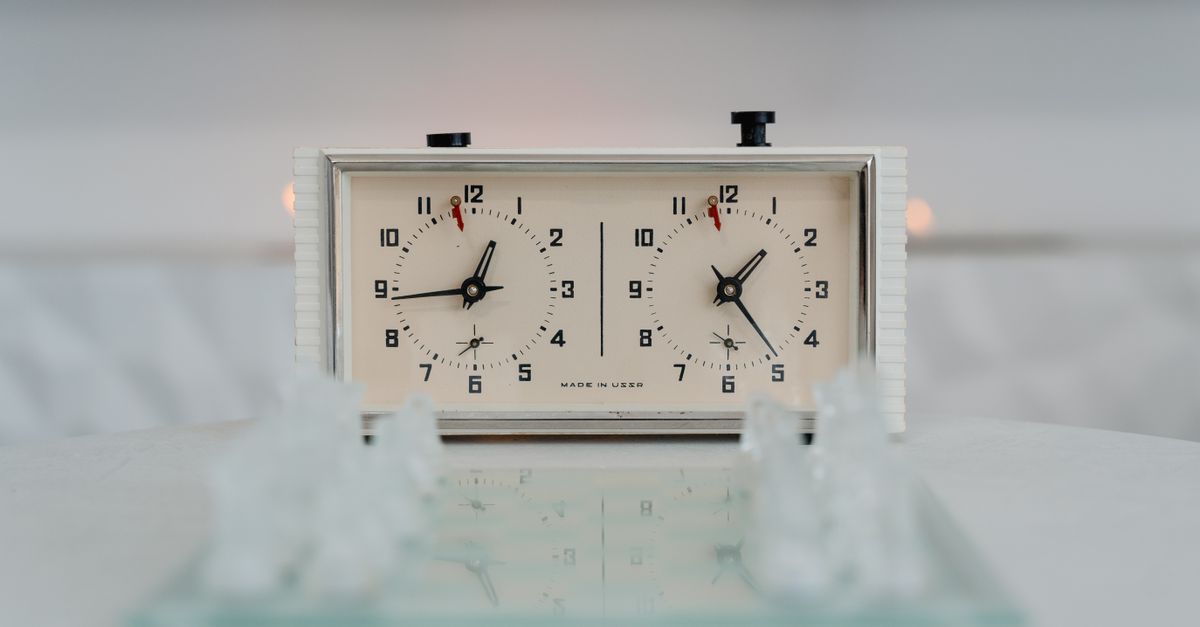
The Chess Clock gives you a repeatable result when the initial time, Fischer increment, starting side, and valid press sequence are the same; exact final times also require the same elapsed think times. The Chess Clock makes that repeatability explicit with two mutually exclusive timers, one active side, and a stored snapshot of the clock state. Choose the same initial duration and increment, select the same starter, and press after each move in the same order: the player who presses is credited, the opponent becomes active, and the configured Fischer increment is added to the presser's time. The daily history then records completed clock presses instead of forcing you to reconstruct activity from a plain tally. An accidental tap can be reversed with Undo last press, which restores the previous clock snapshot and removes that press from the day's count. This gives you a clean way to repeat the intended result after an error. Actual remaining times still depend on how long each player thought, so the tool does not promise identical final clocks for different elapsed times. It also does not judge the chess position or determine the game's result; “result” here means the repeatable clock state and completed-press history.
What actually repeats
The repeatable part is the clock's state transition, not a guessed chess outcome. The tool keeps separate white and black time, one active side, an optional flag, and an elapsed-time anchor. A completed press always performs the same three actions: it stops the active player's timer, starts the opponent's timer, and credits the configured increment to the player who pressed.
That design gives you two useful checks. Starting from the same daily count, the same valid press sequence produces the same completed-press total. The displayed final times also depend on elapsed thinking time, so identical press counts do not guarantee identical remaining clocks. If you need to reproduce the exact clock state, keep the thinking durations aligned as well.
What a plain tally cannot represent
A generic counter can record repeated events, but it cannot show that only one of two chess players is thinking at a time. It also cannot determine which remaining clock should stop, which timer should start, or which player earned an increment.
| Need | Plain tally | Chess Clock |
|---|---|---|
| Clock state | One undifferentiated event total | Separate remaining times for White and Black |
| Turn control | No active player | Only one side is active at a time |
| Bonus handling | No side-specific bonus assignment | The presser receives the configured Fischer increment |
| Correction | A manual change can lose side and bonus context | Undo restores the full previous clock snapshot |
| Record meaning | A general event count | Completed clock presses grouped by local calendar day |
Set the repeatable inputs before move one
Enter the initial duration and optional Fischer increment before selecting the starting side. The displayed initial time already includes the increment required before move one, so you should not add it again by hand. Choose White or Black as the starter because that decision determines which timer runs first. Holding those three inputs constant—the initial duration, increment, and starter—provides the consistent setup needed for a repeatable press sequence.
Run the repeatable press routine
- Open the tool and configure the time control. Enter the initial duration and optional Fischer increment, then confirm both starting displays. The increment needed before move one is already included in those displays.
- Select the starting side. Choose White or Black. That player's timer becomes active while the other timer remains stopped.
- Press after each completed move. Press the clock for the player who just moved. The active time stops, the opponent's time begins, and the player who pressed receives the configured increment.
- Keep the press order consistent. For every completed move, press once for the mover. Each completed press also adds one to the current local calendar day's completed-press count.
- Pause when play stops. Pause materializes the elapsed running time and leaves both clocks stopped, which is useful during a study break or lesson interruption.
- Undo an accidental press. Select Undo last press before continuing. It restores the full prior clock snapshot and removes the associated press from the daily history, so you can continue from the intended state.
- Check the daily record when finished. Review the completed-press history and export a private PNG or CSV only if you need a separate copy. Exporting is optional and is not required to run or correct the clock.
Recover from an accidental press
A clock press is more than a generic decrement because it assigns elapsed time to one side, switches the active side, and awards an increment to the presser. A plain minus control cannot reconstruct all of that context after the fact. Undo last press uses the saved prior snapshot instead, restoring the correct remaining times and active side while also removing the mistaken press from that day's total.
Use this correction immediately after an extra tap rather than manually subtracting time and trying to decide whether an increment belongs to White or Black. If the display appears inconsistent for another reason, follow the focused guide to correct a Chess Clock when the display looks off.
Verify the completed-press history
Every completed press creates a count in the device-local calendar-day history. This daily record is what replaces the need to reconstruct a practice session from a plain tally: it shows how many clock presses were completed on a particular day. Undo removes the associated count along with the clock snapshot, keeping the record and the displayed state aligned.
| What you want to repeat | What must match | Repeatable outcome |
|---|---|---|
| Opening display | Initial duration and Fischer increment | The same starting time for both players |
| First active side | Selected starter | The same timer runs first |
| Switch and bonus sequence | Ordered presses for each side | The same player is credited and the opponent activated |
| Daily completed-press total | Same local day, valid presses, and corrections | The same recorded daily count |
| Final remaining times | Same elapsed think times and press sequence | The same final clock state |
The distinction matters when checking your work. A daily count can match even when the players spent different amounts of time thinking, because the history counts presses rather than measuring the duration of each turn.
Keep a private copy only when needed
The current time control and daily press history remain under the tool's local browser key, counter:chess-clock. There is no account, upload, cloud synchronization, remote chess server, or scoring API. Another device begins with an empty record, and clearing browser data removes the saved history. If browser storage is unavailable, the clock can still be used during the current page session, but the page states that history cannot be retained.
- PNG export creates a natural 1080 by 1350 image showing the private daily total and recent days, without a URL or player identity.
- CSV export creates one Date and Completed clock presses row per saved day for a spreadsheet or personal archive.
Both formats are generated locally in the browser. Export them when you need a portable record, rather than as a routine part of every practice session.
Keep practice timing separate from official results
Section 6.2.1 of the FIDE Laws of Chess defines the basic clock-press action: the press stops the player who moved and starts the opponent. The cited FIDE electronic-equipment specification describes Fischer increment controls and requires the increment before move one. Chess Clock follows this explicit add-after model, with the increment included in the opening display and credited to the player who completes a press. It does not implement delay as an alternative time-control mode.
Chess Clock remains a local practice aid rather than certified tournament hardware, an official tournament record, a game-result service, a chessboard, a notation recorder, or an arbiter workflow. A flagged side reaches 00:00 and cannot accept further move presses until a new time control is set. For official competition, the event's approved clock, rules, certification requirements, flag claims, and correction procedures take priority.
A practical routine for repeated sessions
This workflow fits a casual over-the-board game, study session, blitz drill, club practice board, or lesson where both players need a clear shared rhythm. Before each setup, confirm the initial duration, increment, and starter. During play, use one press for each completed move, pause when the session stops, and undo any accidental tap before continuing.
If you complete several practice sessions on one local calendar day, their completed presses contribute to the same daily total. The history does not divide that total into separate games because the tool records a daily count rather than a game-by-game ledger. This makes Chess Clock useful for repeatable, private timing records without pretending to determine a chess result.
If you're weighing options, How Do I Repeat the Same Result With Days Since Counter? covers this in detail.