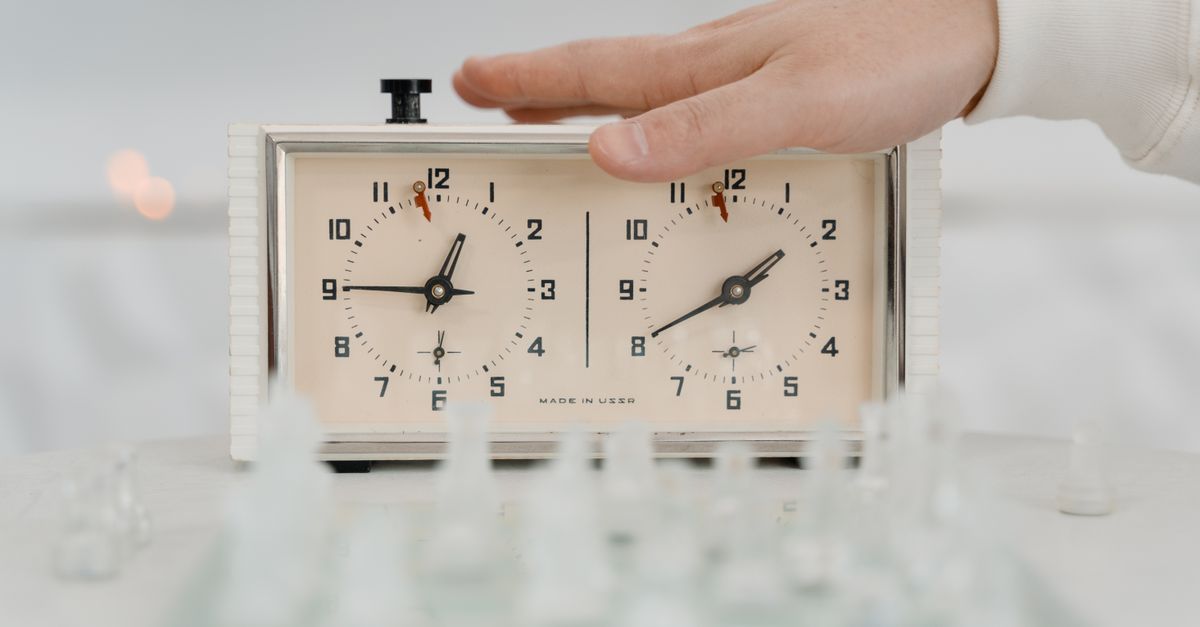
A free chess clock is a two-sided timer where pressing the button after your move stops your own time and starts your opponent's, crediting you with a configured Fischer increment so neither player has to do mental math between turns. The Chess Clock tool runs entirely in your browser, with two switching timers, a Fischer increment that is shown before move one, and undoable clock presses for accidental taps. Each completed press also creates a count in a device-local calendar-day history, so the day's practice is recorded without ever uploading anything. You can configure the initial time and the increment, start White or Black, and pause to materialize the running time when a game stops. Because the increment is applied to the player who pressed, the displayed initial time at the start already includes the increment that move one will receive, mirroring how FIDE-equipped electronic clocks are specified. There is no account, no cloud sync, and no chess server — the snapshot, the daily counts, and any PNG or CSV export all stay on the device under the tool's own browser key.
Why Chess Needs a Two-Sided Clock
A chess game has a structural rule that no other timed activity has: only one player may be thinking at a time. While you deliberate over a move, your clock is the only one running. The moment you press the clock, your deliberation ends, your opponent's deliberation begins, and a small bonus — the Fischer increment — is added to the time that just stopped. Two independent countdowns, a stopwatch with two buttons, or a generic timer cannot represent this without you tracking who is active, who deserves the bonus, and how much time to subtract in your head.
The Chess Clock tool models this directly. It keeps a separate white time, a separate black time, an active side, an optional flag, and an elapsed-time anchor, then transitions between states on each completed press. A pressed clock is safer than two countdowns because there is exactly one running clock at any moment and exactly one side that receives the increment.
Why a Generic Stopwatch Falls Short
| Capability | Generic Stopwatch | Chess Clock |
|---|---|---|
| Timers running at the same time | One continuous count-up | Two timers, only one running |
| Active-side tracking | None | White or Black, switched on press |
| Fischer increment | Manual arithmetic | Applied to the side that pressed |
| Pause behavior | Stops the count | Materializes elapsed time, both sides stopped |
| Undo a mistaken press | Not available | Restores the full prior clock snapshot |
| Daily history | None | One count per completed press, by local calendar day |
| Export | None | PNG (1080 by 1350) or CSV (Date, Completed clock presses) |
A stopwatch counts up from a single start. The Online Stopwatch is well suited for lap timing and intervals, but it has no concept of two opposing timers, no increment, and no per-press state to roll back if you tap the wrong button. The Chess Clock tool is built around the press instead, which is the right unit of work for a chess game.
Set the Time Control Before the First Move
The time control is the pair of numbers that defines your game: how much time each player has at the start, and how many seconds are added after each completed press. The tool accepts both before the game starts, and the displayed initial time already includes the increment that will be credited on the first press. If you set 5 minutes with a 3-second increment, both clocks display 5:03, not 5:00.
This matches the FIDE approach. FIDE's equipment specifications for electronic clocks describe Fischer increment controls and require the increment before move one, and the FIDE Laws of Chess define a clock press as stopping the mover and starting the opponent. The tool follows that exact add-after model: increment is shown before move one, and each completed press switches the active side after crediting the side that pressed. It does not treat Fischer increment as delay; delay is a different time-control mode and is not part of this tool.
Run a Game with One Press per Move
- Choose the initial seconds and the Fischer increment before starting. The display shows both clocks at initial time plus increment.
- Choose which side moves first — White or Black — and start that side. The chosen side's clock is the one running.
- After the chosen side makes the first move, press the clock. That side's timer stops and is credited with the increment; the other side's timer begins running.
- When the second side makes a move, press the clock again. The active side switches, the increment is credited to the side that just pressed, and the other timer begins.
- Repeat the press after every move for the duration of the game. The two-column display keeps both remaining times visible without any mental calculation.
- When the game is over or the practice session ends, press Pause to materialize the currently running time and leave both clocks stopped.
Worked example: a 5 plus 3 game. With initial time 5 minutes and increment 3 seconds, both clocks display 5:03 at the start (300 plus 3 equals 303 seconds shown, per the increment-required-before-move-one rule). White makes move one and presses. White's clock is credited plus 3 and stops, still showing 5:03. Black's clock starts running from 5:03. Black spends 10 seconds thinking, then presses. Black's clock is credited plus 3 and stops. The reading is 5:03 minus 0:10 plus 0:03 equals 4:56, which is 296 seconds. White's clock begins running from 5:03. The numbers follow directly from the rule that the increment belongs to the side that pressed; no other arithmetic is needed to track the game.
Undo a Mistaken Press and Recover State
A generic minus button cannot know which side was active when you tapped, or how much increment belonged to that press. The Chess Clock tool can, because it stores a full snapshot: white time, black time, active side, increment, and a timestamp anchor. Undo last press restores that snapshot in one step and removes the associated daily press count for that day, so a stray tap is genuinely rolled back rather than left as an artefact in your history. Undo is the right control for an accidental press on the wrong side or a double-tap. It is not a way to rewrite a real sequence of moves; for that, you would end the game and start a new time control.
What Happens When a Clock Hits Zero
When a player's remaining time reaches 00:00, that side is marked as flagged and the clock stops accepting new clock presses. The game cannot continue under the same time control until you set a new one. This is the same flag-falling behavior that physical tournament clocks show, and the tool deliberately stops there: it does not declare a winner, a draw, or a result. Tournament rules, flag claims, and corrections are controlled by the event, not by a personal practice timer.
Local Daily History and Private Export
Each completed press creates one count in the device-local calendar-day history. The history is stored under the tool's own browser key, named counter:chess-clock, and the page reads it back the next time you open the tool on the same device. Another device begins empty, and clearing browser data removes the saved record. When you want a private copy, you can export in two formats.
Export PNG creates a 1080 by 1350 image that shows the current day's total of completed presses and the recent days around it, with no URL, no player name, and no account data. Export CSV creates one row per saved day with two columns, Date and Completed clock presses, suitable for a personal spreadsheet or archive. Both exports are produced with the browser's native Blob and canvas APIs, so the file is created locally. If browser storage is unavailable, the clock still works during the current page session, and the page indicates that it cannot retain history while that condition holds.
What This Tool Does Not Do
The boundary is intentional. This is a personal local practice clock, not a chessboard, not a move recorder, not a result service, not certified hardware, and not an arbiter workflow. It does not judge a chess position, manage move numbers, implement delay, synchronize across devices, or connect to a chess server. If your situation requires any of those, you are looking for a different product. When a clear two-sided clock with a documented Fischer increment is the useful part, this tool is built for exactly that.
If you're weighing options, Fischer Increment Chess Clock: How It Works Online covers this in detail.
If you're weighing options, Online Alarm Clock: Live Display, Sound Alert, Snooze covers this in detail.