You need to generate an invoice when you are formally requesting payment for products or services under agreed terms.
An invoice generator creates the billing document; it does not decide what that document represents. When using an invoice generator, identify the transaction stage first: is the client approving a proposed price, paying an amount now, confirming payment already made, or correcting an earlier charge?
An invoice is normally appropriate when the scope and price are agreed and an amount is due. It may also request an agreed deposit or milestone before all work is finished. A quote belongs before acceptance, a receipt after payment, and a credit note when an issued invoice needs correction. The fact that a generator can produce a PDF does not make that PDF the right document.
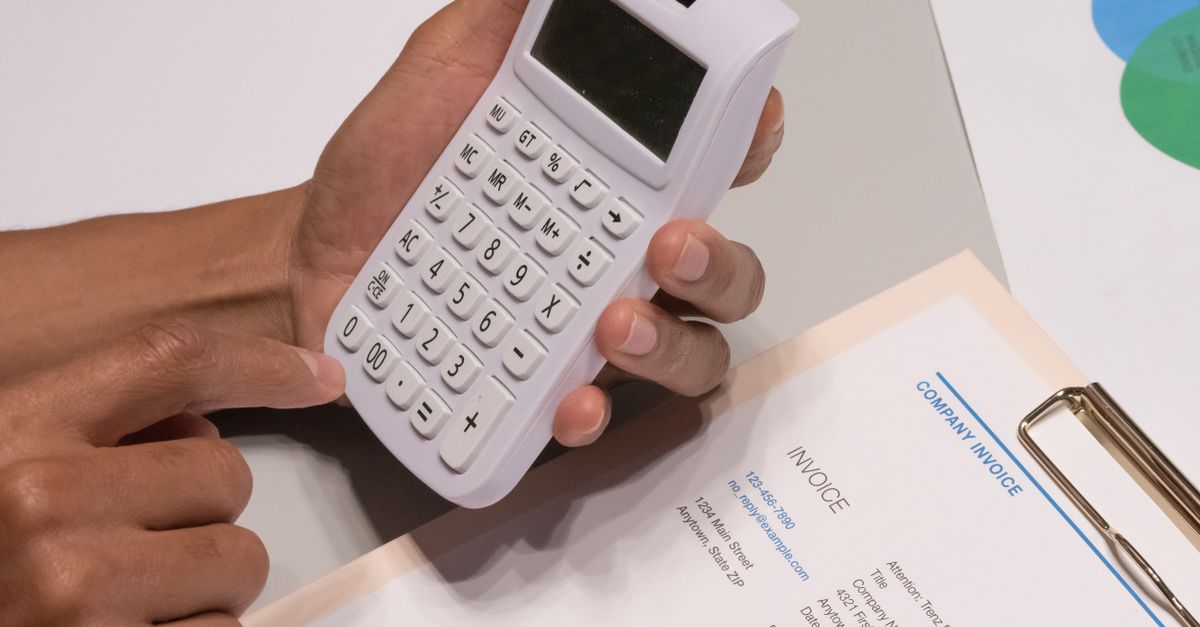
Choose the document that matches the payment stage
Use the purpose of the document, rather than the available format, to make the decision.
| Transaction stage | Document | Reason | Fit with this generator |
|---|---|---|---|
| The client has not accepted the scope or price | Quote or estimate | Proposes work and pricing before a commitment | Not the stated PDF output |
| The products or services are agreed and payment is due | Invoice | Formally requests payment and records the due date | Matches the documented workflow |
| Payment has already been received | Receipt | Proves that payment was made | Not the stated PDF output |
| An issued invoice contains an error or needs an adjustment | Credit note | Corrects an earlier billing document | Not the stated PDF output |
The strongest signal is an agreed payment request. For example, a client has accepted a fixed project fee and the first milestone is due: create an invoice. If the client is still choosing between options and has not accepted the scope or price, a quote is more appropriate. If payment has already arrived, the invoice documented the request, while a receipt documents completion of that request.
Ask the questions that settle the decision
Run through these five checks before opening the generator:
- Approval: Has the client accepted the scope, price, or milestone, or is a proposal still being considered?
- Payment timing: Is money payable now, or is the document only establishing an estimate?
- Amount detail: Can each charge be listed with a description, quantity, and unit price?
- Document purpose: Is the document requesting money, proving payment, or correcting a previous charge?
- Billing record: Does the client need a formal document showing the amount and due date?
Acceptance plus a payment request normally points to an invoice. A proposed price without acceptance points to a quote. Money already received points to a receipt, while a correction to an issued invoice points to a credit note. An agreed deposit or milestone can still be invoiced before the whole project is complete because the invoice is requesting that specific payment.
Tax and discount do not determine the document type; they affect the amount on an invoice. Decide which rate and discount belong on the bill before entering them. The generator performs the calculation, but the billing decision remains with you.
Generate the invoice in the browser
When an invoice is the correct document, open the Invoice Generator. It is free, requires no login, and builds the invoice and PDF locally in the browser, so the information you enter is not uploaded.
- Enter the billing parties and dates. Add your business details under From and the client's details under Bill To. Set the invoice number, issue date, due date, and currency. The invoice number defaults to INV-001, and the supported display currencies are the US dollar, British pound, euro, and yen symbols.
- Add every product or service as a line item. Enter a description, quantity, and unit price for each charge. Quantities can be whole numbers or decimals, such as 1.5 hours. Use Add item to insert another row and the remove control to delete a row; at least one line remains available.
- Enter the tax and discount. Add the tax rate that belongs on the invoice and, if needed, a flat discount. The live preview recalculates the subtotal, tax, discount, and final total as you type so you can check the amount before downloading.
- Review and download the PDF. Check the preview, including any notes at the bottom, and click Download PDF. The standard, print-ready file is generated locally and never uploaded. You can then print it, attach it to an email, or archive it for your records. Long item lists continue onto additional pages automatically.
The live preview mirrors the downloaded PDF, so checking it before download prevents calculation or layout surprises from becoming part of the invoice you send.
Check the live preview against the charge
The preview shows each line's description, quantity, unit price, and amount, followed by the subtotal, tax, discount, and total. Its calculation follows three rules:
- Subtotal = the sum of quantity multiplied by unit price for every line.
- Tax = the entered tax rate multiplied by the subtotal.
- Total = subtotal plus tax minus the flat discount.
For example, 2 hours at $75 produces a $150 subtotal. With a 10% tax rate, the tax is $15; after a $10 flat discount, the final total is $150 + $15 − $10 = $155.
The calculations use integer cents to avoid floating-point rounding drift. The discount is also kept between zero and the amount due, so the final total cannot become negative. For an additional review of the arithmetic, see are the totals accurate when using an invoice generator.
Know when this workflow is enough
The generator is a focused PDF workflow rather than a complete billing system. Check these limits against your needs before relying on it.
| Requirement | Documented behavior | Decision or next step |
|---|---|---|
| Company logo or image | The PDF is text-based and does not support logo or image upload | Add the image afterward in a PDF editor |
| Currency conversion | Four currency symbols are available, with no exchange-rate conversion | Handle any conversion separately |
| Automatic data storage | Invoice data and the PDF stay on the device and are not stored by the tool | Save and archive the PDF yourself |
| Payment collection or reminders | The documented workflow ends with downloading the PDF | Send it and track payment status separately |
| Recurring invoice automation | No recurring workflow is described | Create each invoice separately or use a system built for recurrence |
The PDF has no watermark or third-party branding. Characters outside the PDF font's coverage, including emoji and some non-Latin scripts, may be substituted, so inspect the preview when exact character rendering matters. Once the page has loaded, the tool can also work offline because its calculations and PDF generation run locally.
Run a final pre-send check
Use this checklist to turn the decision into a repeatable billing routine:
- Confirm that the document is requesting payment rather than proposing a price, proving payment, or correcting an earlier invoice.
- Check the From and Bill To details against the client's records.
- Verify every description, quantity, unit price, tax rate, and discount in the live preview.
- Confirm that the invoice number, issue date, due date, and currency match the agreed billing terms.
- Open the downloaded PDF and make sure its client details, dates, line items, totals, and any substituted characters look correct.
- Save the PDF to your own records, send it through your chosen channel, and track payment separately.
For a broader review before sending, follow how to avoid mistakes when you generate an invoice. In short, generate an invoice when it will ask the client for payment under agreed terms; otherwise, use the document that matches the transaction stage.