A reliable countdown timer comes down to three things: an exact duration, a display that reflects real elapsed time, and a clear alert at zero. For countdown timer tips and common mistakes, the most useful rule is to match the instrument to the task, check the duration before starting, and avoid depending on one control or alert. A countdown is the right choice for a known interval that must visibly run down to 00:00; it is not an elapsed-time stopwatch or a fixed 25/5-minute Pomodoro cycle. The Online Countdown Timer handles that core job: choose any combination of hours, minutes, and seconds or use a quick preset, press Start, and watch a large display count down. It runs locally in your browser, needs no sign-up, remains accurate when you switch tabs, and provides Start, Pause, Resume, and Reset controls. At zero, it displays “Time’s up!” and can play an optional beep if the browser permits sound. Together, those details make the timer quick to set up without removing the visibility and control needed for a real deadline.
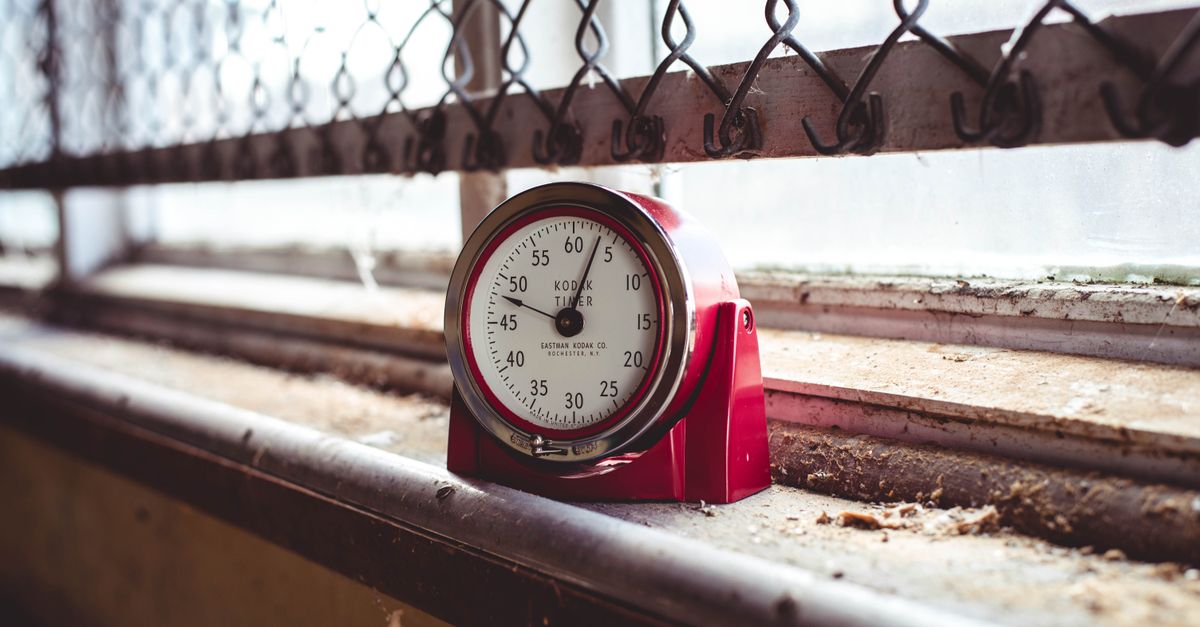
Choose the timing tool that matches the job
One of the most common countdown timer mistakes is using the wrong type of timing tool. Decide what you need to learn before choosing the control. A countdown shows how much of a selected interval remains. A stopwatch counts upward to measure elapsed time, while a Pomodoro timer follows a specialized focus-and-break rhythm.
| What you need to measure | Best-fit tool | Why |
|---|---|---|
| How much of a known interval remains | Countdown timer | It runs from your chosen duration toward 00:00. |
| How long an activity took or how long a lap took | Stopwatch | It counts up from zero to record elapsed time. |
| A structured focus-and-break routine | Pomodoro timer | It uses a fixed rhythm of focus and break periods. |
Use a flexible countdown for a presentation slot, exercise interval, kitchen task, study sprint, meeting segment, or household time limit. Its main advantage is that the endpoint is clear before the activity begins: you choose the duration, and the remaining time becomes visible immediately.
Set, start, and finish a countdown
- Set the duration. Open the Online Countdown Timer and type the hours, minutes, and seconds you need. Hours can be set up to 99. For a common short interval, select a 1-, 3-, 5-, 10-, or 15-minute preset. Recheck the intended duration before continuing.
- Press Start. The large display begins counting down and remains accurate if you switch browser tabs. The duration inputs lock while the clock is running, reducing accidental changes. If the activity genuinely pauses, press Pause to freeze the display; press Resume to continue from that point.
- Handle the end and reset. When the clock reaches 00:00, it stops and displays “Time’s up!” An optional beep provides another notice if your browser permits sound. Press Reset whenever you want to return to the set duration and run it again.
A reliable setup routine is to prepare the task, choose the duration, press Start deliberately, and confirm that the display is moving down. Do not press Start while you are still gathering materials, reading instructions, or deciding what to do next. An early start creates an early endpoint, even when the timer itself is working correctly.
Protect accuracy when the browser gets busy
The timer does not rely on naively subtracting one from the visible number every second. Instead, it records a high-resolution anchor timestamp when you press Start and recalculates the remaining time against real elapsed time on each tick. This correction helps prevent drift caused by irregular browser intervals or a briefly busy device.
Tab changes do not make this countdown lose time. Briefly locking the screen also does not cause the recorded duration to fall behind, so you can move to another tab and return to the corrected display. Because the timer runs locally with browser JavaScript, it keeps working offline and does not need a server connection. Keep its tab available during the task, use the visual display as the primary status check, and remember that the beep is optional rather than guaranteed. For a deeper look at the timing method, see how countdown timer accuracy works.
Countdown mistakes to fix before zero
Most countdown failures come from an incorrect setup assumption or an overlooked control state, rather than from the display itself. Review these errors before relying on an important deadline.
| Mistake | What can go wrong | Better approach |
|---|---|---|
| Using a stopwatch or Pomodoro timer for a custom deadline | The display does not match the task you are trying to time. | Choose a countdown when you need to start with a selected duration and watch it reach zero. |
| Starting before the activity is ready | The countdown reaches zero before the work is finished. | Prepare everything first, then press Start. |
| Not checking the entered duration | The visible endpoint is not the one you intended. | Verify the hours, minutes, and seconds or confirm the selected preset before starting. |
| Assuming a tab switch will cause drift | The display may be distrusted even though it corrects itself. | Let the timer continue and return to the tab; elapsed-time correction handles the delay. |
| Trying to edit the duration while it runs | The locked inputs prevent the running value from being changed. | Decide on the full duration before pressing Start. |
| Treating Pause as a running state | The display remains frozen even though time passes in the room. | Resume as soon as the activity continues. |
| Depending only on the beep | Browser sound permissions may prevent an audible alert. | Watch for the on-screen “Time’s up!” message as well. |
Another easily misunderstood control is Reset. It does not create an unrelated interval; it returns the timer to the duration that was already set. That makes Reset useful for repeated rounds of the same activity, such as several workout intervals or repeated practice attempts. Before each new run, check that repeating the previous duration is actually what you want.
Use a countdown for practical time limits
A visible countdown works best when the activity has a defined endpoint. Choose the duration from the task rather than adjusting it halfway through, and use Pause only when the activity itself stops.
- In the kitchen: Time eggs, tea, or an oven task so the countdown provides a clear endpoint.
- During exercise: Use separate countdowns for work intervals, plank holds, or rest periods. Reset can repeat the same interval for the next round.
- For presentations and classes: Give a presentation, lightning talk, or classroom activity its allotted visible time.
- For study: Set a practice-test limit or a focused study sprint, then let the display show how much time remains.
- During remote work: Time-box a deep-work block or give a meeting agenda item a firm endpoint.
- At home or during a game: Cap screen time, guide tooth-brushing or tidy-up activities, or run the clock for board-game and quiz rounds.
For repeated short activities, the quick presets remove unnecessary typing. For anything that needs an exact endpoint, enter the hours, minutes, and seconds manually. In either case, confirm the displayed duration before Start.
Make a final control check
- Confirm that a countdown, rather than a stopwatch or Pomodoro timer, matches the task.
- Check the hours, minutes, seconds, or selected preset once more.
- Press Start only when the activity is ready to begin.
- Verify that the display is counting down rather than paused.
- Remember that tab changes do not make this timer drift.
- Watch for the visual zero alert and treat the beep as optional.
- Use Reset when you intend to repeat the same set duration.
The most dependable routine is simple: select the right tool, set the exact duration, start at the right moment, and confirm the control state. The Online Countdown Timer supports that routine with a large browser display, local processing, no installation, and no account, while keeping both the remaining time and the final alert visible.