A countdown timer test online requires only a browser tab: you open a browser-based timer, set any duration from a nine-second sprint to ninety-nine hours, press Start, and watch a large display count down to zero. You don't install anything, you don't create an account, and nothing about your timing is uploaded to a server. The browser tool runs locally using plain JavaScript, so the page opens almost instantly and the countdown keeps ticking even on a slow or flaky internet connection. Because the tool records an anchor timestamp the moment you press Start and recalculates the remaining time on every tick against the real elapsed time, switching to another tab or briefly locking the screen will not make the timer drift. When you return, the display corrects itself to the true time left instead of falling behind silently. When the countdown reaches 00:00 you see a clear "Time's up!" message and hear a short beep if your browser allows sound. Quick presets for one, three, five, ten and fifteen minutes sit one tap away for the most common test runs, and you can fine-tune exact hours, minutes and seconds by hand whenever a preset isn't enough.
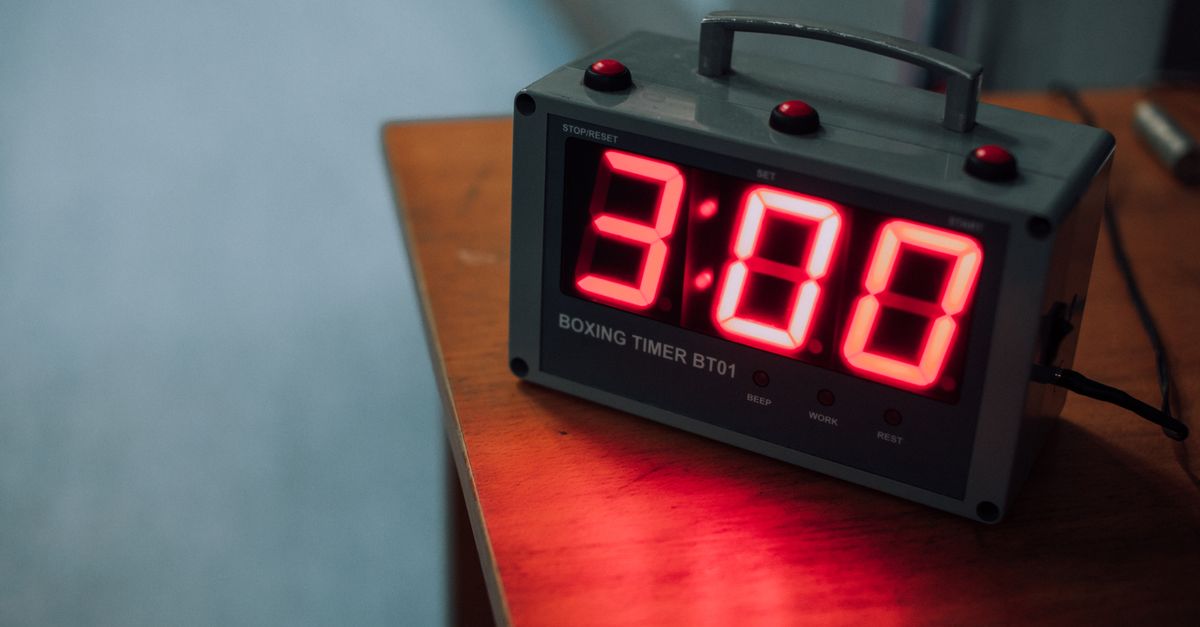
What to Check When You Run a Countdown Timer Test Online
Five small qualities decide whether an online timer is worth trusting with a real deadline. The first is instant access: a browser tab that opens immediately, with nothing to install, no extension to add, and no account to create. The second is input range: you should be able to type any combination of hours, minutes and seconds, not just one of them. Third, visibility: a large, easy-to-read display that updates every second and stays legible at a glance even when the timer is running in the background. Fourth, control: start, pause, resume, and reset buttons that don't leave you guessing which one does what. Fifth, behavior at zero: a clear "Time's up!" alert and an audible beep, so you actually notice the end even if you've looked away from the screen while the test was running.
Anchoring those five traits is the difference between a countdown timer that survives a quick glance and one that survives a real workday. The online countdown timer checks all five: it opens in a browser tab, accepts up to ninety-nine hours of duration, shows a large ticking display, exposes start, pause, resume and reset, and announces itself at zero with a "Time's up!" message plus a short beep whenever the browser permits sound.
How to Run the Test in Your Browser
- Set a duration. Type the hours, minutes and seconds you need into the three input boxes, or tap one of the quick presets for 1, 3, 5, 10 or 15 minutes. Presets are handy when you want to run the same quick test repeatedly without retyping.
- Press Start. The display immediately begins ticking down from the duration you set. The inputs lock while the countdown is running, so you cannot accidentally nudge a digit and skew the result partway through the test.
- Watch it stay on track. The display remains accurate even if you switch to another tab, lock the screen, or let the browser go idle briefly. When you return, the time shown is the true time remaining, not a drifted number.
- Pause and resume if you need to. Press Pause to freeze the countdown at its current second, and Resume to continue from the same value. Reset returns the timer to your original duration whenever you want to start a fresh run.
- Watch for the end. When the display reaches 00:00 it stops cleanly, shows a "Time's up!" message, and plays a short beep if your browser allows sound. Click Reset to run the same test again with the same starting duration.
That whole sequence is the core test you want to run on any online timer. Open it, set a value, start it, walk away for thirty seconds, come back, and check whether the display still shows what you expect. A timer that handles that round trip without drifting is one you can build a routine around, because the same behavior will hold across a four-hour cooking project or a fifteen-minute study sprint.
Real Tests You Can Run in Under Fifteen Minutes
The fastest way to evaluate a browser timer is to put it through a handful of short, repeatable tasks and see how it feels. The following set covers both the most common short durations and a few longer ones, and each maps onto a real-world situation that someone using the timer for actual work would care about.
- 9-second test — type 0 hours, 0 minutes, 9 seconds. Useful for a quick breathing reset between tasks. Confirms that the timer accepts sub-minute durations.
- 60-second plank hold — type 0 hours, 1 minute, 0 seconds. A baseline workout interval. Tests whether the display stays readable across a full minute at arm's length.
- 3-minute lightning talk — tap the 3-minute preset. Speaker practice confirms that presets work and the end alert fires reliably when you stop watching the screen.
- 5-minute stretch and water break — tap the 5-minute preset. Tests that you can switch tabs during the countdown and return to a correct remaining time on a different topic.
- 10-minute study sprint — type 0 hours, 10 minutes, 0 seconds. A common focus block. A practical test of a common focus-block duration.
- 15-minute tidy-up race — tap the 15-minute preset. A family chore. Verifies that the audio alert plays at zero if your browser permits sound, since the whole point of the beeper is to notify you from another room.
If you want to push further, set a value of one hour and thirty minutes to mimic a long work block, or go up to the tool's ninety-nine-hour ceiling to cover multi-day deadlines written in cumulative time. The range matters precisely because real work isn't always ninety minutes; sometimes it is a four-hour cooking project, an eight-hour workday, or a forty-hour-week slice. The timer accepts any legal combination of hours, minutes and seconds, so the test you run can be as long as you actually need.
Countdown Timer vs Stopwatch vs Pomodoro
People regularly mix up three different timer tools because they look similar on screen. Picking the right one is itself a small test of which feature you actually need for the task at hand.
| Tool | Direction | Best for | Fixed or flexible |
|---|---|---|---|
| Countdown timer | Counts down from a chosen duration to 00:00 | Hard deadlines: cooking, workouts, timed tests, presentations | Flexible — any duration |
| Stopwatch | Counts up from zero | Measuring elapsed time: lap splits, how long a task really took | Flexible — run as long as you want |
| Pomodoro timer | Cycles a fixed focus block then a fixed break | Following the 25/5 minute productivity rhythm | Fixed rhythm within the cycle |
If your task has a hard deadline — "I have fifteen minutes to finish this section" — a countdown timer is the correct instrument. If you want to know "how long has this been running?", reach for a stopwatch instead. If you specifically want the 25/5 Pomodoro cycle, a dedicated pomodoro timer runs that rhythm automatically with the breaks built in. Mixing them up usually ends with someone setting a Pomodoro to sixty minutes, or expecting a countdown to count up — both of which are solvable by reading the row you actually want before pressing Start.
Accuracy and Privacy in a Browser Timer
Two worries sit underneath any countdown timer test online: "will it drift?" and "what happens to my data?". The architecture of a well-built browser timer answers both without any extra configuration on your part.
Drift comes from a naive implementation that simply subtracts one second on every browser tick. Browser intervals are never perfectly regular — they jitter slightly, and they slow down dramatically when a tab is throttled in the background. A naive implementation falls behind second by second until the displayed time is noticeably wrong, which is exactly the kind of failure a real test should expose. The online countdown timer avoids that by recording a high-resolution anchor timestamp at the moment you press Start, and on every tick recomputing the remaining time as (anchor + duration) − now. Because the calculation reads the actual system clock, the display always shows the true time remaining — even if the tab is briefly throttled while you switch away to another task. If you want a deeper walk-through of what keeps a browser timer precise, this countdown timer accuracy guide covers the same architecture in more detail.
Privacy is built into the same design. The timer uses plain JavaScript that runs entirely inside the browser. There is no server request, no upload, and no analytics ping tied to what you are timing. The tool opens quickly because nothing has to round-trip to a backend, and it keeps working on a flaky connection because the work happens locally on your device. Resetting the timer wipes the previous run as far as the page is concerned, and closing the tab ends the session without leaving a trace on a remote server. That combination — accurate without drift, and private without configuration — is what a passing test should actually feel like.
What a Passing Test Looks Like
A passing countdown timer test online is straightforward: the tool opens in one tab, accepts any hours-minutes-seconds combination including sub-minute values, exposes start, pause, resume and reset, locks the inputs while running so a stray keystroke cannot change the result partway through, fires a clear "Time's up!" message at zero, and survives a tab-switch round trip without drifting. The online countdown timer satisfies all of those criteria in a single browser tab with no install, no account, and no upload, so it works for the everyday situations where you want a hard deadline you can actually see — cooking, workouts, classroom timing, study sprints, screen-time limits, presentation pacing, and the long tail of small tasks in between.