A countdown timer for beginners is a simple browser clock that counts down from a duration you choose to zero and then alerts you when time is up. You type or pick any number of hours, minutes, and seconds, press Start, and watch a large display tick down second by second. When the clock reaches 00:00 you see a "Time's up!" message and may hear a beep, so you do not have to keep staring at the screen. The whole thing runs inside your browser tab on your laptop or phone, which means there is nothing to install, no account to create, and no learning curve beyond typing in a number and clicking a button. Beginners often reach for a countdown timer when a task has a hard deadline: a five-minute speech, a ten-minute homework block, a one-minute plank, or an oven timer that needs to fire reliably even if you walk out of the room. If you have never used one before, this guide walks you through the basics in plain language and gets you running your first countdown in under a minute.
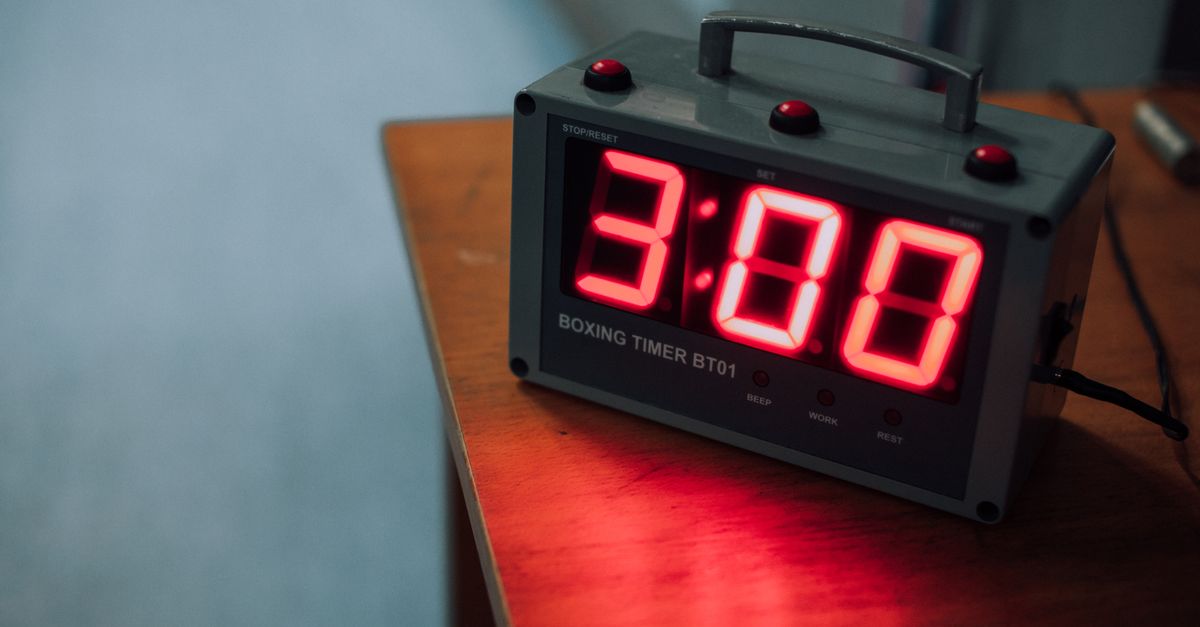
What a Countdown Timer Actually Does (and What It Doesn't)
A countdown timer does one focused job: it watches a fixed amount of time run out. You give it a duration — say, ten minutes — and it counts down from 10:00 to 00:00, then signals that your time is up. The signal is the whole point. A countdown helps you when there is a fixed deadline you cannot or should not exceed: a cooking window, a timed quiz, a presentation slot, a focus block. You set the deadline once, and the timer keeps your attention honest so you do not have to.
Beginners often mix up three related tools because they look similar in a browser tab. The table below shows the difference at a glance.
| Tool | What it does | Best for |
|---|---|---|
| Countdown timer | Counts down from a duration you choose to zero | Fixed-deadline tasks: cooking, speeches, breaks, study sprints |
| Stopwatch | Counts up from zero to measure elapsed time | Lap times, how long a task actually took, race timing |
| Pomodoro timer | Specialised countdown locked to 25-minute focus blocks and 5-minute breaks | Repeating focus cycles with built-in rest periods |
If your task has a hard deadline expressed as a number of minutes, a countdown is the right instrument. If you want to know how long something already took, use a stopwatch. If you want a structured 25/5 rhythm rather than a free duration, a Pomodoro timer handles the cycle automatically.
Easy Things to Time on Your First Timer
The fastest way to feel comfortable with a countdown timer is to use it for something low-stakes. Beginners often start with one of these everyday tasks:
- Kitchen basics. Boil an egg for nine minutes, steep tea for three, rest a steak for five. The alert fires even if you walk out of the room.
- Workout intervals. Time a one-minute plank, a thirty-second rest between sets, or a four-minute HIIT round.
- Speech and class timers. Speakers and teachers use a countdown to keep lightning talks, presentations, or in-class activities on schedule without staring at the clock.
- Study and test prep. Set a fifteen-minute focused sprint, or simulate a section of a timed practice test.
- Family routines. Tooth-brushing, screen-time limits, tidy-up races — anywhere you want a clear "done" signal without nagging.
Pick one of these for your first run. A short, predictable duration (one to five minutes) gives you time to play with Pause, Resume, and Reset without losing track of anything important.
Set Your First Countdown in Under a Minute
The fastest way to learn a new tool is to use it. These four steps get you from a fresh tab to a running countdown, and the entire flow works on a phone or laptop with no sign-up.
- Open the Online Countdown Timer. It loads in your browser without any install, account, or permissions prompt.
- Type your duration. Enter the hours, minutes, and seconds you want. You can set anything from a nine-second sprint to a multi-hour deadline (up to 99 hours). If you are not sure what to pick, tap a quick preset like 1, 3, 5, 10, or 15 minutes and refine from there.
- Press Start. The large display begins ticking down. You can switch to another tab to check something, and the timer stays accurate — when you return, the display reflects the true time remaining.
- Watch for the alert. At 00:00 the timer stops cleanly, shows a "Time's up!" message, and (if your browser allows sound) plays a short beep. Use Pause mid-countdown if you need to step away, Resume to pick back up, and Reset to return to your set duration and start over.
That is the whole beginner loop. There is no menu to memorise and no settings panel to dig through — just a duration, a Start button, and four control buttons.
Quick Presets vs Custom Durations
Quick presets exist for one reason: most countdowns fall into a small set of common lengths. One, three, five, ten, and fifteen minutes cover a huge slice of everyday use, from a one-minute plank to a fifteen-minute study sprint. Tap a preset, press Start, and you are done.
Custom durations fill the gap when the preset does not match your task. Type the hours, minutes, and seconds directly into the input fields — for example, 0 hours, 7 minutes, 30 seconds for a perfect soft-boiled egg, or 1 hour, 30 minutes, 0 seconds for a long cooking window. The timer accepts any combination up to 99 hours, so you are not limited to short tasks. Use a preset when the standard length fits, and switch to custom inputs whenever your deadline is unusual.
How the Browser Timer Stays Accurate
A timer that drifts is useless, and browser-based countdowns have a quiet reputation for falling behind. The reason is simple: naively subtracting one second on every tick works in theory but assumes the browser fires intervals at perfectly regular intervals, which never happens in practice. If your device is briefly busy, or you switch tabs and the browser throttles background work, those missed ticks accumulate and your timer quietly runs slow.
The Online Countdown Timer avoids that trap with a small but important technique. The moment you press Start, it records a high-resolution anchor timestamp and then recomputes the remaining time on every tick from the real elapsed time, not from a running counter. The result is a display that corrects itself: if a tick is delayed, the next visible number jumps to the true time left rather than continuing to lag. Switching tabs does not break it, locking your screen briefly does not break it, and the clock stops cleanly at exactly 00:00 when time runs out. For a beginner, the practical takeaway is that you can trust the number on the screen without babysitting it.
Privacy and Beginner-Friendly Controls
Nothing leaves your device. The timer runs entirely in your browser using local JavaScript, so there is no server round-trip, no upload, and no tracking of what you are timing. This is not just a privacy nicety — it also means the tool opens without delay on a flaky connection and keeps working offline once the page has loaded.
The control set is deliberately small. Start begins the countdown, Pause freezes it in place, Resume continues from where it paused, and Reset returns the display to your set duration. The duration inputs lock while the clock is running, which prevents the very beginner mistake of nudging a digit mid-countdown and silently changing your deadline. When the timer reaches zero you see a clear "Time's up!" message and hear an optional beep if your browser permits sound — there is no fanfare, no upsell, and no popup.
When You Actually Need a Different Tool
A countdown timer is the right beginner tool most of the time, but a few situations call for something more specific:
- You want to measure how long something took. Reach for a stopwatch — it counts up from zero, which is the opposite direction.
- You want a fixed 25/5 focus cycle. A Pomodoro timer handles the work block, the short break, and the longer break automatically, and tracks how many cycles you have completed.
- You want to be woken up at a specific clock time tomorrow morning. Use an alarm clock instead — it fires at a wall-clock moment, not after a duration.
For everything else — cooking, studying, presenting, working out, or just bounding a meeting agenda item — the countdown timer is the most flexible option on the page, and the only one you need to learn first.
For a deeper look at how the timer is built and the mechanics behind the accuracy, the beginner-friendly walkthrough of countdown timers covers the same tool in more detail.
For a deeper look, see Pomodoro Technique Timer: Run Each Phase on Autopilot.