A countdown timer is a clock that counts backwards from a duration you choose down to zero, then signals that your time is up. You pick any combination of hours, minutes, and seconds — anything from a short nine-second sprint to a multi-hour deadline — press Start, and watch a large, easy-to-read display tick toward 00:00. When it reaches zero, a clear "Time's up!" alert appears and an optional beep plays so you do not miss the moment. The concept is simple, but the right countdown timer for everyday use lives in a browser tab, requires no install or sign-up, and runs entirely on your device. That means it is one click away on any laptop or phone, the inputs lock while the clock runs so you cannot nudge the duration by accident, and the timer stays accurate even when you switch tabs or briefly lock your screen. The Online Countdown Timer covers all of this in a focused, distraction-free tab. It is a small tool that does one job well: give you a reliable deadline you can see.
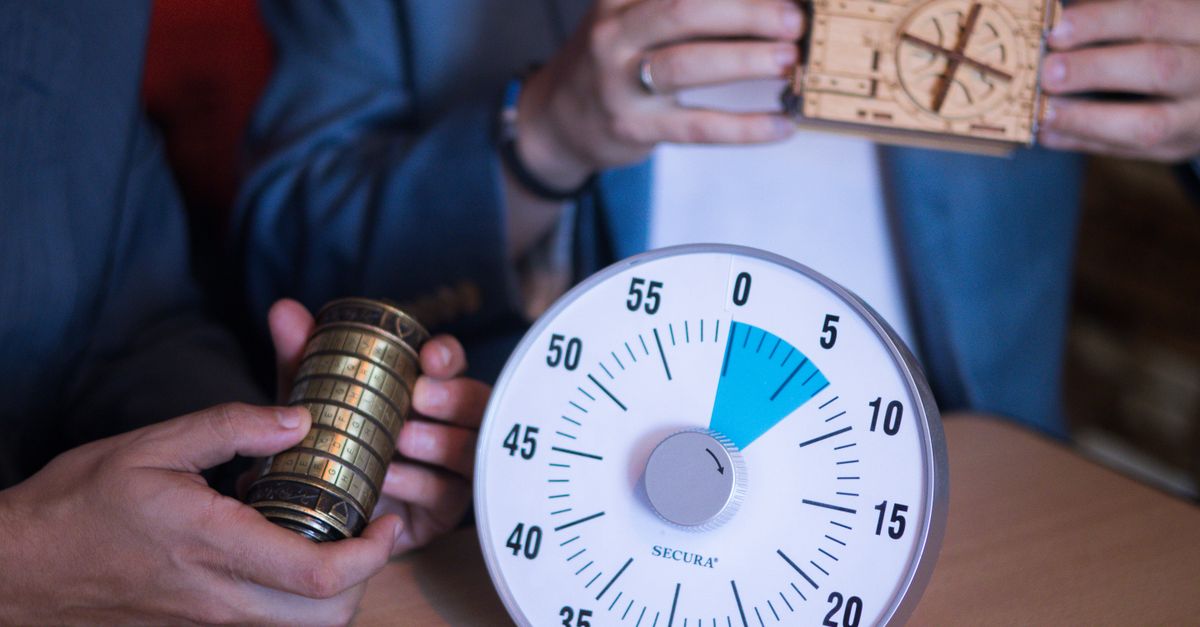
What a Countdown Timer Actually Does
At its core, a countdown timer does two things. First, it holds a target duration that you enter — say, 10 minutes, 1 hour 30 minutes, or 45 seconds. Second, it counts down second by second until it reaches 00:00, at which point it stops, shows a "Time's up!" message, and usually plays a short beep if your browser permits sound.
The defining feature is the direction of travel. Unlike a clock that shows the current time, a countdown always starts at a number above zero and runs toward zero. That makes it the right tool any time you need to honor a deadline rather than measure how long something took. If you have a hard limit — a set number of minutes for a workout rest, a timed practice test, a board-game move clock, or a kitchen task — a countdown is the instrument that fits.
Modern browser countdowns also add a few quality-of-life features that a wind-up kitchen timer cannot match: pause and resume, a reset that returns the clock to your original duration, an optional audible alert, and inputs that lock while the clock is running so you never bump the duration by accident.
Countdown Timer vs Stopwatch vs Pomodoro Timer
People often confuse three related timing tools. They look similar on screen, but they answer different questions, and picking the wrong one usually leads to frustration. The table below sets them side by side at a glance.
| Tool | Direction | Duration | Best for |
|---|---|---|---|
| Countdown timer | Counts down from a chosen duration to zero | Any combination of hours, minutes, and seconds you set | Hard deadlines, intervals, cooking, classroom timing, screen-time caps |
| Stopwatch | Counts up from zero, tracking elapsed time | Open-ended; runs until you stop it | Lap times, measuring how long a task actually took |
| Pomodoro timer | Counts down on a fixed rhythm | Locked to a 25-minute focus block plus 5-minute break, often with a longer break after four cycles | Structured deep-work sessions that follow the Pomodoro technique |
The takeaway is straightforward. If your task has a hard deadline and you already know how long it should run, a countdown timer is the flexible general-purpose choice. If you do not know how long something will take and want to measure it, reach for a stopwatch instead. If you specifically want the 25/5-minute focus cycle, a dedicated Pomodoro Timer handles that rhythm automatically.
Where a Countdown Timer Fits into Daily Life
The list of situations where a flexible countdown helps is almost endless. A few of the most common ones include:
- Kitchen tasks. Boiling eggs, steeping tea, resting dough, baking reminders, and keeping the oven from being forgotten all benefit from a set duration you can see and hear.
- Workouts. Interval training, HIIT rounds, plank holds, and rest periods between sets are all defined-time activities where a countdown fits naturally.
- Presentations and classrooms. Speakers and teachers use a countdown to keep lightning talks, classroom activities, and timed discussions on schedule.
- Study and practice tests. Students lean on countdowns to recreate exam conditions for practice quizzes and to bound study sprints.
- Remote work and meetings. Time-boxing a deep-work block or capping a single agenda item in a long meeting keeps conversations from drifting.
- Family routines. Parents set countdowns for screen-time limits, tooth-brushing, tidy-up races, and board-game or quiz-night move clocks.
Anywhere a duration matters more than an elapsed time, a countdown is the right tool.
How to Set and Run a Countdown Timer in Your Browser
The fastest path from "I need a timer" to "it is running" takes three steps in the Online Countdown Timer:
- Set the duration. Type the hours, minutes, and seconds you need into the input fields, or tap a quick preset for 1, 3, 5, 10, or 15 minutes if a common short duration fits. You can set anything from a nine-second countdown to a multi-hour deadline, and you can fine-tune the exact time by hand if a preset is not quite right.
- Press Start. The large display begins ticking down. The inputs lock while the clock is running so you cannot accidentally change the duration. Use Pause to freeze the timer and Resume to continue from where it stopped, and the display stays accurate even if you switch tabs.
- Watch for the alert. When the clock reaches 00:00, the timer stops, shows a clear "Time's up!" message, and plays a short beep if your browser allows sound. Press Reset any time to return to your set duration and start over.
That is the whole workflow. No sign-up, no install, no setup screen — just enter the time, press Start, and the timer runs locally in your browser.
The Trick That Keeps a Browser Countdown Accurate
Accuracy is the part most people do not think about until a timer drifts by several seconds and ruins a workout interval. The naive way to build a countdown is to subtract one from the display every second on a setInterval loop. That approach quietly drifts because browser tick intervals are never perfectly regular — they are influenced by what your device is doing, whether the tab is visible, and how busy the JavaScript thread is at any moment.
The better approach is to record a high-resolution anchor timestamp the moment you press Start, then recompute the remaining time against the real elapsed time on every tick. As a simple worked example, if you set a duration of 1 hour 30 minutes (which is 1 × 3600 + 30 × 60 + 0 = 5400 seconds), the timer does not count down by 5400 separate one-second steps. Instead, it remembers the exact starting moment and, on each refresh, calculates how many seconds have actually passed and subtracts that from the original 5400 seconds. If your device is briefly busy, or you switch to another tab and come back, the next tick recomputes against real time rather than drifting behind.
When the remaining time hits zero, the display stops cleanly at 00:00 instead of overshooting into negative territory. For a deeper look at what keeps a browser timer precise, the Countdown Timer Accuracy: What Makes a Timer Stay Precise guide walks through the mechanics in more depth.
Privacy and Local Processing in a Browser Timer
Privacy is the other half of the design, and for a tool you might use to time a meeting, a private conversation, or a child's bedtime routine, it matters a lot. Everything in the Online Countdown Timer runs locally in your browser using plain JavaScript. There is no server round-trip, no upload, no account, and no tracking of what you are timing.
Because nothing leaves your device, the timer opens instantly and keeps working even on a flaky internet connection — you can start it on the train, lose signal mid-countdown, and the timer will still hit zero on time. The optional beep plays only if your browser permits sound, so you stay in control of whether the alert is audible.
Choosing the Right Duration for the Task
Most timing mistakes come from picking a duration that does not match the actual task. A few simple rules help.
- Start shorter than you think. If you are not sure whether 25 or 45 minutes is right for a study sprint, pick the shorter option. You can always run a second countdown rather than abandon the task partway through.
- Use the presets as a baseline. The 1, 3, 5, 10, and 15 minute presets cover most cooking, workout, and short-focus needs. Use them as a starting point and fine-tune the minutes and seconds by hand if you need a precise interval like 7 minutes 30 seconds.
- Set a hard end, not a soft one. A countdown works best when 00:00 means "stop now." If you find yourself ignoring the alert, the duration you picked is probably too long for the task and the timer has stopped being a real deadline.
Once the timer becomes a hard end you can see, it stops being a suggestion and starts being a constraint that actually shapes how you work, study, cook, and present.
If you're weighing options, Is a Pomodoro Timer Safe to Use Online? Privacy Explained covers this in detail.