Headers and footers in a PDF are small text bands that appear inside the top and bottom margins of every page, drawn at the same vertical position on each page so readers can rely on them for navigation, branding, or legal notice. In the PDF specification they are not separate objects with a dedicated "header" or "footer" tag — they are simply painted text (or images) that a layout program placed near the top or bottom edge of the page box before the file was saved. You cannot open a header the way you open a bookmark panel or a form field; you have to look at the page itself, scroll to the relevant margin, or use a tool that reads the content stream. Most viewers expose headers and footers as ordinary page content rather than as a labelled layer, which is why someone hunting for a header or footer in an unfamiliar file often ends up guessing where it should be.
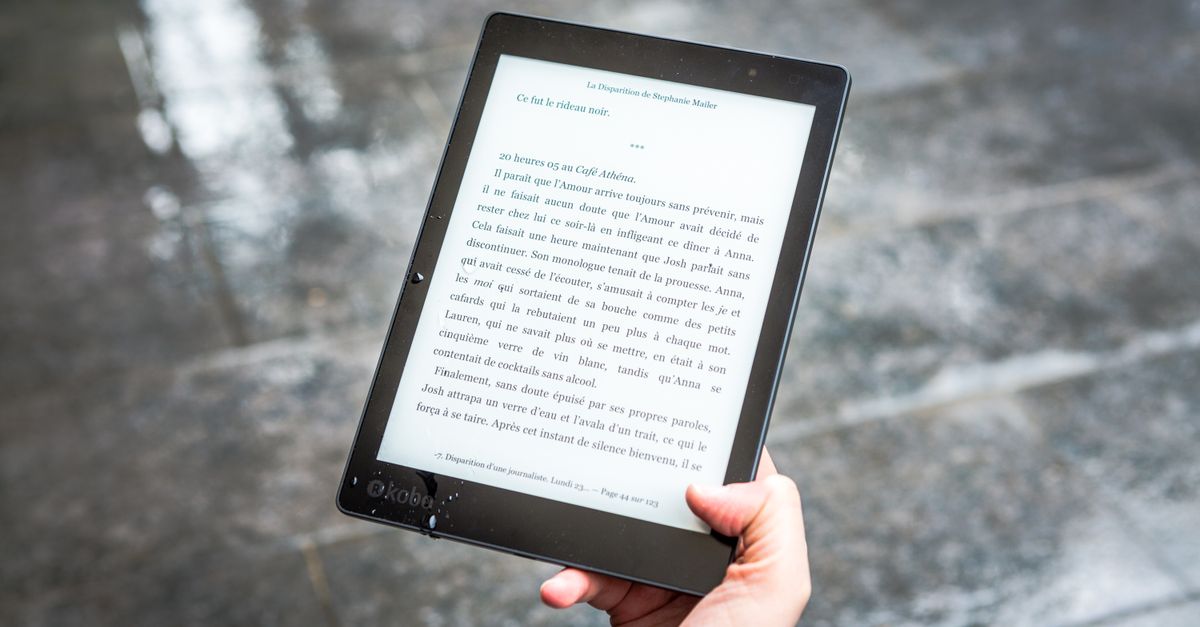
Where Headers and Footers Live on a PDF Page
The phrase "header and footer" describes location, not a structural element. A header sits inside the top margin, normally between the top edge of the page and the first line of body content. A footer sits inside the bottom margin, between the last line of body content and the bottom edge. Both span the same horizontal position on every page of a well-prepared document, so a reader can trust that "page 3 of 12" at the bottom-right of page one will also appear at the bottom-right of page twelve.
In the PDF specification, both regions are part of the page's MediaBox or CropBox. Anything that the producing application drew inside that box becomes permanent painted content, and headers and footers share that status with body text and images. This is the root cause of two practical surprises. First, "removing the header" is not a one-click operation — a tool has to either erase the painted content or overlay it with a white rectangle. Second, if the original author placed body text close to the top edge, the header can overlap it once a new header is added later. The PDF keeps the original placement as drawn bytes; it does not reserve a "header slot."
Finding the Header or Footer in Common PDF Readers
Different viewers expose page content in slightly different ways, but the same physical rule applies — the header is whatever text sits near the top of every page, and the footer is whatever text sits near the bottom.
In Adobe Acrobat Reader, the header and footer are visible by scrolling to the top or bottom of any page in single-page or continuous-scroll view. There is no dedicated "show header" toggle; if you do not see text in the margin, the original file probably did not contain one. The Tools menu offers an Edit PDF option, but this requires a paid Acrobat Pro license and treats the header or footer as ordinary content you have to select and delete character by character.
Browser-based viewers in Chrome, Edge, and Firefox work the same way: scroll to the top or bottom of any page and read the margin directly. None of them expose a header/footer-specific inspector. To confirm whether a margin contains a real header line versus a stray footnote, jump to a different page using Ctrl+J (Cmd+J on macOS) and check that the same string appears at the same position on each page.
If you need a programmatic answer — for example, "is there any text within 60 points of the top of every page?" — extract the text first with a tool such as PDF to Text and search the resulting text file for short strings that repeat on multiple pages. That pattern is the most reliable signal that what you are seeing is a true header or footer and not a coincidental title that only appears on page one.
When the Header or Footer Is Missing or Needs Replacing
There are three situations where readers end up searching for where the header and footer live in a PDF:
- The PDF was exported from an application that did not add a header or footer in the first place, so the margin is empty on every page.
- The PDF has a header or footer, but it contains the wrong text — for example, an old draft date, an outdated project code, or a placeholder that was never replaced.
- The PDF was scanned and the header and footer never existed as searchable content at all.
In the second case, the cleanest fix is often to overlay a new line on top of the existing one using a tool such as Header Footer PDF, then re-save the file. The tool draws additional content on top of the page rather than erasing the old line, so the original is preserved and the new text simply covers it. In the first and third cases, the same tool can add a fresh header or footer where none exists, as long as the chosen font size and margin leave enough usable space.
Add a Header and Footer to Every Page Locally
The Header Footer PDF tool runs entirely in your browser, which means the source file is never uploaded to a server. It draws a single optional header line and a single optional footer line on every page of the chosen PDF, centered horizontally inside the existing page box, and saves a new copy with "-header-footer.pdf" appended to the filename.
- Open Header Footer PDF in your browser and click the file picker. Choose a local PDF that is non-empty and no larger than 25 MiB.
- Type the header text, the footer text, or both. Each field accepts up to 120 Unicode characters and is trimmed before drawing. Leave a field blank if you want only one line.
- If you need page numbers, insert the literal lowercase tokens {page} and {pages} inside the header or footer text. For example, "Page {page} of {pages}" becomes "Page 2 of 5" on the second page of a five-page document.
- Pick a font size between 6 and 36 points and an edge margin between 0 and 200 points. The header is drawn below the top edge by that margin plus the requested font size; the footer is drawn above the bottom edge by the same margin.
- Click "Add header and footer." The browser loads the source, draws the expanded text on every page, embeds the standard Helvetica font once, and offers the new PDF for download.
- Open the downloaded file and confirm that the new text does not overlap logos, page numbers, or crop marks near the edges before distributing or printing it.
Tokens, Limits, and How the Drawing Step Behaves
The two supported tokens behave deterministically. {page} expands to the current one-based page number of the structural page being drawn, and {pages} expands to the total structural page count of the source document. Replacement happens for every exact lowercase occurrence anywhere in the entered text. Any other brace sequence — {date}, {title}, {author} — is left exactly as written, so the tool does not pretend to support dynamic dates or metadata fields.
| Setting | Accepted values | Behavior when exceeded |
|---|---|---|
| PDF file size | Up to 25 MiB, non-empty | Visible error; no output is produced. |
| Header or footer text length | 0–120 Unicode characters after trimming | Longer input is not accepted. |
| Font size | Whole numbers from 6 to 36 points | If a line still overflows, the size is reduced one point at a time down to 6. |
| Edge margin | Whole numbers from 0 to 200 points | Header sits below the top edge by margin + size; footer sits above the bottom edge by margin. |
| Page numbering tokens | {page} and {pages}, lowercase only | Other brace text is preserved verbatim. |
| Font coverage | Standard Helvetica (Latin) | Characters outside the encoded set fail visibly instead of being replaced with placeholders. |
A concrete worked example: on a 612-by-792 point US Letter page with the edge margin set to 36 points and the font size set to 12 points, the header baseline is positioned 36 + 12 = 48 points below the top edge, and the footer baseline is positioned 36 points above the bottom edge. The remaining vertical space between the two baselines is 792 - 48 - 36 = 708 points, which is just over 9.8 inches of usable body height.
When a line is too wide for the page at the chosen font size, the tool does not stretch the text, wrap it onto a second line, or silently drop characters. It lowers the font size one point at a time until the line fits or until the six-point floor is reached. If the floor is still too large — for example, on a very narrow page with a deep margin — the line is drawn at six points and may still extend past the margin. This is why the verification step at the end of the workflow matters.
What the Tool Does Not Do
Knowing the boundaries of the tool is just as important as knowing its features. The header and footer are drawn as additional PDF content, not as a viewer overlay, so any existing edge content such as logos, page numbers, crop marks, or handwritten annotations can overlap the new line. The tool does not move body content, reflow paragraphs, create white space, or detect a safe margin. There is no cover-page exclusion, no odd/even distinction, no left-aligned or right-aligned mode, no Roman numerals, and no starting-number offset. Numbering always begins at one and the total always reflects the source document before any text is added.
Multi-line headers, embedded images, hyperlinks, dynamic dates, Bates numbering, and rich fonts are also outside the scope. For multilingual branding, custom typography, or archival conformance, a desktop publishing application that can embed a licensed font is the correct tool. The download keeps the original filename base and appends "-header-footer.pdf", so existing files in the same folder are not overwritten silently. Changing any setting revokes the previous download, which prevents an outdated URL from being mistaken for the current configuration.
Quick Reference: Choosing the Right Local Tool
If the PDF already has the right header and footer and you simply need to confirm their position, the PDF Page Counter is the lightest option, since it returns page box dimensions without modifying the file. For the common case of stamping a clear page-number string such as "Page {page} of {pages}" on every page of a normal PDF — the case most readers actually face when they cannot find the header or footer they were promised — Header Footer PDF is the focused, browser-local answer: open the page, type the wording, set the size and margin, and download a fresh copy with the lines drawn on every page in the same place.
If you're weighing options, PDF Header and Footer Stamp: Tokens, Margins, and Limits covers this in detail.
If you're weighing options, Does a Header Footer PDF Tool Make Room for the Text? covers this in detail.