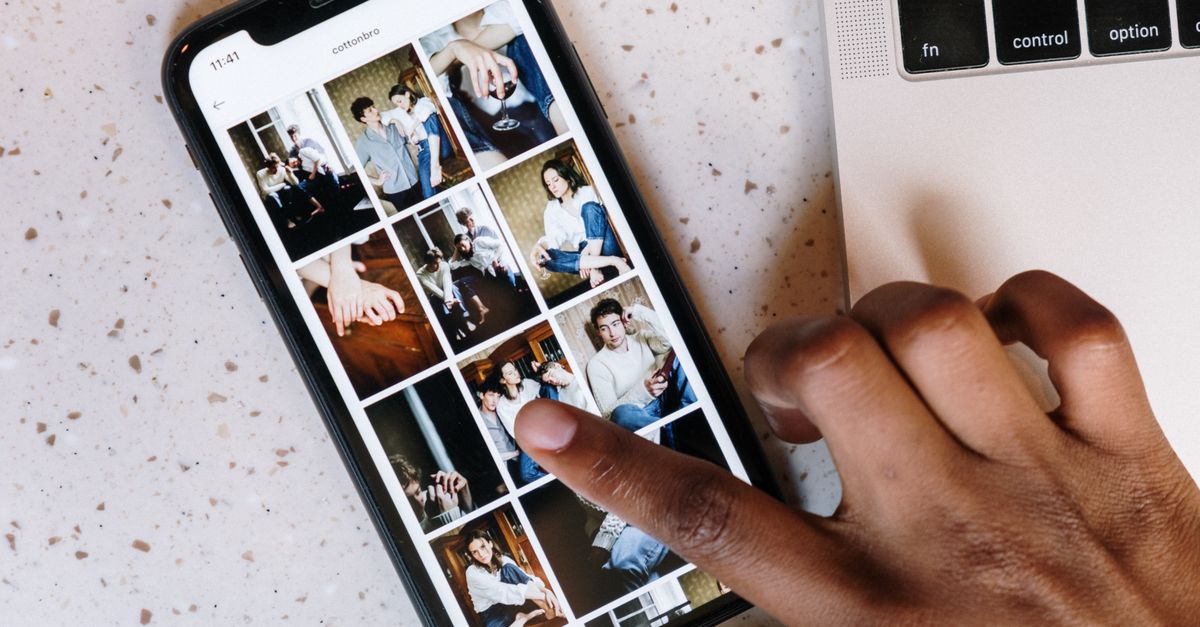
You can apply photo filters online on an iPhone in a browser, adjust the effect from 0% to 100%, and download a same-size PNG without sending the source image to Lizely's servers. “Online” describes where the editing page opens; the image decoding, pixel changes, and PNG creation happen locally in the current browser tab.
This workflow filters an existing JPG, PNG, or WebP already available to your iPhone. It is not a live filter for the iPhone Camera app and does not replace the original in your photo library. The downloaded PNG is a separate result.
What Runs on the iPhone
After you choose a supported image, the browser decodes it into an in-memory canvas. The tool transforms the image's RGBA pixel buffer with the selected function and creates a new PNG Blob locally. Processing begins only after you choose Apply filter, so you can set the effect and intensity before any pixel changes are made.
No source pixels, filter choices, or result files are posted to Lizely. Temporary object URLs are also released when they are no longer needed. If you replace the file or change the settings, an older generated export is invalidated, so download the result you have reviewed before making another change.
Apply a Photo Filter on Your iPhone
Use the same sequence in the browser on your iPhone:
- Open the tool. Go to Image Filter Effects in your iPhone browser and wait for the page to load.
- Choose one image. Tap the image chooser and select an existing JPG, PNG, or WebP from the location offered by your browser. The compressed file can be up to 25 MiB. After decoding, the image can be up to 16 megapixels, with either edge no longer than 12,000 pixels.
- Select an effect. Choose Grayscale, Sepia, Invert, Warm, Cool, or Original from the available controls.
- Set the intensity. Move the control from 0% to 100%. At 0%, the RGB channels remain unchanged; at 100%, the full selected transformation is applied.
- Start processing. Tap Apply filter. The pixel transformation and PNG creation take place in the current browser tab.
- Inspect the preview. Check the displayed dimensions and file size, then examine important colors, text, skin tones, and transparent areas. The preview represents a PNG with the same width and height as the source.
- Download the PNG. Tap the download control and complete the browser's download action. The download name includes the chosen effect, and the source file remains unchanged.
If you need a different delivery format, convert the reviewed PNG separately. The built-in workflow exports PNG rather than making a hidden JPEG-quality choice.
Compare the Available Filter Choices
The filters are defined color transformations rather than a collection of decorative camera presets. Each one affects RGB channels while preserving every pixel's existing alpha value.
| Choice | What It Does | Important Limitation |
|---|---|---|
| Original | Leaves the RGB pixel values unchanged. | Useful for checking the local decode-and-export path, but it does not enhance the image. |
| Grayscale | Converts RGB channels using the defined red, green, and blue luminance weights. | A grayscale result does not automatically provide readable text contrast. |
| Sepia | Applies the specification's three-by-three sepia color matrix. | A sepia appearance does not authenticate or date a photograph. |
| Invert | At full strength, replaces each RGB channel with its complement. | Alpha is preserved rather than inverted, and readability may change substantially. |
| Warm | Adds up to 30 red levels and 10 green levels while subtracting up to 20 blue levels. | It is a creative shift, not a measured white-balance correction. |
| Cool | Subtracts up to 20 red levels while adding up to five green levels and 30 blue levels. | It is a creative shift, not a Kelvin or color-temperature calculation. |
Grayscale uses the red, green, and blue weights 0.2126, 0.7152, and 0.0722 defined by the W3C Filter Effects specification. This means green contributes more than red or blue to the resulting channel value. Sepia follows the same specification's three-by-three matrix, while full-strength Invert complements each RGB channel.
At partial intensity, the tool calculates the full-strength target as a floating-point value, linearly blends it with the source according to the selected percentage, and then rounds and clamps once at the end. Warm and Cool use the same interpolation method with their disclosed channel shifts. This makes the percentage an amount of transformation rather than the opacity of a layer over the original.
Review Colors and Transparency Before Downloading
The results page displays the selected effect, intensity, dimensions, output file size, and a PNG preview. Review the entire image instead of judging only the most obvious subject.
- Check key colors: Compare brand colors, clothing, signs, text, and skin tones with the intended result.
- Check transparent areas: Transparent pixels remain transparent, although their hidden RGB values may be transformed.
- Check dimensions: “Same size” means the same pixel width and height, not the same compressed file size.
PNG is used because it can retain transparency and avoids an implicit lossy-quality decision. The output may still differ in file size from the JPG, PNG, or WebP source. For color-critical work, also inspect the preview at the intended display size and against the background where the image will appear.
File, Size, and Output Limits
All three input limits matter because a compressed file size does not reveal how many pixels the browser must decode.
| Item | Supported Value or Behavior |
|---|---|
| Input formats | JPG, PNG, or WebP |
| Compressed input limit | Up to 25 MiB before decoding |
| Decoded image limit | Up to 16 megapixels |
| Edge limit | Up to 12,000 pixels on either edge |
| Output | PNG with the source's width and height |
| Transparency | Every pixel's alpha value is preserved |
| Processing location | The current browser tab, without posting the image or result to Lizely |
Decoded pixel buffers are considerably larger than compressed files, which is why these limits help protect browser memory and reduce main-thread work. If the browser cannot decode the selected file, the tool presents a clear error instead of producing a blank result.
This filter tool does not crop, resize, rotate, sharpen, blur, denoise, detect faces, isolate subjects, or select a filter automatically. If your task also requires different dimensions, complete that as a separate editing step.
Use Creative Filters Responsibly
Warm and Cool describe visible RGB channel shifts; they do not calculate Kelvin values, camera white balance, ICC profiles, or chromatic adaptation. Grayscale can reduce text contrast, and Invert can make familiar subjects difficult to interpret. Filters may also change skin tones, brand colors, or the meaning of documentary, scientific, and archival images.
For color-critical printing, medical images, scientific evidence, archival preservation, or professional photographic work, use a color-managed application with the required profiles and calibration. This browser workflow is designed for quick visual treatments where a transparent, explicitly defined pixel transformation is more useful than a large set of unexplained presets.
On an iPhone, the most dependable route is to choose a supported image, select one defined effect, set the intensity, apply it locally, inspect the PNG, and download only after the important details pass review.
If you're weighing options, How to Add Text to GIF for WhatsApp on iPhone covers this in detail.
If you're weighing options, Black and White Photo Converter to 50KB: Fit the Limit covers this in detail.