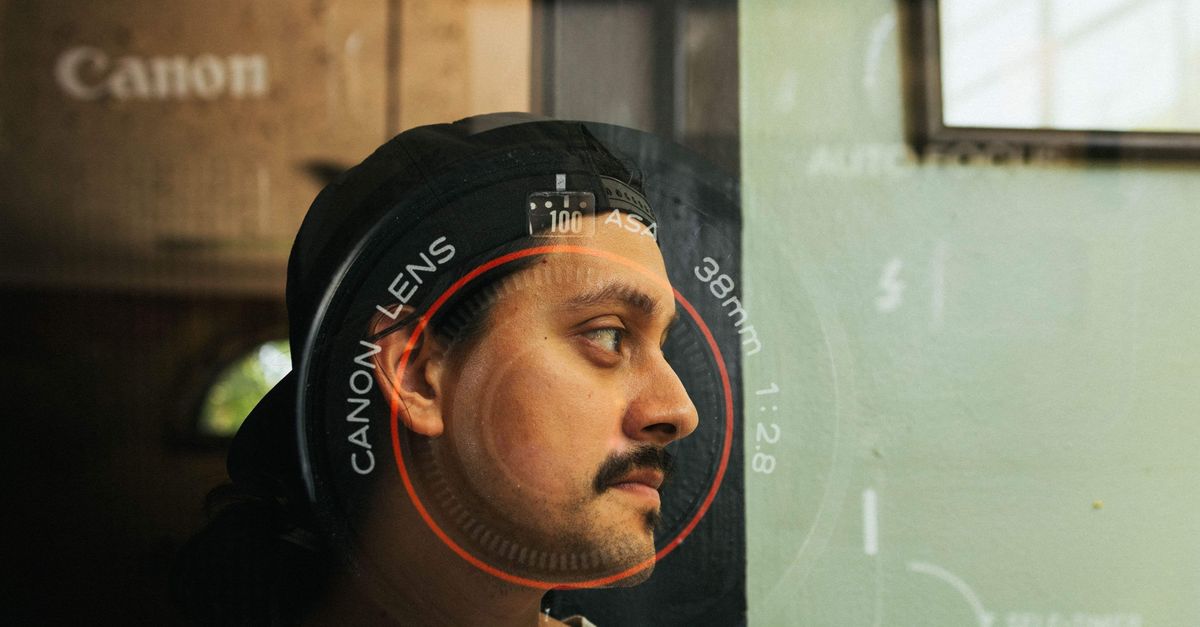
An image overlay is the upper image in a two-image composition: the base fixes the output canvas, while position, scale, and opacity determine how the upper image appears. Image Overlay is built for one predictable layer, such as a logo, badge, watermark graphic, corner label, frame detail, or centered texture. The base is drawn at its natural width and height, so the exported PNG keeps the base dimensions rather than shrinking them to fit the page preview. The second image can be placed in the center or at one of four corners. Its scale is measured against its own original size, not against the base, and opacity controls its global visibility while respecting transparency already present in the image. Both static source files are processed locally in the current browser tab, with no upload or account required. Put simply, the process separates the task into two roles: the base supplies the complete canvas, and the overlay adds one controlled image on top. After those choices, the browser composites the sources and produces a PNG for inspection and download.
What each overlay control changes
Each control affects a different part of the composition. The canvas comes from the base, position determines the overlay's upper-left drawing coordinates, scale changes the overlay's dimensions, and opacity changes how strongly its pixels contribute to the result.
| Control | Available setting | Exact effect |
|---|---|---|
| Canvas | Base image | Its natural width and height are preserved exactly. |
| Position | Center or one of four corners | Uses fixed coordinates based on the base and scaled overlay dimensions. |
| Scale | 10%–200% | Multiplies both natural overlay dimensions by the selected percentage. |
| Opacity | 0%–100% | Applies one global alpha value to the overlay's contribution. |
Scale is an explicit control, not an automatic fit-to-base calculation. At 100%, the overlay uses its natural width and height. At other percentages, both dimensions receive the same scale factor, preserving its aspect ratio. Position is equally predictable: there are no hidden margins or free-dragging coordinates between the five available choices.
Create a PNG with Image Overlay
Open Image Overlay to combine two still images directly in the current browser tab.
- Choose the base and overlay images. Select the image that should fill the output canvas as the base, then select the image to place above it. Each file must be a JPG, PNG, or WebP no larger than 25 MiB. The base and overlay are separate roles, and each source is validated and decoded independently.
- Set position, scale, and opacity. Choose center, top left, top right, bottom left, or bottom right. Set the overlay scale from 10% through 200%; it applies only to the second image and measures against that image's natural dimensions. Choose an opacity from 0% through 100% to control the overlay's global contribution.
- Create, inspect, and download the composition. Generate the PNG after both files pass validation and decoding. The preview may be visually reduced to fit the page, but its CSS display size does not alter the rendering or download dimensions. Inspect the result and download the full-base-size PNG when the position, scale, and opacity are correct.
How position and scale produce the placement
The scaled overlay width equals its natural width multiplied by the selected scale and divided by 100. The same factor applies to its height, so scaling cannot stretch the image in only one direction. The available range runs from 10% to 200%, and the resulting dimensions—not the base dimensions—determine where each edge of the overlay lands.
For one worked example, an overlay with a natural size of 800×400 pixels at 50% scale is calculated as follows: width = 800 × 50 ÷ 100 = 400 pixels; height = 400 × 50 ÷ 100 = 200 pixels. The overlay is therefore drawn at 400×200 pixels with its original aspect ratio intact.
| Position | Horizontal coordinate | Vertical coordinate |
|---|---|---|
| Top left | x = 0 | y = 0 |
| Top right | x = base width − scaled overlay width | y = 0 |
| Bottom left | x = 0 | y = base height − scaled overlay height |
| Bottom right | x = base width − scaled overlay width | y = base height − scaled overlay height |
| Center | x = remaining width ÷ 2 | y = remaining height ÷ 2 |
Center uses half of the difference between the base and scaled overlay dimensions. An odd difference can produce a half-pixel coordinate, which keeps the overlay mathematically centered. If the scaled overlay is larger than the base, the same formulas can place part of it at negative coordinates. Those portions are clipped at the fixed canvas boundary; the base is never silently reduced to accommodate the overlay.
How opacity handles transparency
Opacity is a global alpha control applied to the complete overlay. At 0%, the overlay is fully transparent, but the tool still produces a PNG with the base image's dimensions. At 100%, the overlay's own alpha is used unchanged. Intermediate percentages multiply the overlay's contribution by the selected alpha value. Transparent pixels already present in a PNG or WebP remain transparent, and JPEG inputs have no transparent pixels of their own. If the base image is transparent, it remains transparent wherever neither source contributes color.
Internally, the renderer clears the canvas, draws the full-size base at alpha 1, saves the drawing state, applies the chosen overlay alpha, draws the scaled overlay at its calculated coordinates and size, and then restores the state. This follows the standard browser canvas model: Canvas drawImage operation and Canvas globalAlpha property. When the scale is not 100%, browser interpolation can soften edges after resizing.
File and decoding limits that affect export
Each compressed source may be at most 25 MiB, equal to 26,214,400 bytes. After browser decoding, the base and overlay each have independent limits of 40,000,000 total pixels and 20,000 pixels on either side. The exact boundary value is accepted. A source that exceeds the file limit, decoded pixel budget, or edge limit by even one byte or pixel is rejected without producing a partial output.
Only static JPG, PNG, and WebP sources are supported; GIF, SVG, AVIF, and other formats are outside the tool's scope. Unsupported or empty files, invalid decoded dimensions, decoding failures, and rendering or PNG-encoding failures produce explicit recoverable errors, while any stale previous result is removed. The two image roles use separate decoding jobs, so rapidly replacing one file does not invalidate an in-progress decode of the other. Source and result URLs are temporary and are revoked when replaced or when the tool closes. No source image or generated result is uploaded to an external processing service.
Choose this workflow for one controlled layer
This focused workflow suits a logo, watermark graphic, badge, frame detail, corner label, or centered texture when the final placement should follow a repeatable rule. The fixed base canvas, five deterministic positions, explicit scale, and global opacity make the result suitable for a simple compositing task without a full multi-layer editor.
Image Overlay does not provide rotation, free dragging, arbitrary coordinates, margins, blend modes, masks, background removal, repeated tiling, or multiple simultaneous overlays. Its output is always PNG because that format can preserve transparency from either source. Re-encoding does not promise to retain EXIF or other camera metadata, embedded text, animation, or the original compressed data.
Verify the full-size PNG before using it
The on-page preview is useful for checking composition, but its visible dimensions may be constrained by the page layout. Those CSS dimensions do not change the pixels used for rendering or download. For precision work, inspect the downloaded PNG at full size and keep both original files so the composition can be reproduced later.
If important overlay content extends beyond the base at the selected scale, lower the scale or edit the overlay source before exporting. When an exact final pixel width is required, calculate it from the overlay's natural width and selected scale before creation. The base dimensions remain authoritative throughout, so any edge clipping comes from the overlay's chosen size and position rather than an unexpected base resize.
Related reading: Optimize GIF to 500KB: Check the Real File Size.
Related reading: Overlay Images for Beginners: A First-Project Guide.