An LED scroller alternative that runs entirely in the browser tab lets you turn a short message into a large, looping LED-style banner without installing an app, signing up for an account, or pairing a physical display. The browser-based category trades the weight of a native application and the cost of a hardware panel for the speed of opening a page, typing one short line of text, and watching it travel across the screen on the same monitor you are already using. Open the LED Scroller widget, type up to 120 Unicode code points of message text, and the page itself becomes the sign. The widget validates the input locally, builds a CSS keyframe that translates a full-width monospaced line across the preview area, and loops it indefinitely without uploading the message, saving a file, or starting any background process. That single-tab definition is the cleanest reason to reach for a browser tool over a dedicated app or a hardware controller: the message stays on the device, the controls stay on the screen, and the moving banner begins the moment you press Start scrolling.
What an LED Scroller Alternative Looks Like in 2026
Most people who search for an LED scroller alternative are not shopping for a $19/month SaaS subscription or a piece of hardware with a 1,500-lumen brightness rating. They want a quick way to put a moving message in front of a friend, an audience, or a camera. LED Scroller was built for that exact scenario: a one-line banner, three speed presets, two travel directions, five text sizes, and pause, resume, and restart controls that all live in the current tab.
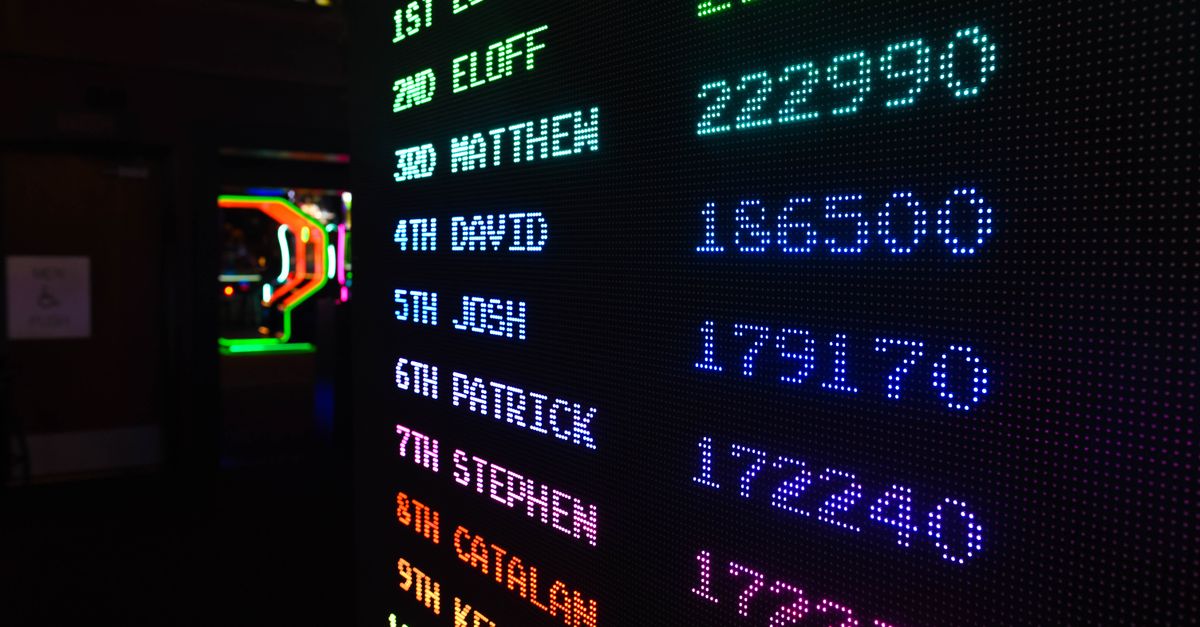
The widget produces a browser-native preview rather than a simulation of a particular dot-matrix font or sign controller. It uses large monospaced text, the site's color tokens, and increased character spacing to mimic the look of an LED panel without claiming to reproduce one. That distinction matters when you are choosing between a quick browser tool and a piece of certified signage. The rendered shape depends on the fonts available to the browser, and the apparent travel rate depends on message width, font size, browser width, zoom, and device — so the controls are deliberately predictable rather than physically calibrated.
Browser LED Scroller vs. Dedicated App vs. Hardware Sign
Each approach to running a scrolling message has different tradeoffs. The table below compares a browser-based alternative like LED Scroller, a typical LED scroller mobile app, and a physical LED sign with its own controller.
| Dimension | Browser-based LED Scroller | LED scroller mobile app | Physical LED sign + controller |
|---|---|---|---|
| Install required | None — open a tab | App store download | Hardware install |
| Account or sign-up | None | Usually required | None for the panel, software may need it |
| Message location | Stays in current tab | Often uploaded or synced | Stored on the controller or in the cloud |
| Calibration | Browser-defined timing | Software-defined timing | Manufacturer-calibrated |
| Brightness and outdoor use | No | No | Yes |
| Best for | Quick preview, signs, props, prompts | Phone-as-sign hobby work | Permanent installation, certified messaging |
The browser-based slot is the right place when you need to mock up a moving banner, throw a quick cue on a laptop, or grab a screen-recording for a video. When the message needs certified brightness, exact physical dimensions, or remote scheduling, the software that ships with the actual display hardware is the correct tool.
When a Browser LED Scroller Alternative Is the Right Pick
The LED Scroller widget is built for short, fast-moving text. If you are choosing among an LED scroller alternative for one of the situations below, the browser approach saves the friction of an install and keeps the message off a server.
- Event or party cue: a one-line announcement that loops across a laptop while music plays.
- Photo or video prop: a scrolling banner for a backdrop, social clip, or livestream overlay.
- Presentation prompt: a quiet on-screen cue, a runner-up notification, or a subtle "next slide" reminder.
- Desk sign: a stationary message paused at a fixed size on a second monitor.
- Accessibility rehearsal: a private preview to confirm wording before pushing to a real sign.
Two situations call for something other than a browser tool. Keep critical safety instructions stationary and plainly visible; a moving decorative banner should not be the only channel for an emergency warning, accessibility notice, traffic direction, or other high-consequence message. When the brief calls for a specific dot-matrix font, a precise refresh rate, or a manufacturer protocol, run the dedicated software that ships with the display instead of approximating it in a browser.
How to Create a Scrolling Banner in the Browser
Follow these steps to build a moving banner with the LED Scroller widget.
- Open the LED Scroller widget and type one short message into the input field. The widget accepts up to 120 Unicode code points after outer whitespace is trimmed, and rejects control characters, line breaks, and Unicode line or paragraph separators.
- Pick a loop speed from the three fixed presets — Slow completes one CSS loop in 12 seconds, Medium in 8 seconds, and Fast in 4 seconds.
- Choose a travel direction. Right to left starts the banner on the right and carries it across toward the left, which is the most common reading motion. Left to right reverses that path.
- Select a text size from the five fixed options: 32, 48, 64, 80, or 96 CSS pixels. Larger sizes are easier to read at a distance; smaller sizes fit more on a tight preview.
- Press Start scrolling to validate the configuration. The widget stores one validated settings object and increments a render revision, so any edit to the inputs clears the old preview.
- Watch a complete loop and confirm the message is readable on the current screen, at the chosen size, from the viewing distance you actually expect.
- Use Pause to freeze the current frame for transcription, Resume to continue the same motion, and Restart to begin the loop from its initial position.
One important guardrail: the widget honors the operating system or browser reduced-motion preference by forcing the banner to remain paused. That safeguard prevents a site preference from unexpectedly overriding an accessibility request. The message stays readable as a stationary banner and every control still works.
Speed, Direction, and Size Controls
Speed is intentionally simple. Slow, Medium, and Fast are transparent interface presets tied to 12, 8, and 4 second CSS loops — not pixels per second, not a calibrated physical rate. Apparent travel changes with message width, the chosen font size, the browser viewport, zoom, and the device. A short message travels less distance per frame than a long one at the same preset, so the right way to pick a speed is to watch the actual preview at the actual screen size rather than trust the label as a calibrated value.
Direction describes where the text travels on screen. Right to left starts the banner at the right edge and carries it across toward the left, which matches how most reader-friendly LED signs have historically read. Left to right reverses that motion and is useful for content where the most important word should land first or for matching a brand language that reads left-to-right.
Size is locked to five fixed CSS pixel values: 32, 48, 64, 80, and 96. Keeping the controls predictable prevents extreme values from breaking the page layout and gives you a consistent set of legibility choices. If you want a larger view, increase the text size to the maximum of 96 pixels, use the browser's normal fullscreen command, or mirror the browser window through trusted system controls — the widget intentionally does not request fullscreen permission, because that prompt can be blocked without a direct gesture and may hide important controls.
Accessibility, Privacy, and Reduced-Motion Behavior
An LED scroller alternative is only useful if it respects the reader. LED Scroller keeps every operation inside the current browser tab: the message is not uploaded, saved, analyzed, or sent to an advertising or AI service. There is no account requirement, no generated file, and no background process. Pause and Resume only change the CSS animation play state, and Restart simply increments a render revision to recreate the animation. No timer loop, requestAnimationFrame worker, canvas draw cycle, or server process continues in the background.
Editing any input clears the old preview so the visible banner can never silently disagree with the controls. Starting again validates the complete current configuration before a new animation appears. These two rules mean a reader never sees a banner that no longer matches the settings panel.
For accessibility, the reduced-motion media query forces the scrolling classes to remain paused. A user can still read the stationary message and change every control. Critical instructions should be moved to a stationary channel so they remain visible when motion is suppressed by the system setting.
Practical Ways to Use an LED Scroller Alternative
Most readers who land on an "LED scroller alternative" query want the same three things: a banner that moves, a banner they control, and a banner that does not leak their message. LED Scroller covers those three by keeping the input short (one line, one trimmed message, up to 120 Unicode code points), the controls visible (speed, direction, size, pause, resume, restart), and the work local (validation and CSS animation only).
If you are migrating from a phone app, the easiest way to evaluate the browser alternative is to recreate the same message at the same speed and size, then watch one full loop. If the timing is close enough for your event, presentation, or recording, you have a private, install-free path forward. If you need certified brightness, exact physical dimensions, remote scheduling, or hardware export, switch back to the software supplied for that display.
For help with the message itself, pairing the widget with a short, contrast-strong phrase improves legibility. Practical phrasing tips — including how long a line should be and which punctuation reads best at a glance — are covered in the guide to LED banner text that reads at a glance. The browser tool's honest job is to make motion easy to preview while staying clear about its browser-defined timing and its lack of physical-display calibration.
Related reading: Random Date Generator Alternative for Bias-Free Picks.