An LED scroller example is a one-line banner that moves across your screen using large monospaced browser text, increased character spacing, and a clean scrolling track, rather than a simulated dot-matrix hardware panel. The phrase is also the practical answer to a common question: what does the LED Scroller tool produce, how fast does the text travel, and how large can the letters get? The widget renders in the current browser tab with no upload, no sign-up, and no generated file. You type a short message, pick a direction, choose a size and one of three fixed loop speeds, and the preview begins to move. The result looks like a glowing ticker rather than a print-style sign, which is exactly why it works well for quick attention-grabbing messages in places where a full sign-making application would be overkill.
What an LED Scroller Example Looks Like in a Browser
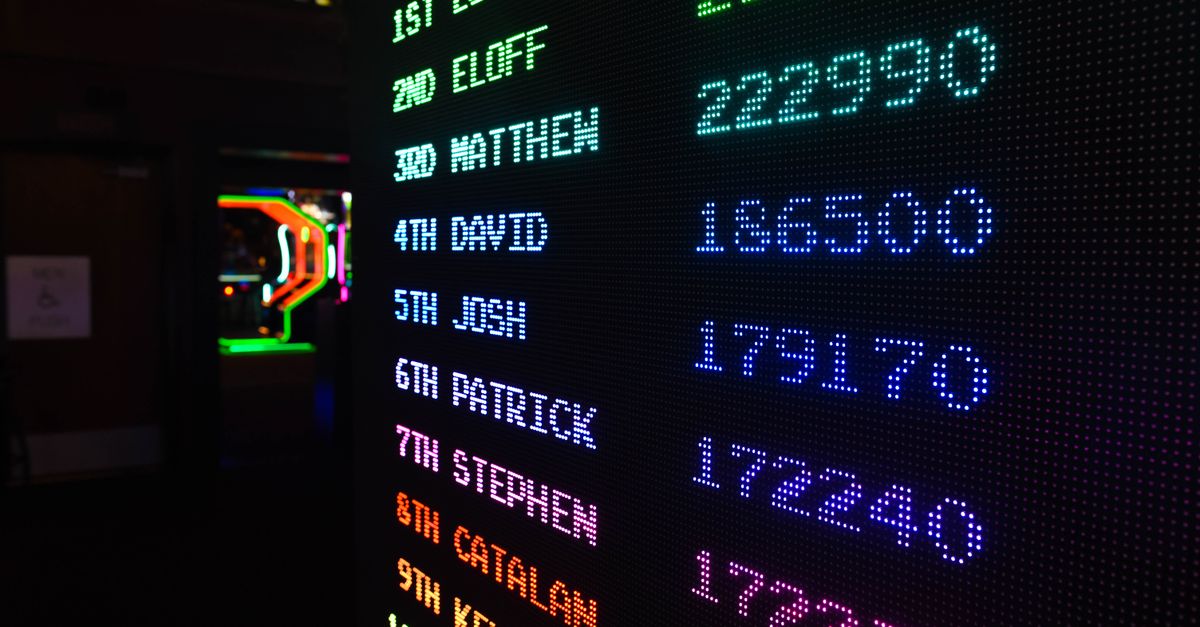
When most people picture an LED scroller example, they imagine the bright dot-matrix panels used in storefronts, taxis, and stadium scoreboards. The LED Scroller widget is deliberately honest about the difference. It uses the browser's own fonts at large sizes, the site's color tokens, and a simple linear CSS animation, so the output is a ticker-style banner rather than a pixel-perfect simulation of physical hardware. The text runs in one direction, repeats forever, and is sized to dominate the preview area. There is no bouncing, no wave, no blink, and no dot-matrix font emulation. The render depends on the fonts available to your browser, so the same message can look slightly different on a phone than on a laptop, and a different browser may show different letter shapes.
This honesty is useful when you are evaluating whether the tool fits your task. If you need certified brightness, an exact pixel pitch, a manufacturer protocol, or remote scheduling for a real display panel, the right answer is the software supplied for that hardware. If you need a quick visual cue, a presentation prop, or a phone held up at a concert, the browser preview is the faster route.
Seven LED Scroller Examples You Can Build Right Now
Because the tool is a one-line banner, the practical value comes from choosing the right short message for the right situation. The following LED scroller examples show the kind of wording that tends to work well and the setting each one fits.
- Concert or event cue. A simple call-and-response like "PHONES DOWN — ENJOY THE SHOW" or "WAVE BREAK — 10 MIN" reads clearly at fast speed on a phone held up at stage level. Keep the size at 80 or 96 CSS pixels so the letters stay legible from the back of a room.
- Quick handheld sign. At a parade, a sporting event, or a busy public space, phrases like "PICKUP HERE" or "GROUP 4 — MEET AT GATE B" travel from right to left and repeat so people walking past have time to read the whole line.
- Desk message. For a shared monitor, a calm "BACK IN 15" or "MEETING — DO NOT DISTURB" runs at slow speed so coworkers glancing at the screen can absorb it without being distracted.
- Presentation prompt. A speaker can use a banner such as "Q AND A — RAISE HAND" or "BREAK IN 5 MIN" as a visual signal during a talk. The pause control lets the speaker freeze the message during transitions.
- Photo or video prop. For content creation, a banner with a short brand line, a hashtag, or a joke ("HELLO FROM 2026") adds motion to a frame without needing editing software.
- Visual attention signal. In a store window or reception desk, a phrase like "ASK US ABOUT TODAY'S SALE" draws eyes faster than a printed sign, and the right-to-left direction reads naturally to most viewers.
- Direction cue. For a kiosk, a check-in table, or a small event, "LINE STARTS HERE →" or "← SCAN QR CODE" uses left-to-right motion to point physically in the intended direction.
These are starting points. The widget accepts up to 120 Unicode code points per message, including emoji, accented letters, punctuation, and non-Latin scripts, so the wording can be tailored for any audience.
Build Your Own LED Scroller Example
The verified operating steps are deliberately short because the tool is designed for fast previews rather than detailed configuration. Open the LED Scroller tool, enter a short message, and pick a speed, a direction, and a text size. Press the start control and watch a complete loop on the screen you actually plan to display it on. Pause to freeze the current frame, resume to continue the same motion, or restart to begin the loop again from the initial position.
- Open the LED Scroller widget and type one short message into the input field. Outer whitespace is trimmed automatically, so leading and trailing spaces do not affect the preview.
- Choose your loop speed (slow, medium, or fast), your travel direction (right to left or left to right), and your text size from the fixed options.
- Press the start control to generate the preview. Editing any input clears the old preview, so the visible banner always matches the current controls.
- Watch a full loop on the screen you plan to display it on. Confirm the wording is readable at the chosen size and pace from the intended viewing distance.
- Use pause for any moment you need the message to stay still, resume to keep the same animation going, and restart to begin a fresh loop from the initial position.
The banner runs entirely in the current tab. Nothing is uploaded, stored, or sent to an advertising or AI service, and the widget does not request fullscreen permission because that prompt can be blocked without a direct gesture and may hide the controls.
Speed, Size, and Direction Reference
The controls are intentionally limited so the preview cannot break the page or produce confusing output. The three speed labels are fixed CSS loop durations: slow completes one loop in 12 seconds, medium in 8 seconds, and fast in 4 seconds. They are interface presets rather than calibrated pixels per second, so the apparent travel rate depends on the message width, the chosen font size, the browser width, the zoom level, and the device. The text size options are fixed at 32, 48, 64, 80, and 96 CSS pixels, which keeps the controls predictable and prevents extreme values from overflowing the preview area.
| Setting | Options | Notes |
|---|---|---|
| Loop speed | Slow (12s), Medium (8s), Fast (4s) | Fixed CSS loop duration, not pixels per second |
| Direction | Right to left, Left to right | Linear infinite repetition |
| Text size | 32, 48, 64, 80, 96 CSS pixels | Five fixed options only |
| Max length | 120 Unicode code points | Emoji count as one character each |
| Rejected input | Control characters, line breaks, Unicode line or paragraph separators | Outer whitespace is trimmed |
The tool does not shorten an over-limit message, replace unsupported text, convert case, correct spelling, translate, or insert decorative symbols. If a message exceeds 120 Unicode code points, the preview is blocked until you edit it down, which keeps the controls honest about what the widget can actually render.
Choosing a Message That Reads at a Glance
The LED Scroller is built for one short line of text, so message design matters more than message length. A few habits produce consistently readable results. Use a short phrase with strong contrast rather than a long sentence, because every additional word stretches the loop and forces the eye to track faster. Avoid dense punctuation, since a banner full of commas, semicolons, or nested parentheses tends to read as noise. If the audience includes people reading from a distance or at an angle, stay in the upper half of the size range (80 or 96 CSS pixels) and pick slow or medium speed so each word has time to register. A fuller collection of wording patterns lives in the LED banner text short messages guide, which pairs naturally with this example walkthrough.
Emoji, accented letters, and non-Latin scripts are supported and count as one character each under the 120-code-point limit, so a phrase like "WELCOME 🎉" or "BIENVENIDOS" can be previewed exactly as you intend to show it. For messages that mix scripts, the same fixed font sizes still apply and the contrast guidance is identical.
When to Pause the Scrolling Banner
A moving banner is great for attention, but a stationary one is the right choice whenever the message must be transcribed or absorbed carefully. Pause the scroll for names, codes, addresses, phone numbers, or step-by-step instructions so the reader can take their time. The pause control freezes the current frame, and the resume control continues the same animation from where it stopped, so the wording is never rewritten in the middle of a pause. For higher-stakes content, keep a stationary copy elsewhere. A moving decorative banner should not be the only channel for an emergency warning, an accessibility notice, traffic direction, or any other high-consequence message.
The widget also honors the operating system or browser reduced-motion preference by forcing the banner to stay paused. If the animation appears frozen on your device, that is the system accessibility setting at work, and the message remains readable as a stationary banner while every control still works. For a quick recap of every control and limit on a single page, the LED Scroller cheat sheet collects the same reference values shown above alongside the validation rules and the reduced-motion safeguard.