No—you do not have to drag the objects when you play Position Memory Game. Dragging is one of three input routes: you can select an object and click its remembered cell, or complete every round with the keyboard.
The Position Memory Game is a five-round spatial recall challenge on a 3×3 board. During each Show phase, the Orb, Wedge, and Loop appear in fixed cells. After you hide the board, the same three shapes appear in a separately ordered recall tray, and you restore them to their original positions.
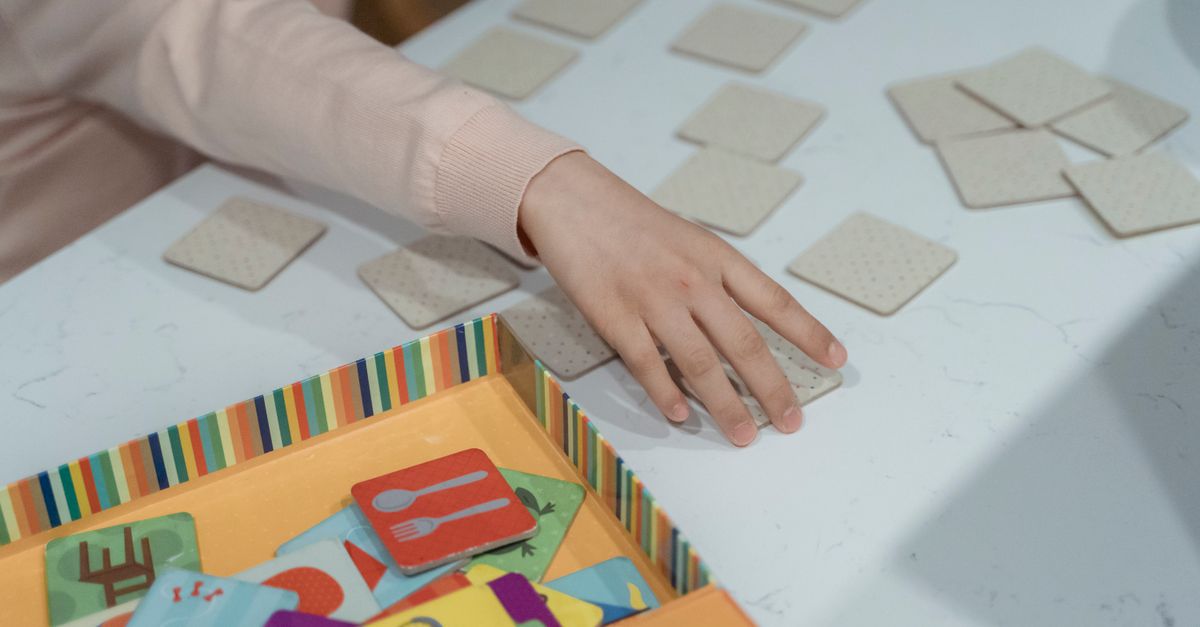
The three ways to place an object
Choose the route that fits your device or preferred interaction. All three routes use the same placement rules, so clicking or using the keyboard does not change the target positions, scoring, or error policy.
| Input route | Action sequence | Control path |
|---|---|---|
| Drag | Pick up a tray object and drop it on a board cell. | Pointer or touch |
| Click and place | Select the object, then click its remembered cell. | Pointer |
| Keyboard | Press 1, 2, or 3 for the visible tray slot, move the cursor with Arrow keys, and press Enter or Space to place. | Keyboard |
Dragging is simply the most direct gesture for someone using a mouse or touch screen. It is not a required part of the game, and it does not create a scoring advantage over either alternative.
How to play without dragging
- Study the Show phase. Each file begins with a visible count of three. Look at the 3×3 board and remember which cell contains the Orb, the Wedge, and the Loop. The first file places the Orb in cell 1, the Wedge in cell 5, and the Loop in cell 9 when cells are numbered from left to right.
- Decide when to hide the board. Use Count down to advance the visible count one step at a time, or choose Hide now to move directly to Recall. Enter or Space can also hide the board during Show. There is no hidden timing race that changes the answer, so you control when the recall phase begins.
- Remember shape and cell together. The recall tray has a separately authored order for that file rather than copying the target-cell order. Its visible arrangement does not reveal the original positions. For the literal coordinate route, see the Position Memory Game: Five Layouts to a Perfect 1,000 reference.
- Select an object without dragging it. With a pointer, click the Orb, Wedge, or Loop in the recall tray. For keyboard play, press 1, 2, or 3 according to the tray’s visible order. The selected shape is then ready for placement.
- Choose the remembered cell. With a pointer, click the cell where you selected object appeared during Show. With the keyboard, use the Arrow keys to move the board cursor and press Enter or Space to place the selected object. A correct placement removes the shape from the tray and leaves it visible on the recalled board.
- Restore all three shapes in every file. Repeat the process for the remaining objects, then continue through all five fixed files. A file’s 200-point award is triggered only when all three objects occupy their exact original cells; a partly restored file does not trigger that award.
What happens after a placement
The game distinguishes a correct placement, a recoverable mistake, and a terminal error. Understanding those outcomes helps when you prefer click placement, where the shape remains selected after an incorrect attempt.
| Placement result | Game response | What to do |
|---|---|---|
| Correct object and cell | The object leaves the tray and remains visible on the board. | Continue with the remaining objects. |
| First distinct wrong placement | The object stays selected so it can be recovered without selecting it again. | Use the next valid placement to correct it. |
| Identical wrong retry | Repeating the same object in the same wrong cell during that file is an atomic no-op and adds no error. | Choose a different valid cell. |
| Second distinct wrong placement | The second error closes the file and freezes selection, placement, cursor movement, and Show controls. | Use Restart to reset the game. |
| Rejected input | Occupied cells, unknown objects, fractional or negative coordinates, and coordinates outside the valid range are rejected without partial state changes. | Retry with one known object and one valid empty cell. |
The player-facing board is numbered 1 through 9 from left to right, while the placement reducer accepts internal cell indices from 0 through 8. Invalid attempts therefore do not move an object or partially change the board.
Why the no-drag route is complete
Click-select and board-cell controls provide a full alternative to dragging. You do not need to perform a drag gesture at any point: select one shape, choose one cell, and repeat until all three objects have been restored. Every placement, whether created by drag, click, or keyboard, passes through the same placement reducer.
The keyboard route also covers the full workflow. Numbers 1–3 select from the visible tray, Arrow keys move the board cursor, and Enter or Space place the selected shape. During Show, Enter or Space hides the board. The Show transition remains deterministic for keyboard, touch, and automated accessibility use, so changing input method does not introduce a hidden reaction-time test.
This distinction matters for accessibility as well as convenience. A player who finds drag-and-drop awkward can use two deliberate clicks or remain entirely on the keyboard without losing access to any file, object, placement, or scoring rule.
How the fixed files produce the score
Each completed file awards 200 points only after all three objects occupy their exact original cells. The full score is calculated as 200 × 5 = 1,000 points. The game has no separate partial-file award, so restoring two of the three shapes is not enough to claim a file’s points.
The five coordinate maps and tray orders are fixed original fixtures rather than randomly generated layouts. Restart therefore returns to the same auditable route. The score represents performance on those five disclosed arrangements only; it does not estimate memory ability beyond the game’s literal contents.
The fixed design also makes the controls predictable. Each Show phase begins at a count of three, the recall tray has its own authored order, and the three shapes always need to return to their recorded cells. Players can use the Position Memory Game without an account, upload, camera, random service, or external API because it runs locally in the browser.
When Restart becomes necessary
A single incorrect object-and-cell placement does not end the run. The shape remains selected, allowing you to correct it without repeating the selection step. Repeating that exact mistake also does not add another error because identical wrong placements in the same file are deduplicated.
A different wrong placement creates the second distinct error and closes the file. At that point, the game enters a frozen state: selection, placement, cursor movement, and Show controls no longer respond. A completed game also freezes those controls.
Restart provides the specified fresh state. It returns to the first literal layout, restores the Show count to three, clears existing placements, returns the board cursor to its first position, and resets the score and errors to zero. This reset applies to the complete game.
What the game measures
The score is a transparent game total, not a clinical or educational result. It reflects only whether the three known objects were restored correctly across the five disclosed layouts. It is not a cognitive assessment, medical screen, educational placement decision, developmental milestone, or guarantee of memory performance.
The shared game shell provides best-score storage and a double-Escape Boss Key. Restart handles a completed run or a file closed by the second distinct error. No drag operation is required to access either function.
In practical terms, the simplest mouse-free workflow is: study the three shapes, hide the board, select tray slot 1, 2, or 3, move the cursor to the remembered cell, and press Enter or Space. The click route follows the same sequence with separate selection and cell clicks. Both produce the same placement outcome as dragging.