A code screenshot generator is a tool that renders plain code text into a PNG image so the result looks like a clean captured screenshot. Code to Image Generator does exactly this in the current browser tab: paste inert code, pick a light or dark theme, set a font size between 12 and 32 pixels and padding between 16 and 96 pixels, and the page allocates a Canvas at the natural output size, paints an opaque background, draws every line with Canvas fillText using a local monospace font stack, and encodes the bitmap to PNG. Everything happens locally — no upload, no execution, no syntax highlighting, no language detection, and no remote renderer. The output PNG stores only rasterized pixels, so it is suitable for sharing on social media, embedding in documentation, attaching to issue reports, and illustrating teaching material, but it is not editable, searchable, or accessible as source code.
What the generator actually produces
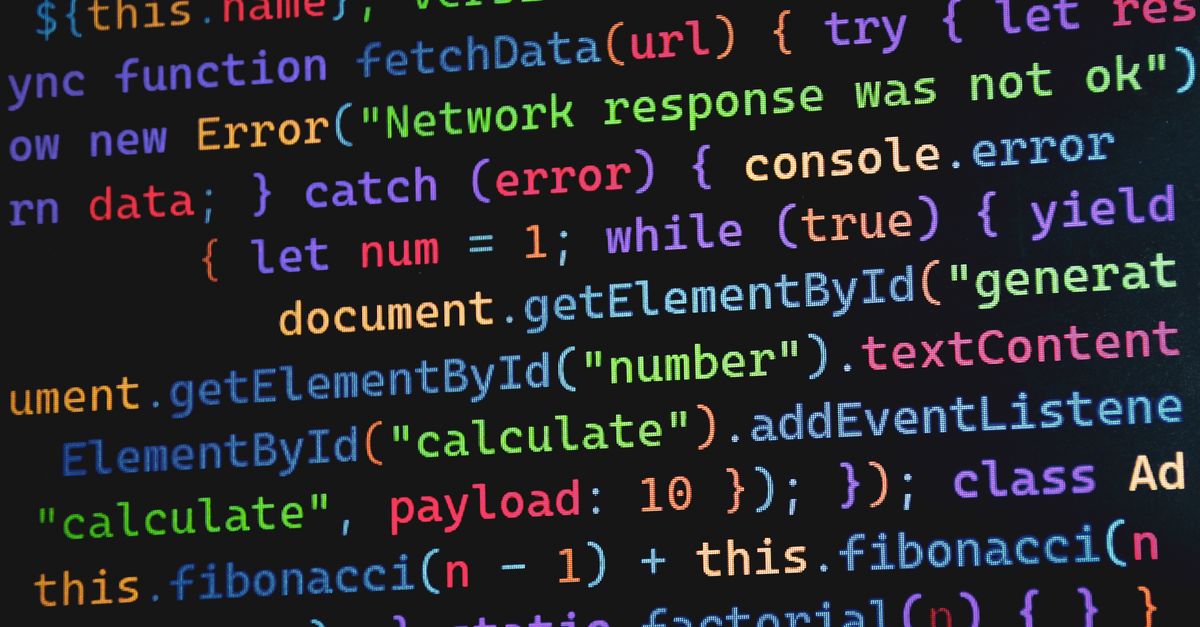
The output of a code screenshot generator is a single raster PNG whose width and height are calculated from the input text, the chosen font size, and the chosen padding. Because the file is exported from a natural-size offscreen Canvas rather than from the CSS-scaled on-screen preview, the download is not silently downsampled to fit the page. Each preserved logical line becomes one row of glyphs, including empty lines and the row implied by a trailing line break, drawn left-aligned from the same padding offset with a top baseline. Light mode paints a pale background with dark foreground glyphs; dark mode paints a dark background with light foreground glyphs. One foreground color is used everywhere, which means there is no language-aware token coloring, no keyword highlighting, and no themed window chrome — the result is a deliberately minimal screenshot rather than a Carbon-style poster.
The font stack is local monospace: ui-monospace, SFMono-Regular, Menlo, Consolas, and a generic monospace fallback. The browser resolves this stack from whatever is installed on the machine, so the same snippet rendered on macOS, Windows, and Linux can produce subtly different rasterized glyph edges and emoji widths. The page measures every complete line after the font is set, takes the largest finite measured width, rounds the content extent upward, and adds padding on both sides, which matches the behavior described in the MDN reference for measureText. Within a single browser and font environment, the dimensions are stable for the same input and options.
Make a code screenshot PNG from pasted text
The whole workflow fits in the current tab. To turn a code snippet into a clean PNG with Code to Image Generator, follow the steps below.
- Paste the complete inert code text into the editor, staying within the 50,000 UTF-16 code unit total, the 200 logical line maximum, and the 2,000 code unit per-line limit.
- Choose a light or dark theme, a font size from 12 through 32 pixels, and padding from 16 through 96 pixels, then trigger generation of the bounded natural-size PNG.
- Wait for the asynchronous PNG encoding to finish; the generate button stays disabled only while the active toBlob callback is pending, and editing any input cancels the prior job.
- Check the preview, the actual Canvas dimensions reported in the result summary, the logical line count, and the size of the PNG before downloading.
- Download the file as code-image.png, which is exported from the natural-size offscreen Canvas rather than from the CSS-scaled preview, so the saved file is never silently resized to fit the page.
Light and dark theme at a glance
The two available themes affect only the opaque background, the single foreground color used for glyphs, and the surrounding padding band. There is no third "auto" mode and no custom hex picker, which keeps the visual contract predictable across machines and avoids the contrast pitfalls of an unbounded color picker.
| Aspect | Light theme | Dark theme |
|---|---|---|
| Background | Pale, opaque, painted across the full Canvas before any text | Dark, opaque, painted across the full Canvas before any text |
| Foreground | Dark, single color used for every glyph | Light, single color used for every glyph |
| Typical use | Printed handouts, light-mode blogs, screenshots embedded in white-paper PDFs | Social posts, dark-mode documentation sites, terminal-style illustrations |
| Readable on | Light and neutral page backgrounds | Dark and neutral page backgrounds |
| Affected by font size | Yes — larger font expands both width and height proportionally | Yes — larger font expands both width and height proportionally |
Hard limits that protect the tab
Before allocating a large Canvas, the generator validates the input against fixed budgets. Anything that exceeds a budget is rejected with an explicit error instead of being clamped, truncated, or rendered at lower resolution. The relevant caps are listed below.
| Budget | Accepted value | What happens at the next unit |
|---|---|---|
| Total input size | Up to 50,000 UTF-16 code units | Rejected with an explicit error, no partial image |
| Logical line count | Up to 200 lines (LF, CRLF, and CR recognized) | Rejected with an explicit error, no partial image |
| Longest single line | Up to 2,000 code units | Rejected with an explicit error, no partial image |
| Canvas width and height | Up to 8,192 pixels each | Rejected before allocation |
| Canvas total area | Up to 32,000,000 pixels | Rejected before allocation |
| Final PNG size | Up to 20 MiB | Rejected as an invalid PNG output |
Disallowed control characters and unpaired Unicode surrogates in the pasted text are also rejected with an explicit error instead of being silently dropped or replaced, so the rendered row count always matches what was typed. Empty lines and a final trailing line break remain represented as image rows so vertical alignment never drifts from the source, and tabs and printable Unicode pass through to the Canvas text renderer unchanged.
How output dimensions are computed
The Canvas dimensions are deterministic for a given font environment. Line height is the ceiling of one and one-half times the font size, the complete logical line count includes blank rows and the row produced by a trailing newline, and the total height adds padding above and below the text band. Width is the largest finite measured width across all preserved lines, rounded upward, plus padding on both sides.
Worked example: with font size 16 and padding 32, a snippet of 5 lines whose longest line measures 480 pixels after the font is set produces the following natural-size Canvas.
- Line height = ceil(16 × 1.5) = 24 pixels
- Height = 24 × 5 + 2 × 32 = 120 + 64 = 184 pixels
- Width = ceil(480) + 2 × 32 = 480 + 64 = 544 pixels
After the Canvas is resized, the drawing context is reacquired because resizing resets Canvas state, and the font, baseline, alignment, direction, background, and foreground are explicitly reapplied before any fillText call. Each line is then drawn left-aligned from the same padding position, the entire Canvas is painted with the selected opaque background, and the bitmap is encoded as image/png. The result summary reports the dimensions actually assigned to the output Canvas, so the download always matches the numbers displayed.
Why local rendering matters for code
Code often contains strings that look executable: HTML tags, script-shaped snippets, event-handler text, template expressions, quotes, ampersands, and angle brackets. In this workflow those characters are treated as inert glyphs and handed to the Canvas text renderer. They are never assigned to innerHTML, never inserted as DOM markup, and never passed to a parser, compiler, sandbox, or syntax highlighter, which removes the usual XSS and execution surface that comes with rendering user-supplied markup. The Canvas has no cross-origin image source, so it is not tainted through this workflow, and every step from measurement to download happens in the active page.
That local posture also has a privacy consequence: the source text is kept only in the active React state for the current page and is never sent to a remote renderer, so confidential snippets, internal function names, and pre-release endpoints stay inside the tab. The exported PNG stores rendered pixels rather than editable source text, syntax structure, font files, or execution results, which means reviewers should still scrub credentials, tokens, private URLs, and personal information before sharing the image publicly, and keep the original text whenever editability, exact character recovery, or accessibility matters.
When a code screenshot is the right output
A screenshot-style PNG is the right output when the goal is compact visual sharing rather than machine-readable fidelity. Common fits include issue reports where a reviewer needs to see the snippet exactly as the author pasted it, blog posts and documentation pages that need a fixed visual block that matches the site's theme, teaching slides that show a short program alongside a diagram, and social posts where syntax coloring would be lost anyway. The same tool works well for terminal commands, configuration snippets, query strings, and JSON excerpts where readability matters more than editability.
A screenshot is the wrong output when the receiver needs to copy, search, version, or run the snippet, or when accessibility tooling must read the source. In those cases the PNG acts only as a visual companion, and the original text should be kept alongside it. For machine-readable formatting of structured text, dedicated formatters and minifiers are the appropriate companion tools: JSON Formatter for pretty-printing and validating JSON, the HTML, CSS, and JavaScript formatters for their respective languages, and the diff checker when comparing two versions of the same snippet before turning the chosen one into an image. For a deeper walkthrough of the local-only posture and what "everything stays in the browser" actually means in practice, the guide on generating code images from text locally covers the same workflow with extra context on state, invalidation, and download handling.