When you convert RGB to CMYK, bright saturated screen colors lose vibrancy, shift toward darker or duller tones, and may clip outside the printable gamut entirely — a conversion that almost never round-trips to the same RGB values you started with. RGB is an additive, light-based space built from red, green, and blue channels; CMYK is a subtractive, ink-based space built from cyan, magenta, yellow, and black pigments on paper. Because the typical CMYK gamut is physically smaller than the sRGB gamut most monitors display, vivid blues, fluorescent greens, and pure magentas on your screen either get remapped to the nearest printable color or pushed toward neutral grays. The shift happens whether you convert in Photoshop, Illustrator, a browser tool, or on the press itself; the only difference is which gamut is used and how out-of-gamut colors are resolved. Understanding what changes, and what stays the same, is the first step in choosing a conversion method that matches your actual goal, whether that is a screen mockup, a rough palette comparison, or a contracted print color.
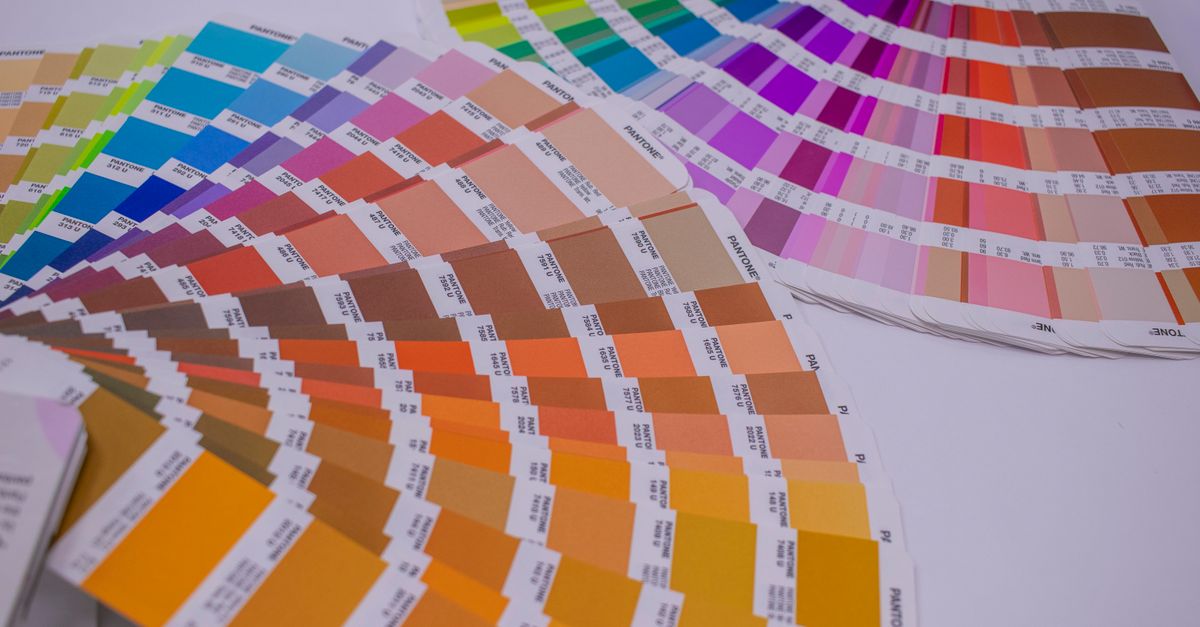
Why RGB to CMYK Changes Your Colors
RGB describes emitted color: each channel adds brightness, so the maximum value of 255 in every channel is white light and the minimum of 0 in every channel is no light, hence black. CMYK describes reflected color: each ink absorbs parts of the light that hits the paper, so zero ink leaves the substrate white and full ink plus black leaves it black. The two spaces describe color in different physical domains, and the inks physically cannot reproduce every light-based hue a monitor emits. A bright monitor blue at (0, 120, 255), for instance, sits well outside the typical coated-paper CMYK gamut and has to be remapped to a darker, less saturated navy. The conversion is also directionally lossy at the print stage — once a designer commits to CMYK, the original vivid RGB value is gone, and converting back to RGB cannot resurrect it.
Three things typically happen to individual pixels during an RGB to CMYK pass:
- Gamut clipping. Saturated monitor colors that have no in-gamut CMYK partner are pushed to the gamut edge, which usually means less chroma.
- Hue drift. Bright blues drift toward purple, bright greens shift toward olive, and pure reds flatten toward warm browns when their luminance is preserved.
- K (black) generation. Most CMYK engines replace equal amounts of cyan, magenta, and yellow with black ink (UCR or GCR) to improve drying, registration, and ink coverage, which slightly changes the visible color.
None of these changes is wrong on its own; they are the cost of moving from a light-based to a pigment-based color model. The real question is how to preview them, predict them, and decide whether the loss matters for the deliverable.
How the W3C Naive Formula Defines the Conversion
The simplest mathematical bridge between the two spaces is the W3C device-CMYK fallback published in the CSS Color specification. The formula treats each ink as a percentage from 0 to 100, normalizes it to 0–1, and combines the colored ink with the black ink to derive each of the three RGB channels:
channel = 1 − min(1, ink × (1 − k) + k), scaled to 0–255 with half-even tie rounding.
The W3C naive recipe predicts familiar endpoints exactly. White (0, 0, 0, 0%) maps to RGB (255, 255, 255) because every channel resolves to 1. Full K (0, 0, 0, 100%) maps to RGB (0, 0, 0) because every channel resolves to 0. And full magenta plus full yellow with no cyan and no black — (0, 100, 100, 0%) — resolves to RGB (255, 0, 0) because magenta knocks the green channel to 0 and yellow knocks the blue channel to 0, leaving only red. You can reproduce that example by hand: with k = 0, the formula collapses to 1 − ink, so the cyan ink at 0 leaves red at 1 (255), magenta at 1 leaves green at 0, and yellow at 1 leaves blue at 0, for a final RGB of (255, 0, 0) or hex #FF0000.
The same formula is the engine behind any browser-based naive preview, including the CMYK To RGB tool. It is fast, deterministic, and useful for getting a rough sense of an uncalibrated color mix on an sRGB monitor. It is, however, deliberately naive: it ignores the press, the ink set, the paper, dot gain, rendering intent, and the embedded ICC profile, all of which can materially change a real printed result.
Preview CMYK Recipes With the CMYK To RGB Tool
For a quick, no-install preview of how an uncalibrated CMYK recipe might appear on a typical sRGB display, the CMYK To RGB converter runs the W3C naive recipe in your browser and immediately shows the resulting 8-bit RGB channels, a six-digit hexadecimal value, and a live swatch. The whole calculation stays local; no values are uploaded.
- Set cyan, magenta, yellow, and black to percentages from 0 through 100 using the four sliders.
- Read the approximate 8-bit red, green, and blue channels, the hexadecimal value, and the live swatch that updates with each change.
- Use the displayed RGB or hex code in a screen mockup or palette swatch, or use an ICC-profile-aware application instead when print accuracy matters.
This three-step loop is designed for a particular class of job: rough interface mockups, palette comparisons, sanity checks on a brand color recipe, and quick "what would this look like on my monitor?" questions. It is not designed for press proofs, contract color targets, or any deliverable that has to match a specific printed output.
Browser Preview vs Profile-Aware Software
The naive browser preview and a profile-aware desktop workflow answer different questions. Both can be the correct choice, depending on whether the goal is screen approximation or print accuracy. The table below summarizes the practical differences:
| Aspect | Browser naive preview (CMYK To RGB) | ICC-profile-aware application |
|---|---|---|
| Gamut source | Mathematical W3C fallback — no physical gamut | Source and destination ICC profiles (printer, ink, paper) |
| Rendering intent | Implicit (formula only) | Selectable (perceptual, relative, absolute, saturation) |
| Typical use | Screen mockups, palette checks, sketches | Press proofs, brand color, calibrated displays |
| Speed and cost | Instant, free, runs locally | Requires licensed app, color profile, calibrated monitor |
| Determinism | Same recipe always yields the same RGB and hex | Same recipe can differ across profiles and intents |
| Appropriate for print contracts | No | Yes |
The two approaches are complementary rather than competitive. A designer often previews a recipe in a browser to compare it with brand colors quickly, and only escalates to a profile-aware application when the recipe has to be sent to a printer.
When a Naive Preview Is Enough
The browser-based naive preview is the right tool for any task where the question is "how will this uncalibrated CMYK recipe read on a typical sRGB monitor?" That covers interface design mockups that need a placeholder color, palette comparisons between a printed piece and a digital piece, sanity checks on whether two recipes are obviously close or obviously different, and educational or training material that needs to illustrate the qualitative effect of RGB↔CMYK conversion. For a print deliverable, the naive preview is a starting point, not a target. A designer can copy four percentages from an unprofiled recipe, move the sliders to those numbers, and reuse the resulting RGB or hex in a screen mockup without uploading anything or installing software.
The tool is also useful in the other direction. If you have a hex code from a brand palette and want to see which CMYK recipe might produce something near it on an uncalibrated press, the naive recipe is the same formula run in reverse, and any companion tool such as RGB to CMYK Converter applies the inverse math. Pairing both directions lets a designer sketch a printable recipe and a screen approximation side by side without leaving the browser.
When You Need a Calibrated Workflow
Move to ICC-profile-aware software, a calibrated monitor, and physical proofs whenever the printed color has to match a contract, a brand spec, or a previous press run. Real CMYK is device-dependent: the press, ink set, paper stock, dot gain, rendering intent, and embedded ICC profile all materially change the printed appearance, and the W3C naive formula does not model any of them. A naive preview can look plausible on screen while diverging from the actual print by a perceptible amount, especially in saturated reds, blues, and greens that sit near the edge of the printable gamut.
The practical workflow for an experienced print designer is straightforward. Keep the original CMYK values, ask the printer for the correct output profile (often a GRACoL, SWOP, or FOGRA profile depending on region and stock), open the file in profile-aware software, and run a soft proof on a calibrated monitor before approving a physical proof. Tools like Adobe Acrobat, Illustrator, and Photoshop support this workflow end to end. For a quick educational preview, the CMYK To RGB tool is enough; for a contracted print run, it is not. Recognizing where the line falls is the single most useful thing about understanding what happens when you convert RGB to CMYK.
For more worked examples of how different recipes read on screen, the CMYK to RGB examples guide walks through several common ink combinations and shows the resulting swatches, channels, and hex values side by side.
Related reading: RGB to CMYK Formula: From Browser to Print Handoff.