A CMYK to RGB conversion gives you an immediate, uncalibrated preview of how print inks might appear on a standard sRGB-style screen. The CMYK To RGB tool lets you enter cyan, magenta, yellow, and black percentages (0–100) and instantly see the approximate red, green, and blue channels, a six-digit hexadecimal value, and a live color swatch. This is useful when you need a quick visual reference for how a CMYK recipe—like C:30 M:80 Y:0 K:10—might translate to screen colors for a website mockup, digital presentation, or interface design. The tool follows the W3C naive device-CMYK fallback published in the CSS Color Module Level 4, which combines each ink with black, inverts the result, scales it to the 0–255 display range, and rounds to the nearest integer. For example, full magenta (M:100) and yellow (Y:100) with no cyan or black produces a bright red (R:255 G:0 B:0) on screen, matching familiar endpoint behavior. However, this is not a press-accurate conversion. Real CMYK colors depend on the specific press, ink set, paper stock, dot gain, rendering intent, and embedded ICC profile. Professional design applications like Photoshop or Illustrator use these profiles to convert between CMYK and RGB with calibrated displays and physical proofs. This browser tool does not load an ICC profile and should never be used for contractual color targets or final print production. Instead, use it to quickly check how an uncalibrated CMYK recipe might look on screen, copy the RGB or hex value for a mockup, and then return to your original CMYK values for print work.
Why CMYK and RGB Are Different Color Spaces
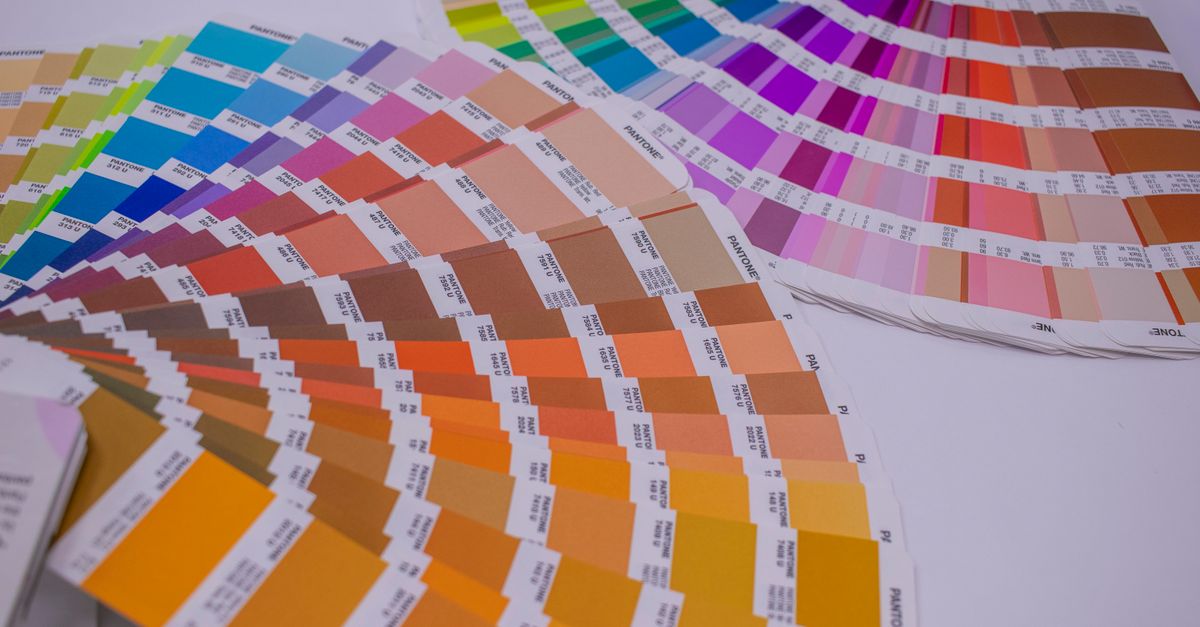
CMYK and RGB serve different purposes in design and production, and their color gamuts rarely overlap perfectly. CMYK (Cyan, Magenta, Yellow, Key/Black) is a subtractive color model used in print. It works by absorbing light: when white light hits ink on paper, the ink absorbs some wavelengths and reflects others. For example, yellow ink absorbs blue light and reflects red and green, which combine to appear yellow to the eye. RGB (Red, Green, Blue) is an additive color model used for screens. It creates color by emitting light: combining red, green, and blue light at full intensity produces white, while the absence of light produces black. Because CMYK relies on ink and paper properties, its gamut is smaller than RGB, especially in bright greens, blues, and purples. This means some RGB colors cannot be reproduced in print, and some CMYK colors may appear duller or shifted when converted to RGB. The CMYK To RGB tool helps bridge this gap for quick previews, but it cannot replicate the exact printed result due to these inherent differences.
How to Convert CMYK to RGB in Your Browser
- Open the CMYK To RGB tool in your browser. No installation or signup is required.
- Set the cyan percentage using the slider or input field. Values range from 0 to 100.
- Repeat for magenta, yellow, and black percentages. The tool updates the RGB channels, hex value, and swatch instantly as you adjust each slider.
- Read the approximate RGB values (0–255) displayed below the sliders. These represent the red, green, and blue channels of the screen color.
- Note the six-digit hexadecimal value (e.g., #ff0000 for red). This is the CSS-compatible code for the screen color.
- Use the visual swatch to compare the screen approximation with your original CMYK recipe. The swatch updates in real time as you change the percentages.
- Copy the RGB or hex value for use in screen mockups, digital presentations, or interface design. For example, paste the hex code into a CSS file or design software like Figma or Sketch.
- If you need print-accurate results, return to your original CMYK values and use profile-aware software like Photoshop or Illustrator with the correct output profile. Ask your printer for the recommended ICC profile and rendering intent.
When to Use This Tool vs. Professional Software
The CMYK To RGB tool is designed for quick, uncalibrated previews, not for print production. Use it when you need to:
- Check how an uncalibrated CMYK recipe might look on a screen for a digital mockup or presentation.
- Copy RGB or hex values for interface design, web development, or screen-based projects.
- Compare multiple CMYK recipes side by side to see which one translates better to screen colors.
- Teach or demonstrate the basic relationship between CMYK and RGB color spaces.
Do not use this tool when:
- You need a press-accurate proof for a print project. Always use profile-aware software with the correct ICC profile and a calibrated display.
- Your project requires contractual color targets, such as brand guidelines or client-approved proofs.
- You are working with spot colors, Pantone values, or specialty inks that cannot be represented in standard CMYK.
- You need to convert images or complex artwork, as the tool only handles single color values.
For print production, use professional applications like Adobe Photoshop, Illustrator, or InDesign. These tools allow you to embed ICC profiles, adjust rendering intents, and soft-proof your work to simulate how it will appear when printed. Always ask your printer for the correct output profile and follow their guidelines for color accuracy.
Common CMYK to RGB Examples
The table below shows how common CMYK recipes translate to approximate RGB and hex values using the CMYK To RGB tool. These examples demonstrate the naive W3C fallback conversion and are not press-accurate. Use them as a rough guide for screen previews only.
| CMYK Recipe | Approximate RGB | Hex Value | Description |
|---|---|---|---|
| C:0 M:0 Y:0 K:0 | R:255 G:255 B:255 | #ffffff | No ink produces white on screen. |
| C:0 M:0 Y:0 K:100 | R:0 G:0 B:0 | #000000 | Full black ink produces black on screen. |
| C:0 M:100 Y:100 K:0 | R:255 G:0 B:0 | #ff0000 | Full magenta and yellow produce red. |
| C:100 M:0 Y:100 K:0 | R:0 G:255 B:0 | #00ff00 | Full cyan and yellow produce green. |
| C:100 M:100 Y:0 K:0 | R:0 G:0 B:255 | #0000ff | Full cyan and magenta produce blue. |
| C:0 M:0 Y:100 K:0 | R:255 G:255 B:0 | #ffff00 | Full yellow produces yellow. |
| C:0 M:100 Y:0 K:0 | R:255 G:0 B:255 | #ff00ff | Full magenta produces magenta. |
| C:100 M:0 Y:0 K:0 | R:0 G:255 B:255 | #00ffff | Full cyan produces cyan. |
| C:0 M:50 Y:100 K:0 | R:255 G:128 B:0 | #ff8000 | Mixed magenta and yellow produce orange. |
| C:50 M:0 Y:100 K:0 | R:128 G:255 B:0 | #80ff00 | Mixed cyan and yellow produce lime green. |
The examples above follow the W3C naive fallback formula: each display channel is calculated as 1 - min(1, colorInk × (1 - black) + black), scaled to 255, and rounded to the nearest integer. For instance, the CMYK recipe C:30 M:80 Y:0 K:10 converts to RGB as follows:
- Normalize percentages: C=0.30, M=0.80, Y=0.00, K=0.10.
- Calculate each channel:
- Red: 1 - min(1, 0.30 × (1 - 0.10) + 0.10) = 1 - min(1, 0.37) = 0.63 → 0.63 × 255 ≈ 161.
- Green: 1 - min(1, 0.80 × (1 - 0.10) + 0.10) = 1 - min(1, 0.82) = 0.18 → 0.18 × 255 ≈ 46.
- Blue: 1 - min(1, 0.00 × (1 - 0.10) + 0.10) = 1 - 0.10 = 0.90 → 0.90 × 255 ≈ 230.
- Round to nearest integer: R:161 G:46 B:230.
- Hex value: #a12ee6.
This calculation is performed instantly in your browser, with no data sent to a server. The tool includes independent fixtures for primary endpoints, mixed channels, and the W3C firebrick example to ensure consistent behavior. However, remember that this is an approximation. Professional software with ICC profiles may show different RGB values for the same CMYK recipe, depending on the specific color spaces and rendering intents used.
How to Use the RGB or Hex Value in Your Workflow
Once you have the RGB or hex value from the CMYK To RGB tool, you can use it in various screen-based projects. Here’s how to integrate it into common workflows:
- Web Development: Copy the hex value (e.g., #a12ee6) and paste it directly into your CSS file. For example:
.button {
background-color: #a12ee6;
color: #ffffff;
}
If you need the RGB channels, use the comma-separated values (e.g., rgb(161, 46, 230)). For transparency, add an alpha channel (e.g., rgba(161, 46, 230, 0.5)).
- Interface Design: In tools like Figma, Sketch, or Adobe XD, paste the hex value into the color picker to apply the screen approximation to your design elements. This helps you visualize how the CMYK color might appear in a digital interface.
- Digital Presentations: In PowerPoint, Google Slides, or Keynote, use the RGB values to set the fill or text color of shapes and text boxes. This ensures consistency between your screen mockups and presentation materials.
- Accessibility Checks: Use the hex value with the Color Contrast Checker to verify that your text meets WCAG AA or AAA contrast ratios against a background color. This is especially important for ensuring readability in digital designs.
- Color Palettes: Combine the hex value with other colors using the Color Palette Generator to create harmonious schemes for your project. The generator provides complementary, analogous, triadic, and other palette options based on your base color.
After using the RGB or hex value for screen work, always return to your original CMYK values for print production. Keep the CMYK recipe in your design files and use profile-aware software to convert it to the correct output profile for printing. This ensures that your final printed materials match the intended colors, even if the screen preview was only an approximation.
For a deeper look, see CSS Code to CMYK Chart: Map Every Named Color.
For a deeper look, see RGB to CMYK in Photoshop: Faster Than Color Mode.