Converting RGB to CMYK without Photoshop is just math: the browser-based RGB to CMYK Converter takes an RGB value with each channel from 0 to 255, computes the equivalent CMYK percentages using the standard naive formula where K = 1 − max(R', G', B') and C, M, Y are derived from what remains after subtracting that black component, and shows the result instantly. No Adobe subscription is required, no menu navigation through Image > Mode, and no file upload. Everything runs locally in your browser, which means your color values never leave the device — useful when you're working with brand colors or unreleased client work that shouldn't hit a third-party server. The same tool converts in the other direction too, taking CMYK percentages from 0 to 100 and producing the matching RGB triplet, with a HEX value and a live swatch so you can confirm visually that you have the right color before pasting it into a document.
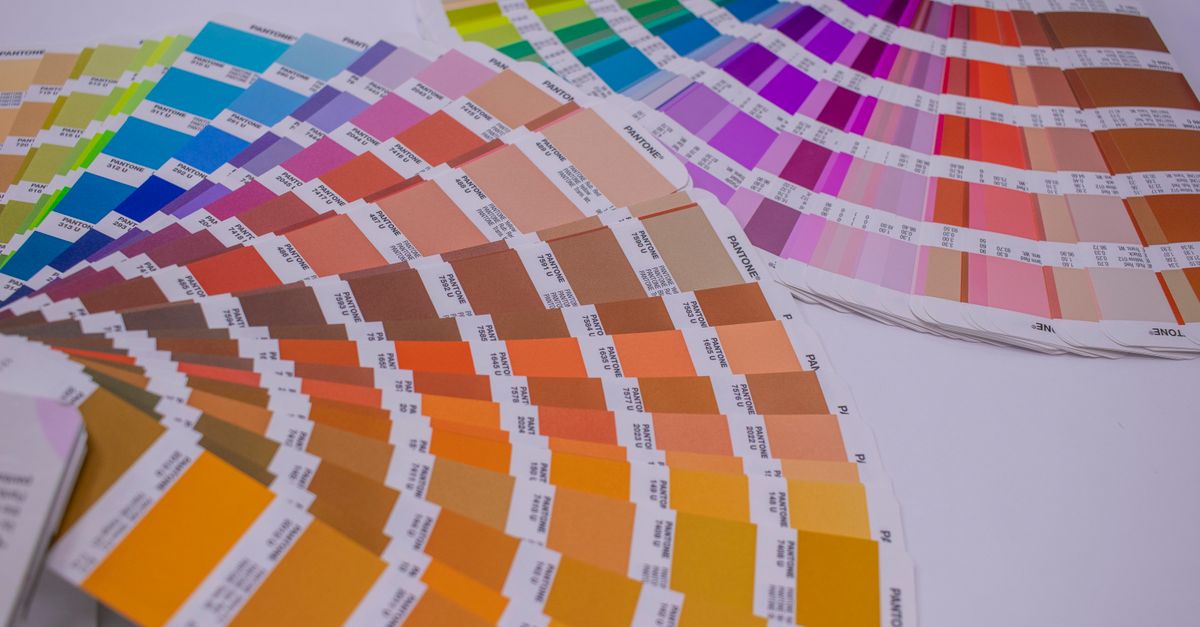
How RGB and CMYK Produce Color Differently
RGB and CMYK aren't interchangeable because they describe color with opposite physics. RGB is additive: red, green, and blue light combine, and maximum intensity on all three channels gives pure white — that's how every monitor, phone, and camera displays color. CMYK is subtractive: cyan, magenta, yellow, and a black "key" (K) plate are inks laid onto white paper, and layering them absorbs light until the result trends toward black.
| Property | RGB | CMYK |
|---|---|---|
| Color model | Additive (light) | Subtractive (ink) |
| Channels | R, G, B (0–255) | C, M, Y, K (0–100%) |
| Common uses | Monitors, phones, web | Print, packaging, press |
| How white is produced | All three channels at 255 | All four channels at 0 |
| How black is produced | All three channels at 0 | K at 100% (or near it) |
| Gamut vs the other model | Wider, brighter overall | Narrower, especially in bright greens and blues |
That inversion is why a glowing, electric blue you set in RGB often prints as a noticeably duller blue on a flyer. The two models cover different portions of the visible color space, and the printed result is always the smaller of the two. Adding a dedicated K channel isn't a quirk either — printing rich black from cyan, magenta, and yellow alone wastes ink, over-saturates the paper, and rarely looks truly neutral. A separate black plate produces crisper type, lower ink cost, and faster drying, which is why K is broken out as its own channel in every CMYK file you'll ever send to a printer.
What the RGB to CMYK Converter Does
The RGB to CMYK Converter handles both directions of the model swap in a single page. Type an RGB triplet (0–255 per channel) and it returns the matching C, M, Y, K percentages for printing. Type those percentages back (0–100) and it returns the equivalent RGB, plus the standard HEX form. There's also a live color swatch next to the inputs, so you can eyeball whether the displayed color matches the one in your file before you commit.
Three practical details make it a true "no Photoshop" workflow. First, it runs entirely in the browser, so there's nothing to install and nothing gets uploaded — your color values stay on the device. Second, it handles out-of-range inputs gracefully by clamping them, so a stray 280 in a channel won't break the math or produce a nonsense percentage. Third, pure black (R = G = B = 0) is treated as a special case: K = 100% and the other three channels drop to 0, matching how real print drivers handle a true black instead of mixing it from the other inks.
How to Convert RGB to CMYK Without Photoshop
Use this when you have a color expressed in RGB — typically a brand color from a website or a screen reference — and need the equivalent CMYK values for a print file.
- Enter your color as RGB, with each channel between 0 and 255. The page returns the matching CMYK percentages immediately. You can also enter C, M, Y, K percentages from 0 to 100 to get the equivalent RGB back.
- Read the CMYK, RGB, and HEX values displayed side by side, and check the live swatch preview to confirm the color is the one you intended before you paste it anywhere.
- Click Copy next to the format you need — CMYK for the printer, RGB or HEX for design tools — and paste the value directly into your file.
That's the whole workflow. If you're working on a flyer, business card, poster, or packaging mockup, the values you grab here can be dropped into Adobe InDesign, Affinity Publisher, Canva's print export panel, or any other tool that accepts CMYK swatches.
Worked Example: Turning a Bright Red Into CMYK
To make the math concrete, here is the conversion of a single RGB value by hand using the same naive formula the page applies. Take a saturated red: R = 255, G = 87, B = 51 — a color close to a common brand red.
Step one, scale each channel to a 0–1 value. R' = 255 / 255 = 1.000. G' = 87 / 255 ≈ 0.341. B' = 51 / 255 ≈ 0.200.
Step two, calculate K. K = 1 − max(R', G', B') = 1 − 1.000 = 0.000, so no black ink is needed for this color.
Step three, derive C, M, Y from the remaining color. C = (1 − R' − K) / (1 − K) = (1 − 1.000 − 0) / (1 − 0) = 0.000. M = (1 − G' − K) / (1 − K) = (1 − 0.341 − 0) / 1 ≈ 0.659. Y = (1 − B' − K) / (1 − K) = (1 − 0.200 − 0) / 1 ≈ 0.800.
Step four, convert to percentages. The result is C 0%, M 66%, Y 80%, K 0%. Drop those numbers into the RGB to CMYK Converter and the page returns the same percentages, alongside HEX #FF5733 for any web or screen reference that uses hex codes instead of RGB.
When the Numbers Will Differ From Real Print Output
This converter is a quick, mathematically correct starting point, and it is not ICC color management. Real press output depends on a specific CMYK profile — US Web Coated SWOP, FOGRA39, Japan Color, GRACoL — that accounts for the exact inks, paper stock, and dot gain of the press being used. A print shop converting through its house profile will often produce slightly different percentages, especially in the deep shadows and saturated highlights where the naive formula and a real profile disagree most.
Gamut is the bigger reason screen and print differ. CMYK inks physically cannot reproduce neon greens, electric blues, or very bright oranges; those colors live outside the printable space. When you feed an out-of-gamut RGB into the tool, the result is an approximation, not the screen color you started with. If your brand relies on a vivid screen color, the realistic options are to negotiate a custom Pantone ink or to accept a softer print rendition — and the converter makes that trade-off visible by giving both ends of the conversion in one click.
Practical Uses for a Quick RGB↔CMYK Conversion
The most common reason to skip Photoshop is speed. You're finishing a flyer five minutes before sending it to print, you're checking whether the bright blue on the homepage will survive being printed on business cards, or you simply want to know what a HEX value looks like in CMYK terms. The RGB to CMYK Converter covers all three: paste an RGB triplet or CMYK percentages and read the matching values, paste a CMYK spec from a printer and read the approximate RGB, and use the swatch as a sanity check against whatever color picker your design tool shows.
It's also a useful teaching tool. Running an RGB value through and looking at the percentages makes the structure of CMYK click — the K channel's role, why a near-white in RGB is a tiny dot of ink in CMYK, and why mid-gray in CMYK uses all four channels rather than just K alone. Once the relationship is intuitive, the numbers stop feeling arbitrary and start reading like a language you actually understand.
Related reading: RGB to HEX Chart: Reference Values and How to Convert.
Related reading: CMYK to RGB for Web Design: A Screen Preview Workflow.