Converting RGB to CMYK means turning a color expressed as red, green, and blue light values (each between 0 and 255) into the same color expressed as four ink percentages: cyan, magenta, yellow, and black key (each between 0% and 100%). The conversion matters because RGB is the additive model your screen uses to make color from light, while CMYK is the subtractive model your printer uses to make color from ink on paper, and those two systems describe overlapping but different ranges of color. A practical, beginner-friendly way to do it is to type your RGB numbers into a free in-browser tool such as the RGB to CMYK Converter, which returns CMYK percentages, the original RGB, the matching HEX, and a live swatch so you can confirm the color visually before copying anything into your design or print file. The math behind the conversion is the standard naive formula: each RGB channel is divided by 255 to land in a 0–1 range, K (black) is set to 1 minus the largest of those three values, and C, M, and Y are what's left of the channels after that black component is removed, with pure black handled as a special case where K is 100% and the other three channels are 0.
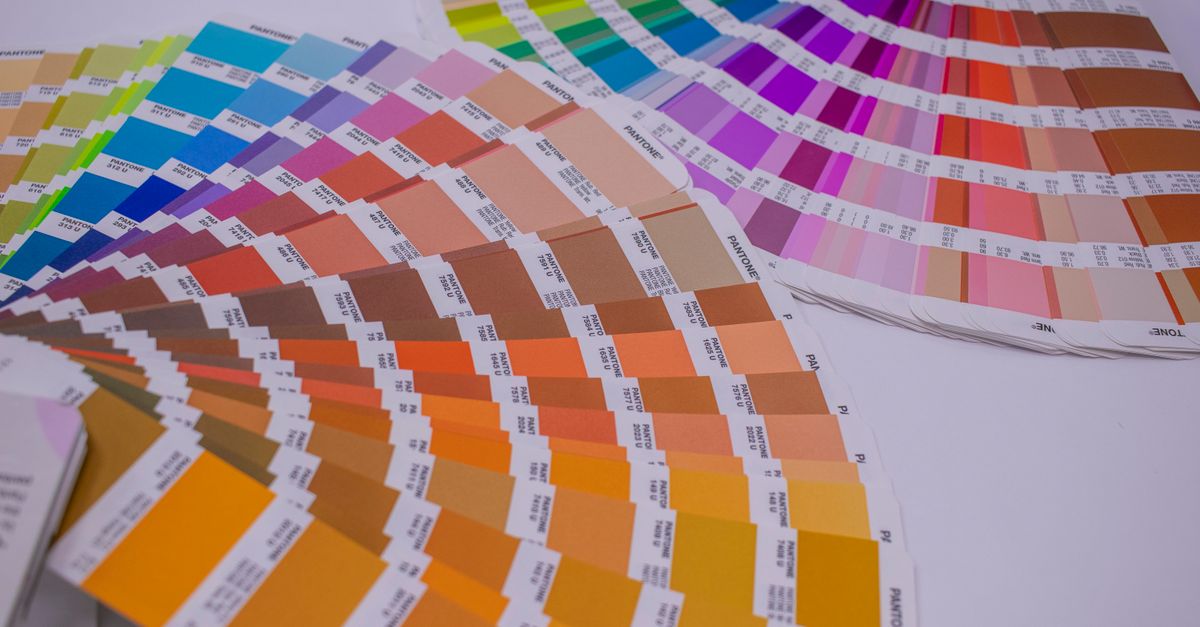
RGB and CMYK, Explained in Plain English
RGB is an additive color model. Red, green, and blue light add together, and when all three are at full intensity the result is white. Monitors, phones, TVs, and camera sensors all build color this way by emitting light. In RGB, every channel is just an integer from 0 to 255, which makes the model easy to read and easy to store: white is (255, 255, 255), black is (0, 0, 0), and pure red is (255, 0, 0).
CMYK is a subtractive color model. Cyan, magenta, yellow, and a separate black plate (the "K") are inks that sit on paper and absorb certain wavelengths of light. With no ink at all, the paper reflects almost everything and looks white; with cyan, magenta, and yellow stacked at full coverage, very little light is reflected and the page looks dark. CMYK values are usually written as four percentages from 0% to 100%.
The two systems are not interchangeable. RGB describes what a light source can produce, while CMYK describes what ink can subtract from white paper. That gap between them is the reason the same color often looks brighter on your screen than on a printed flyer.
Why Bright Screen Colors Look Muted in Print
The range of colors a system can produce is called its gamut. RGB, especially in the sRGB space that almost every consumer screen uses, has a wide, vivid gamut: electric blues, neon greens, and bright oranges are all reachable. CMYK has a smaller gamut. Ink on paper can't reproduce those intense screen colors exactly, so when an RGB value falls outside CMYK's range, the printer approximates it, usually by lowering saturation and shifting the hue toward what's physically possible with ink. That is the actual reason vivid screen colors can look duller in print, and it has nothing to do with a conversion bug.
There's another practical issue worth knowing about as a beginner. CMYK has four channels, not three, because of black. In theory, layering cyan, magenta, and yellow at full strength should make black. In practice it makes a muddy brown that wastes ink, over-saturates the paper, takes longer to dry, and never looks truly black. A dedicated black plate produces cleaner text, sharper edges, and lower ink cost, which is why K is broken out as its own channel instead of being made by mixing the other three.
The Naive RGB to CMYK Formula
The simplest, most widely taught conversion between these two models is the naive formula. It's the math behind every quick RGB to CMYK calculator you find online, and a beginner can follow it with just basic arithmetic.
First, scale each RGB channel from 0–255 down to 0–1 by dividing by 255. So R' = R ÷ 255, G' = G ÷ 255, B' = B ÷ 255.
Then compute the black key: K = 1 − max(R', G', B'). The largest of the three channels becomes the baseline for how much black the print needs.
Finally, derive the three colored inks. If K is 1 (which only happens when R', G', and B' are all 0, meaning pure black), then C = M = Y = 0. Otherwise:
C = (1 − R' − K) ÷ (1 − K)M = (1 − G' − K) ÷ (1 − K)Y = (1 − B' − K) ÷ (1 − K)
Each result is then multiplied by 100 and written as a percentage.
A worked example: take pure red, RGB(255, 0, 0). R' = 255 ÷ 255 = 1, G' = 0, B' = 0. The largest channel is 1, so K = 1 − 1 = 0. Then C = (1 − 1 − 0) ÷ (1 − 0) = 0, M = (1 − 0 − 0) ÷ (1 − 0) = 1, Y = (1 − 0 − 0) ÷ (1 − 0) = 1. Multiplied by 100 and rounded, the naive answer is C = 0%, M = 100%, Y = 100%, K = 0%. For a more detailed treatment of the math and where the formula breaks down, the RGB CMYK formula and limits guide walks through the same arithmetic with extra edge cases.
How to Convert a Color in Your Browser
Doing the conversion by hand for one color is fine. Doing it for every brand color in a flyer is tedious, which is why a browser-based tool is the practical choice for most beginners. The RGB to CMYK Converter runs the naive formula locally in your browser and shows the result in three formats at once.
- Open the RGB to CMYK Converter in any modern browser. No login, no upload; the page does its work locally.
- Type your color as RGB by entering three numbers between 0 and 255, one per channel. As soon as all three fields are valid, the CMYK row updates with four percentages between 0% and 100%.
- Or flip the direction: enter CMYK percentages (0–100 each) and the RGB row fills in with the matching channel values, plus the HEX equivalent.
- Look at the live color swatch. It's the single fastest way to confirm you typed the right color, and if the swatch doesn't match what you expected, retype before copying.
- Read all three output formats side by side: the RGB values, the CMYK percentages, and the HEX code are all shown together, so you can grab whichever one your design file needs.
- Click Copy next to whichever format you need. The value lands on your clipboard ready to paste into Illustrator, InDesign, Canva, or a print-ready PDF.
A small detail beginners appreciate: out-of-range inputs are clamped, so accidentally typing 280 for a red channel will not break the result. The tool quietly limits it to 255 and keeps working.
Reading the Result Like a Designer
Once you have a CMYK percentage back, the numbers mean something specific. C, M, Y, and K are independent ink layers. The percentages tell the press how much of each ink to lay down in that particular area of the page. A higher number means more ink and a darker, more saturated region of color. The four channels are not "how much of each base color is in the final color" the way RGB reads intuitively; they're literally how much of each ink to mix on paper.
Two quick rules of thumb help when you're reading a result for the first time. If K is high, the color is going to read as dark or near-black on paper, no matter what C, M, and Y say. Lower K and let the colors do the work if you want a vibrant result. If C, M, and Y are all high and K is zero, the color is going to look muddy or brownish. That's the "should be black but isn't" zone, and it's almost always worth adding some K instead.
| Property | RGB | CMYK |
|---|---|---|
| Used by | Monitors, phones, cameras, web | Printers, presses, packaging |
| Color logic | Additive (light) | Subtractive (ink on paper) |
| Channel count | 3 (R, G, B) | 4 (C, M, Y, K) |
| Channel range | 0–255 integer | 0%–100% |
| Full intensity of all channels | White | Near-black (with K added) |
| Gamut size | Wider, more vivid | Narrower, more muted |
When You Need More Than a Naive Conversion
The naive formula is honest, predictable, and a great learning tool. It is not, however, what a professional print shop uses for a production job. Real print workflows run RGB through a destination CMYK profile, which is a small file that describes how a specific press, ink set, and paper stock actually reproduce color. Common profiles include US Web Coated SWOP for North American coated paper stock, FOGRA39 for European coated stock, and Japan Color for Japanese production. Each one nudges the percentages slightly to account for the real-world behavior of that press.
What this means for you as a beginner: a naive conversion is the right starting point for understanding the relationship between the two models, for sanity-checking that a logo color won't shift wildly, and for producing a reasonable first CMYK value to send to a printer. For the final production file, trust your printer's profile and ask for a proof. If you need to preview roughly how a CMYK value from a print spec will appear on screen, you can also run it back the other direction through the RGB to CMYK Converter's CMYK-to-RGB mode, which is useful for design reviews even if it isn't press-accurate.
One last thing worth knowing: this kind of conversion does not lose your color or damage your file. The math is reversible, and the tool clamps any input that falls outside the valid range so the result is always usable. The only loss happens when an RGB color falls outside the CMYK gamut, and even then it's the ink, not the calculator, that's the limit.
If you're weighing options, RGB to HEX on iPhone: Convert Colors in Safari covers this in detail.