Discord does not render CSS gradients natively inside chat, roles, or usernames, so to get a color gradient in Discord you generate one in a browser tool, export it as a small PNG or copy the CSS, then upload it to the surface that supports images or custom CSS. The Color Gradient Generator at Color Gradient Generator builds linear and radial gradients visually, lets you set each color stop and the angle, and hands you production-ready CSS or a downloadable swatch in one click.
The common reason someone searches for a Discord gradient is that they have seen servers where nicknames, role banners, embeds, or welcome cards appear to fade from one color to another. Discord's official feature set is limited to a single solid color per role and a single accent color per embed, so the actual gradient work happens outside the app, and the finished asset is imported back in. Once you understand that split, the rest of the process is a short workflow rather than a guessing game.
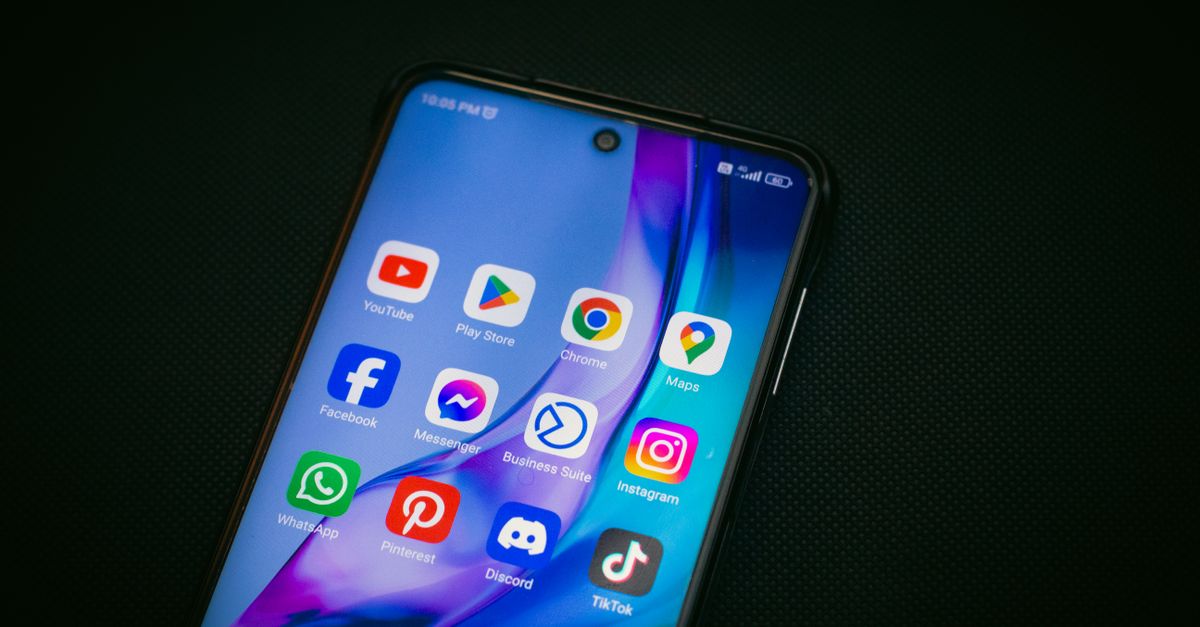
Why Discord Does Not Show Gradients Out of the Box
Roles in Discord are tied to a single 24-bit RGB value, and the client's chat renderer draws role color as flat text styling. Embeds accept one integer color value for the left accent bar, again a single hue. Profile banners, server icons, and welcome screen backgrounds are the only places that accept bitmap images, so a true gradient has to be baked into an image before upload. Bots such as Color-Chan expand on the role system by allowing each member to claim from a list of preset solid colors, which is the closest the platform itself comes to "more than one color on a user." Knowing the limits up front prevents wasted effort on features Discord simply does not expose.
Discord Surface vs Gradient Support at a Glance
| Discord Surface | Accepts an Image? | Accepts CSS? | Solid Color Only? |
|---|---|---|---|
| Role name color | No | No | Yes, single HEX |
| Embed accent bar | No | No | Yes, decimal integer |
| Username mention | No | No | Yes, single HEX |
| Server banner | Yes (JPG, PNG, GIF) | No | No, full image |
| Server icon | Yes (JPG, PNG, GIF) | No | No, full image |
| Welcome screen background | Yes (JPG, PNG) | No | No, full image |
| Custom bot dashboards | Varies | Yes on most | Varies by bot |
Build the Gradient with the Color Gradient Generator
- Open the Color Gradient Generator and choose Linear for a directional fade or Radial for a center-out blend.
- Click the first color stop, enter a HEX such as #5865F2 (Discord's official blurple) using the color picker or by typing the value.
- Add a second stop and pick the end color, for example #EB459E, then drag the position slider to control where the transition happens.
- Add or remove extra stops with the plus and minus buttons if you want a three or four color blend instead of a two color fade.
- For a Linear gradient, set the angle in degrees until the direction matches the surface you are designing for, usually 90 degrees for a left-to-right banner.
- Watch the live preview update as you tweak, then click Copy CSS to grab the background-image declaration, or use the export button to save a PNG image for upload.
The CSS you copy is the same syntax used in any modern browser. For a linear two-stop gradient the result is a single line such as background: linear-gradient(90deg, #5865F2 0%, #EB459E 100%);. Radial gradients follow the same idea but use radial-gradient(circle, color1, color2) under the hood. Because Discord embeds ignore background images, the CSS is mostly useful for documentation, server websites, or bot dashboards that allow custom CSS, while the PNG export is what actually appears inside Discord.
Put the Gradient Into Discord
Once the gradient image is exported, upload it where Discord accepts bitmaps. Server banners, server icons, and welcome screen background images all accept JPG, PNG, and GIF up to Discord's published size limits, and a gradient PNG around 960 by 540 pixels works well for banners. For embeds, take the dominant middle color of your gradient and enter it as the embed color integer, which is just the HEX converted to decimal. For role accents, pick the HEX that reads best on dark chat backgrounds, since most Discord themes sit close to #202225. If you also need a matching palette of solid colors for bot role lists, the Color Palette Generator will give you complementary and analogous swatches derived from the same base.
A Practical Scenario: Branding a Community Server
Picture a gaming community that wants its server banner to fade from Discord blurple into the team's pink accent, with member role names picking up a solid mid-tone of that same blend. The designer opens the gradient tool, sets #5865F2 at 0 percent and #EB459E at 100 percent on a 90 degree angle, eyeballs the preview against the dark theme, and exports a 1920 by 1080 PNG for the banner. They then sample the 50 percent mark of the live preview, copy that HEX, and use it as the member role color so chat text echoes the banner without forcing Discord to render anything it cannot. Welcome cards from a bot pull the same PNG as their background, and event announcements use the decimal integer version of that mid-tone as the embed accent bar. Three formats, one gradient, no client-side trickery.
Match Colors Precisely Across Surfaces
Discord's blurple is officially documented as #5865F2, and its pink accent is #EB459E, so any gradient that aims to look on-brand should anchor at least one stop on those values. When you move between CSS and the Discord color picker, remember that CSS uses six-digit HEX while the embed color field expects a decimal integer. The HEX to RGB Converter gives you the channel values, and the RGB to HEX page goes the other direction. If you need random accent colors for welcome cards or event banners, the Random Color Generator produces HEX, RGB, and HSL in one click, and pairs nicely with the gradient tool when you want a quirky edge stop.
Common Gradient Recipes for Discord Themes
A few blends show up again and again in popular servers because they hold up against the dark UI. A midnight fade runs #0F0F12 to #2C2F33 at 135 degrees and works well for cinematic or RP servers. A pastel sunrise moves #FFB4A2 to #E5989B at 90 degrees and reads softly on welcome screens. A neon gaming pair goes #5865F2 to #EB459E at 90 degrees, the brand-true option discussed earlier. A muted forest sweeps #1E3A2F to #4F6F52 at 180 degrees for study and book communities. None of these are special inside Discord; they are simply gradient recipes that travel well as exported PNGs and that also produce usable solid mid-tones for roles and embed bars.
Keep Text Readable on a Gradient
Text laid over a gradient is only as readable as the worst contrast point along the run of letters. The Color Contrast Checker applies the WCAG 2.2 formula, which is the same standard web accessibility auditors reference, and tells you whether the chosen text color clears AA or AAA against each gradient stop. Test the lightest and darkest stop separately, since the eye reads the worst case, not the average. If you want the same guidance applied to a background image, sample the dominant hue with a color picker and run that single value through the checker. Where the contrast fails, add a subtle dark overlay to the bottom half of the banner or move the headline to a region of the gradient that clears the threshold.
Save and Reuse Your Best Gradients
Treat the tool's Copy CSS button as your library: paste successful gradients into a personal notes file with the angle and stop positions written out, so you can re-create them when a server rebrand happens. The CSS is small, usually under 80 characters for a two-stop linear gradient, and a plain text file scales far better than trying to remember which PNG went with which server. For deeper background on how CSS gradients are structured under the hood, the How to Generate Gradient Color with CSS guide walks through the same syntax with extra examples, and How to Get a Color Gradient in CSS Without the Guesswork focuses on the math side of color stops. The MDN reference for CSS gradients at developer.mozilla.org is the authoritative spec source if you need to support older browsers.
Troubleshooting Discord Gradient Uploads
If the uploaded banner looks blurry, the source PNG was likely too small; Discord stretches server banners to roughly a 16:9 ratio on most clients, so export at 1920 by 1080 for sharp results on desktop. If the embed color looks wrong, confirm you typed a decimal integer and not the HEX string. If the gradient appears banded, increase the bit depth by exporting as 24-bit PNG rather than GIF, since GIF is limited to 256 colors and will visibly stripe on smooth blends. Finally, if a bot rejects your role color, it usually means the bot enforces a fixed list of allowed HEX values, so check the bot's documentation before generating a custom shade.
If you're weighing options, Create Perfect Color Gradients in Illustrator covers this in detail.