You only need to convert RGB to CMYK for printing when the final output is a physical printed piece, because print hardware reproduces color by layering cyan, magenta, yellow, and black inks rather than emitting light. Screen designs that stay on a monitor or in a web browser never reach a press, so an RGB document is correct end-to-end for that path; an unscheduled CMYK conversion on a screen-only asset adds work without changing the pixels a viewer sees. Things get more nuanced the moment a designer hands you CMYK values, a print shop returns a press-ready PDF, or a colleague emails a recipe — then a quick screen-side preview becomes genuinely useful. That is the direction the CMYK to RGB tool supports: enter ink percentages, get an approximate 8-bit RGB triplet and a six-digit hex code that tells you what the recipe looks like on an sRGB-style monitor. The result is a math fallback, not a press proof, so the final sections treat ICC profiles, calibrated monitors, and physical proofs as the only path to contracted print color.
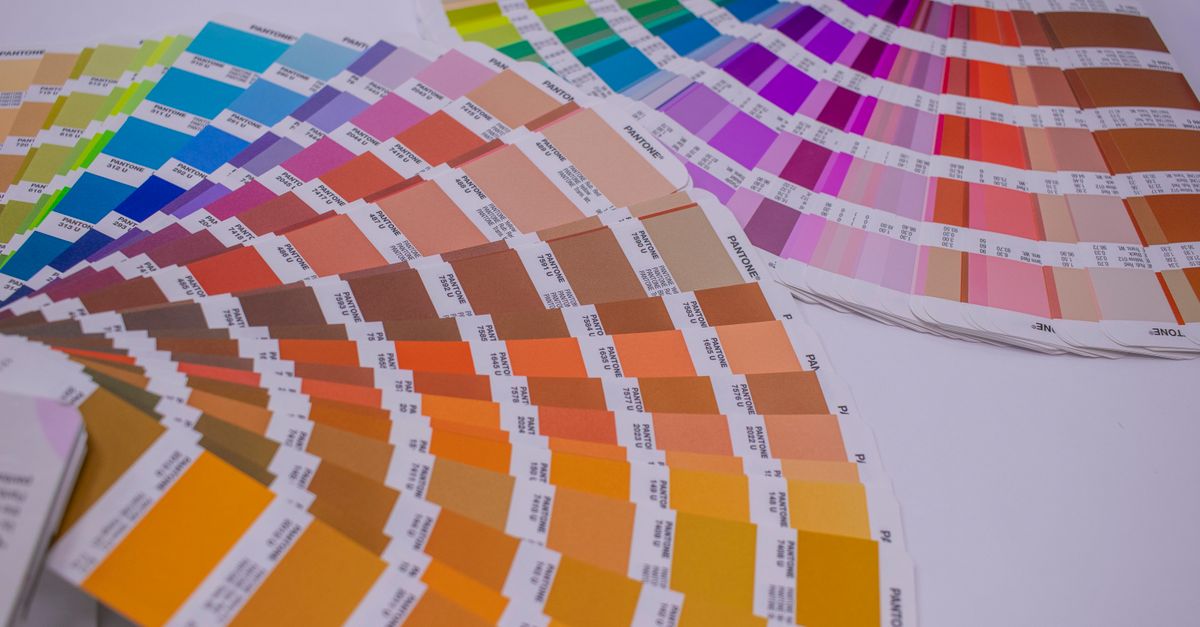
When RGB to CMYK Conversion Is Actually Required
RGB and CMYK describe the same goal, color on a surface, using two different physical processes. RGB is additive: channels add together to brighten a pixel backlit by a screen, and three channels at maximum emit white. CMYK is subtractive: each ink absorbs light reflected off paper, and four inks at maximum absorb nearly everything to produce black. A monitor cannot literally place ink, and a press cannot literally emit red, green, and blue light, so the choice is dictated by the destination medium.
You need an RGB to CMYK conversion when the file is leaving the screen for a physical surface that a commercial printer will reproduce with ink. That includes brochures, books, packaging, labels, business cards, posters, and direct-mail pieces routed through a press. A printer may also ask for a CMYK deliverable even if the design lives in RGB, because their preflight workflow expects ink percentages rather than screen channels. The conversion happens at the boundary between screen and press so the press knows how much of each ink to lay down on the substrate.
You do not need to convert RGB to CMYK when the deliverable stays digital. Web pages, mobile apps, social media graphics, email banners, presentation decks, on-screen advertisements, and any UI element rendered in CSS or a digital tool remain RGB from start to finish. Converting these files to CMYK changes the document mode but not the user experience, and the extra round trip can introduce gamut warnings and color shifts that only matter once ink is involved. For more on making that call, the Should You Use CMYK or RGB for Print Projects guide walks through the decision with side-by-side scenarios.
Why a CMYK to RGB Preview Still Matters
Many print pipelines start in CMYK and still require a glance on a screen. Brand teams approving a piece by email want to see something close to the press result in their inbox. Designers hand off CMYK swatch books because brand standards libraries live in ink percentages. A returned press-ready PDF may already be flattened to CMYK, and you may simply want a hex code to drop into a mockup that mirrors the printed piece. Those are the cases where the direction reverses: CMYK becomes the source, and an RGB approximation is what you actually need.
A naive CMYK to RGB conversion is also the quickest check during palette work. Instead of opening a full image editor, you can match two recipes side by side, test how a darker black plate affects a magenta, or eyeball the difference between a 40% and a 60% yellow on a known background. The output is intentionally an approximation — the tool makes that limitation clear — but for layout mockups, stakeholder previews, and hex code selection, that approximation is close enough to inform visual decisions without committing to a press.
How to Convert CMYK to RGB in Your Browser
The CMYK to RGB tool is built for fast, no-account preview work, and the steps mirror what a designer would do at a color picker.
- Open the CMYK to RGB converter in your browser.
- Set cyan, magenta, yellow, and black to percentages from 0 through 100 that match your recipe.
- Read the live approximate 8-bit red, green, and blue channels as the swatch updates.
- Copy the displayed six-digit hexadecimal value into your mockup, CSS file, or design palette.
- Use an ICC-profile-aware application instead when contracted print accuracy matters, and keep the original CMYK recipe as the source of truth.
All four sliders react immediately and share a single state, so the RGB channels and hex value refresh in the same frame as your input. This means you can compare two recipes by changing one ink at a time and watching only the affected channels move, which is helpful when a brand swatch book uses small percentage increments between adjacent colors. Sending values to a server is not part of this workflow: every calculation stays in the browser.
Print Colors and Screen Colors Are Fundamentally Different
The naive fallback that the browser tool uses implements the W3C device-CMYK conversion documented in the CSS Color specification: percentages normalize to a 0–1 range, and each display channel returns 255 × (1 − min(1, colorInk × (1 − black) + black)), with half-even rounding applied to the final integer. The W3C specification notes that this is the same naive math that older print software used when no profile was available, and the same math that any browser relies on to render CSS device-cmyk() values on a default sRGB monitor.
The formula produces sensible endpoints even though it ignores the device. Zero ink across all four channels yields white because every display channel evaluates to 255. Full black with all other inks at zero yields black because the formula evaluates every display channel to 0. Full magenta at 100% with full yellow at 100% and no cyan or black yields red, which is the primary subtractive intuition designers learn early. Each of those three endpoints is verified as an independent fixture inside the tool, along with a mixed-channel test and the W3C firebrick recipe.
A single worked example shows the math clearly. With C = 0%, M = 100%, Y = 100%, K = 0%, every ink value normalizes to 0 or 1:
- Red = 255 × (1 − min(1, 0 × (1 − 0) + 0)) = 255 × 1 = 255
- Green = 255 × (1 − min(1, 1 × (1 − 0) + 0)) = 255 × 0 = 0
- Blue = 255 × (1 − min(1, 1 × (1 − 0) + 0)) = 255 × 0 = 0
The resulting approximation is rgb(255, 0, 0), or #FF0000, which is the canonical screen red and matches the primary endpoint fixture documented in the contract. Any other recipe follows the same arithmetic, scaled and rounded the same way.
Where Naive Approximations Agree With Real Press Output
| Workflow | Best Tool | When It Applies |
|---|---|---|
| Quick screen-side mockup | CMYK to RGB browser tool | Layouts, palette comparisons, stakeholder previews, hex code selection |
| Email and web handoff | CMYK to RGB browser tool | Approving a printed piece in inbox or chat, mirroring brand color in CSS |
| Press production | ICC-profile-aware software with a calibrated display | Contracted color, brand proofing, hard proofs, anything a press will actually print |
The two columns of the table describe qualitatively how the naive approximation tracks real output. Where the channels are pure endpoints, the approximation matches the screen a press proof produces under most viewing conditions. Where the recipe mixes percentages in the middle of the cube, the approximation diverges from any specific press by a meaningful but hard-to-predict margin, because ink density, paper stock, dot gain, and the embedded profile all push the result further from the math. Exact numerical values for a given recipe come from the tool itself rather than from a separate lookup.
When a Profile-Based Workflow Becomes Necessary
Press-accurate color requires more than four sliders can encode. The ICC profile embedded in the source document, the ICC profile embedded in the destination device, and the rendering intent that maps between them together determine the printed pixel; the same CMYK recipe can look different on a coated offset sheet, an uncoated desktop printer, and a wide-format inkjet because each path interprets the ink percentages differently. Browser tools do not load ICC profiles and cannot model these interactions, which is why the CMYK to RGB converter labels its output an approximation rather than a proof.
The right place for profile-based conversion is in the application that produced or accepted the CMYK file: Adobe Photoshop, Illustrator, InDesign, and Affinity Photo all accept source and destination profiles for both display and press output. Acrobat Pro adds another layer for PDF/X workflows. Calibration enters the chain through a measured display and a spectrophotometer or colorimeter on the production hardware, not through a browser. The hex value the tool returns is fine for mockups and palette communication, but it should never be quoted as a contractual match or used as a press proofing target.
Related reading: Is a Hex to RGB Converter Safe to Use Online?.