To convert RGB to CMYK in CorelDRAW, use Find and Replace to replace the color model or palette with CMYK, then confirm the new values in the Properties panel.
CorelDRAW is where you change the artwork; the RGB to CMYK Converter is where you calculate a reference value. They solve related but different tasks. CorelDRAW updates the document, while the browser tool returns CMYK percentages for comparison, manual entry, or a quick print-planning check. Even after the document is converted, the final printed color still depends on the output profile, inks, paper, and press conditions.
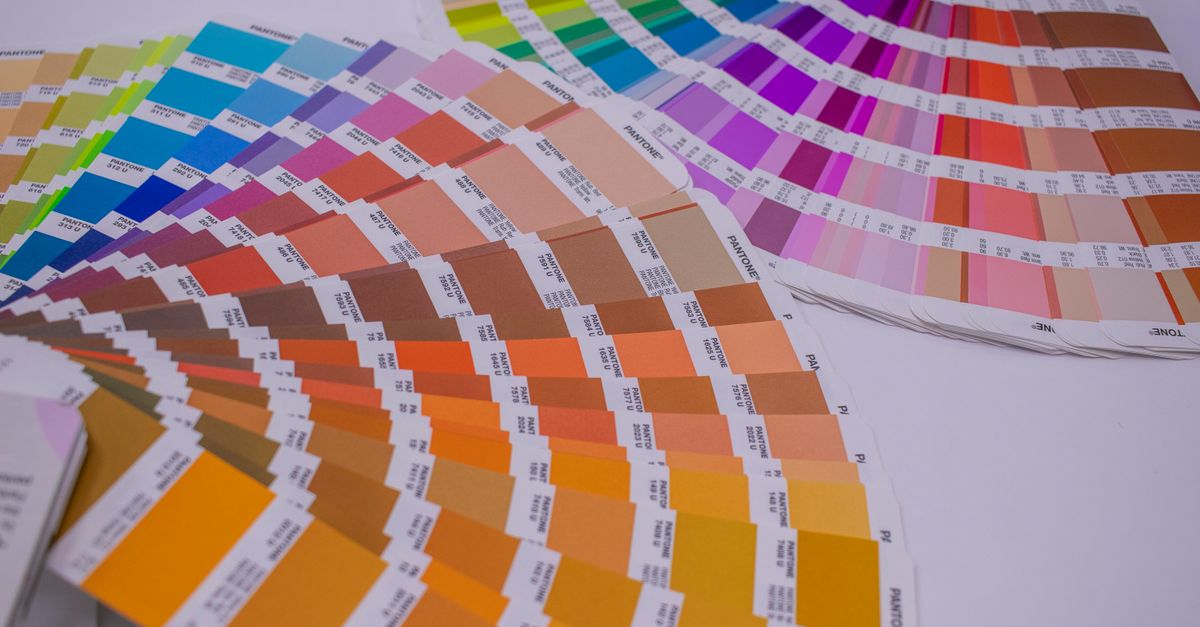
Convert RGB colors to CMYK in CorelDRAW
For existing artwork, use CorelDRAW’s Find and Replace command. The exact menu placement may vary by version, but look for the replacement settings for a color model or palette rather than settings that replace text or object content.
- Open the CDR file and save a working copy. Decide whether the conversion applies to every object on the page or only to selected artwork.
- Select the vector objects to convert. Use Select All when the whole page should change; otherwise select only the elements that belong in the CMYK output.
- Open Edit → Find and Replace, choose Replace Objects, and select Color Model or Palette in the property list.
- Set Replace with to CMYK, run the replacement, and confirm it. This targets matching color definitions rather than changing object wording or dimensions.
- Select an affected object and open Properties. Its fill and outline controls should now show CMYK values. Repeat the check for text, gradients, and logos.
- If an item still shows RGB, select it separately and run the replacement again. Review every page and layer because the original selection may have excluded it.
File → Document Properties or right-clicking the color palette provides context for document and palette settings, while Find and Replace is the direct route for changing existing object colors. After the operation, test more than one fill: a successful change on a large shape does not prove that smaller artwork or text was included.
Use browser conversion for a quick starting value
The browser converter is useful before changing the document or after conversion when you need a simple numerical reference. It converts values in both directions but does not edit a CDR file.
- Open the RGB to CMYK Converter and enter the red, green, and blue channel values, with each channel running from 0 to 255.
- Read the resulting C, M, Y, and K percentages. Also review the displayed RGB and HEX values and the live color swatch to confirm that you entered the intended color.
- Click Copy next to the CMYK format to place the four percentages on your clipboard.
- Return to CorelDRAW, select the object, open the Fill Color or Outline Color dialog, choose CMYK, and enter the copied percentages. If you used Find and Replace, compare its values instead of overwriting them automatically.
- To work backward, enter CMYK percentages from 0–100 and read the approximate RGB result. Copy that value if you need to compare the print specification with an on-screen color.
The converter accepts RGB channels from 0–255 and CMYK percentages from 0–100; out-of-range numeric inputs are clamped. It also handles pure black as K at 100% with C, M, and Y at 0%. Every calculation runs locally in your browser, no color is uploaded, and the page can work offline after it has loaded.
Check every color-bearing element
A CorelDRAW document can combine several kinds of color data. Check each relevant element rather than judging the conversion from one selected swatch.
| Element | Why it needs a separate check | Practical action |
|---|---|---|
| Vector fills and outlines | These are object properties and are the main targets of the color-model replacement. | Select each object and confirm that the Properties panel displays CMYK values. |
| Text | Text can use separate fill and outline colors even when the surrounding artwork changes. | Select the text and inspect its color controls. Convert it separately if it still shows RGB. |
| Placed bitmap or photo | The image contains pixel data rather than vector fill properties. | Use the bitmap color-mode controls available in your version or convert the source before final placement. |
| Document palette and defaults | Palette settings can affect how colors are selected for new objects. | Check File → Document Properties or right-click the color palette, then verify newly created fills. |
Review logos, small text, and image-based artwork separately. A successful vector-fill conversion does not prove that every embedded pixel was transformed. For a placed bitmap, use CorelDRAW’s Bitmap → Mode → CMYK Color command where that version provides it; otherwise convert the bitmap in a raster editor before final placement. Changing an object’s fill setting will not rewrite the pixels inside a photograph.
Understand why screen and print colors differ
RGB is an additive model: red, green, and blue light combine to create screen colors. CMYK is subtractive: cyan, magenta, yellow, and black inks absorb light on paper. Because the models describe different physical processes, bright RGB colors can fall outside the CMYK gamut and look flatter after printing.
| Feature | RGB | CMYK |
|---|---|---|
| Color formation | Additive light | Subtractive ink |
| Channel range | R, G, and B from 0–255 | C, M, Y, and K percentages from 0–100 |
| Primary context | Monitors, phones, cameras, and web displays | Commercial print production |
| Main limitation | Many bright colors cannot be reproduced by CMYK inks. | Results depend on the ink set, paper, profile, and printing process. |
The browser converter deliberately uses plain mathematical conversion rather than ICC color management. It normalizes each RGB channel to 0–1, calculates K from the strongest channel, and derives the remaining C, M, and Y values after removing the black component. That produces a consistent estimate, but it does not model a particular press.
A professional print shop may convert through a profile such as US Web Coated SWOP, FOGRA39, or Japan Color. Those profiles account for actual inks, paper, and press behavior, so their percentages can differ from the converter’s naive result, sometimes noticeably. Use the browser value as a starting point or sanity check, then follow the printer’s profile and inspect a proof before approving production.
Use a print-production handoff checklist
Separate document editing from print approval so that a quick estimate is not mistaken for final color accuracy.
- Finish arranging and editing the source artwork before changing its color model.
- Save an RGB source copy and perform the CorelDRAW conversion on a working version.
- Use the browser converter to create reference values for important brand or spot-color decisions.
- Inspect vector fills, outlines, text, gradients, and bitmap artwork individually.
- Export with the color profile and settings requested by the printer rather than relying on an arbitrary profile.
- Review a physical proof and account for any differences before releasing the final file.
For a broader preflight, review common RGB-to-CMYK printing pitfalls. The browser converter is ideal for quick estimates, understanding the relationship between RGB and CMYK, and obtaining sensible starting percentages. For a production file, trust the printer’s color-management workflow and the proof.
If you're weighing options, Are My Color Values Uploaded When I Convert RGB to HEX? covers this in detail.