Converting RGB to CMYK for printing turns three screen-light numbers (red, green, blue, each 0–255) into four ink percentages (cyan, magenta, yellow, black, each 0–100) so a digital design translates to paper without surprise color shifts. The math behind the conversion is straightforward: each RGB channel is normalized to a 0–1 value, the K channel is set to 1 minus the largest of those three channels, and C, M and Y are the leftovers once that black component is removed. The result is expressed as four percentages that tell the press how much of each ink to lay down. Because RGB describes emitted light and CMYK describes absorbed light, the two systems cannot represent the same range of colors — bright, saturated screen hues often have to be approximated in print, which is why your monitor's vibrant blue can turn muddy on a business card. The practical goal of any RGB to CMYK conversion is to get a sensible starting percentage for each ink so the file behaves predictably on press and matches the design intent as closely as ink can.
A free RGB to CMYK Converter handles the math instantly in your browser. Type an RGB value or enter CMYK percentages to go the other direction, and a live color swatch lets you confirm the result before committing it to a print file. Everything runs locally on the page — no color is uploaded, the tool stays fast, and it works offline once the page has loaded. That makes it handy for sanity-checking brand colors, previewing print spec values, or learning how the two color models relate without installing software.
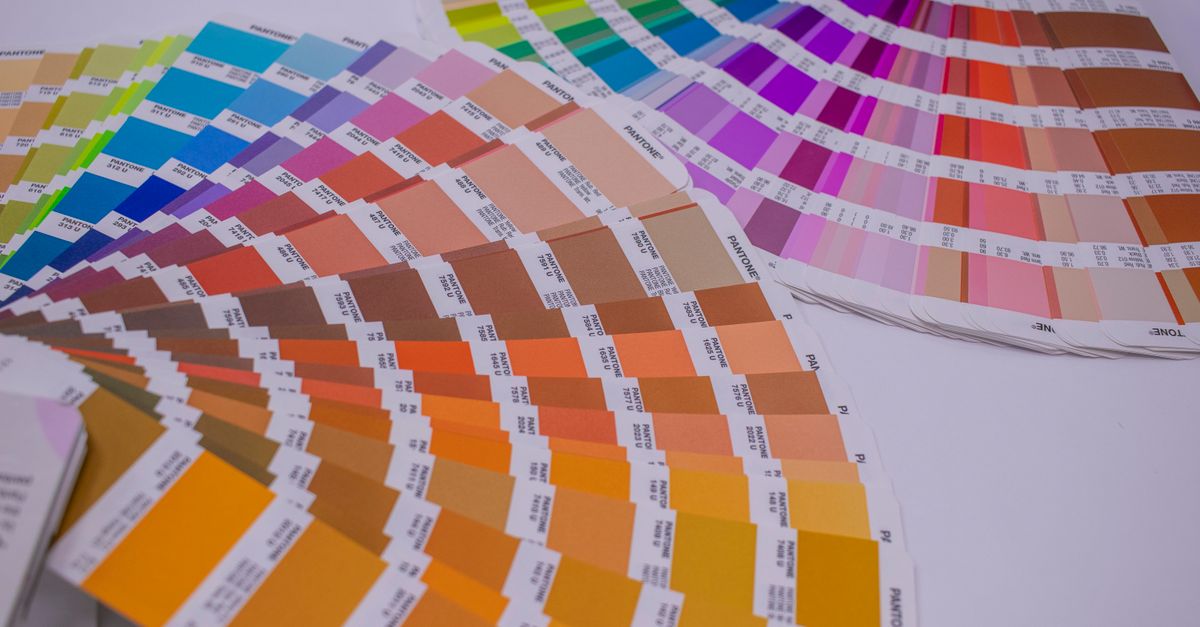
Why Screen Colors Look Different on Paper
The reason an RGB color rarely lands on paper as it appears on your monitor is that the two color models describe physically different things. RGB is an additive model — it represents red, green and blue light being added together, and full intensity of all three produces white. That is exactly how monitors, phone screens, TVs and camera sensors make color, and it is also why backlit displays can show extremely bright, luminous colors. CMYK is a subtractive model — cyan, magenta, yellow and a black key (K) are inks that sit on top of white paper and absorb light, and layering more ink moves it closer to black. That inversion, additive versus subtractive, is the reason the same hue can look punchy on screen and noticeably flatter once it has been printed.
In practice, the two systems cover different color spaces. The CMYK gamut — the set of colors that ink can reproduce on paper — is a subset of the wider, brighter gamut that RGB light can produce. CMYK is built for reflection, not emission, so any color that depends on emitted brightness simply has no print equivalent. Designers learn this the hard way when a brand-blue logo comes off the press looking purplish, or a vivid web green arrives as a dull olive. The shift is not a bug in the file or a mistake by the printer; it is the natural consequence of working in two color systems that do not share the same edges.
How to Convert RGB to CMYK for Printing
Use the RGB to CMYK Converter to get a print-ready starting value in under a minute. The interface accepts both directions, so you can enter RGB and read CMYK, or enter CMYK percentages and read RGB back — useful when you need to preview a value from a printer's spec sheet.
- Open the converter and locate the RGB input — three boxes labeled R, G and B, each accepting a value from 0 to 255.
- Type your red, green and blue values and watch the CMYK percentages update on the same screen. You can alternatively paste CMYK percentages from 0 to 100 to read the matching RGB back.
- Compare the live color swatch with the color you had in mind. The swatch is the closest preview of the printed result the math can give you, so this is the moment to catch obvious mistakes before they reach the press.
- Read the four percentages for C, M, Y and K, plus the RGB and HEX readouts, so you can drop the exact value into Illustrator, InDesign, Photoshop, Canva or a print-PDF specification.
- Click Copy next to whichever format your workflow needs (CMYK, RGB or HEX) and paste the value straight into your design file or your supplier's print spec sheet.
Reading the CMYK Percentages
Each CMYK percentage tells the press how much of one ink to lay down on the paper. Cyan, magenta and yellow are the three chromatic inks; K is the black key plate, separated out from the others for practical reasons that are easy to see once you watch them print. In theory layering 100% of cyan, magenta and yellow should produce a usable black, but in practice that combination wastes ink, over-saturates the paper and rarely looks truly black. A dedicated black plate produces a richer, sharper, cheaper black that dries faster and is used for all body text, so K gets broken out as its own channel.
Take the color rgb(59, 130, 246), a saturated mid-blue that designers use constantly. The naive conversion works like this: each channel is divided by 255 to get 0.231, 0.510 and 0.965; K equals 1 minus the largest, which is 1 − 0.965 = 0.035; and C, M and Y are what is left after removing that black component, divided by 1 − K. That gives C = (1 − 0.231 − 0.035) / 0.965 ≈ 0.760, M = (1 − 0.510 − 0.035) / 0.965 ≈ 0.472, Y = 0. The percentages are cmyk(76%, 47%, 0%, 4%) — a print-ready starting value you can paste into any layout program. The converter returns this exact calculation in a click, with the swatch alongside so you can see the result before you commit.
| Property | RGB | CMYK |
|---|---|---|
| Channel count | 3 (R, G, B) | 4 (C, M, Y, K) |
| Value range | 0–255 per channel | 0–100% per channel |
| Physical model | Additive (light) | Subtractive (ink on paper) |
| Typical source | Monitor, phone, camera | Offset/digital press, printer |
| White produced by | All channels at max (255, 255, 255) | No ink on white paper |
| Black produced by | All channels at min (0, 0, 0) | All channels at max, or K = 100% |
| Gamut size | Wider and brighter | Smaller and more muted |
When CMYK Cannot Reproduce Your RGB Color
Conversion gives you a number, but not every number maps to a real ink mix. The CMYK gamut is smaller than the RGB gamut, so any saturated RGB color that sits outside that subset — neon green, electric blue, bright orange, fluorescent pink — has to be approximated, and the approximation always looks duller. The converter will still return a value, but the swatch is the honest preview: it shows you the nearest in-gamut CMYK color rather than the original screen color. If the swatch looks close to what you wanted, you are fine. If it looks washed out, the hue is genuinely out of gamut and you will need to choose between adjusting the design or accepting a softer print.
Brand blues built around rgb(0, 102, 255), vivid web greens around rgb(0, 255, 0), and saturated oranges around rgb(255, 102, 0) are classic out-of-gamut offenders — these are the bright, saturated mixes that usually drift most when they reach the press. Treat the converter's output as the best guess, then compare the swatch with the actual color before you sign off on the file. If you want to dig deeper into how that shift happens and what to do about it, the guide on converting RGB to CMYK without color shift in your browser walks through the practical workflow.
Naive Math vs. ICC Profiles
The tool's conversion is plain math, not ICC color management, and the difference matters once a file goes to press. Naive math treats every RGB input as a plain sRGB value and returns the standard formula's percentages. Real print shops convert through a specific CMYK profile — US Web Coated SWOP, FOGRA39, Japan Color, GRACoL — that models the actual inks, paper stock and dot gain of the press. Those profiles produce percentages that may differ from the naive result, sometimes by several points per channel, because they reflect how a particular machine behaves rather than the textbook formula.
| Approach | What it does | Strength | Limit |
|---|---|---|---|
| Naive RGB to CMYK formula | Pure math, no color profile | Instant, free, transparent | No press, paper or ink awareness |
| ICC color-managed conversion | Uses a press-specific profile | Matches real press output | Requires software and a profile |
| Vendor-supplied conversion | Printer converts on receipt | Tuned to that exact press | You cannot preview the result |
For most everyday work — a flyer, a business card, a poster proofed on a calibrated screen — the naive math gives a sensible starting value and the printed result will be close. For final production files, particularly packaging, large-format offset or anything that has to match a brand standard, the printer's profile and a printed proof are the authority. Use the converter for speed, learning and quick estimates; trust the profile and the proof when the job has to be exact.
Getting print-ready colors is more about understanding the gap between screen and paper than memorizing formulas. The converter gives you the starting percentages, the live swatch and a copy-ready value so you can move a color from a website palette, a brand guide or a Photoshop swatch straight into a print spec. Treat the result as a strong estimate, sanity-check the swatch against your intended color, and let the printer's ICC profile do the final tuning on the press.
If you're weighing options, RGB to HSV Palette Ideas: Build Schemes From Hue covers this in detail.