Converting RGB to CMYK without losing color means translating screen-based red, green, and blue values (0–255) into print-ready cyan, magenta, yellow, and black percentages (0–100%) while preserving the intended hue. The challenge arises because RGB and CMYK use fundamentally different methods to create color: RGB adds light (emissive), while CMYK subtracts it (reflective). A pure RGB red (255, 0, 0) may appear as a muted CMYK mix (0, 100, 100, 0) on paper, but tools like the RGB to CMYK Converter perform the conversion instantly, letting you see the result before sending files to print. This is especially critical for logos, brand colors, and photographs where even slight shifts can disrupt consistency.
Designers often encounter color shifts when preparing files for print because software like Photoshop or Illustrator applies default CMYK profiles that may not match the printer’s specifications. For example, a vibrant RGB teal might convert to a flat CMYK green if the wrong profile is used. The RGB to CMYK Converter eliminates guesswork by letting you input RGB values and immediately see the CMYK equivalent, along with a live preview. You can then copy the percentages directly into your design software, ensuring the printed output matches your screen as closely as possible. This workflow is faster and more reliable than manually adjusting sliders in Photoshop or relying on generic conversion formulas.
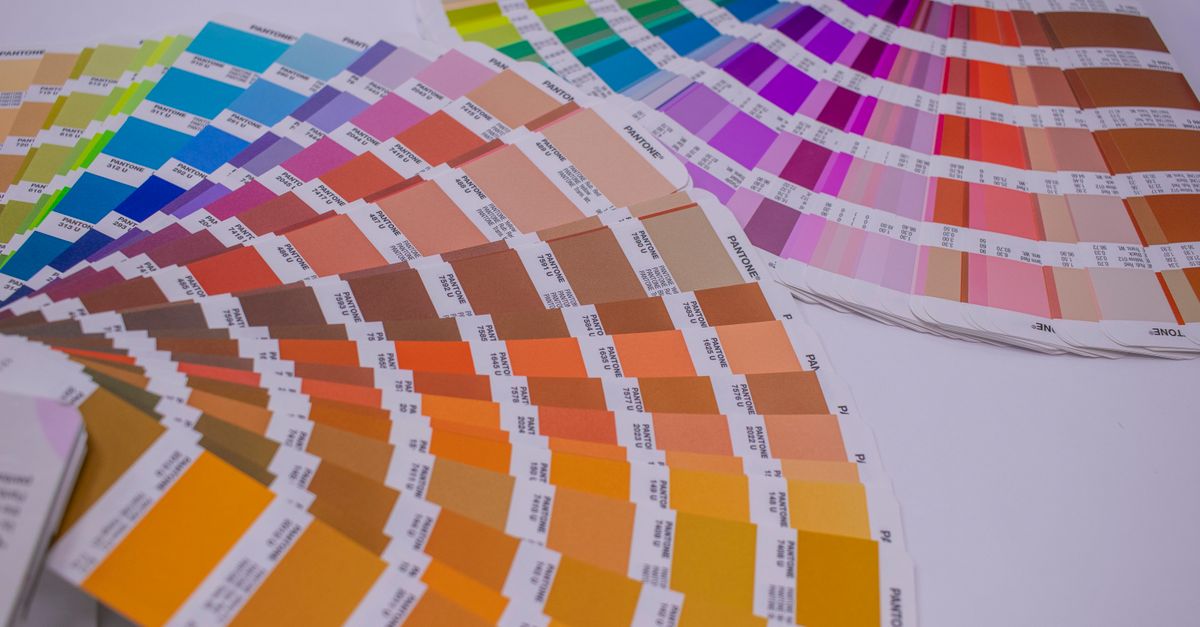
Why RGB and CMYK Colors Don’t Match Perfectly
RGB and CMYK operate in different color spaces, which means they can’t reproduce the same range of colors. RGB, used for screens, combines red, green, and blue light to create bright, saturated hues. CMYK, used for print, mixes cyan, magenta, yellow, and black inks on paper, which absorb light rather than emit it. As a result, CMYK has a smaller gamut (range of reproducible colors) than RGB, particularly in bright greens, blues, and purples. For instance, an electric blue in RGB (0, 100, 255) may appear as a darker, less vibrant blue in CMYK (100, 50, 0, 0) because ink can’t reflect light as intensely as a screen can emit it.
Another factor is the type of paper and ink used in printing. Glossy paper reflects more light, making colors appear brighter, while matte paper absorbs light, dulling them. Additionally, printers use specific color profiles (like SWOP for coated paper or FOGRA for uncoated) to standardize how colors are interpreted. If your design software uses a different profile than your printer, the colors will shift. The RGB to CMYK Converter simplifies this by showing you the CMYK values upfront, so you can adjust your design or communicate with your printer about potential discrepancies before printing.
How to Use the RGB to CMYK Converter for Accurate Results
- Open the RGB to CMYK Converter in your browser. No downloads or signups are required.
- Enter your RGB values (each channel between 0 and 255) into the input fields. For example, a bright red would be 255 (red), 0 (green), 0 (blue).
- Click Convert or let the tool update automatically. The CMYK percentages (0–100) will appear instantly, along with the HEX and a live color swatch preview.
- Check the preview to confirm the color matches your expectations. If it looks duller than your screen, remember this is how it will likely print—adjust your design if needed.
- Click Copy next to the CMYK values to paste them into your design software (e.g., Adobe Illustrator, InDesign, or Photoshop).
- For reverse conversions, enter CMYK percentages (0–100) to see the equivalent RGB values.
Adjusting Your Design to Minimize Color Shifts
Even with accurate conversion, some RGB colors will shift in print. To minimize this, start by designing in CMYK mode if possible, especially for print-heavy projects like business cards or brochures. If you must design in RGB (e.g., for web and print dual use), use the RGB to CMYK Converter early in the process to identify problematic colors. For example, neon greens or bright oranges often lose their punch in CMYK, so you may need to tweak the RGB values slightly to achieve a closer match.
Another tip is to use spot colors (like Pantone) for critical brand colors. Spot colors are pre-mixed inks that ensure consistency across prints, bypassing the limitations of CMYK. However, they’re more expensive and typically used for logos or specific brand elements. For full-color images, stick to CMYK but ask your printer for a hard proof (a printed sample) before finalizing large orders. This lets you see exactly how the colors will appear and make adjustments if needed.
Finally, always communicate with your printer about their preferred CMYK profile. Some printers use custom profiles for specific paper types, and using the wrong one can lead to unexpected results. The RGB to CMYK Converter provides a baseline, but your printer’s profile will fine-tune the output for their equipment.
Common RGB to CMYK Conversion Scenarios
| Scenario | RGB Example | CMYK Equivalent | Potential Issue | Solution |
|---|---|---|---|---|
| Logo with bright red | 255, 0, 0 | 0, 100, 100, 0 | Appears duller in print | Use a spot color (Pantone) or adjust RGB to 230, 0, 0 for a closer match |
| Vibrant teal | 0, 150, 200 | 100, 0, 20, 0 | Shifts toward green | Design in CMYK mode or use a custom profile from your printer |
| Deep purple | 128, 0, 128 | 50, 100, 0, 0 | Loses saturation | Increase magenta in CMYK or use a spot color |
| Photograph with skin tones | 255, 200, 180 | 0, 20, 30, 0 | May appear too yellow | Adjust RGB slightly or use a printer-specific profile for portraits |
The table above illustrates how specific RGB colors translate to CMYK and the common issues that arise. For example, a bright red logo (255, 0, 0) converts to CMYK (0, 100, 100, 0), which can look flat on paper. To compensate, you might tweak the RGB values to 230, 0, 0 before converting, resulting in a CMYK mix that prints closer to the original. For photographs, skin tones are particularly sensitive to shifts, so using a printer-specific profile (like GRACoL for coated paper) can help maintain accuracy.
When to Use RGB vs. CMYK in Your Workflow
RGB is ideal for digital projects like websites, social media graphics, and video, where colors are displayed on screens. CMYK is non-negotiable for print projects like business cards, flyers, or packaging, where colors are created with ink. However, some projects require both formats. For example, a brand guide might include RGB values for digital use and CMYK values for print. In these cases, the RGB to CMYK Converter lets you generate both sets of values quickly, ensuring consistency across all media.
If you’re designing a logo, start in CMYK mode to avoid surprises later. Logos often appear on both digital and print materials, so designing in CMYK ensures the colors translate well to print from the beginning. For photographs, start in RGB for editing (since it offers a wider gamut) and convert to CMYK only when finalizing the print file. Tools like the Color Contrast Checker can also help ensure your colors remain accessible in both formats.
For web designers, RGB is the default, but it’s still useful to know how your colors will look in print. For instance, a website’s accent color might need to match a printed brochure. By converting the RGB value to CMYK early, you can adjust the design to ensure the colors align across both mediums. The RGB to HEX tool can also help streamline this process by providing HEX codes for web use alongside CMYK values for print.
More on this topic: Check Color Contrast for Accessibility in Real Time.
If you're weighing options, Convert RGB to HEX Online: Free Instant Color Tool covers this in detail.
If you're weighing options, How to Get a Color Gradient in CSS Without the Guesswork covers this in detail.
If you're weighing options, Convert RGB to CMYK for Print in Your Browser covers this in detail.